InEvent MCP Server
 Updated 2 days ago
by
Amalia
Updated 2 days ago
by
Amalia
The InEvent platforms offer a Model Context Protocol or MCP server that can be integrated with AI providers such as Claude. This way, your model of selection will have access to your InEvent events, and you can use them to perform actions within its capabilities.
This article provides information on integrating the InEvent MCP server with the following AI providers:
- ChatGPT
- Claude
- Github Copilot desktop app
- Gemini
- Perplexity
Integrating the InEvent MCP server
The InEvent MCP server can be added to AI providers that offer adding custom MCP connections. The steps to integrate the server with AI providers can be found below.
ChatGPT
To integrate the InEvent MCP server with ChatGPT, follow the instructions below.
- Access ChatGPT from your web browser and log in to your account.
- Navigate to Plugins.
- Click + and select Add custom MCP server.
- Enter a name and optionally, an icon and description for the MCP connector.
- Enter
https://mcp.inevent.com/under URL. - Click Add. The authorization process with InEvent will start.
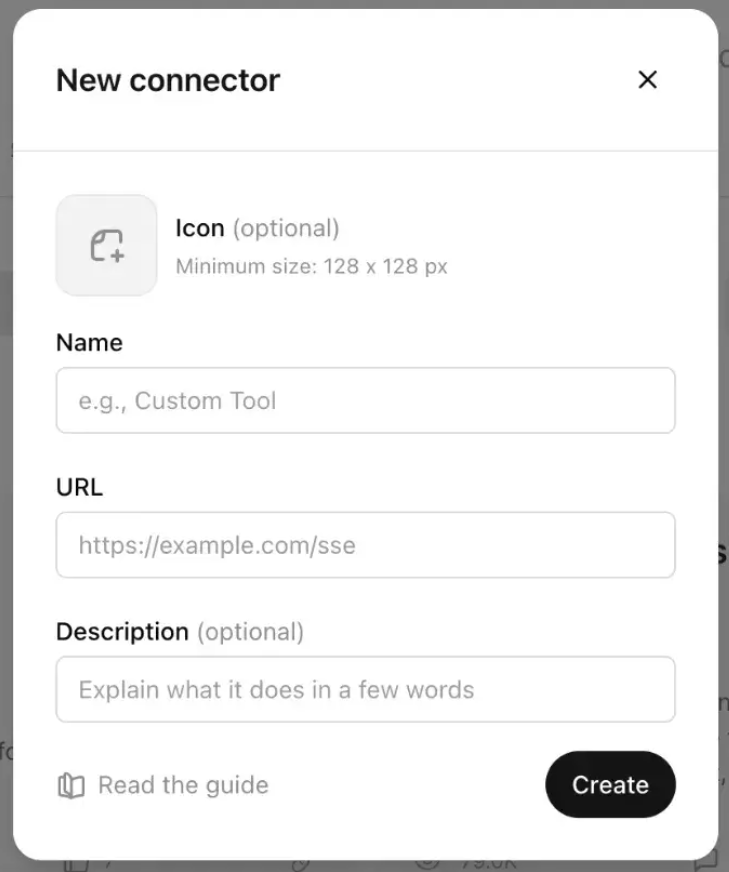
- Select your InEvent server.
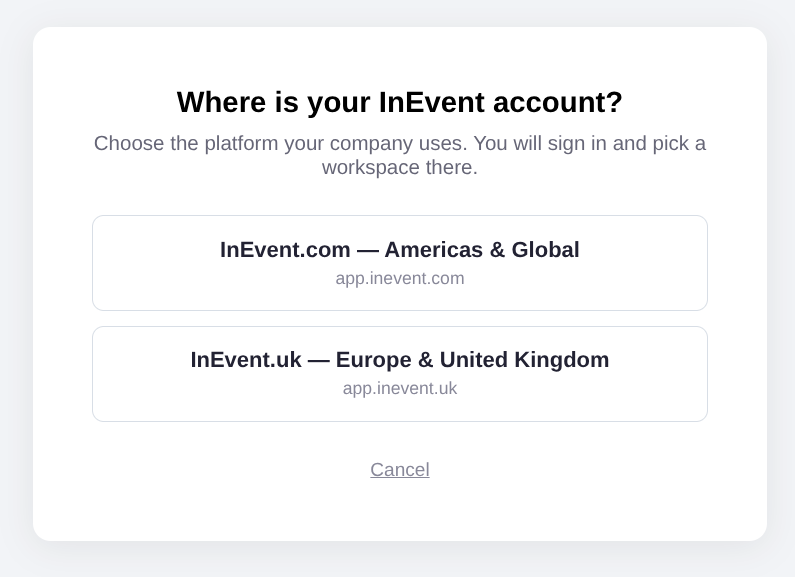
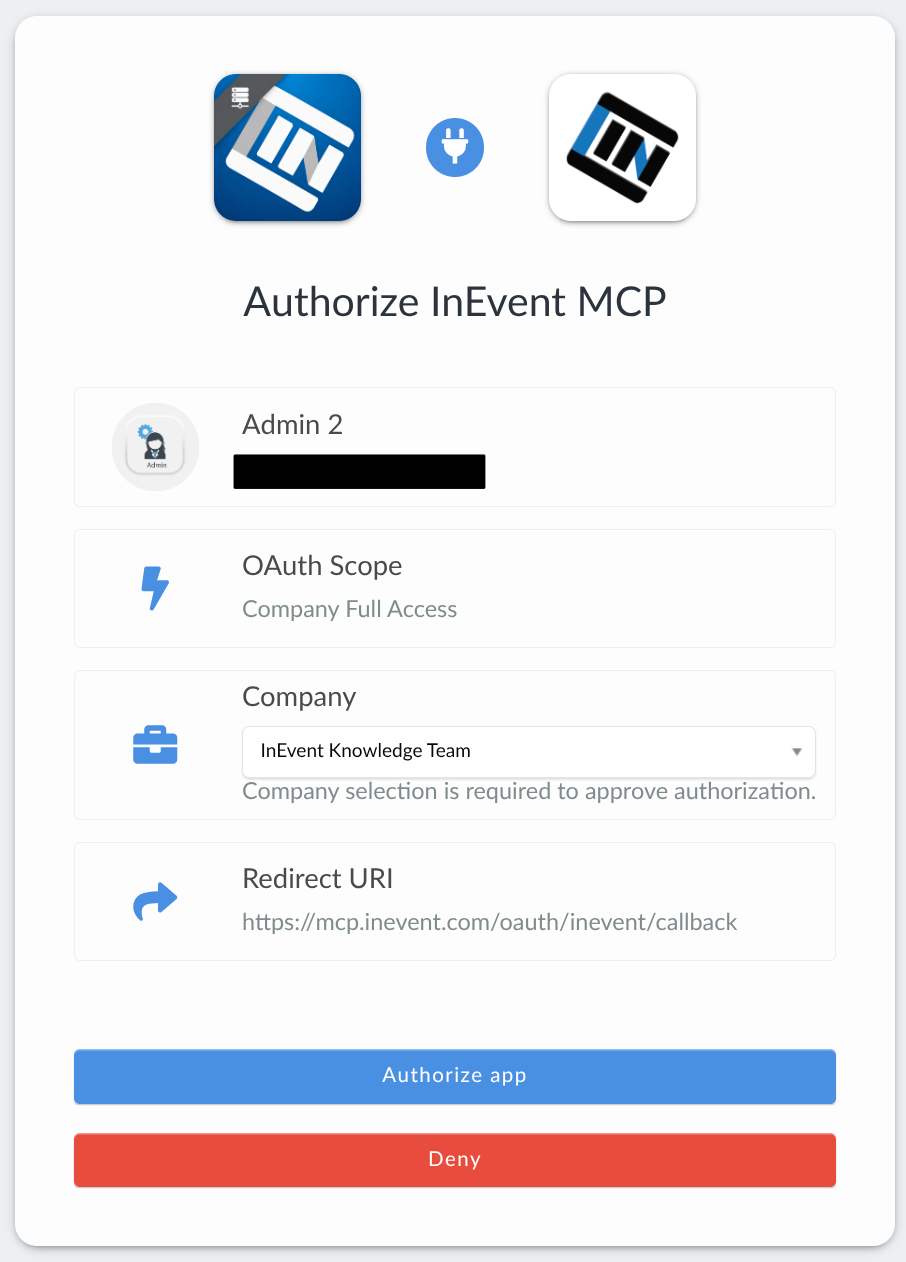
You will be redirected to log in and authorize the integration with your InEvent company.
- Verify the authorization details. If you belong to more than one company within the InEvent platform, ensure to select the correct company using the Company drop-down menu.
- Click Authorize app.
- Review the risk warning and select the I understand and want to continue checkbox.
- Select Create as a plugin. You can then review the discovered tools, functionalities, and metadata provided by the plugin.
Once the steps above are completed, the InEvent MCP server connection will be integrated into ChatGPT for use in conversations.
Claude
To integrate the InEvent MCP server with Claude, follow the instructions below.
- Access Claude from your web browser and log in to your account. You can also use the Claude Desktop app.
- Click the profile button on the bottom left corner.
- Click Settings.
- Navigate to Connectors under the Customize section.
- Click Add > Add custom connector.
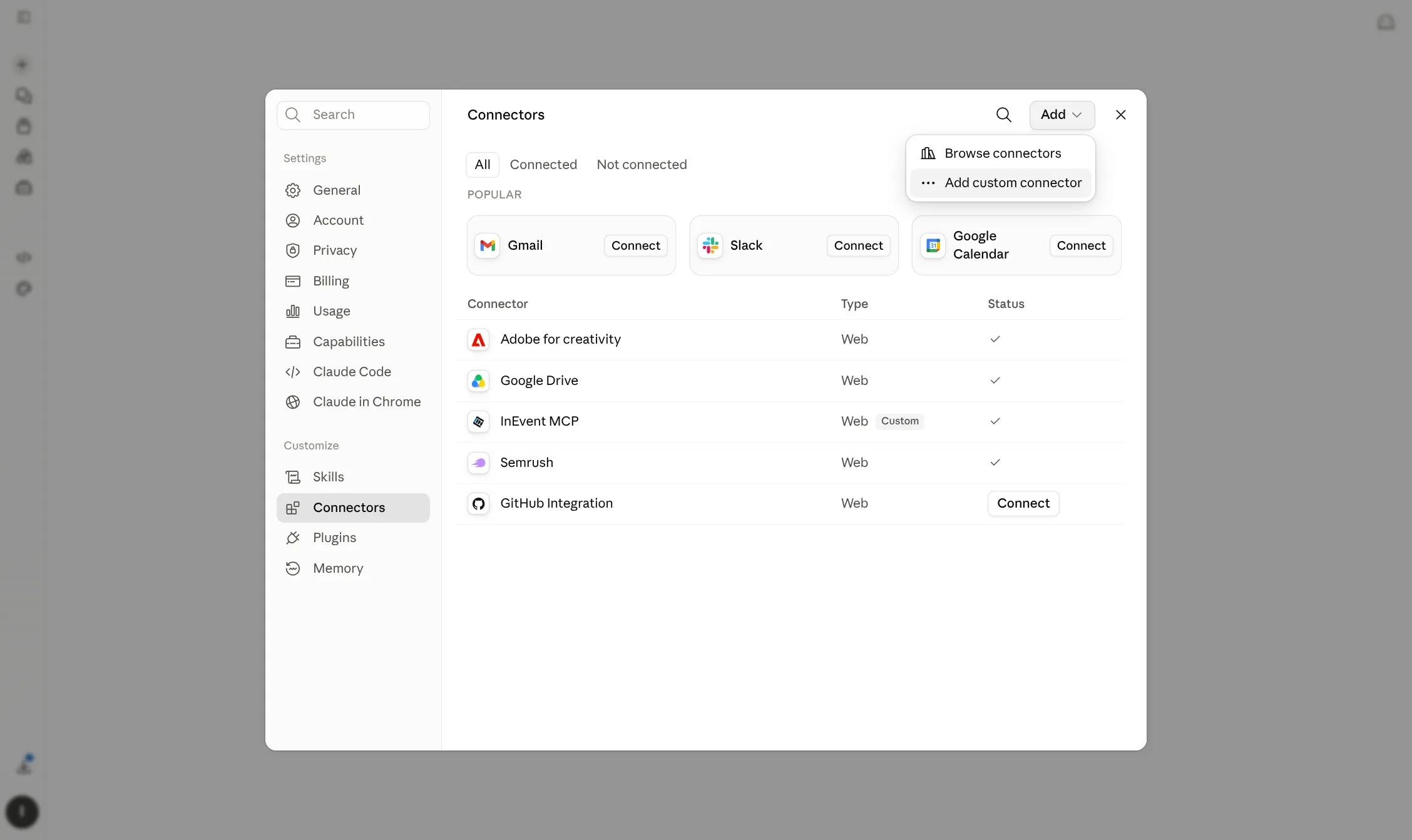
The Add custom connector pop-up box will be displayed.
- Enter the desired Name for the integration, such as
InEvent MCP, and enter the exact Remote MCP server URL:https://mcp.inevent.com/.
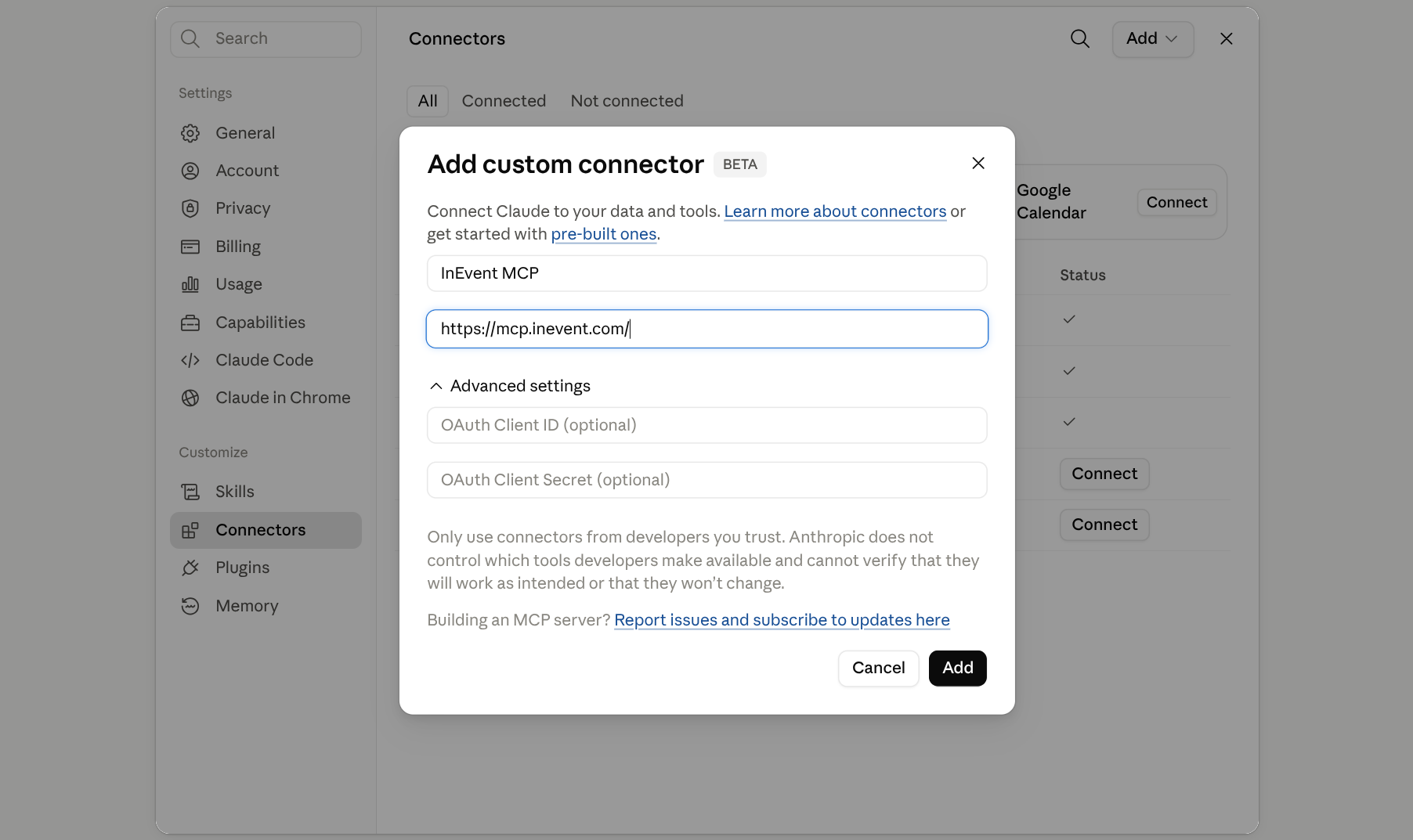
- Click Add. The authorization process with InEvent will start.
- Select your InEvent server.
You will be redirected to log in and authorize the integration with your InEvent company.
- Verify the authorization details. If you belong to more than one company within the InEvent platform, ensure to select the correct company using the Company drop-down menu.
- Click Authorize app.
Once the steps above are completed, the InEvent MCP server connection will be integrated into Claude for use in Claude conversations.
Gemini
To integrate the InEvent MCP server with the Gemini web app, follow the instructions below.
- Access Gemini from your web browser and log in to your account.
- Navigate to Settings > Personal Intelligence > Connected apps.
- Click Create.
- Enter a name and an optional description for the MCP connector.
- Enter
https://mcp.inevent.com/under Connection. - Click Add. The authorization process with InEvent will start.
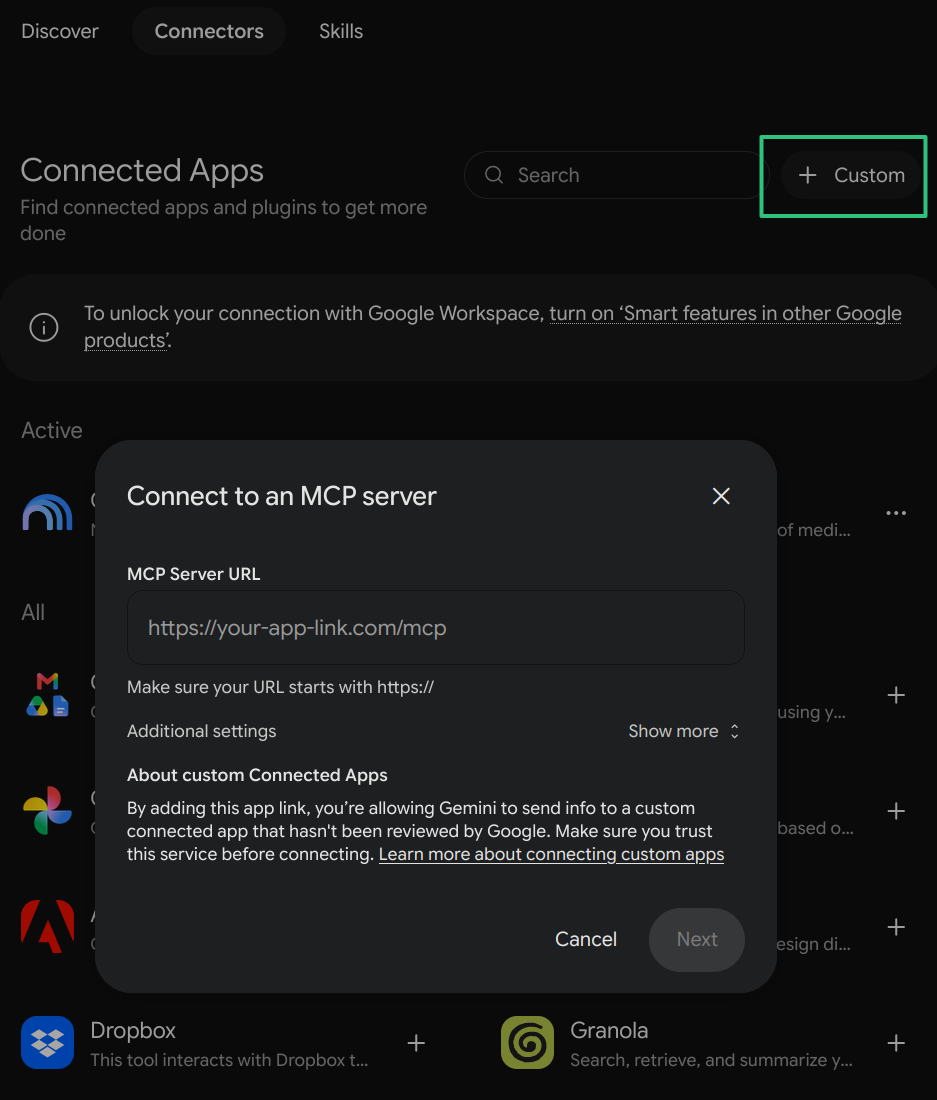
- Select your InEvent server.
You will be redirected to log in and authorize the integration with your InEvent company.
- Verify the authorization details. If you belong to more than one company within the InEvent platform, ensure to select the correct company using the Company drop-down menu.
- Click Authorize app.
Once the steps above are completed, the InEvent MCP server connection will be integrated within Gemini for use in conversations. To utilize the features, type @ in your prompt and locate the InEvent MCP app.
Github Copilot desktop app
To integrate the InEvent MCP server with the Github Copilot desktop app, follow the instructions below.
- Open the Github Copilot desktop app and ensure you are logged in.
- Navigate to Customize.
- Click Add > MCP server.
- Enter a name and for the MCP connector.
- Select HTTP as the Server type.
- Enter
https://mcp.inevent.com/under URL. - Click Add server. The authorization process with InEvent will start.
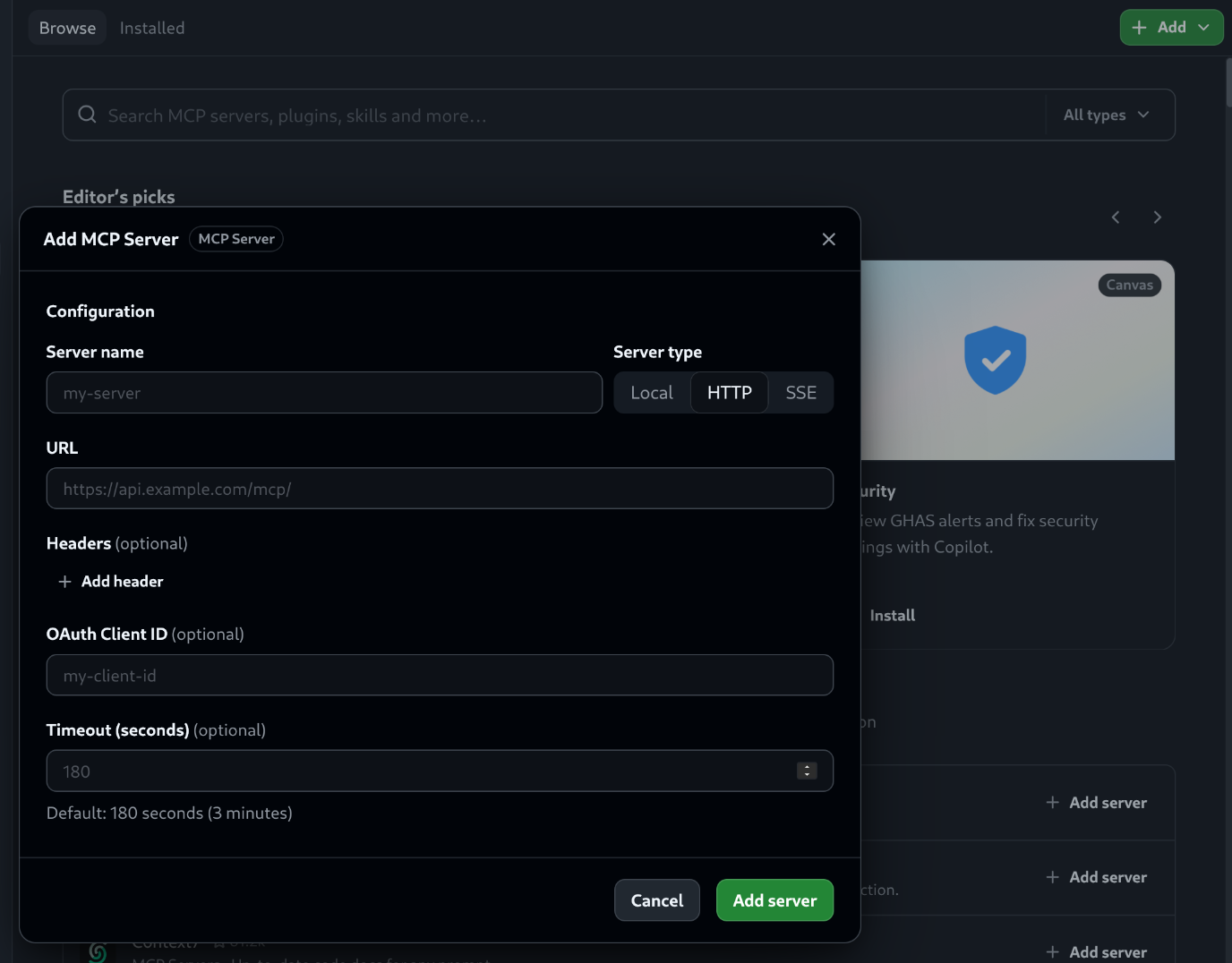
- Select your InEvent server.
You will be redirected to log in and authorize the integration with your InEvent company.
- Verify the authorization details. If you belong to more than one company within the InEvent platform, ensure to select the correct company using the Company drop-down menu.
- Click Authorize app.
Once the steps above are completed, the InEvent MCP server connection will be integrated within Github Copilot app for use in conversations.
Perplexity
To integrate the InEvent MCP server with Perplexity, follow the instructions below.
- Access Perplexity from your web browser and log in to your account.
- Click the profile button on the bottom left corner.
- Click Settings.
- Navigate to the Customize section using the left menu.
- Click Add custom connector.
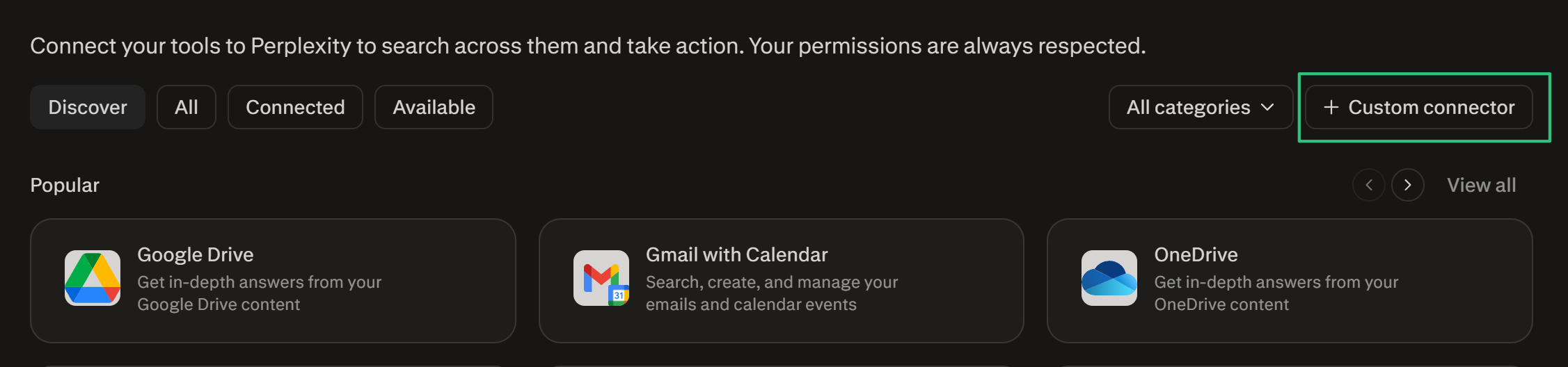
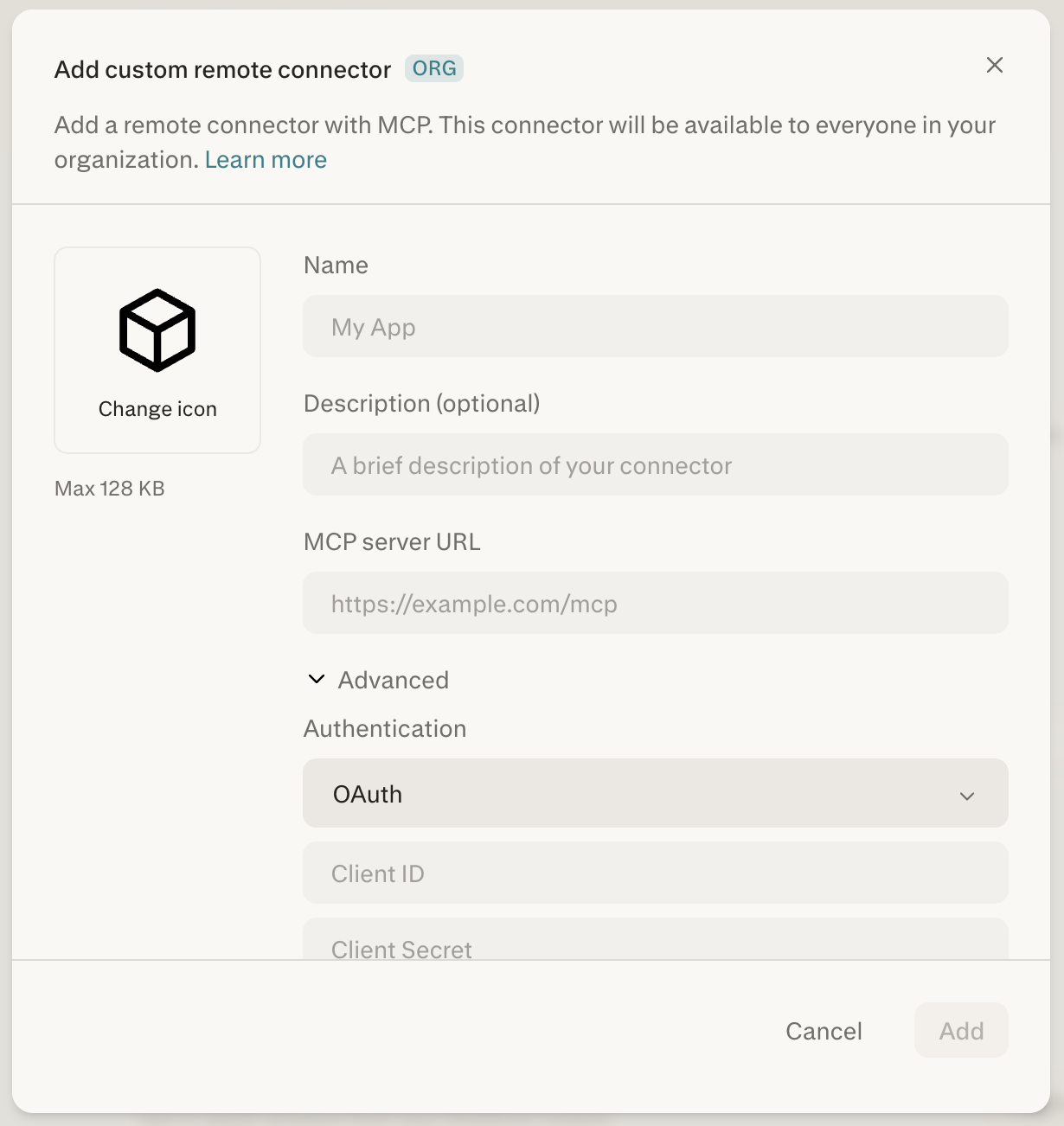
The Add custom connector pop-up box will be displayed.
- Enter the desired Name for the integration, such as
InEvent MCP, and enter the exact MCP server URL:https://mcp.inevent.com/. - Click Add. The authorization process with InEvent will start.
- Select your InEvent server.
You will be redirected to log in and authorize the integration with your InEvent company.
- Verify the authorization details. If you belong to more than one company within the InEvent platform, ensure to select the correct company using the Company drop-down menu.
- Click Authorize app.
Once the steps above are completed, the InEvent MCP server connection will be integrated into Perplexity for use in conversations. Ensure to enable the InEvent MCP connector in prompts by clicking + > Connectors and selecting the configured InEvent MCP server.
Capabilities
Integrating InEvent MCP server allows your chosen AI model to perform various Read-only and Write/delete actions. These actions can be configured on your specific AI provider's connection dashboard to always allowed, always request approval, or always deny, depending on your needs.
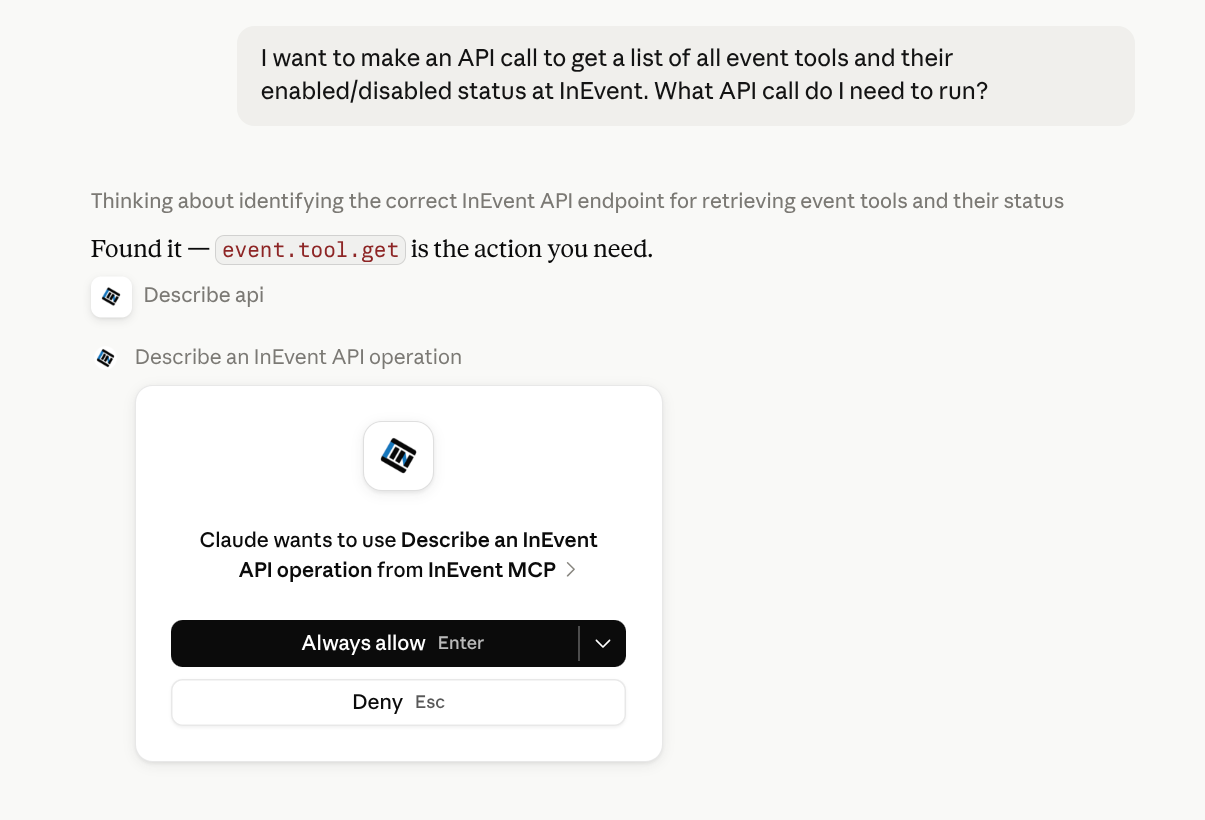
Below are the available Read-only actions.
- Describe an InEvent API operation
- Get event details
- List event details
- List event attendees
- List events
- Read the InEvent platform guide
- Search the InEvent API catalog
- Who am I
Below are the available Write/delete actions.
- Call an InEvent API operation
Examples
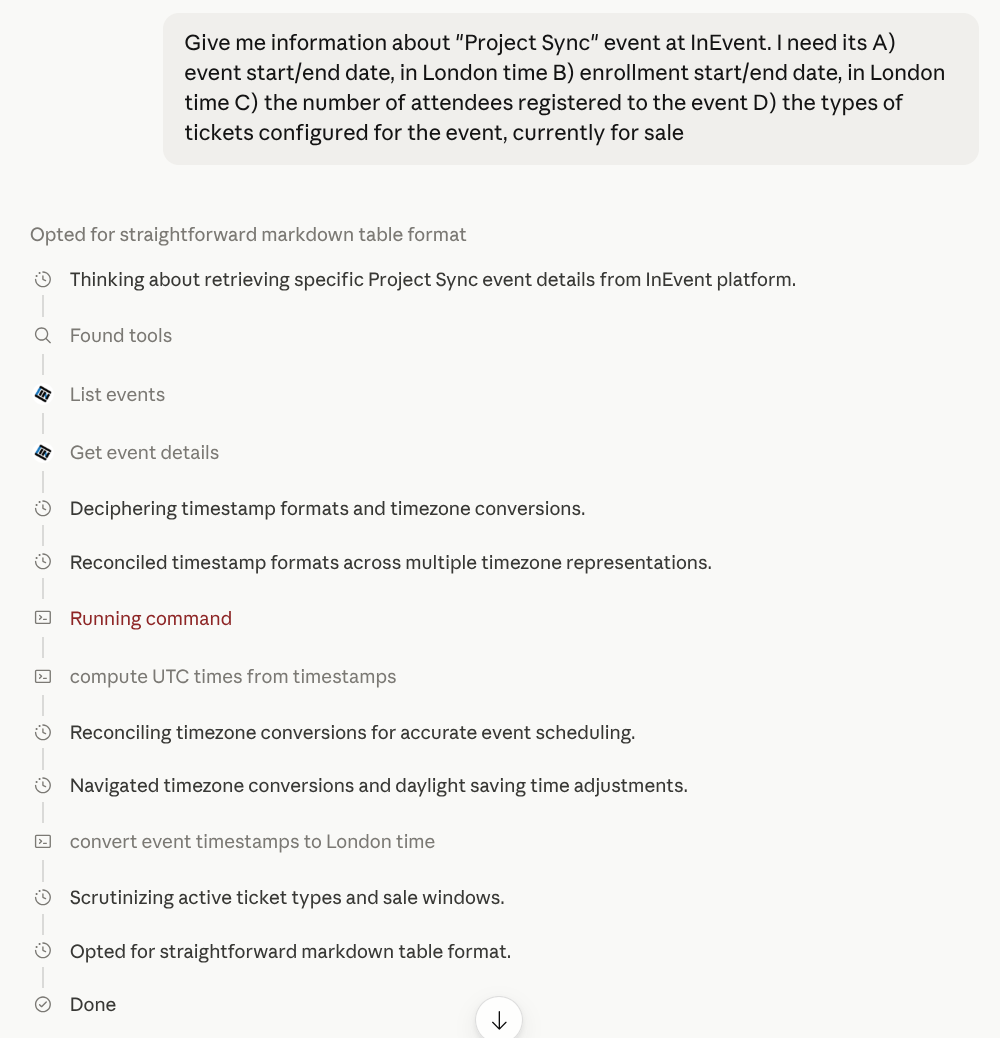
Below are examples of the InEvent MCP server capabilities in-use, using Claude as the AI provider. It can assist with listing InEvent events and fetching event details, including dates, number of attendees, and tickets within the event.
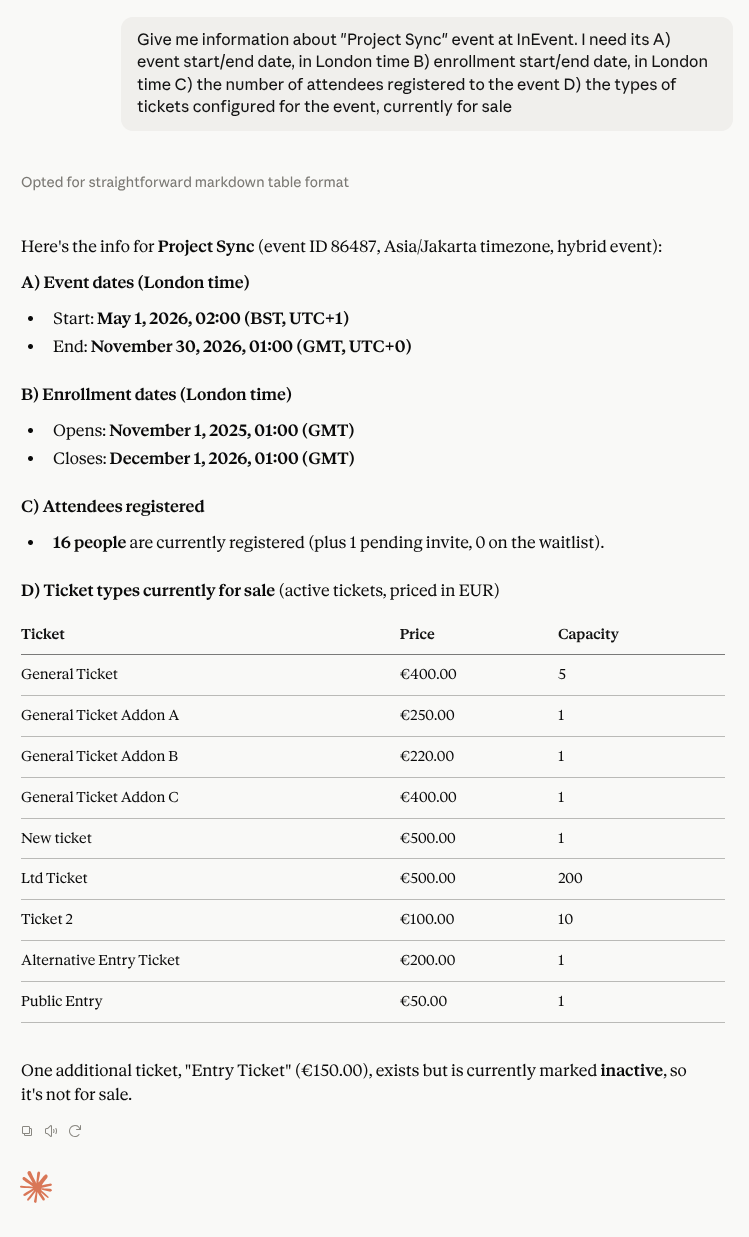
The model uses the available integrated tools to obtain the information directly from InEvent.
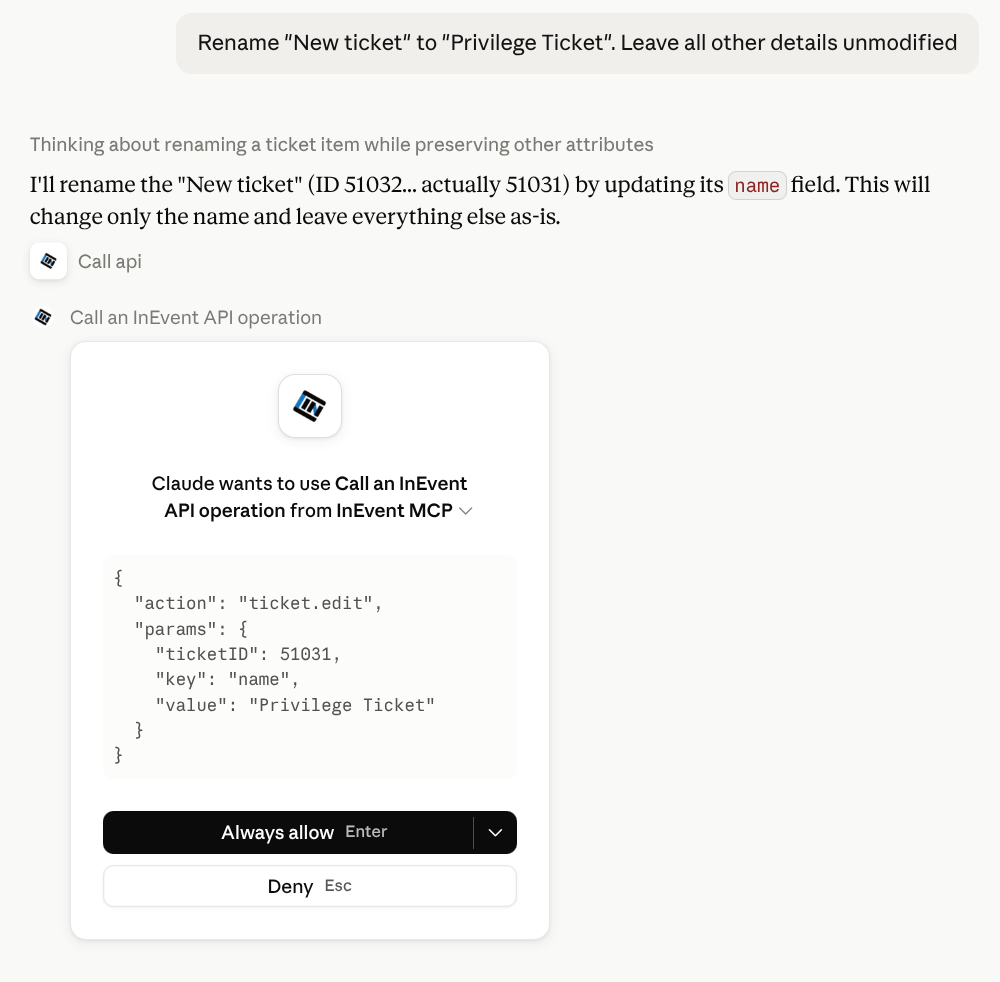
The model can also be instructed to perform write operations, such as adding, modifying, or deleting details within an event. As an example, the model is instructed to rename an existing ticket while leaving other details untouched. The model prompts the user to approve before actually performing the modification. It's also possible to open the details of the modification that is about to be performed.
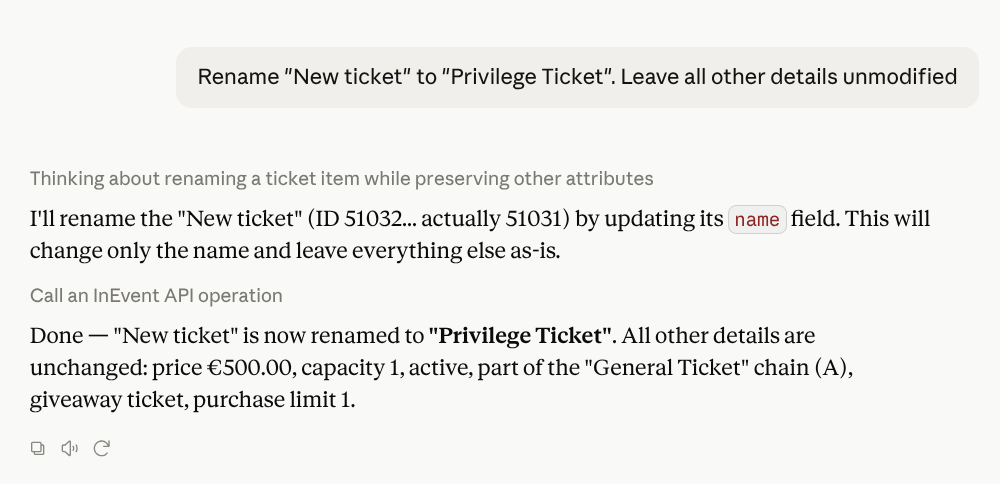
Upon confirmation, the model will perform the modification.
Actions performed by the model will show up within the event's Audit logs, under the person details of the InEvent user who authorized the InEvent MCP server integration with the model.

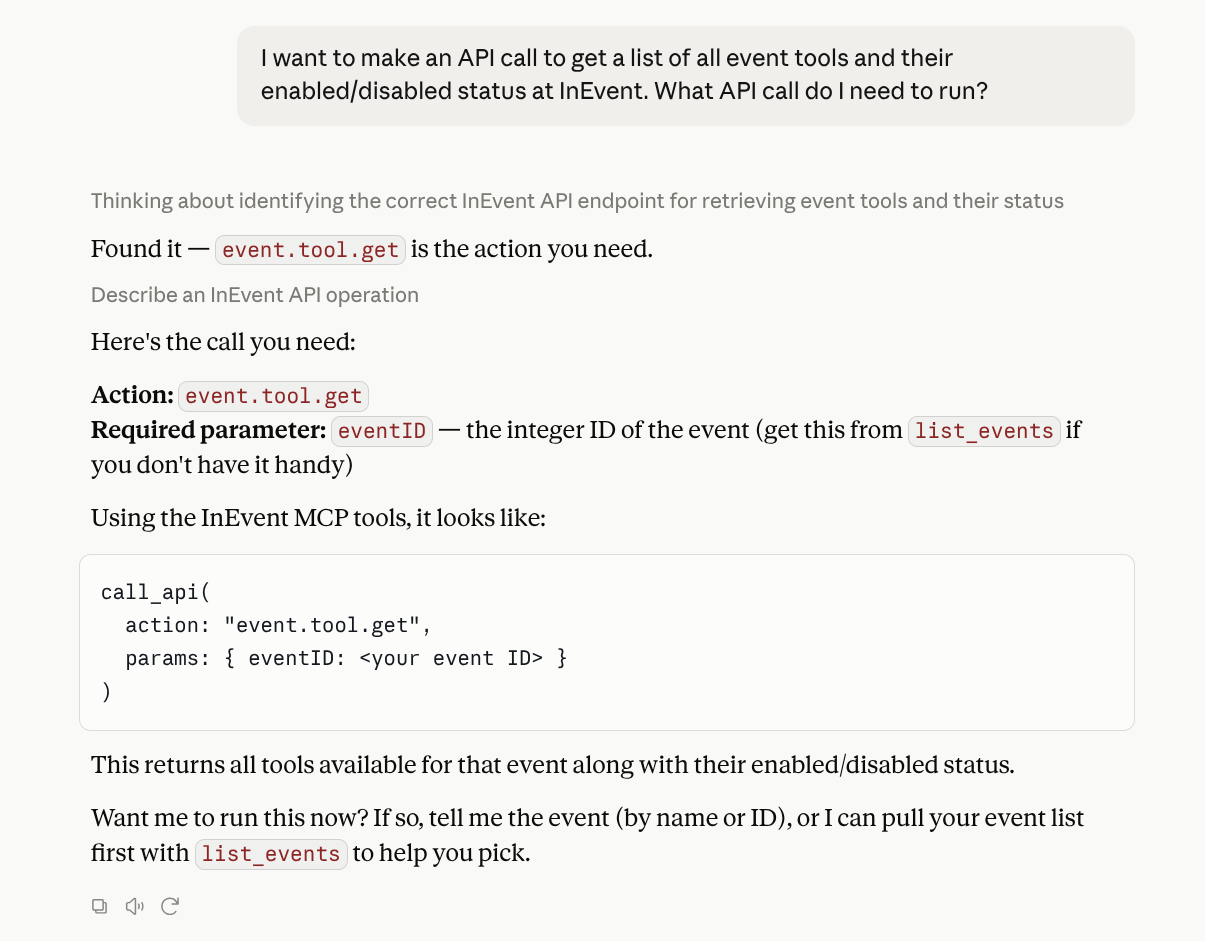
The model can assist with finding information about API calls at the InEvent platform. This is especially useful for administrators who require advanced automated workflows involving direct API calls.
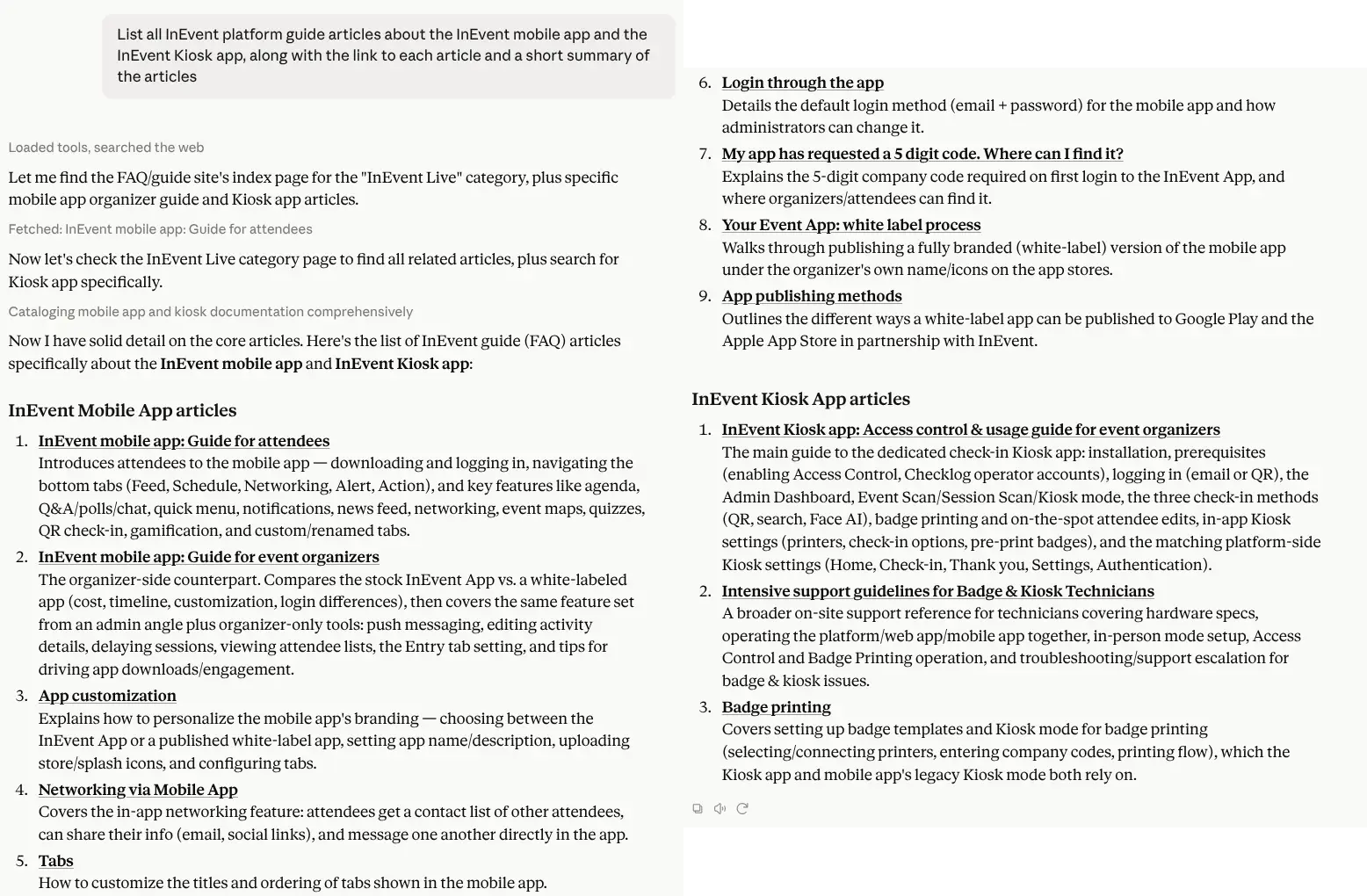
The model can also directly fetch information from the InEvent FAQ, consolidating articles across the knowledge base into an appropriately-sourced list with direct links and summaries of the consolidated articles.
Security advisories and best practices
When using InEvent MCP through an AI provider, ensure to practice the following advisories.
- Connect only an account authorized to access the intended InEvent company
- Begin with read-only requests before testing write operations
- Review proposed changes before approving them
- Avoid unnecessary changes to live events during testing
- Treat delete operations and changes to attendee or registration data with particular care
- Verify the outcome in InEvent after performing a write operation
- Follow your organization’s data protection, access control, and AI usage policies
