Creating and managing digital business cards in Snapdat
 Updated 6 months ago
by
Chioma Okenwa
Updated 6 months ago
by
Chioma Okenwa
You can create and manage your digital business card with Snapdat. Snapdat lets you create multiple business cards (depending on your subscription plan) with different details.
Creating a card
To create a card, follow the steps below:
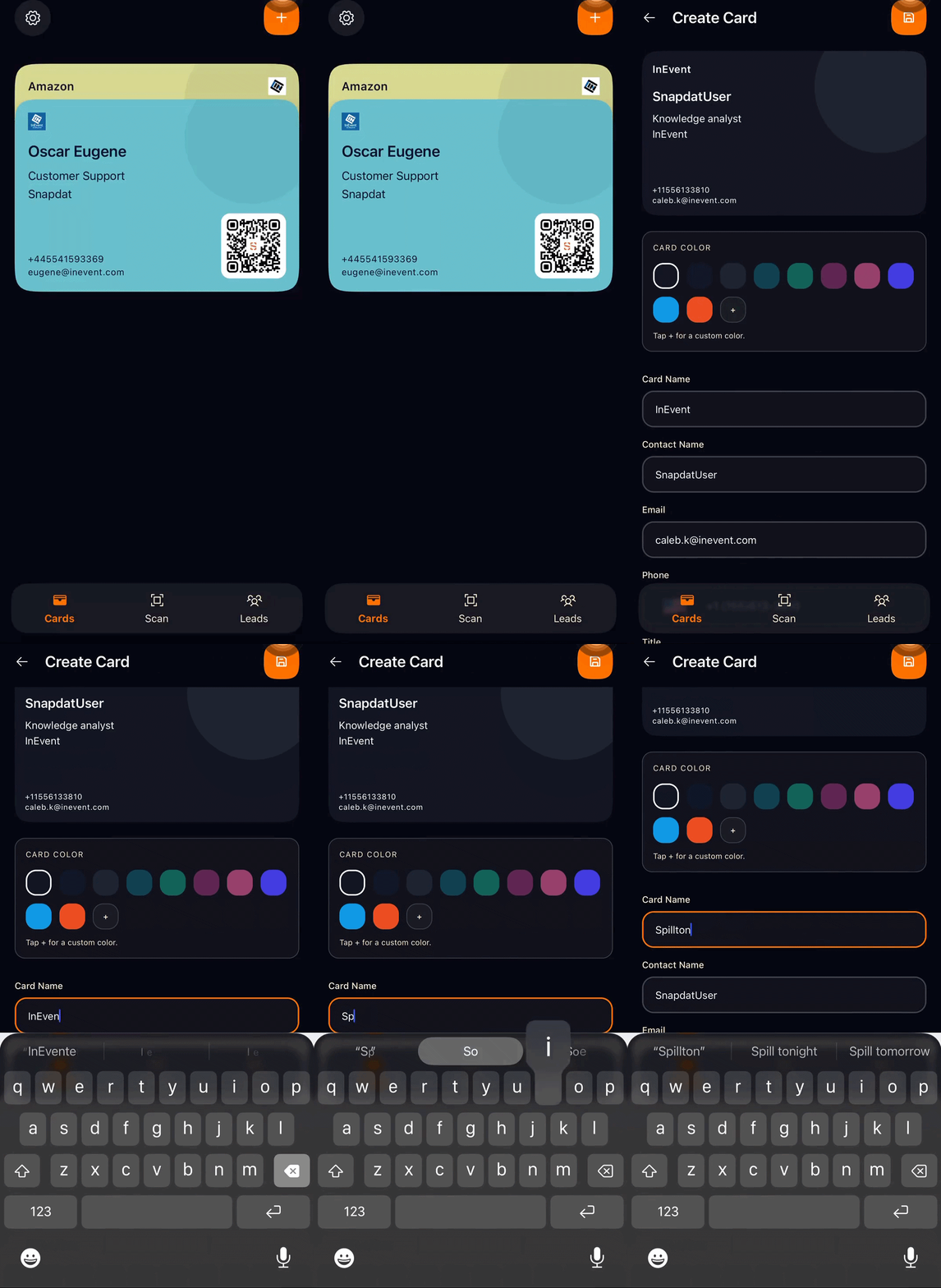
- Navigate to the Cards page
- Click on the plus + sign at the top left corner of your screen
- Select a card color
- Enter a card name
- Fill in your business details in their respective fields
- Upload a cover image, profile image, and logo
- Click the save icon in the top right corner to create your card.


After you save your card, it will appear on the cards page along with any other cards you have created in Snapdat.
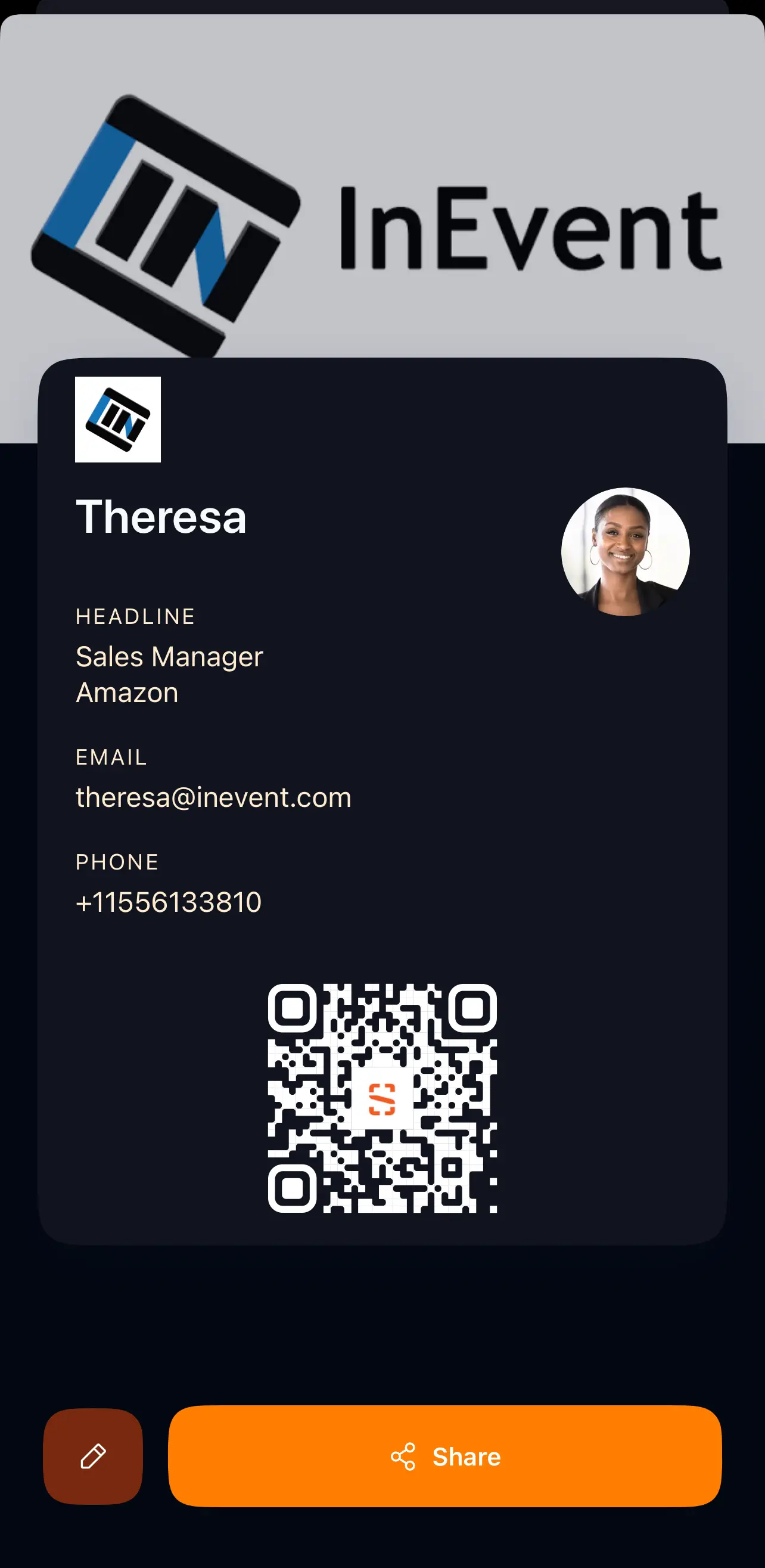
To view your card details, including the cover image, profile image, logo, and contact information, simply tap on the card from the Cards page
Editing card details
You can update your digital card at any time in Snapdat. This allows you to keep your contact information, branding, and images current.
To edit a card:
- Go to the Cards page.
- Tap the card you want to edit.
This opens the Card details page.
- Tap the Edit pen icon at the bottom-left corner.
- The Edit Card screen will open.
From here, you can update:
- Card name
- Card color. Click the +icon to select more custom colors.
- Business details and contact information
- Profile image
- Cover image
- Company logo
- After making your changes, press the save button at the top-right to apply the updates.
Sharing your digital business card
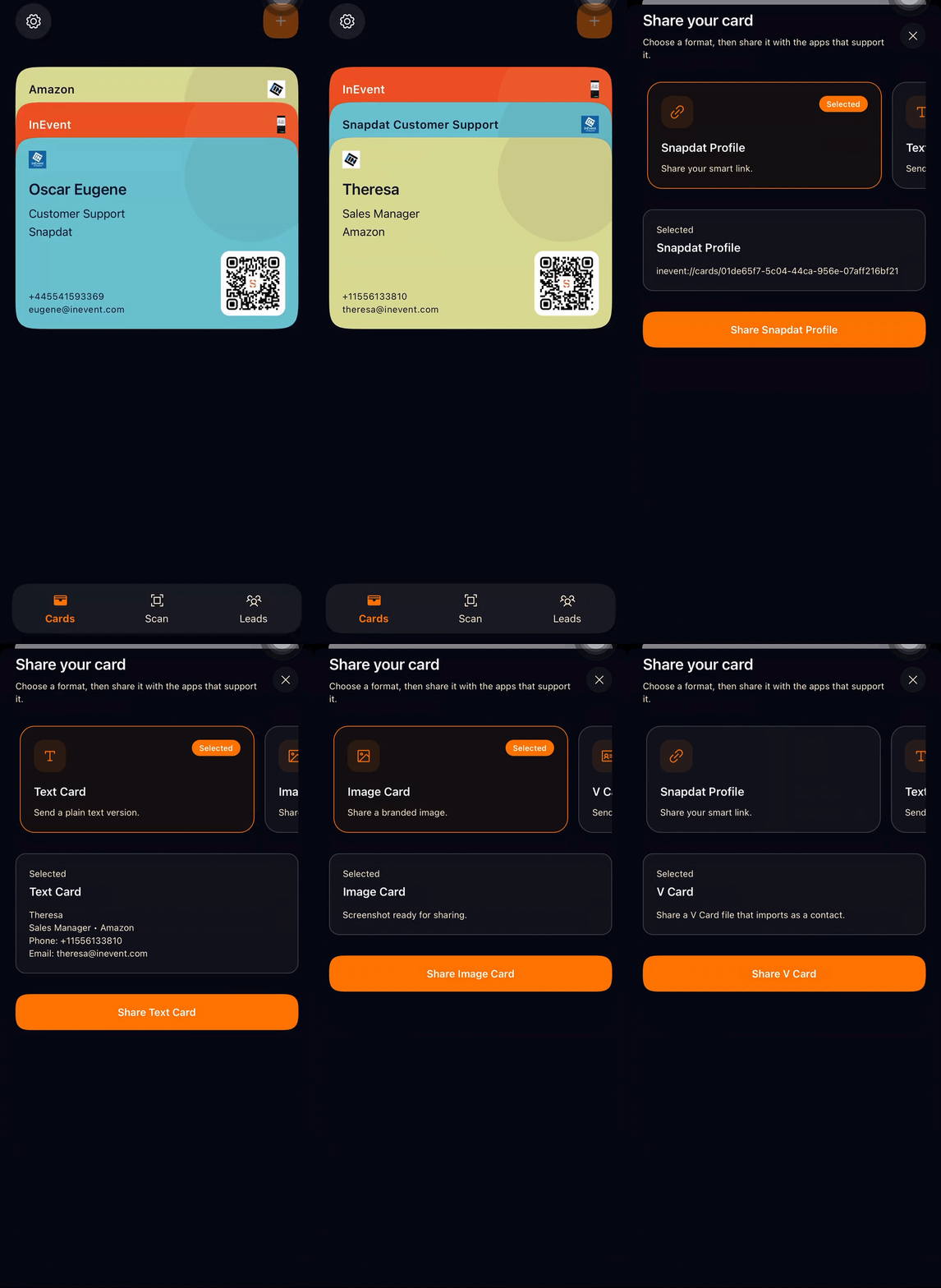
You can share your digital business card directly from the Cards section in Snapdat. This allows prospects to instantly receive and save your contact information in the format that works best for them. To share a card, follow the steps below:
- Go to the Cards page.
- Tap the card you want to share.
- Select Share.
- Choose how you want to send your card.
- Tap Share to complete the action.
Available sharing formats include:
- Snapdat Profile (Smart Link)
A dynamic link that opens your digital profile with full contact details. - Text Card
A simple, plain-text version of your contact information. - Image
A visual version of your digital card that can be saved or shared like a picture. - vCard
A downloadable contact file that can be saved directly to a phone’s address book.
Choose the format that best fits how you want to share your details and how the recipient prefers to receive them.
Deleting cards
You can remove a digital card from Snapdat at any time if it is no longer needed.
To delete a card:
- Go to the Cards page.
- Tap the card you want to delete. This opens the Card Details page.
- Tap the Edit button (bottom-left corner).
- On the Edit Card page, scroll down.
- Tap Remove Card to delete it.
Once removed, the card will no longer appear on your Cards page.