Scanning and managing leads in Snapdat
 Updated 6 months ago
by
Chioma Okenwa
Updated 6 months ago
by
Chioma Okenwa
The scanning feature in Snapdat lets you capture and enrich contact information instantly using your device camera or an existing image. Whether you’re at an event or meeting, you can quickly scan business cards, badges, or LinkedIn QR codes to build your leads database.
Scanning Leads
Snapdat supports two scanning modes:
- Normal mode: Processes and enriches data immediately after each scan.
- Fast mode: Captures scans instantly and processes them in the background, allowing you to scan multiple items quickly without waiting.
Snapdat also supports offline scanning. If you are not connected to the internet, your scans will be saved locally and automatically processed once your connection is restored.
To scan a lead:
- Tap the Scan option from the bottom navigation.
You will be taken to the scanning screen.
- Choose the type of item you want to scan:
- Paper business card
- Event badge
- LinkedIn QR code
- Position the item within the camera frame and capture it.
Alternatively, select an image from your device that contains a business card, event badge, or QR code. Snapdat will automatically analyze the scan or image and extract the necessary contact details.
- Review the captured information.
- Add notes about your interaction (optional).
- Create or assign tags to categorize the lead (optional).
- Select Done to save the lead.

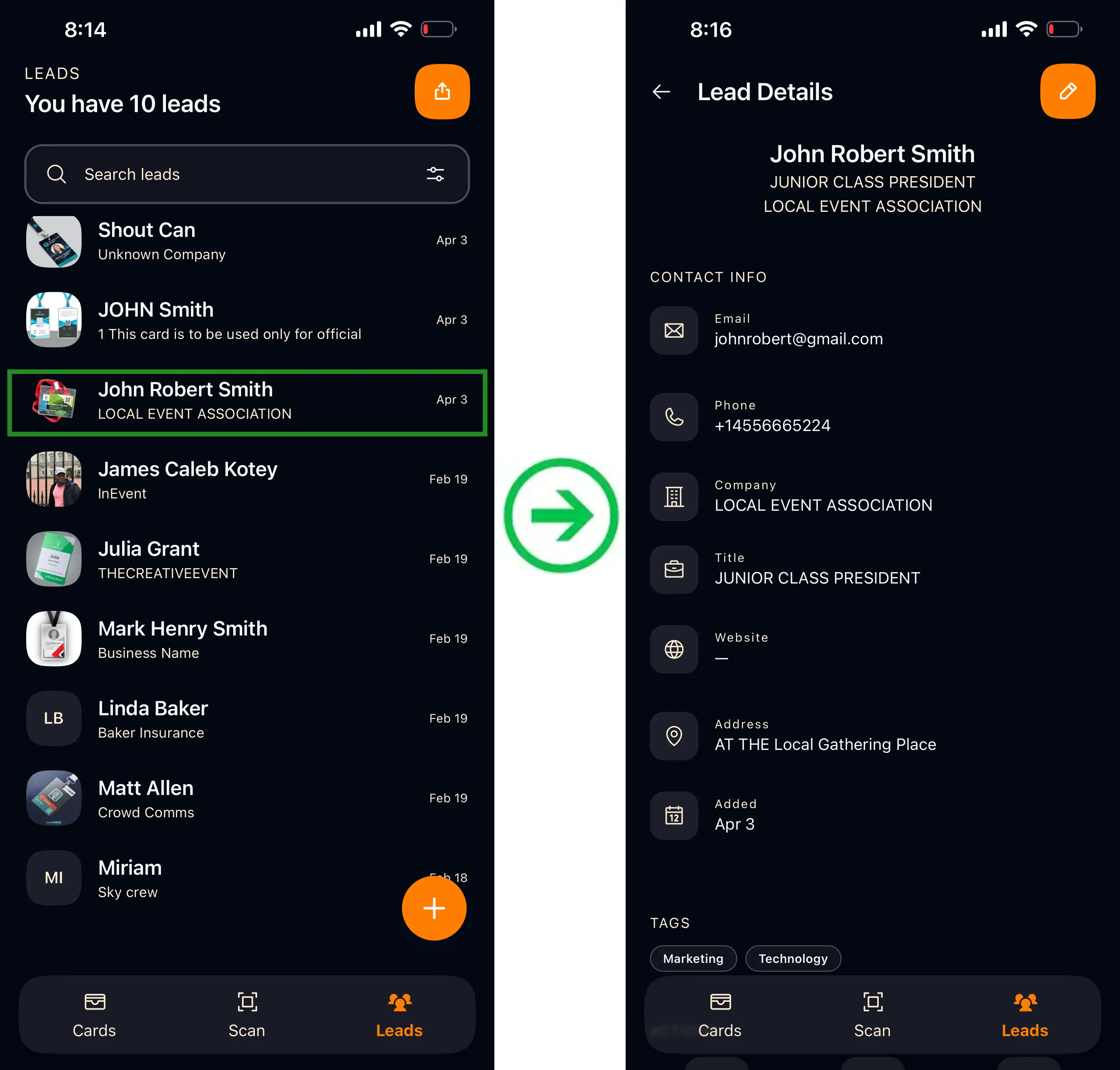
Once the scan is complete and saved, you can view the captured data on the Leads page. From there, select any lead to open and review its full details.
Leads Management
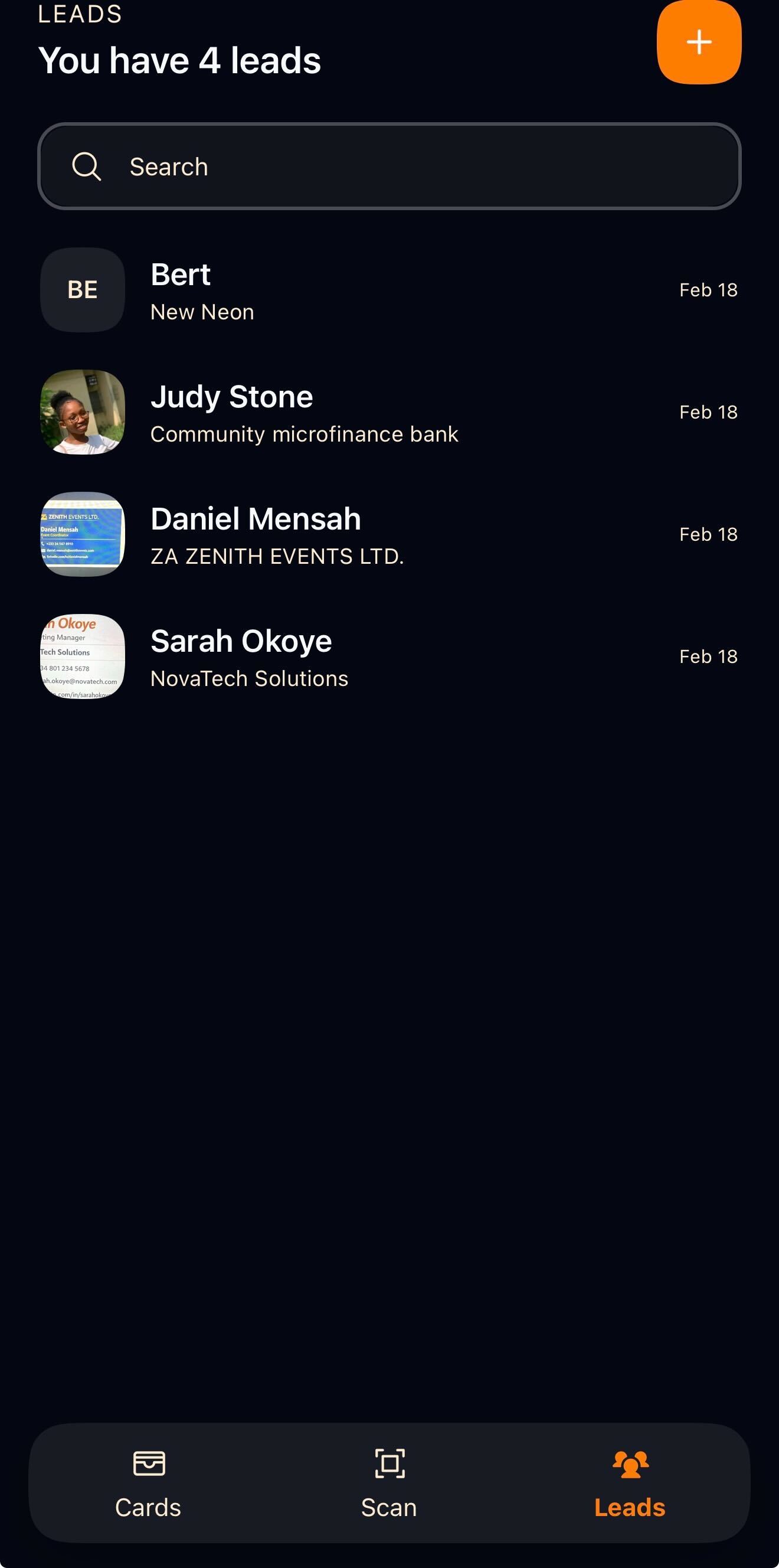
In Snapdat, all captured contact information, whether from scanned business cards, event badges, LinkedIn QR codes, images from your device, or manually entered details, is stored in the Leads section, which serves as your central contact database where you can view your total leads, search by name or company, review individual profiles, and add new leads manually.
Adding a lead manually
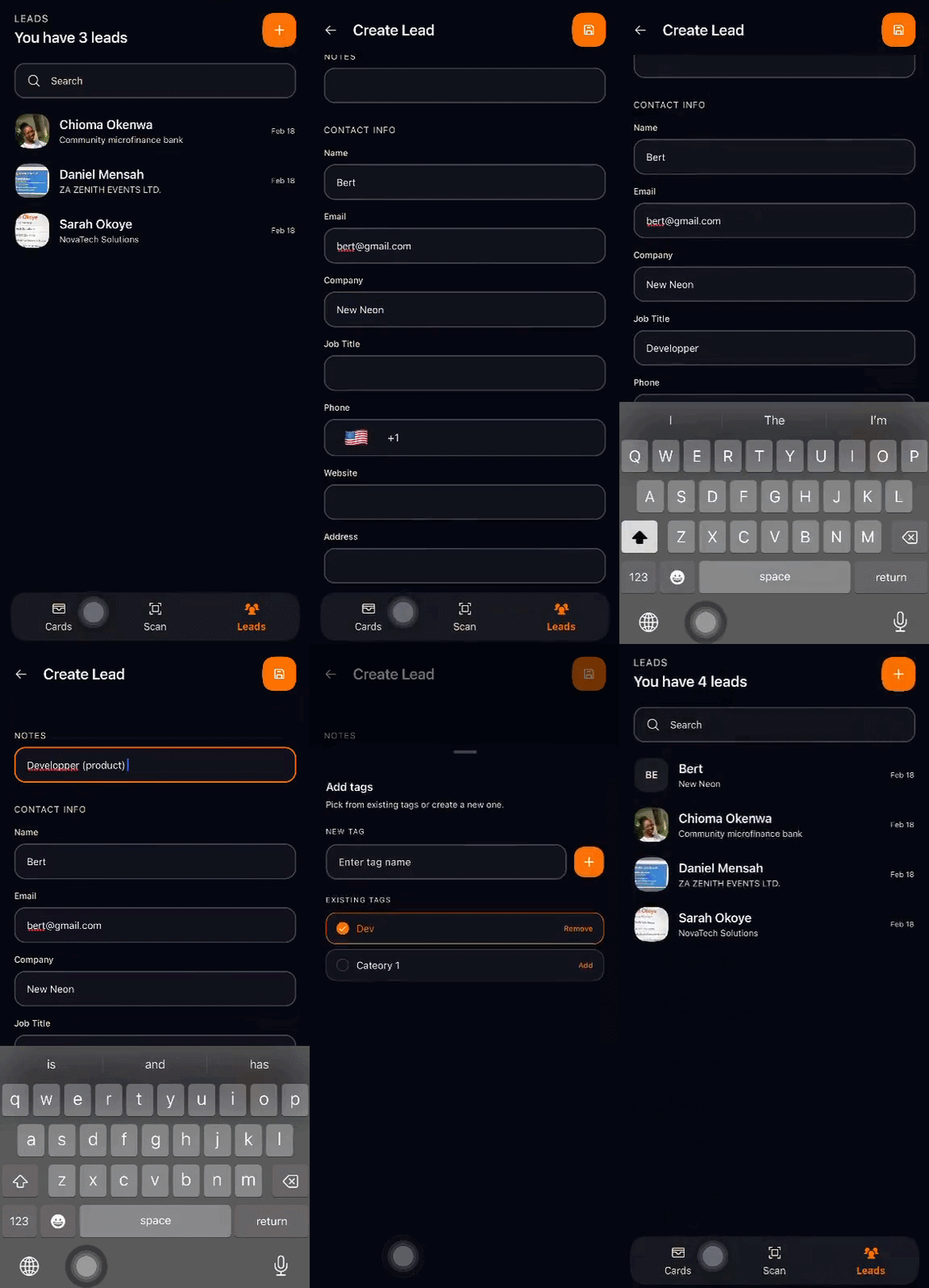
If you want to add a contact without scanning, you can create a lead manually.
To add a lead:
- Go to the Leads page.
- Tap the + icon in the top-right corner.
- Enter the contact details, such as:
- Name
- Phone number
- Company
- Job title
- Website: must follow the format: https://www.example.com
- Address
- Add tags by clicking the Tag icon. You can create a new tag or select an existing one.
- Enter any relevant notes about the lead at the top of the page.
- Tap the Save icon to store the lead.
The contact will then appear in your Leads list for future reference and follow-up.
Editing and removing leads
All leads can be edited at any time.
To edit a lead:
- Click on the lead you wish to update.
- Tap the pencil icon at the top-right corner of the page.
- Make the necessary changes to the contact information.
At the bottom of the lead details page, you will see additional Actions available:
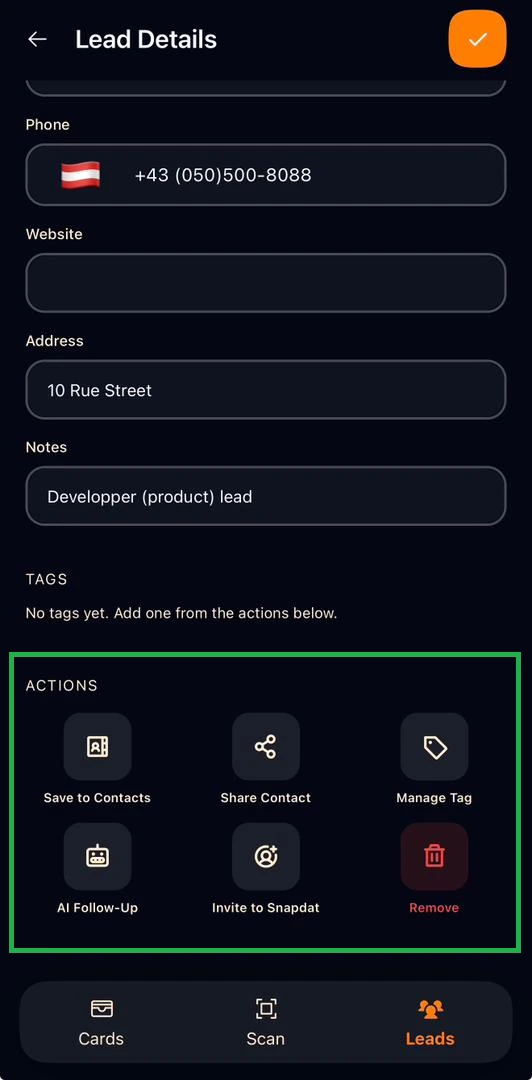
- Save to Contacts: Save the lead directly to your phone contacts. A notification will appear requesting access to your contacts. Click Continue to grant permission.
- Share Contact: Share the lead’s details via messages, email, notes, files, Dropbox, and other available apps.
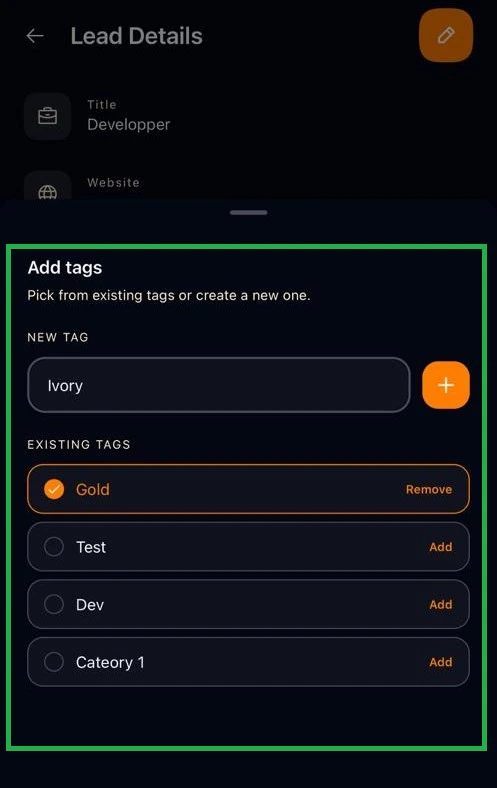
- Manage Tag: Add or remove tags from the lead’s profile.
- Click Manage Tag.
- Tick the checkbox next to an existing tag to add it.
- Untick the checkbox to remove it.
- To create a new tag, enter the tag name in the New Tag field and click the + button. The new tag will automatically be selected.
- AI Follow-up: Follow up on leads(x)
- Invite to Snapdat: Invite leads and users to Snapdat
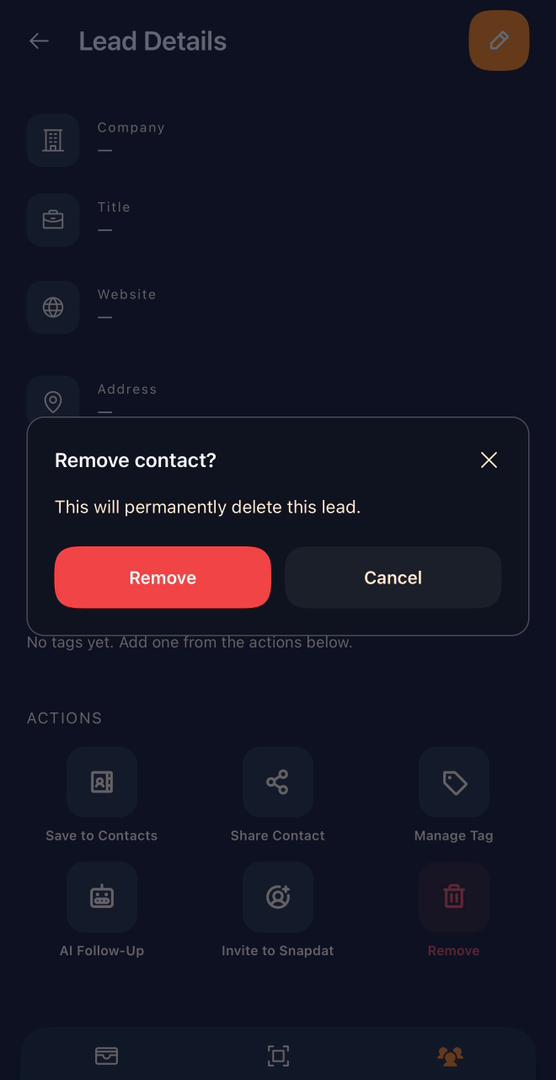
- Remove: Tap the Remove button to remove the lead contact. A confirmation notice will be displayed. Select Remove again to confirm your actions.
Exporting Leads
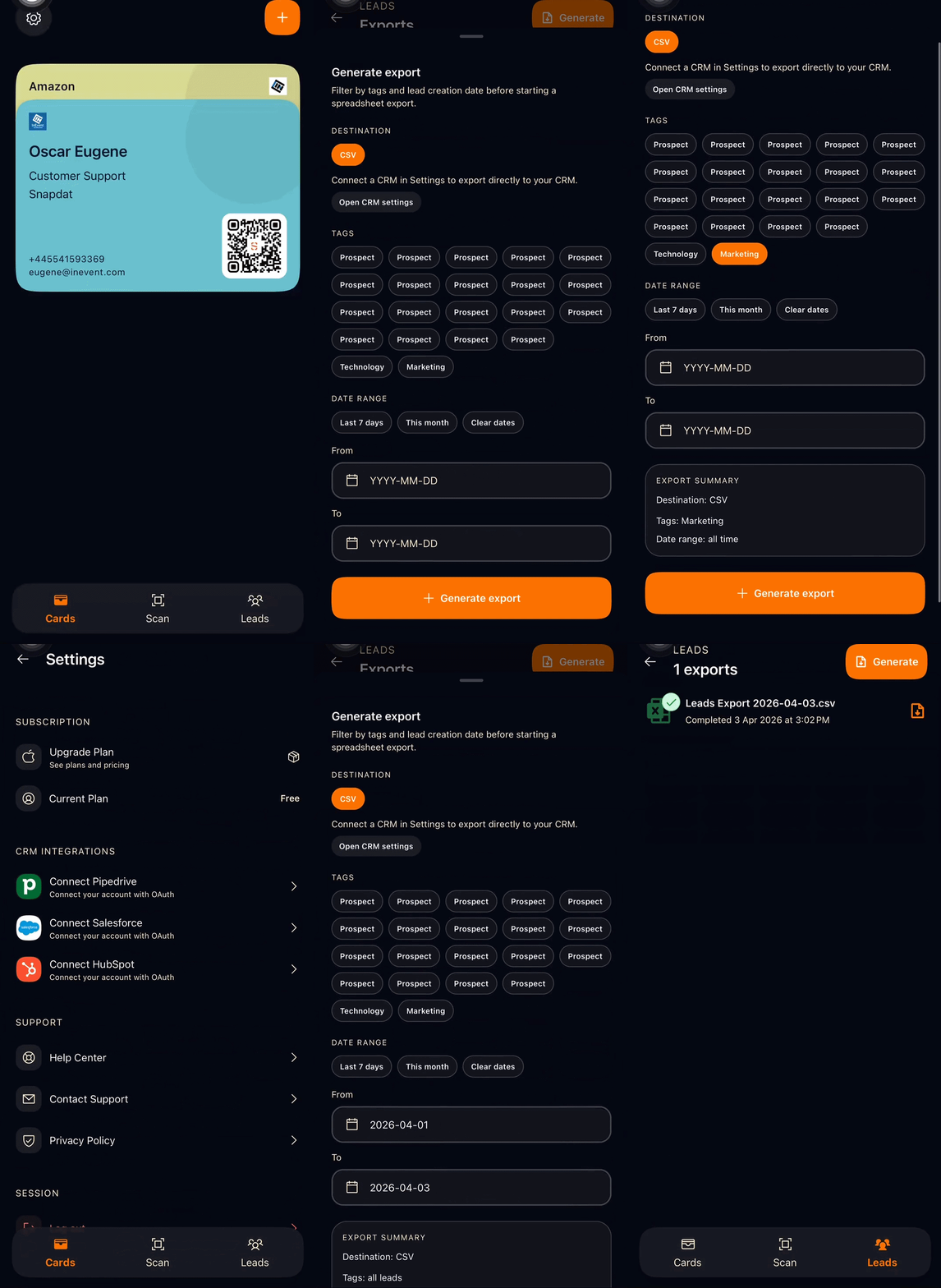
To export your leads in Snapdat, follow the steps below:
- Tap the Leads tab to navigate to the Leads screen.
- On the Leads page, tap the Share icon located at the top-right corner.
- This will take you to the Exports page. Click Generate Export.
- In the export options, you can:
- Filter leads by tags or date
- Connect to a CRM to export leads directly
- Once configured, click Generate Export to finalize.
Your export will then be processed based on the selected criteria.
Adding notes to your leads
Snapdat lets you record context from your interactions as notes, such as what you discussed, follow-up actions, and important personal details to remember. This helps you maintain meaningful and personalized relationships after events.
You can add notes in two main ways:
- When scanning a lead: After scanning a business card, badge, or QR code, you have the option to add notes before completing the process. This allows you to immediately capture context while the conversation is still fresh.
- When adding a lead manually: From the Leads page, when creating a new lead manually, you can include notes during the lead creation process.
In short, whether you add a lead through scanning or manual entry, you have the opportunity to attach notes to ensure important details are not lost.

Adding tags to your leads
Tags in Snapdat let you organize and categorize leads using custom labels such as Prospect, Partner, VIP, Marketing, or Follow-up Needed. This makes it easier to filter, group, and prioritize your contacts.
Adding tags:
- When creating a lead: tap the tag icon at the bottom right corner when scanning a lead or manually adding one from the Leads page. Choose an existing tag or create a new one.
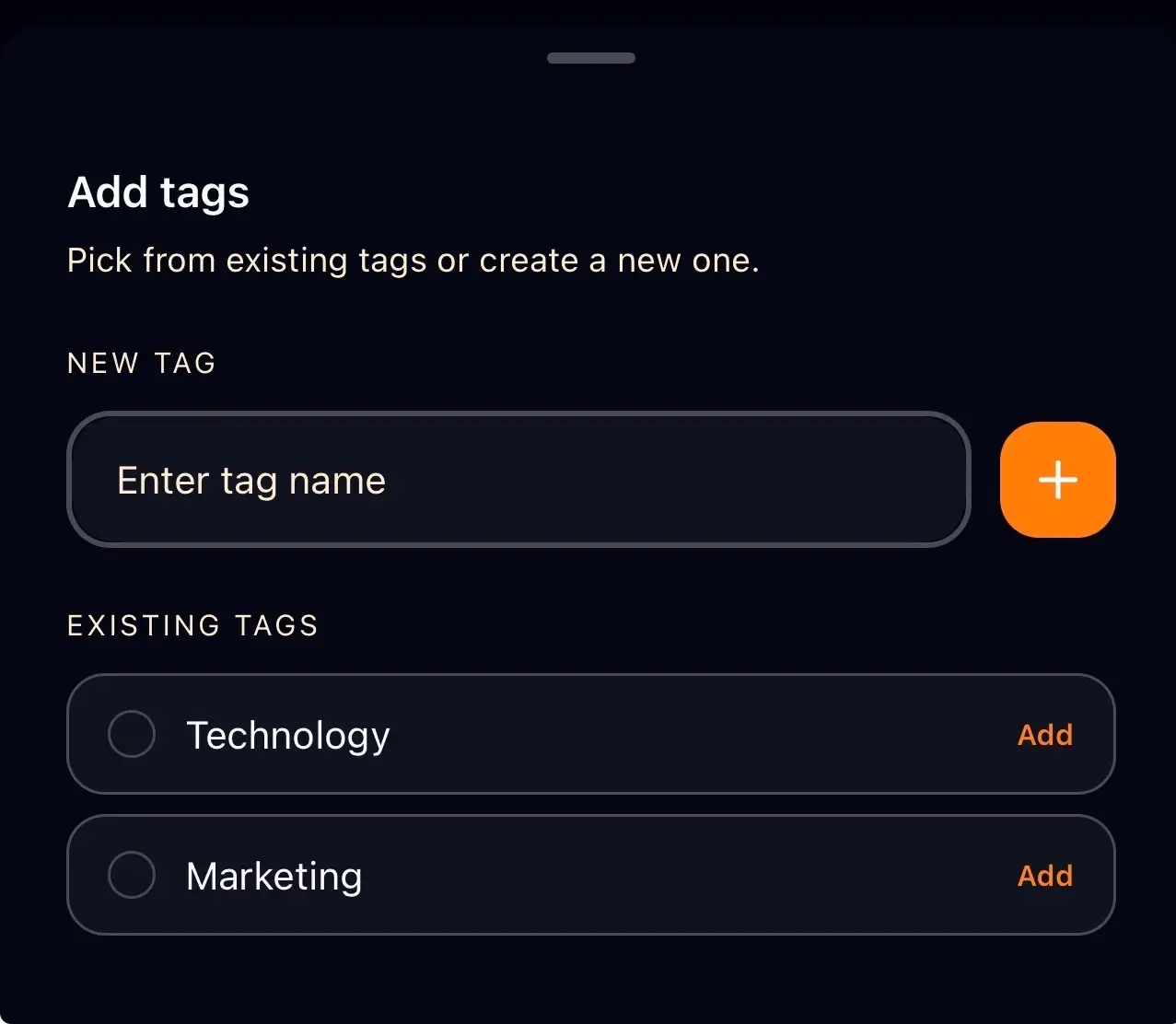
- After adding a lead: If a lead was added without a tag, go to the Leads page, select the lead, scroll to the Actions section, and tap Manage Tags. The Add Tags pop-up will appear, allowing you to add or update tags.
Consistently using tags keeps your leads organized and easy to manage.
