Building your event using InEvent MCP Integration
 Updated 1 minute ago
by
Chioma Okenwa
The InEvent platform offers a Model Context Protocol (MCP) server that allows supported AI providers to interact with your event using natural-language prompts.
Through this integration, your AI assistant can retrieve event information, review existing configurations, and perform supported actions directly on the platform without requiring you to navigate through multiple pages.
Whether you're setting up your agenda, managing speakers and sponsors, configuring registration, or customizing your Virtual Lobby/Web app, MCP can help streamline your event setup and management.
This article provides examples of read-only and write actions you can perform using MCP across key areas of the InEvent platform. To learn how to connect your AI provider, refer to our InEvent MCP Server article.
- Read-only actions: Retrieve and review existing event information without making changes.
- Write actions: Create, update, or delete event information and settings.
Before you begin
Before using any prompt that deletes or removes information:
- Test on a test event first. Try new prompts on an event that isn’t live before using them on a real one.
- Identify the exact record. Use unique identifiers, such as an attendee’s email address rather than their name, so the AI doesn’t act on the wrong record.
- Ask the AI to confirm first. Add “Show me what you’re about to delete and wait for my confirmation” to your prompt, and review the response before approving.
- Act on one item at a time. Avoid bulk removals unless you’ve verified exactly which records are included.
All actions performed through the MCP integration are recorded in the event’s Audit logs under the InEvent user who authorized the integration. Only perform actions that your account is authorized to perform.
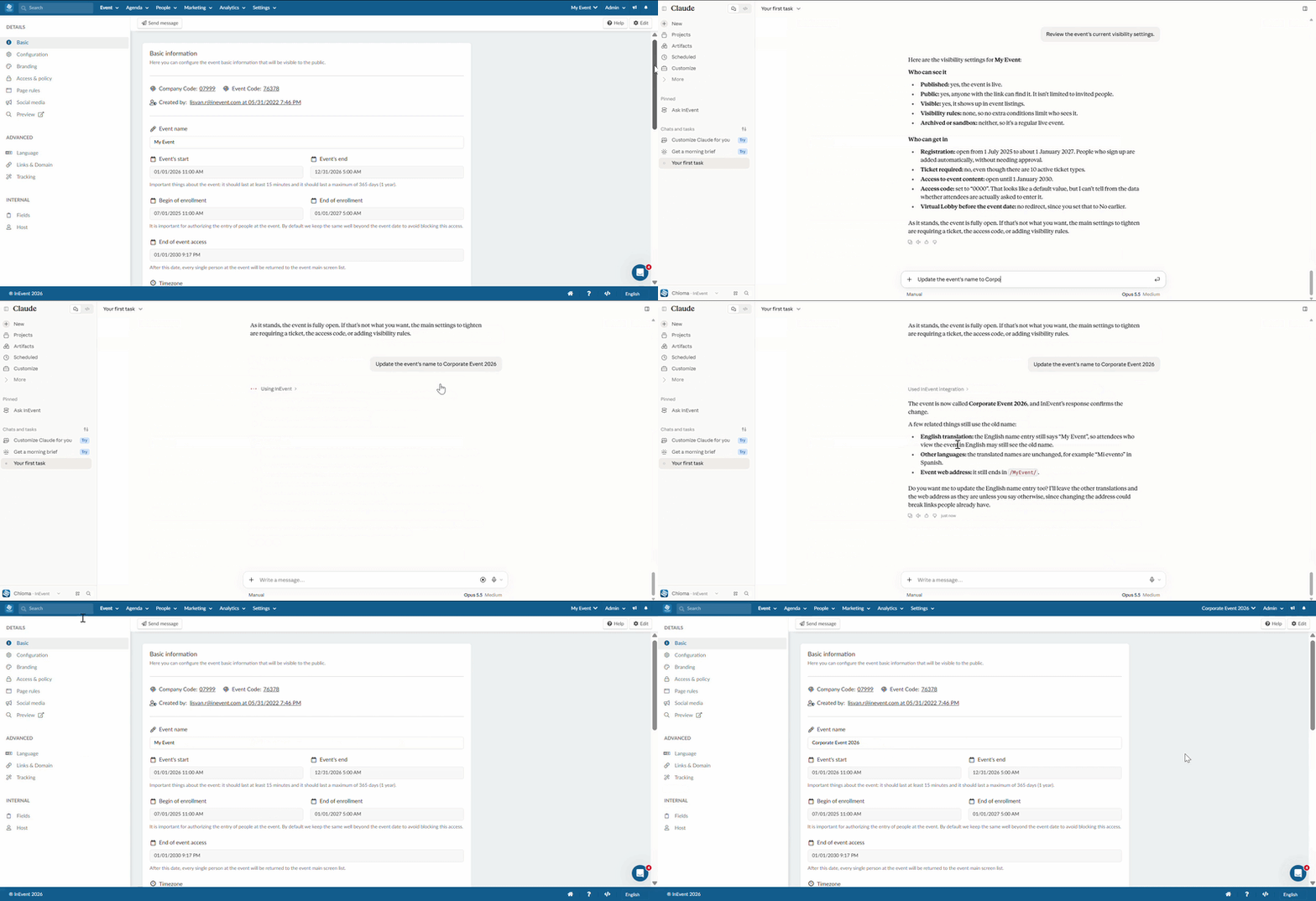
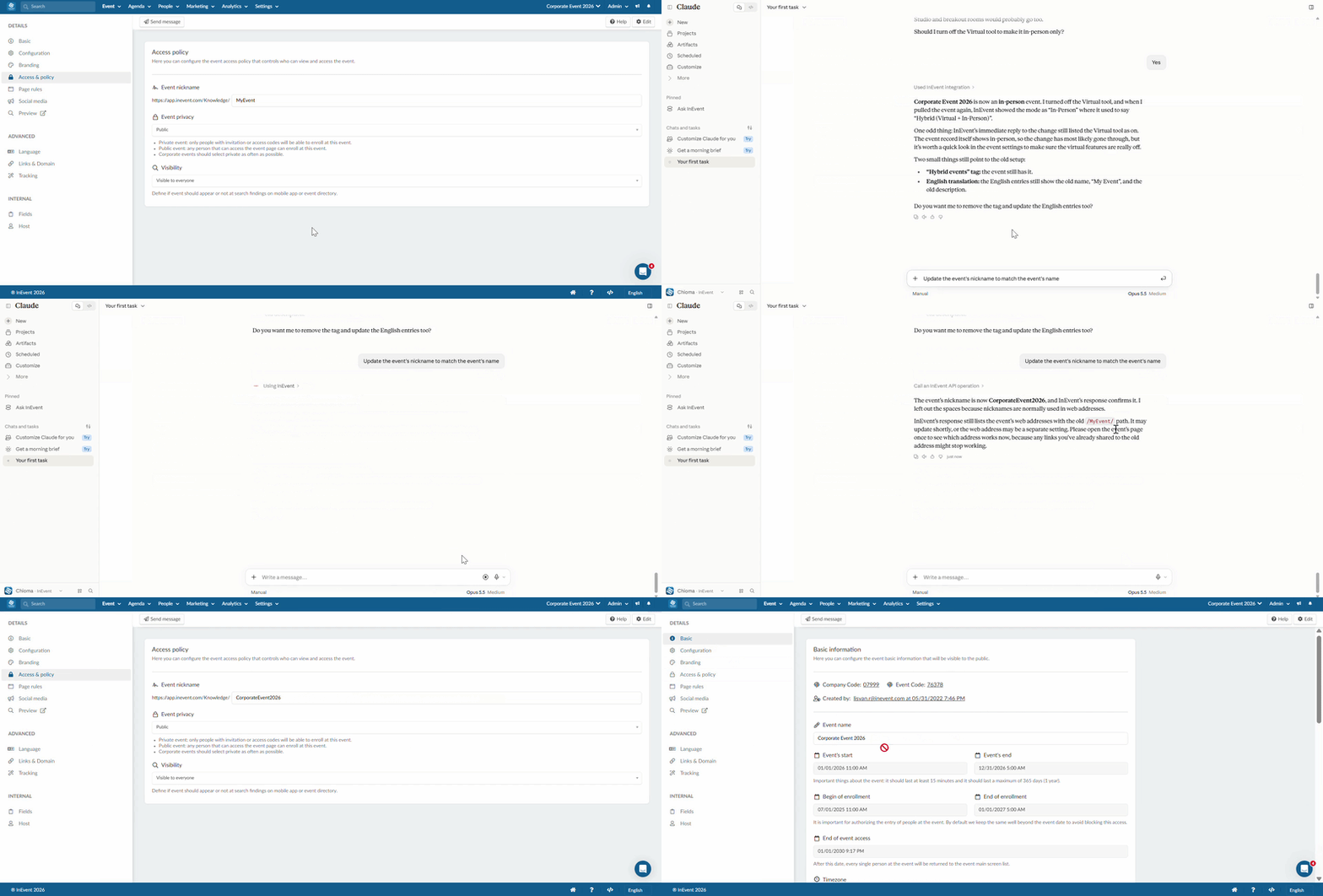
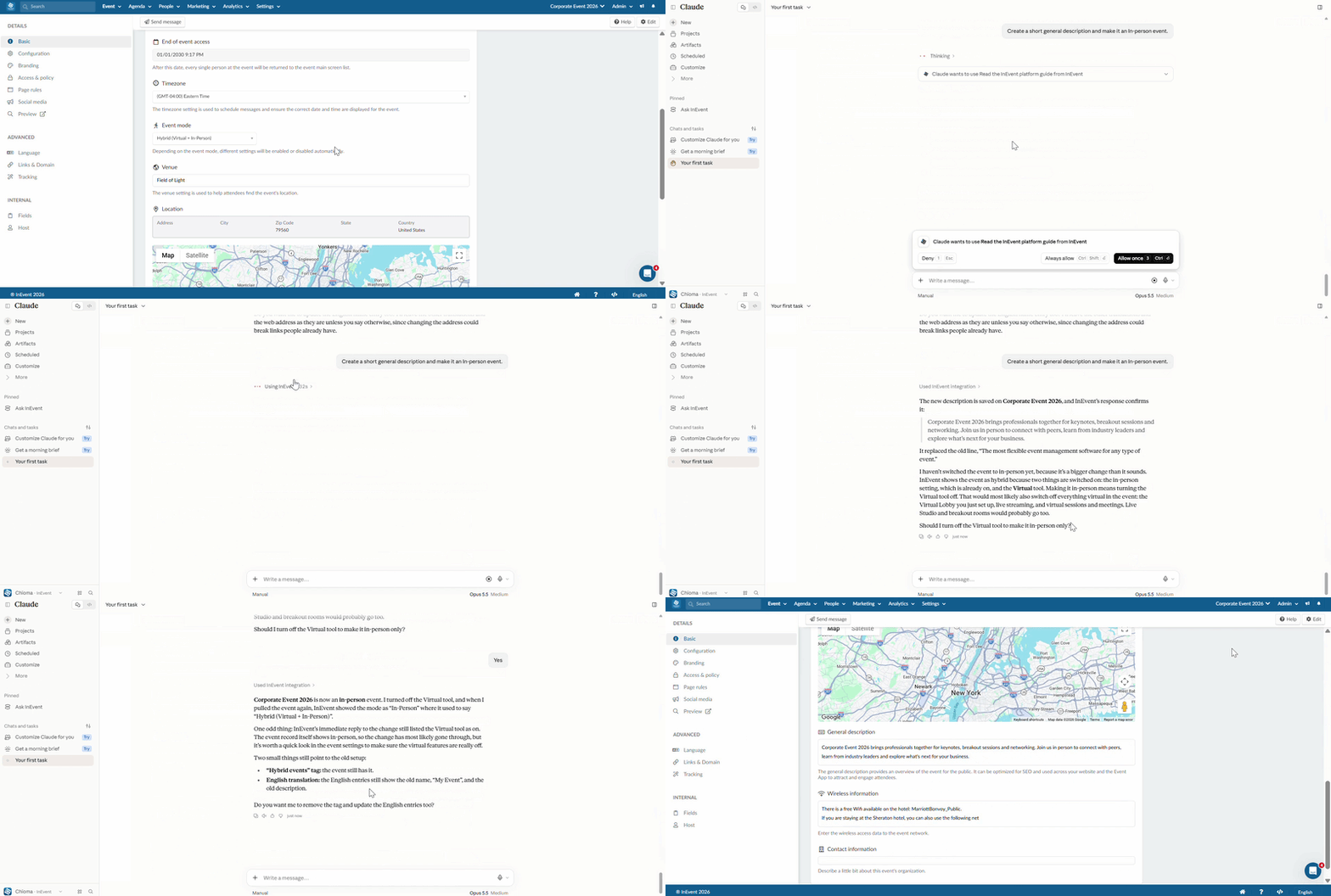
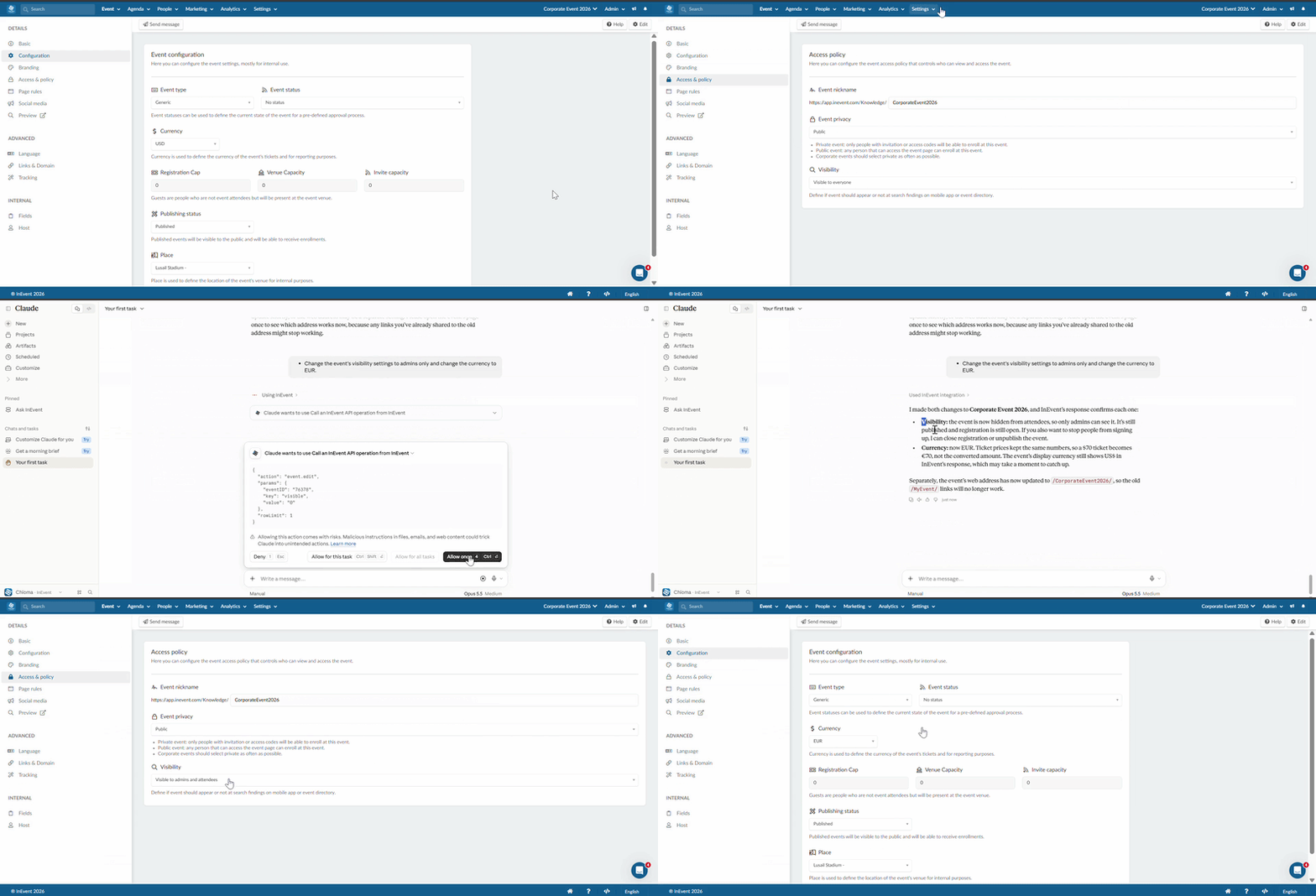
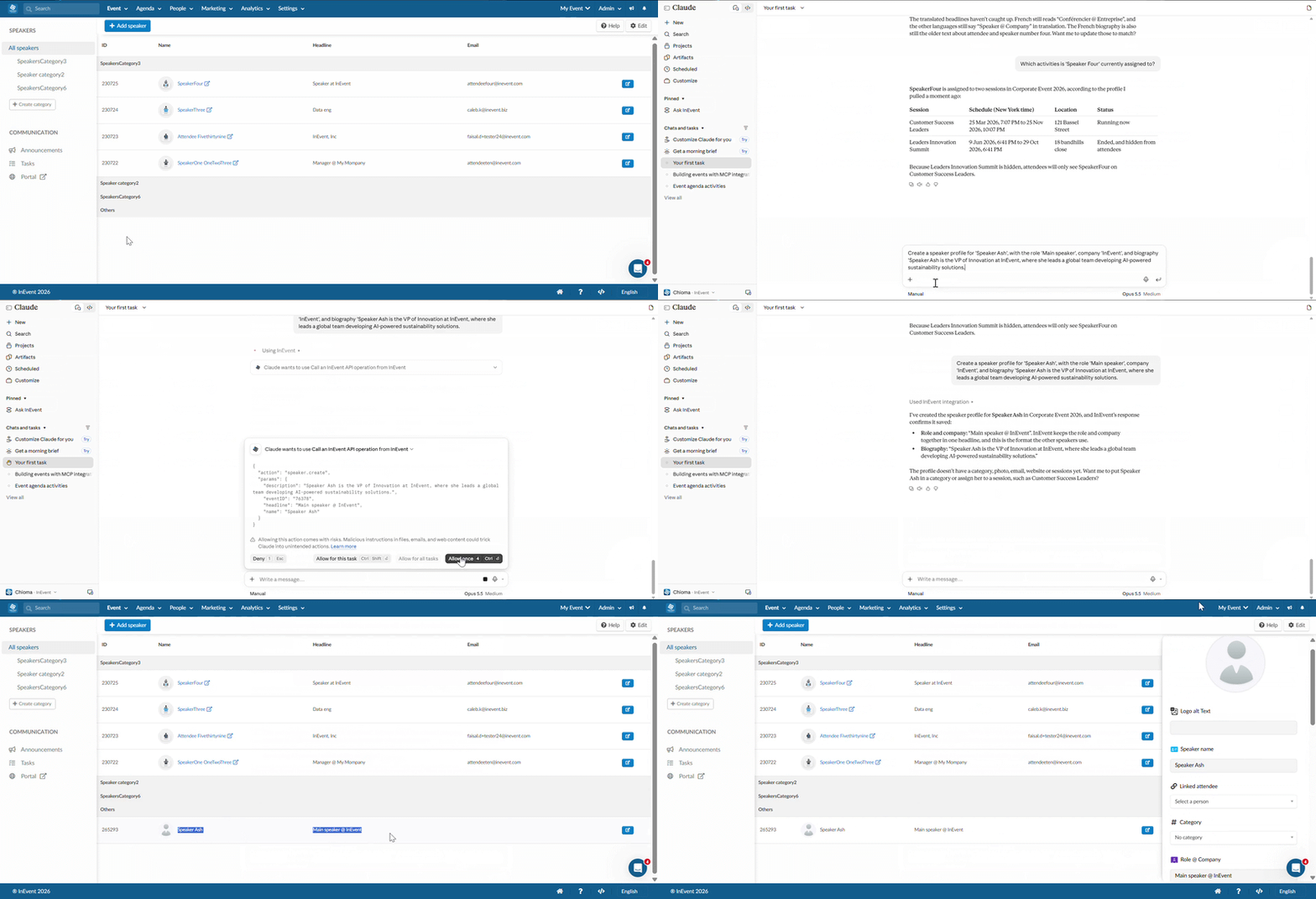
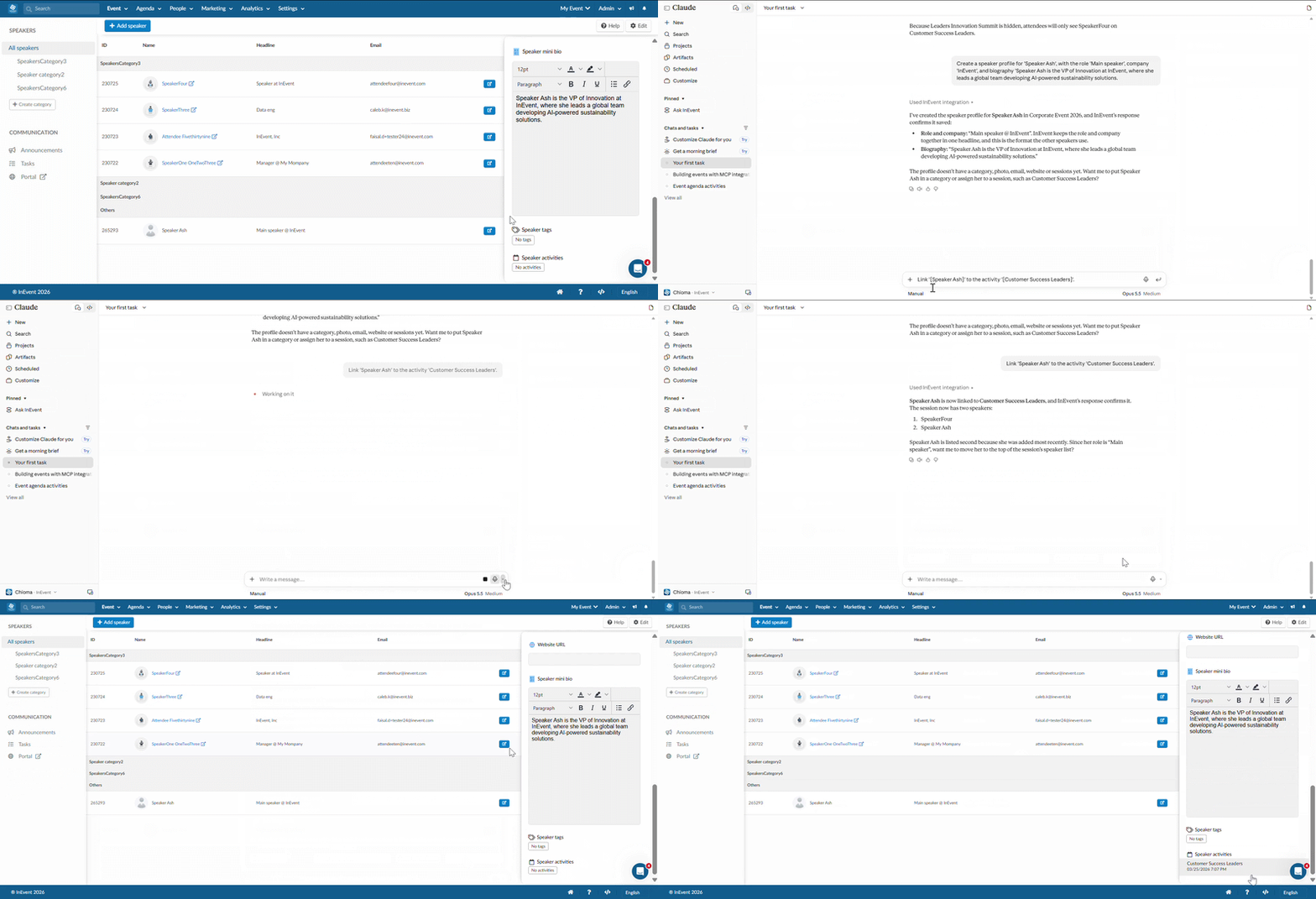
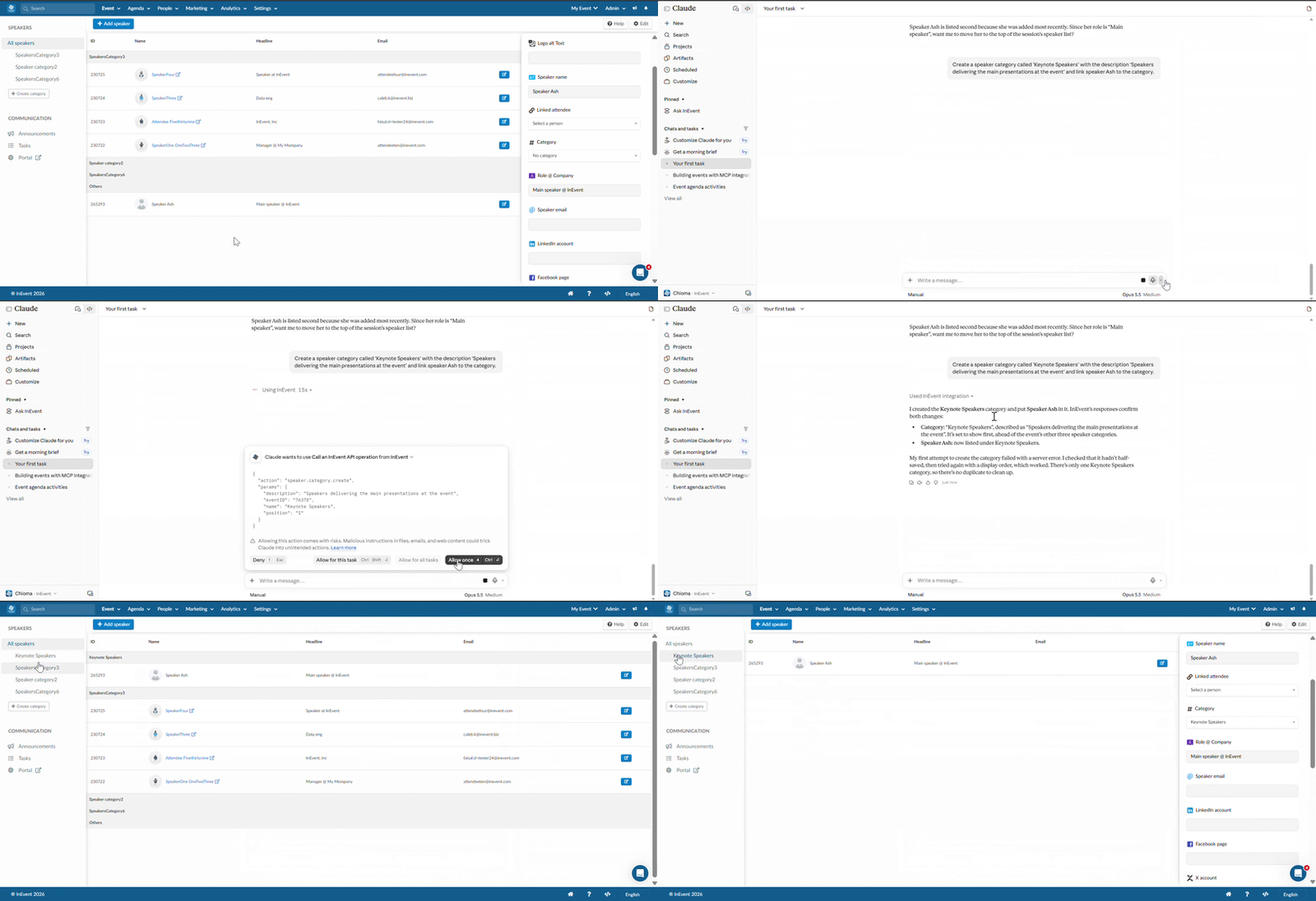
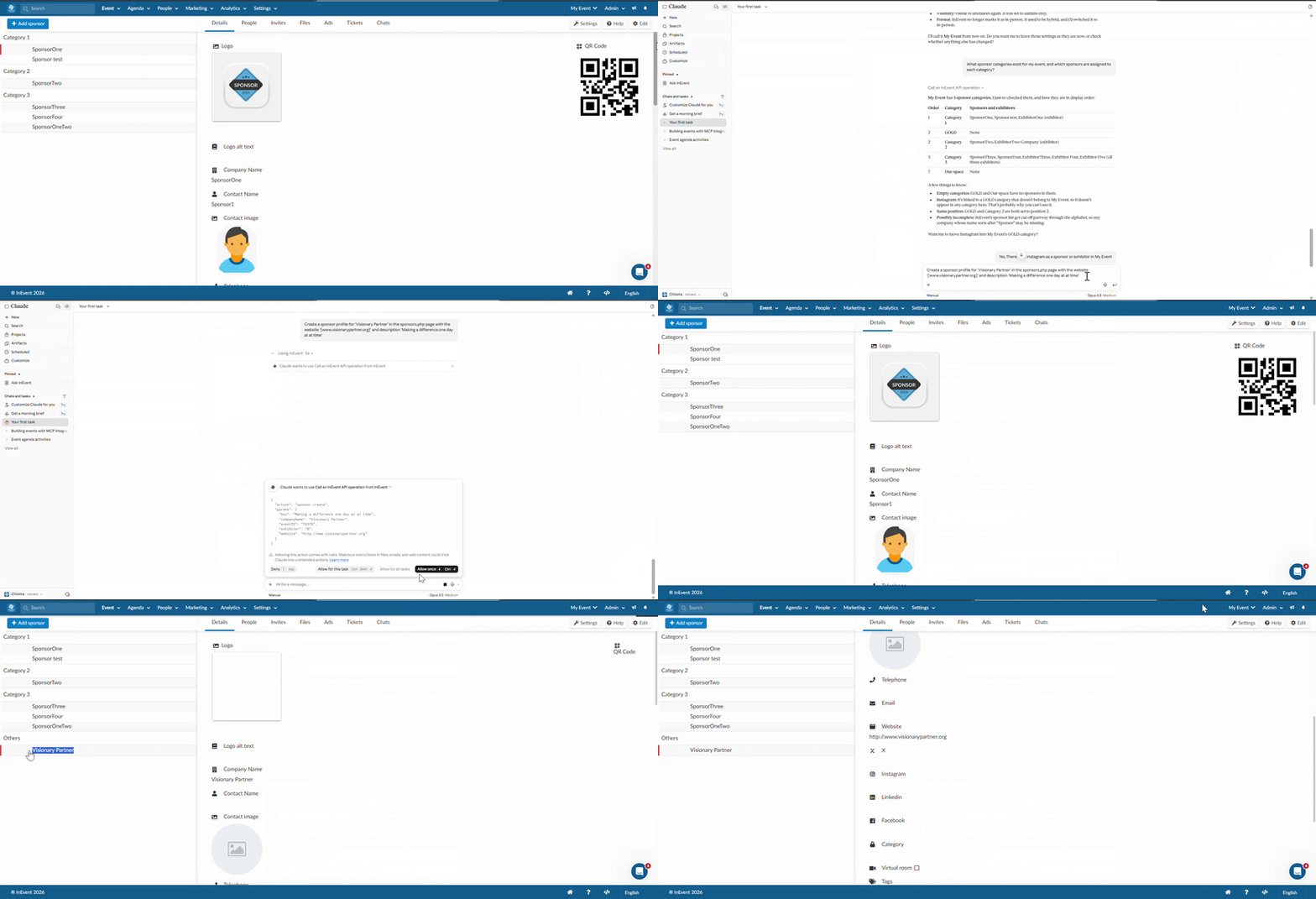
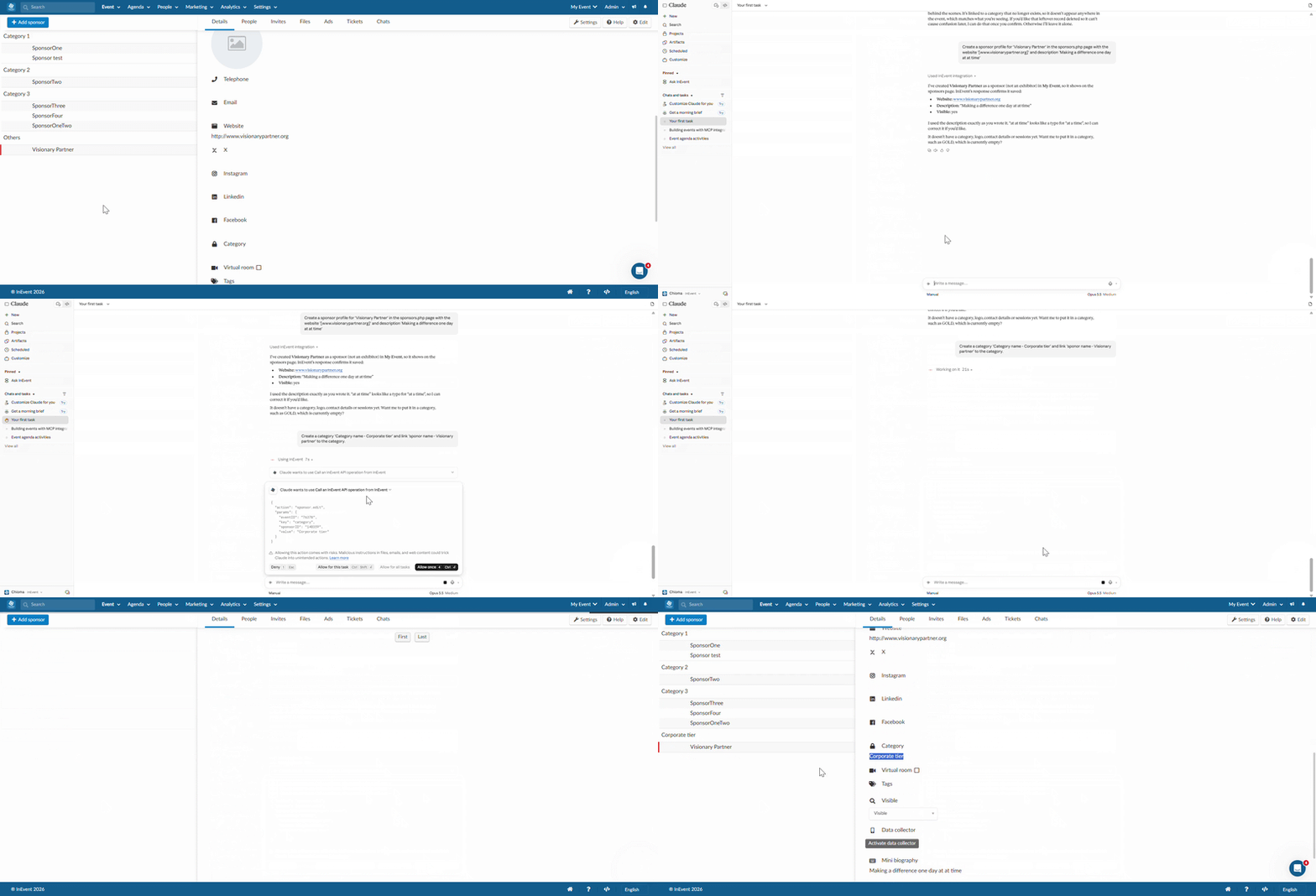
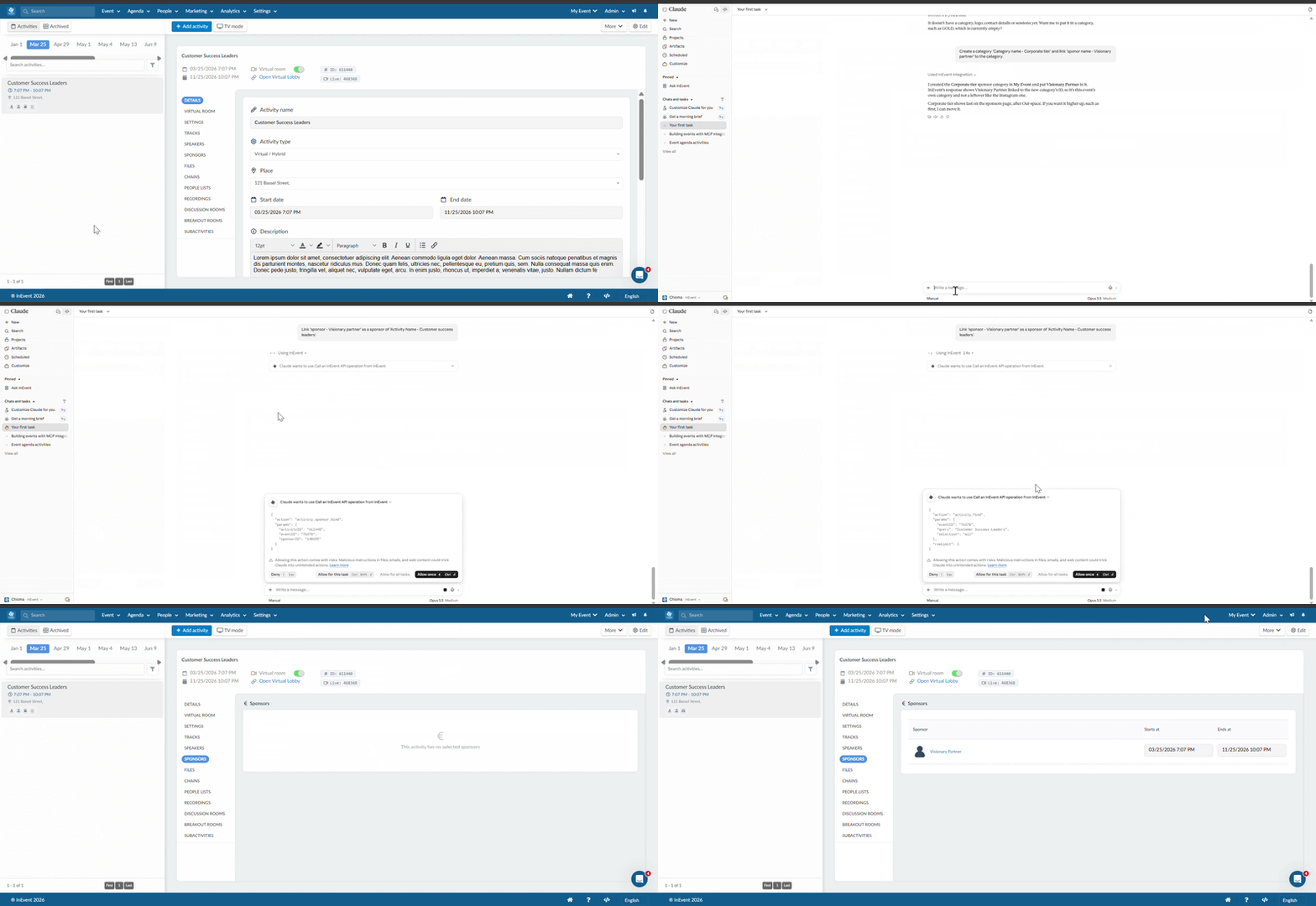
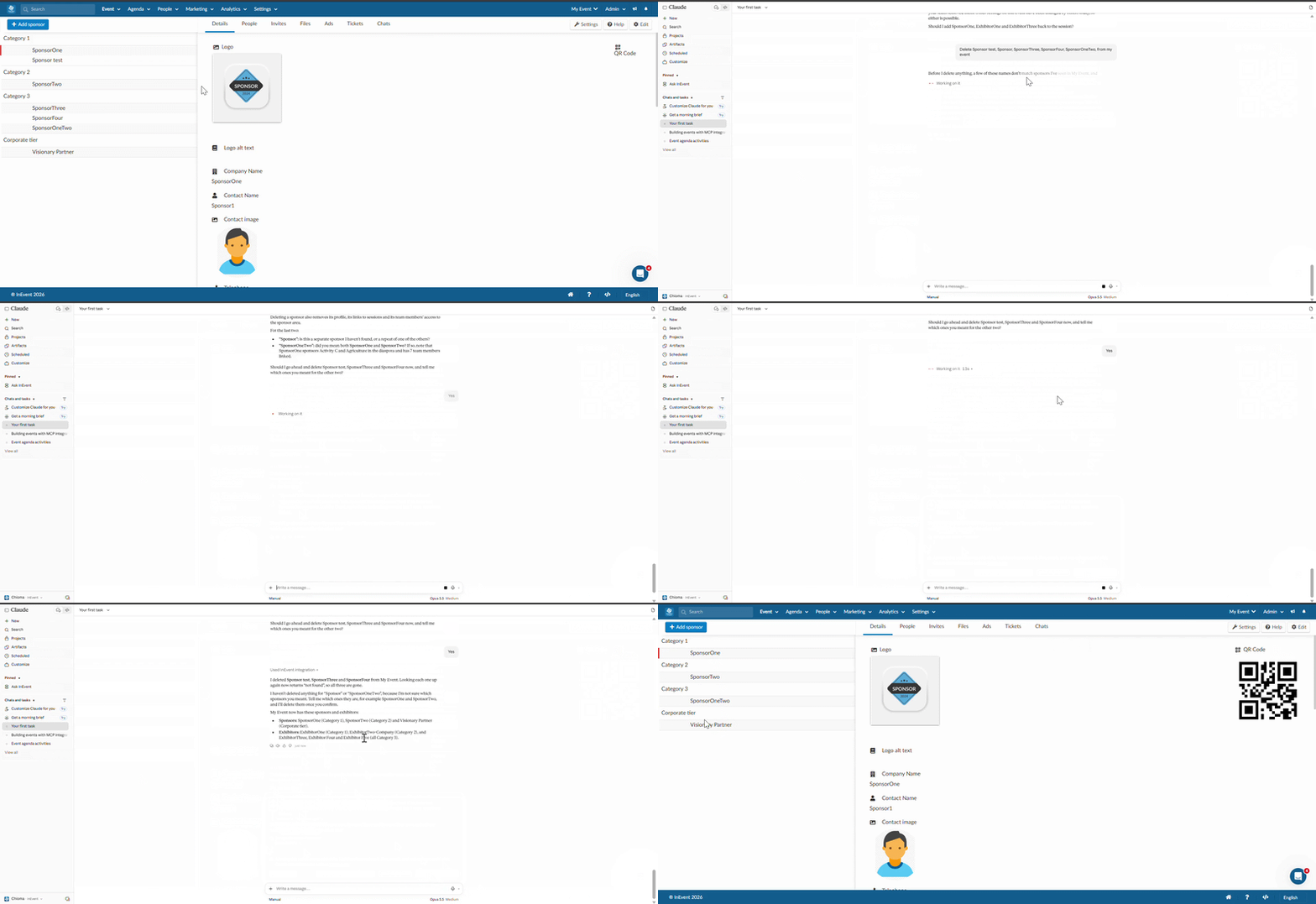
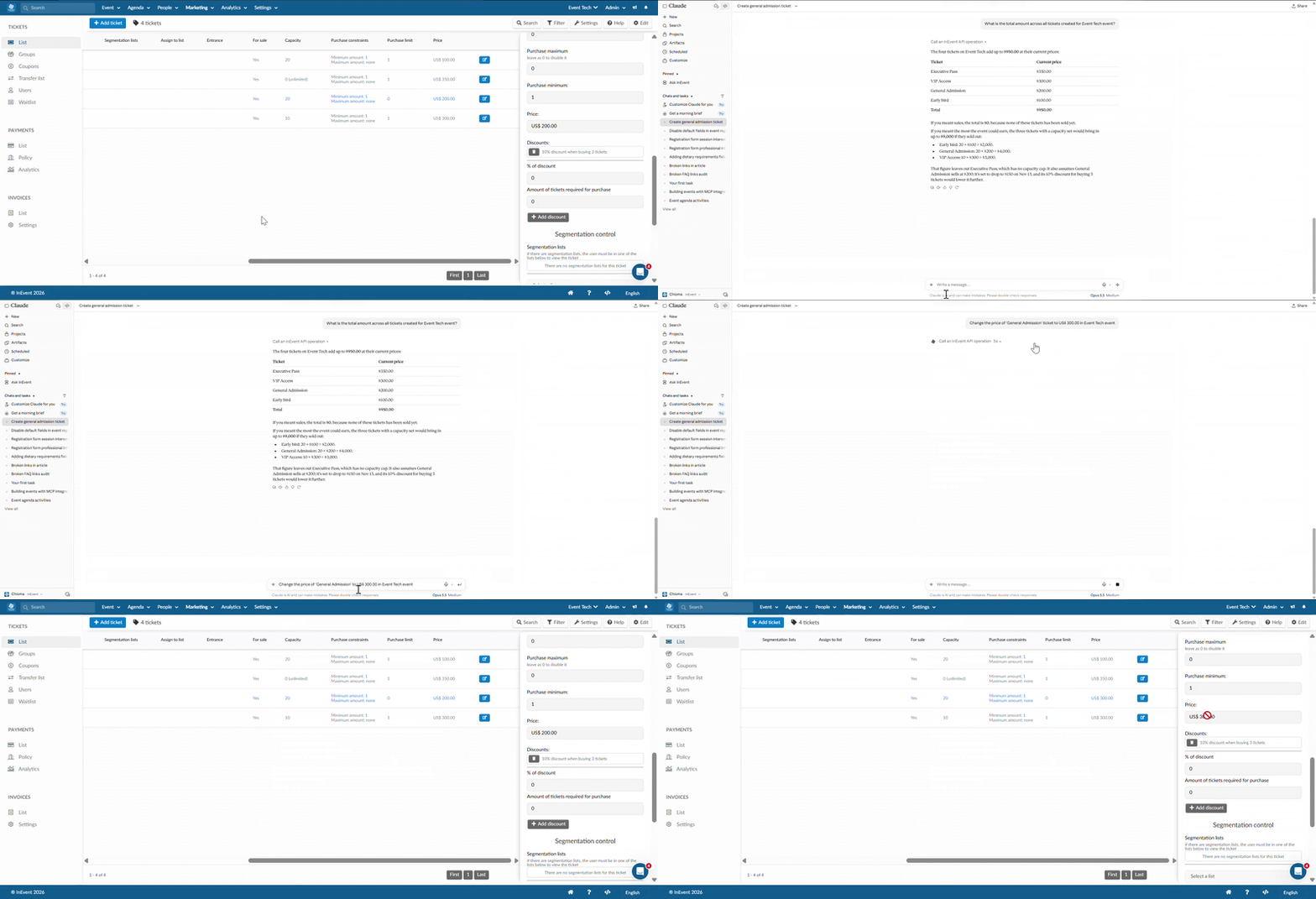
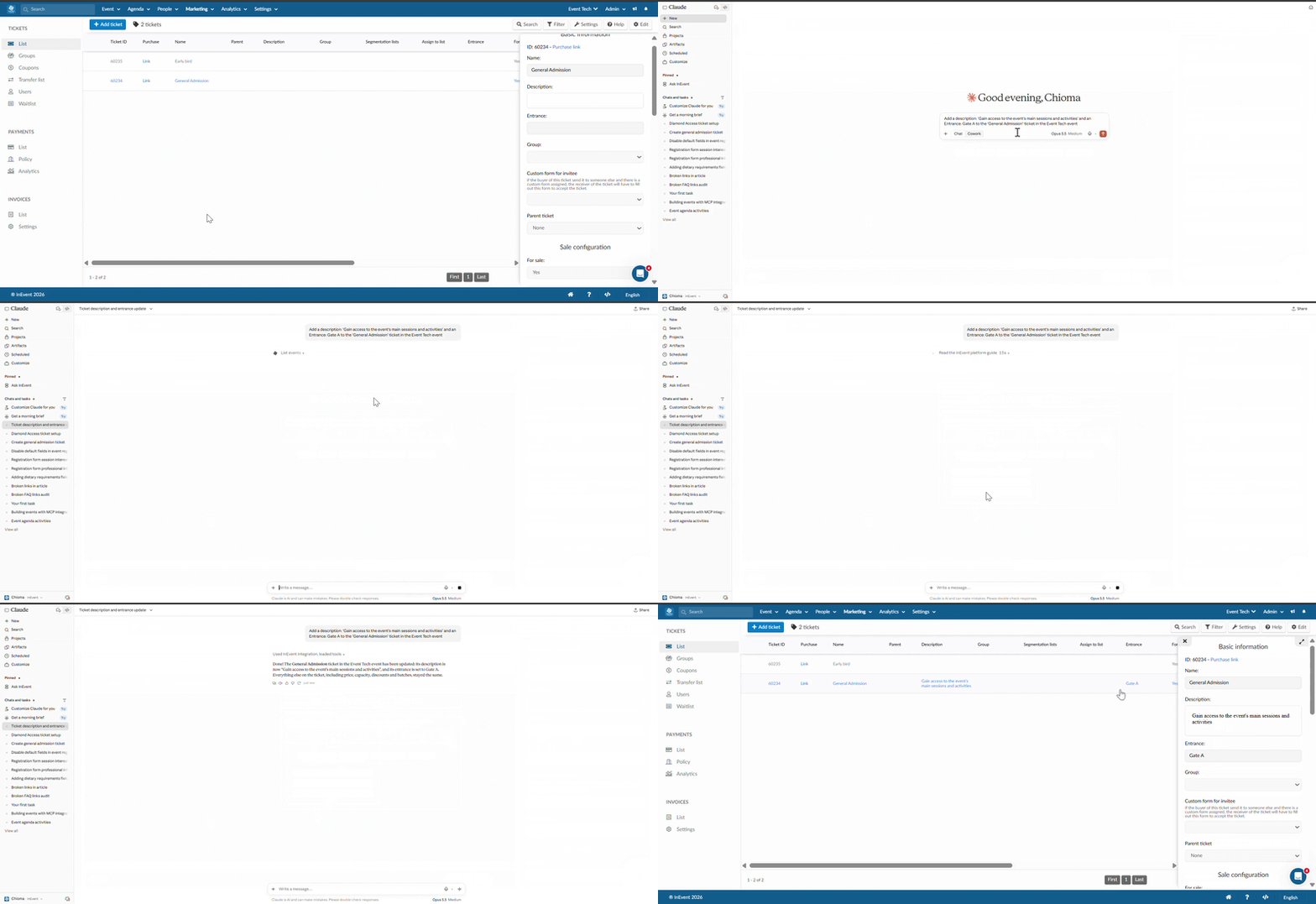
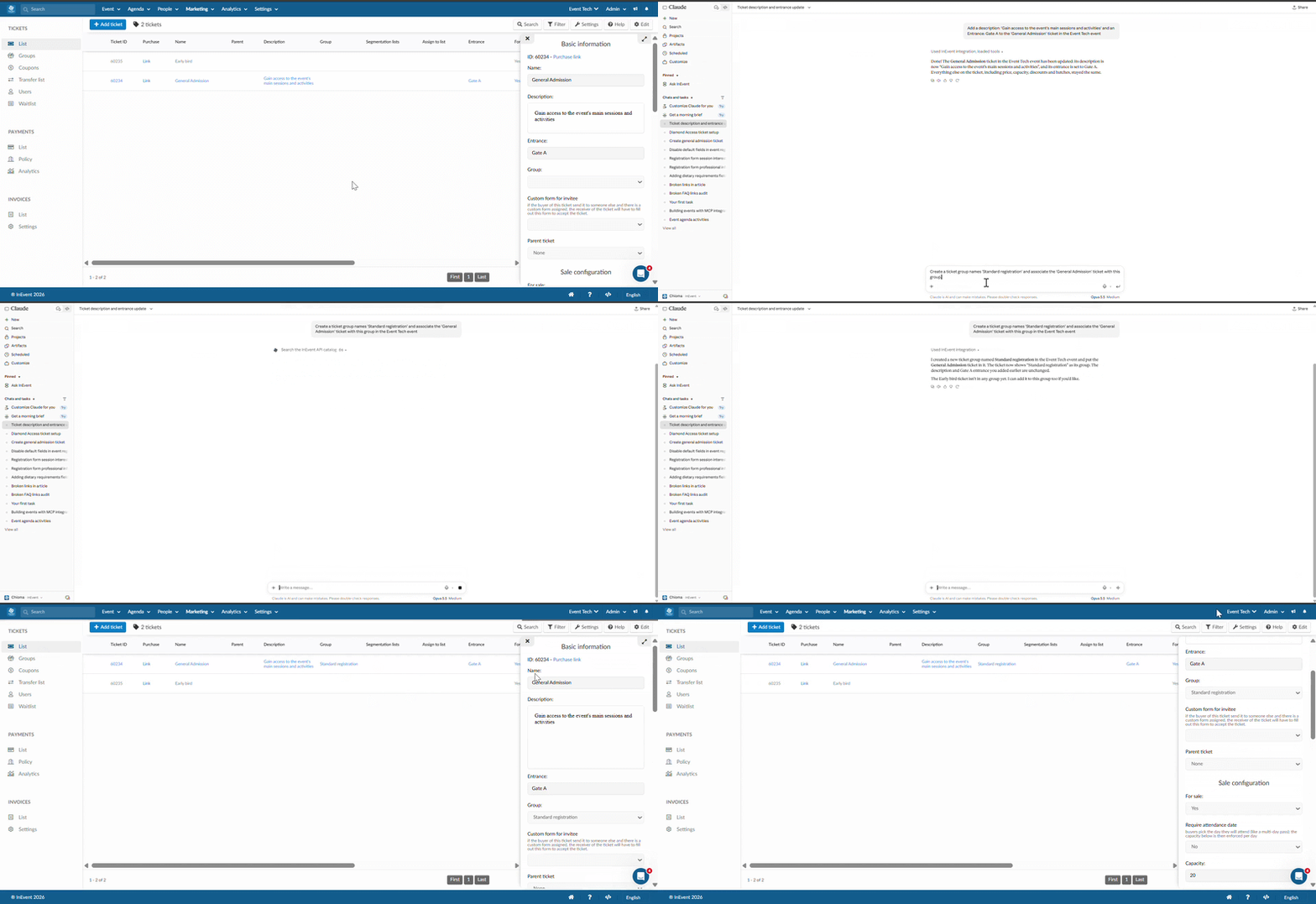
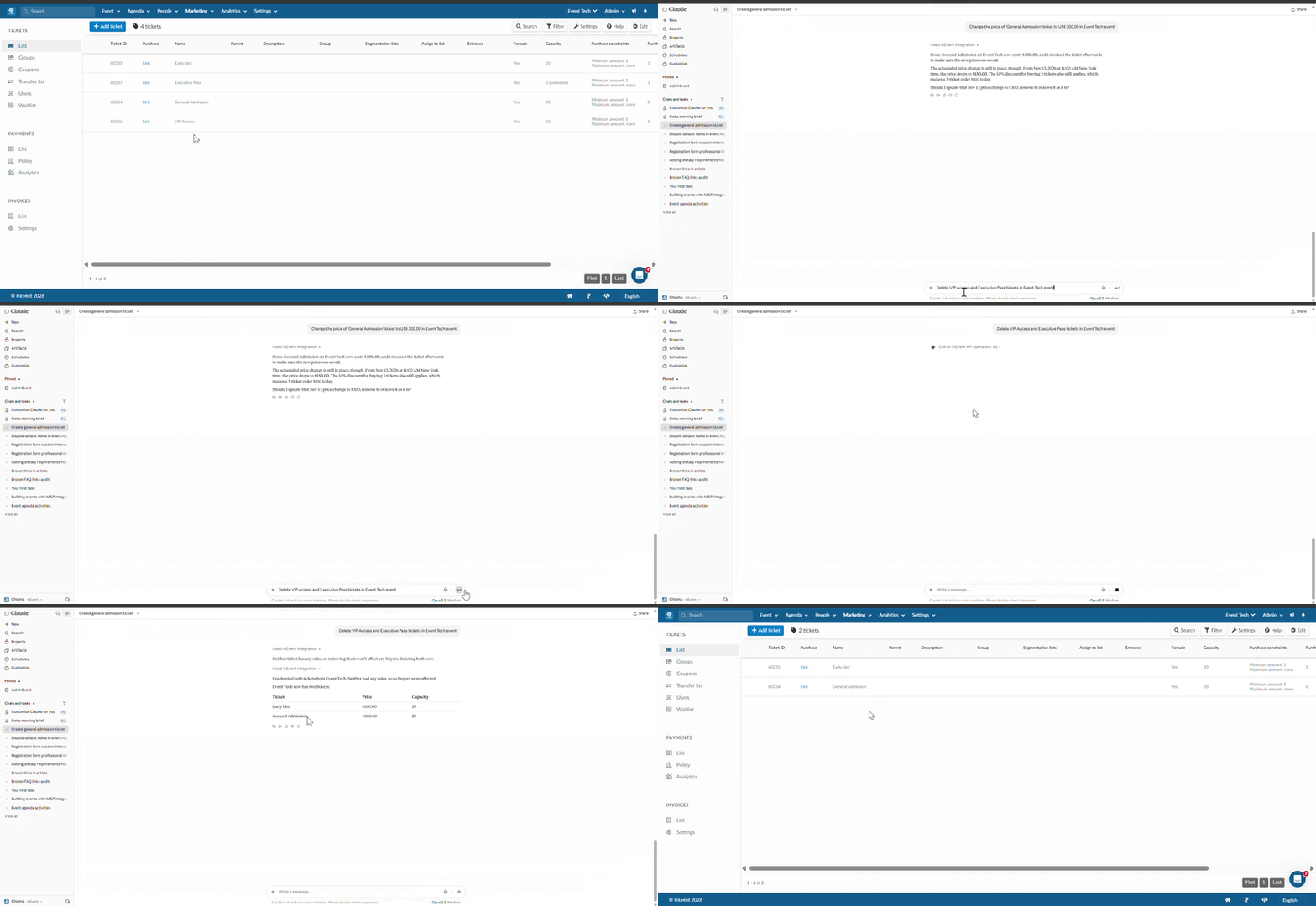
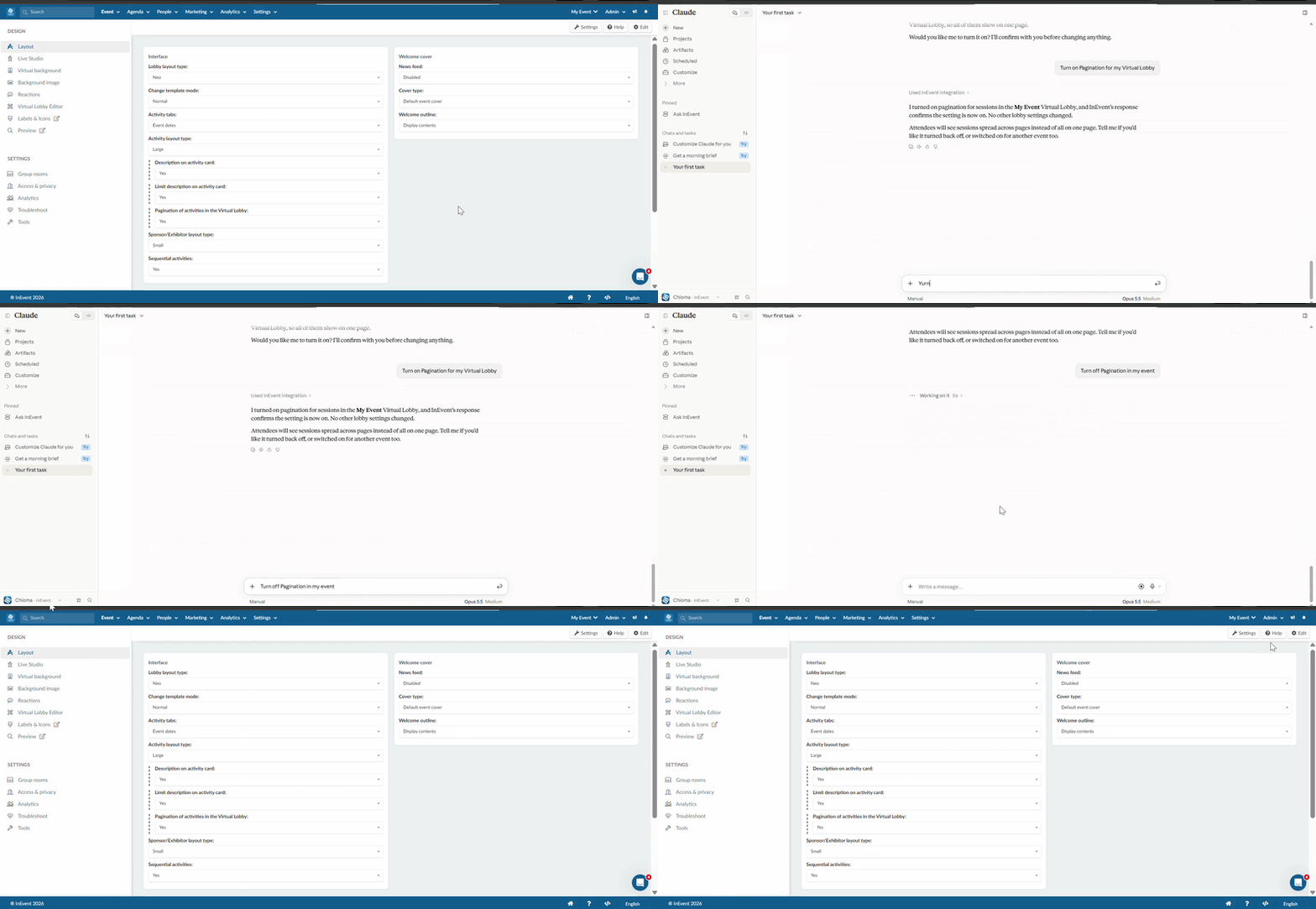
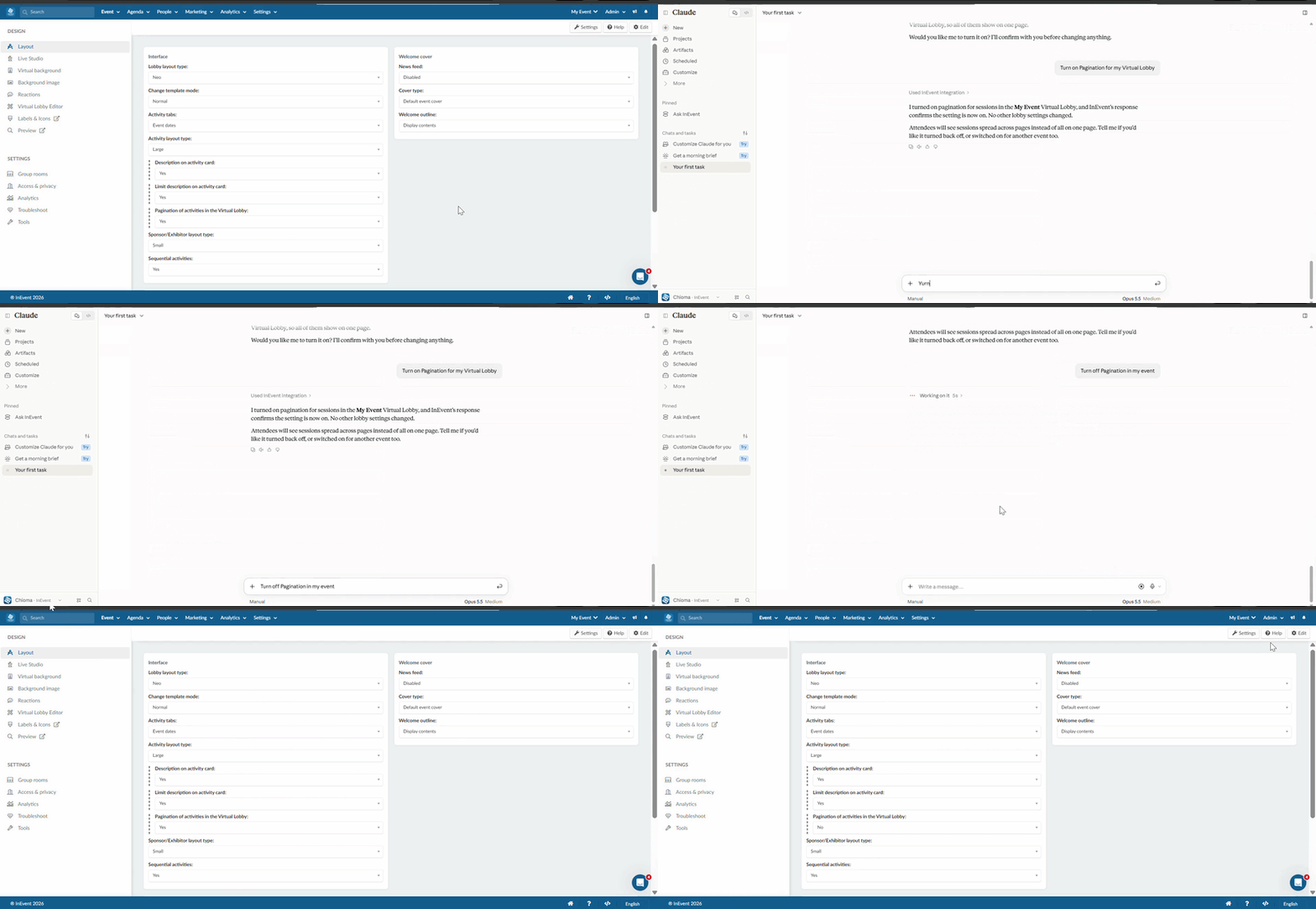
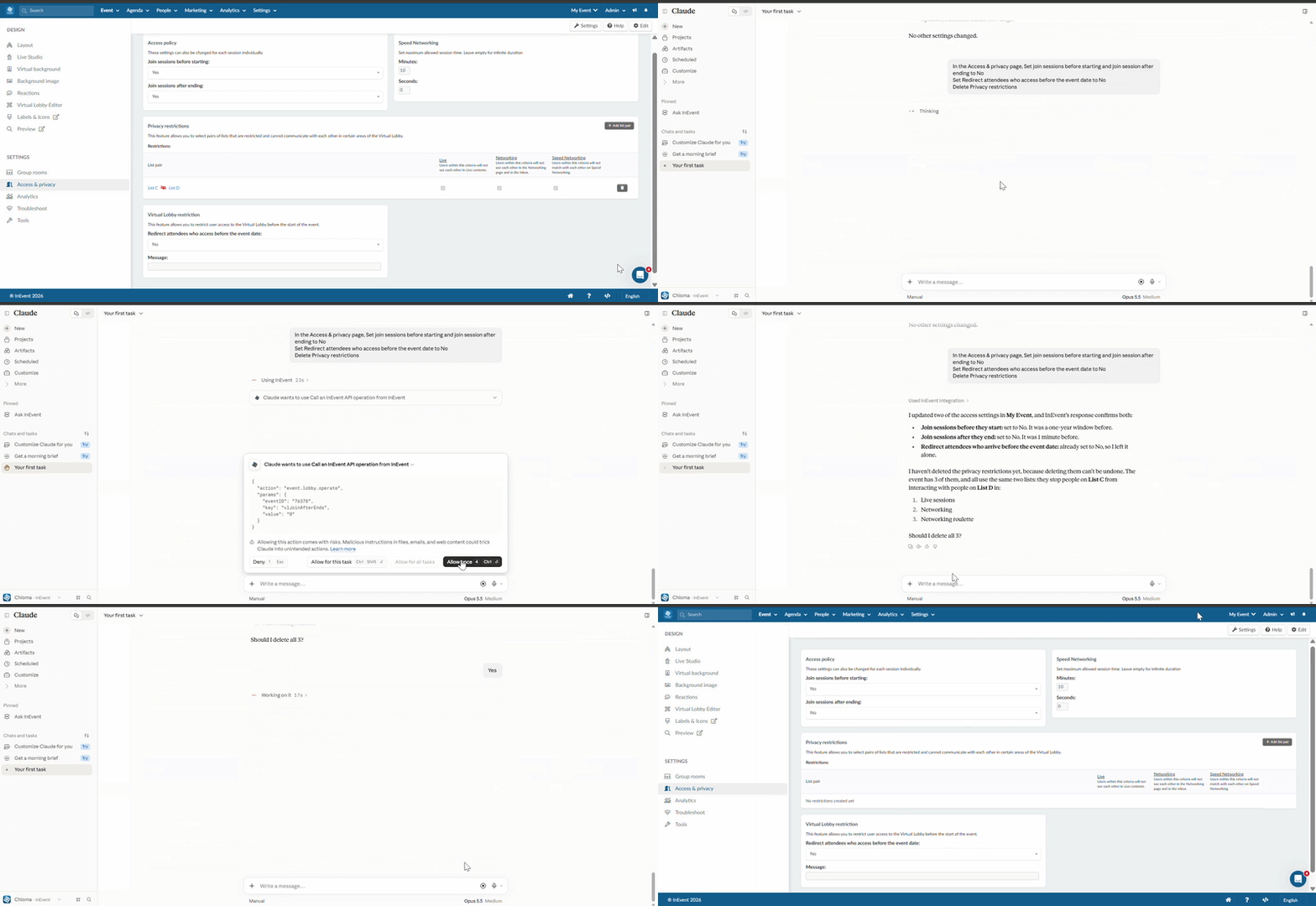
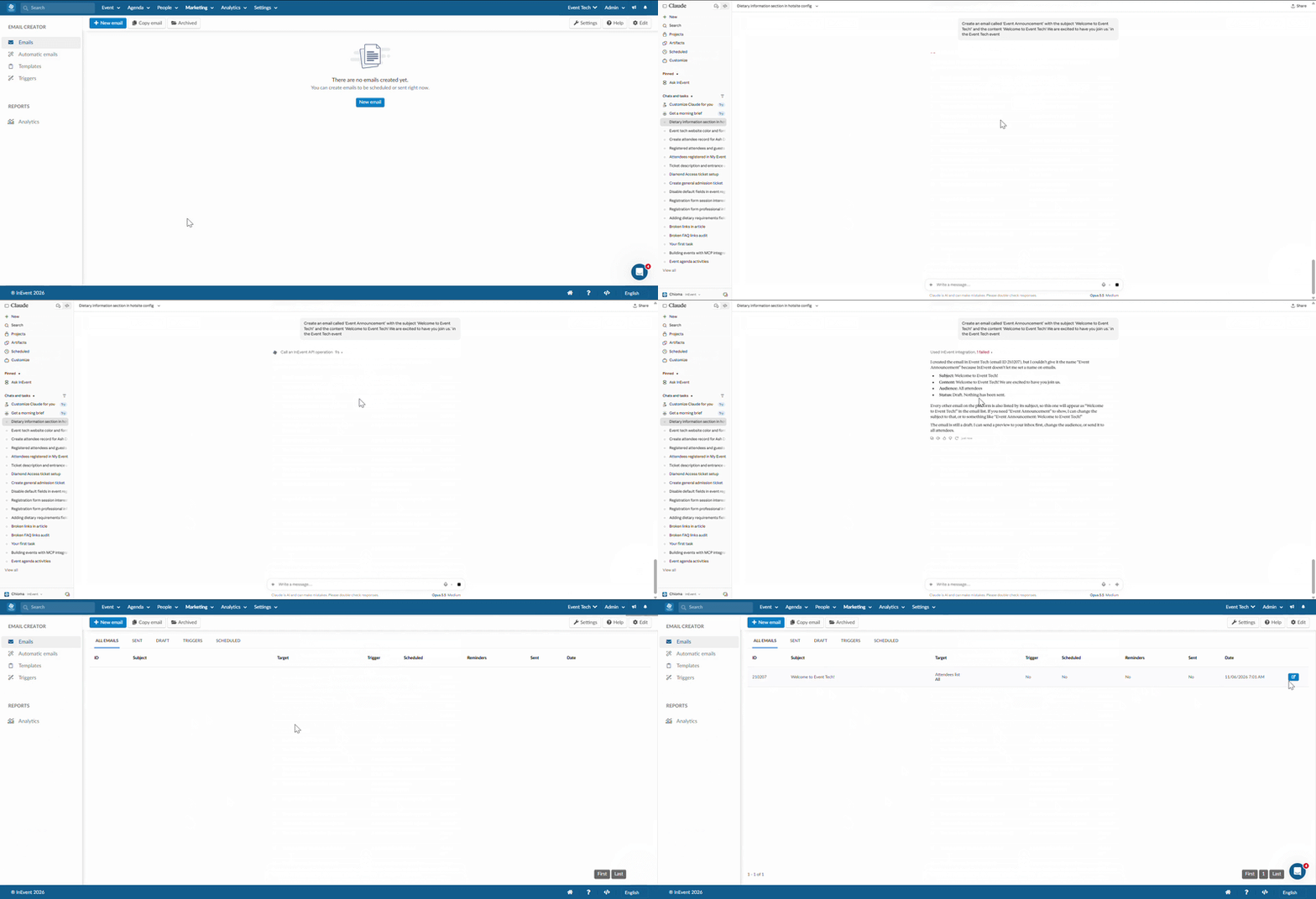
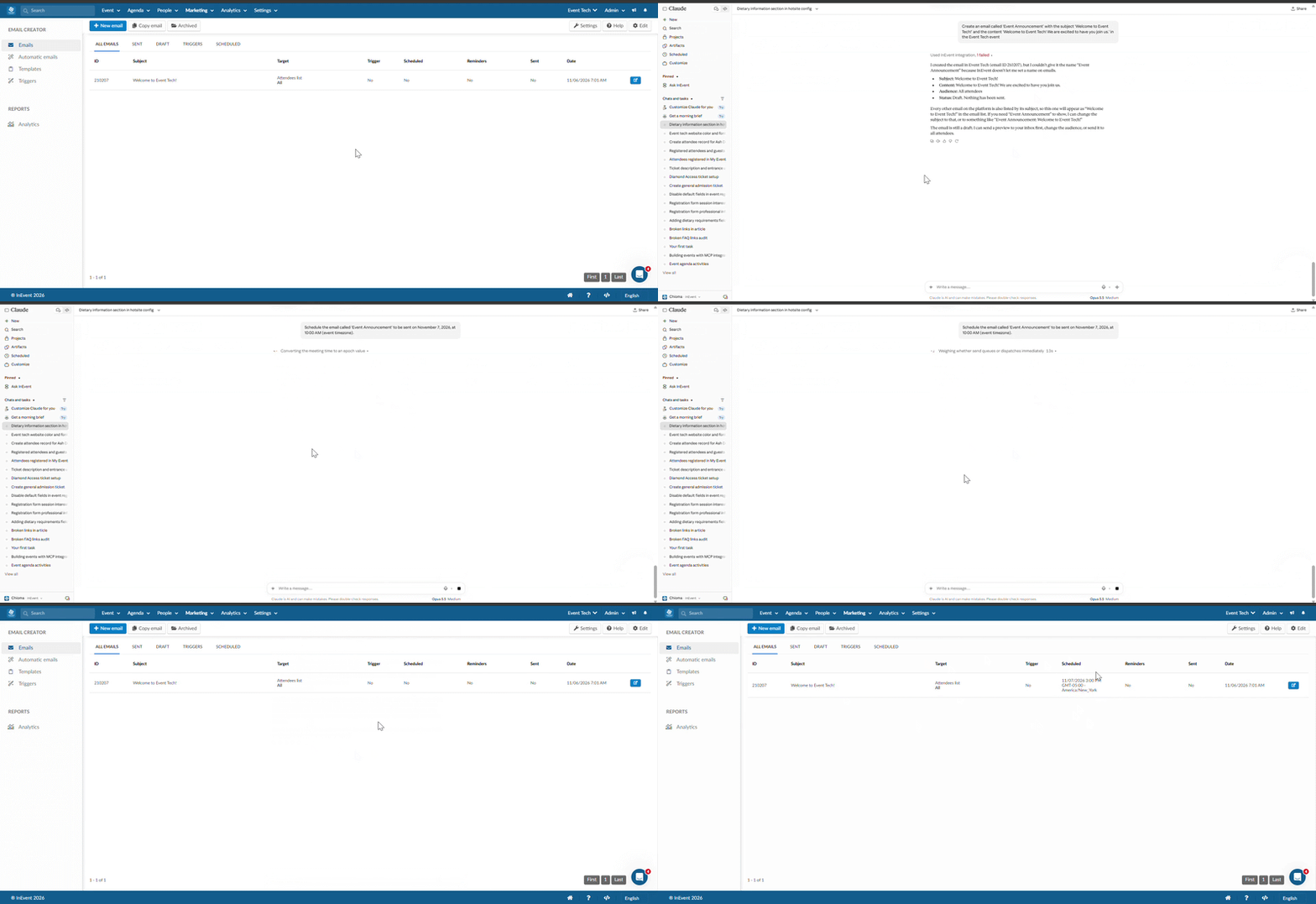
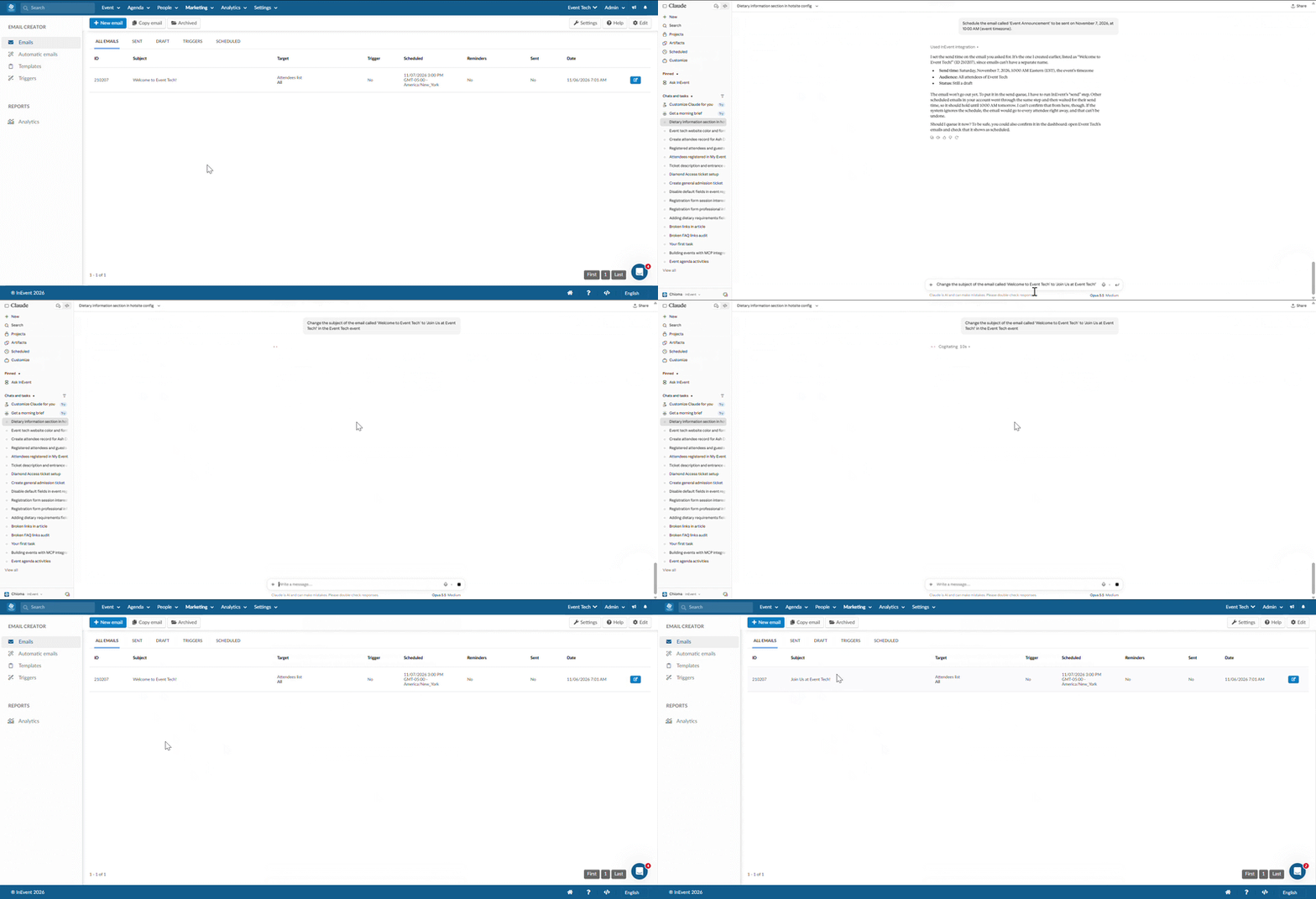
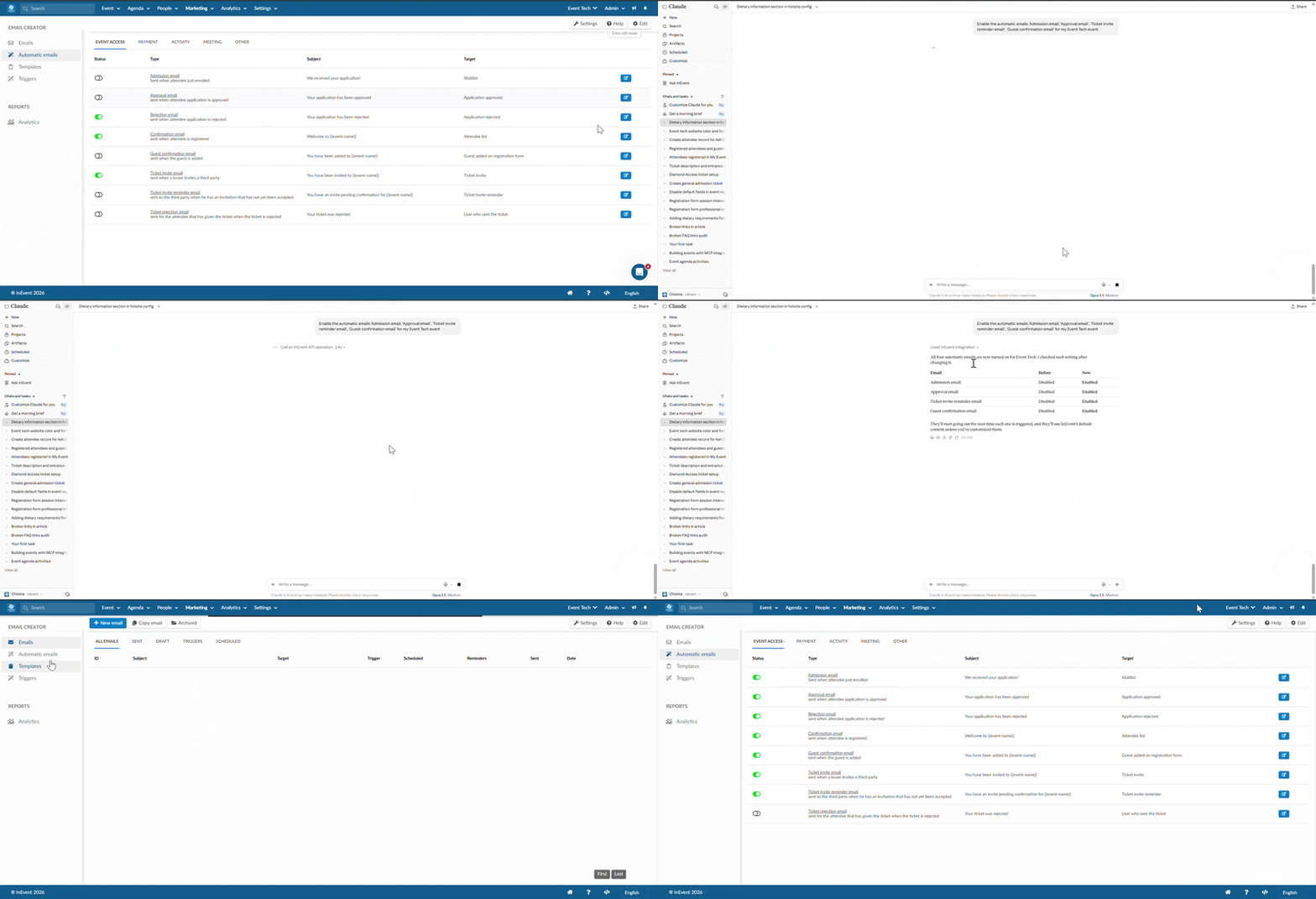
The GIFs included in this article show the before-and-after states of the event configuration. The Before view displays the original configuration, while the After view shows the changes made after executing the write prompt and refreshing the platform, allowing you to visualize the actions performed through MCP integration.
Creating an event
Use MCP integration to create a new event directly through natural-language prompts, without manually navigating through the InEvent platform. You can specify the event name, start and end dates, and other supported settings during the creation process.
- Prompt example: Create a new event titled Event Tech, running from November 1, 2026, to November 1, 2027. Do not use or copy any existing event template.
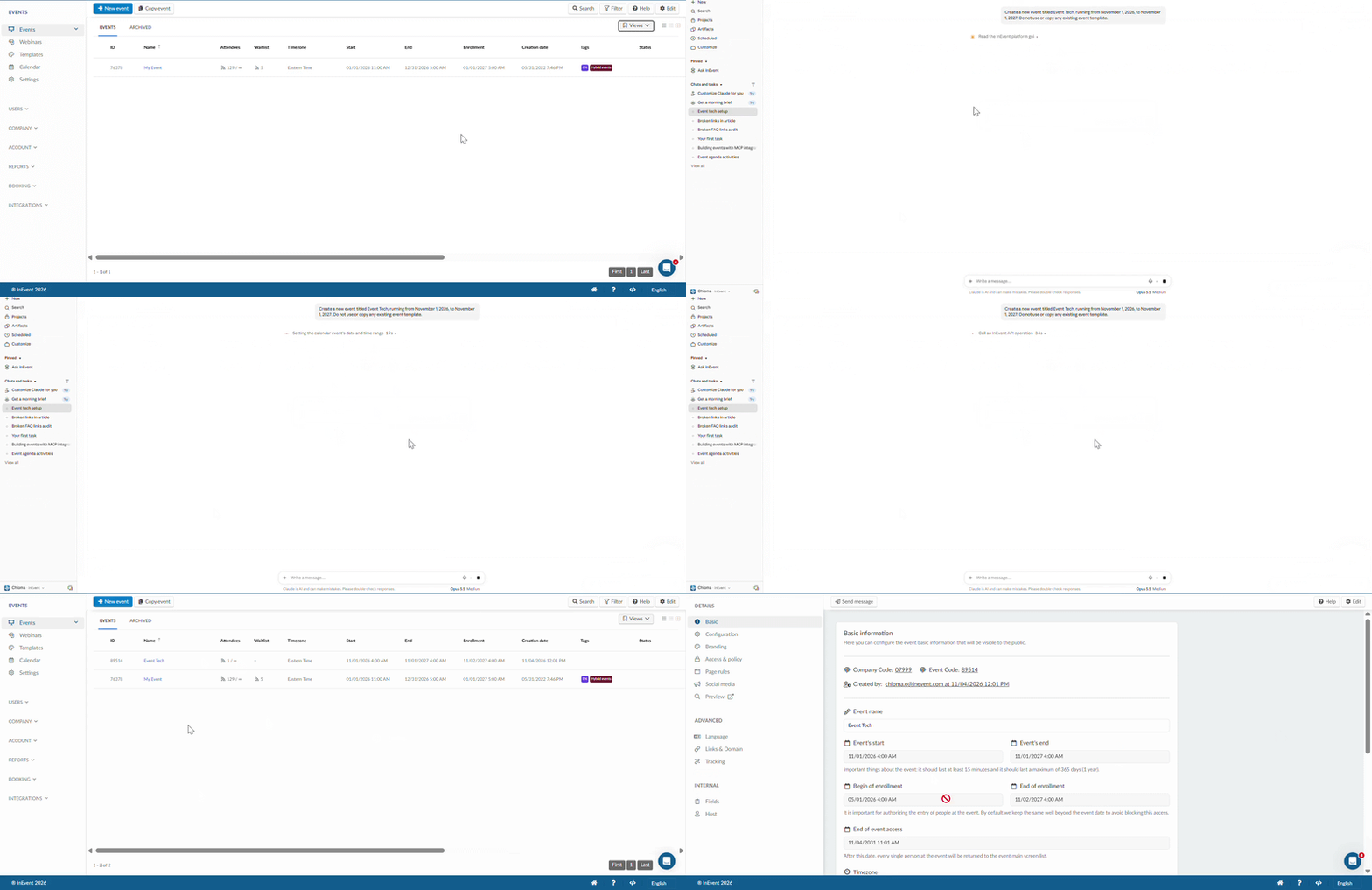
After creating your event, you can begin adding information and retrieving information about your event.
Event Details
Use MCP integration to retrieve your event's basic information or update its configuration.
Read-only examples
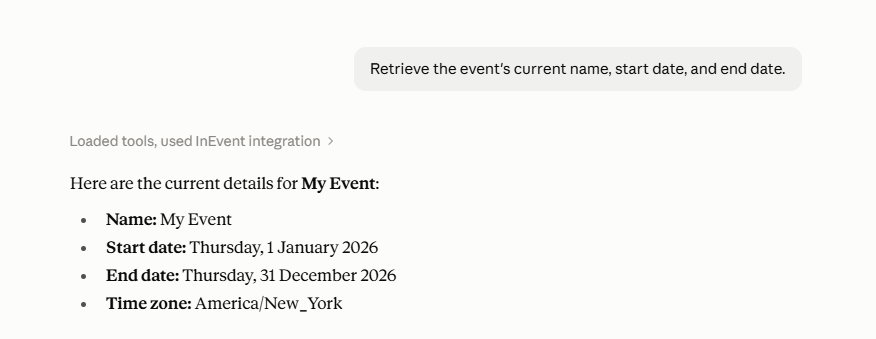
- Retrieve the event's current name, start date, and end date.
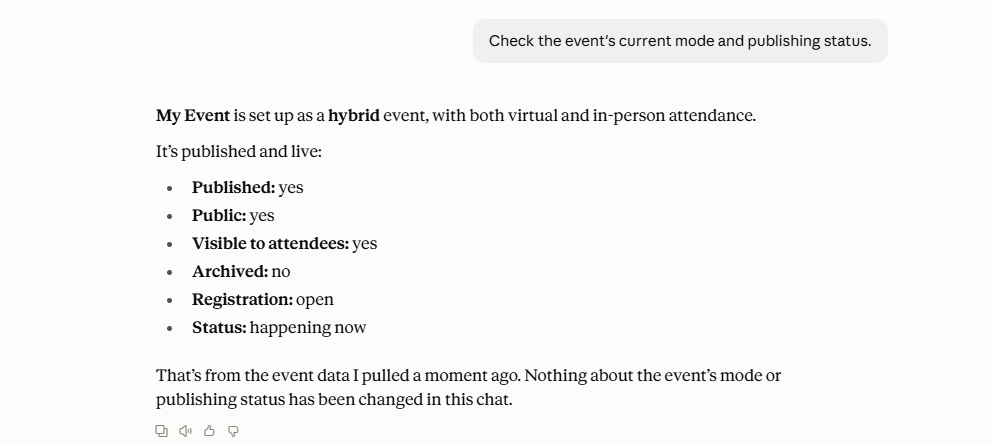
- Check the event's current mode and publishing status.
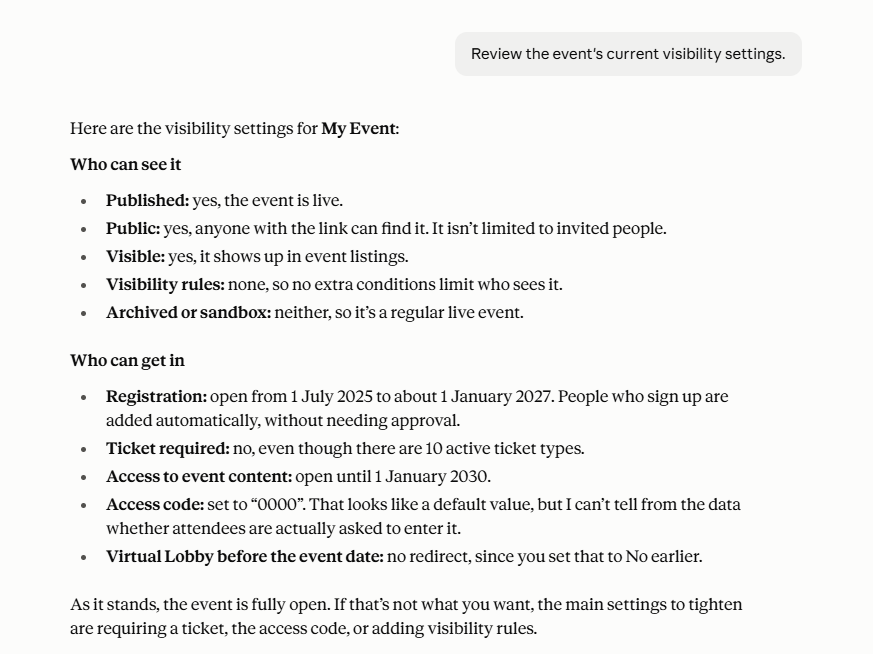
- Review the event's current visibility settings.
Write examples
Below are a few GIF examples demonstrating how the platform changes in response to the actions performed.
- Update the event's name
- Update the event's nickname to match the event's name.
- Create a short general description for my event and make it an In-person event.
- Change the event's visibility settings to admins only and change the currency to EUR.
Agenda Management
Use MCP integration to retrieve activity details, review your schedule, and create or update activities.
Read-only examples
- Retrieve your agenda information
List all activities in my event agenda, including their names, start times, end times, and locations.
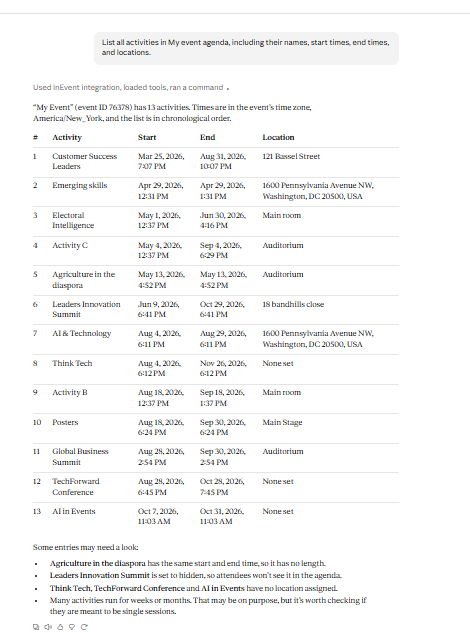
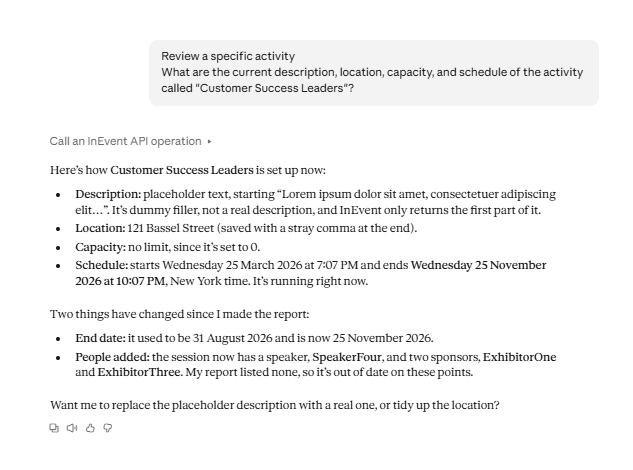
- Review a specific activity
What are the current description, location, capacity, and schedule of the activity called "Customer Success Leaders"?
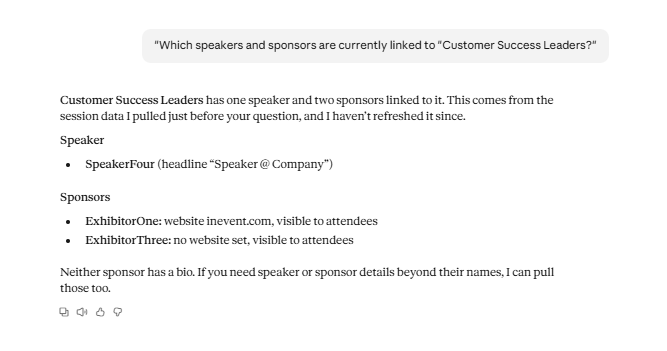
- Check speaker and sponsor assignments
Which speakers and sponsors are currently linked to "Customer Success Leaders"?
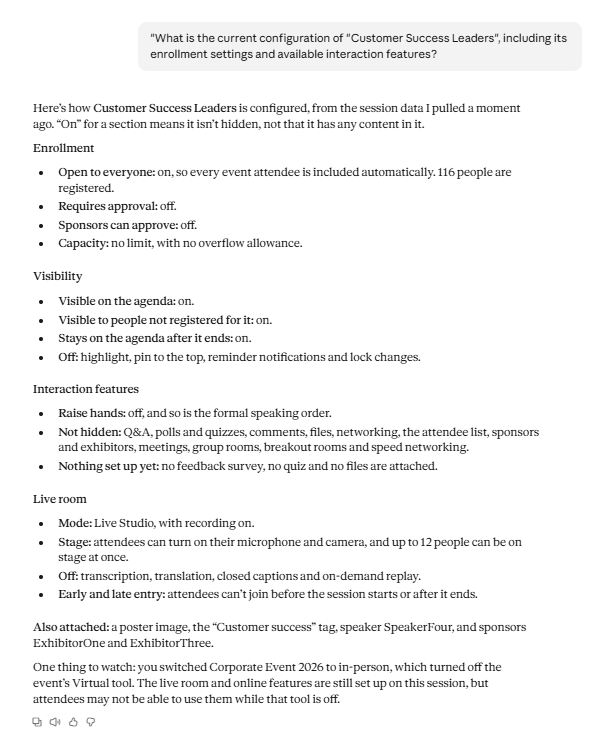
- Review activity settings
What is the current configuration of 'Customer Success Leaders', including its enrollment settings and available interaction features?
Write examples
- Create a new activity
Create an activity called 'Product Launch’ on Thursday October 22nd, 2026, from 10:00 AM to 11:00 AM, at 423 Wilmington New York.
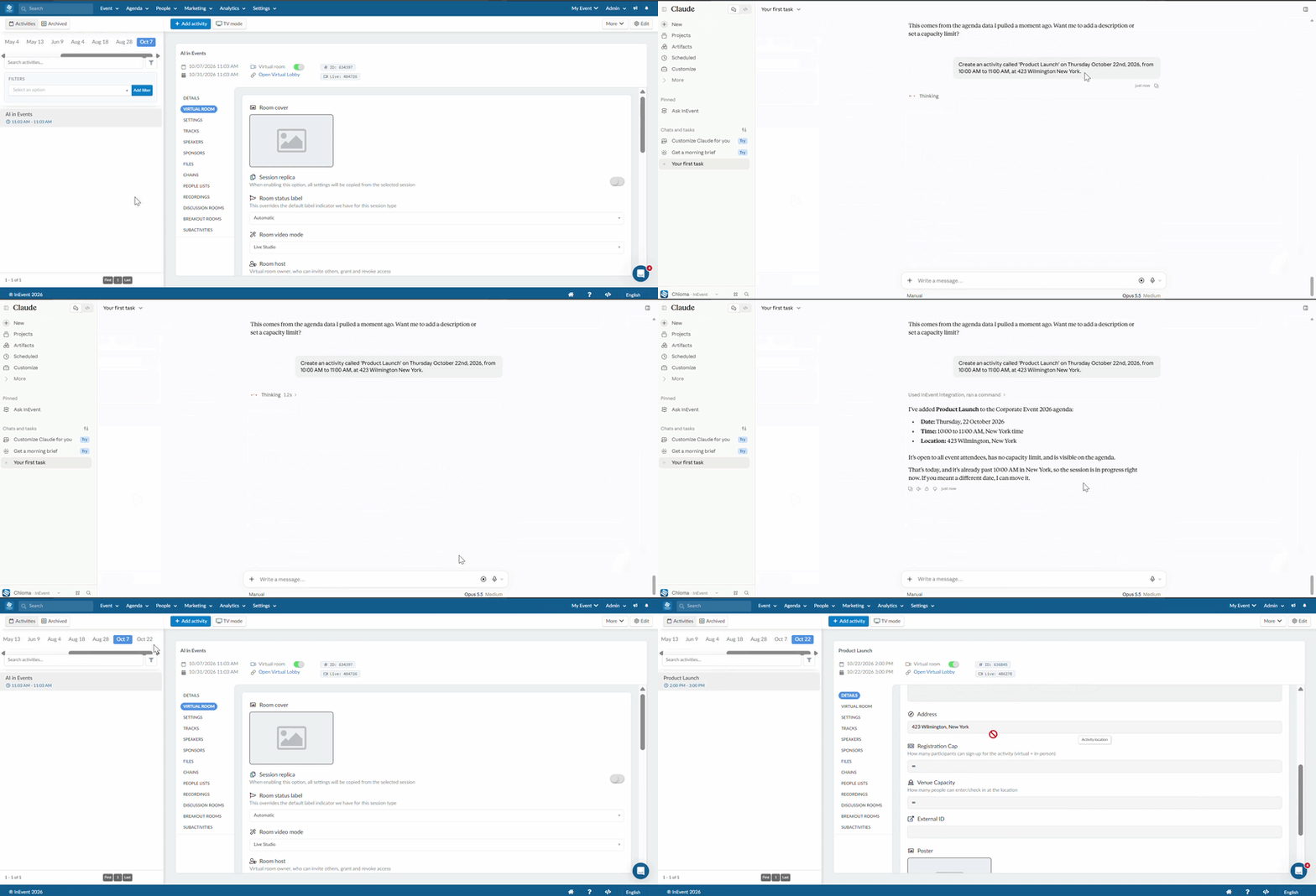
- Change an activity's name
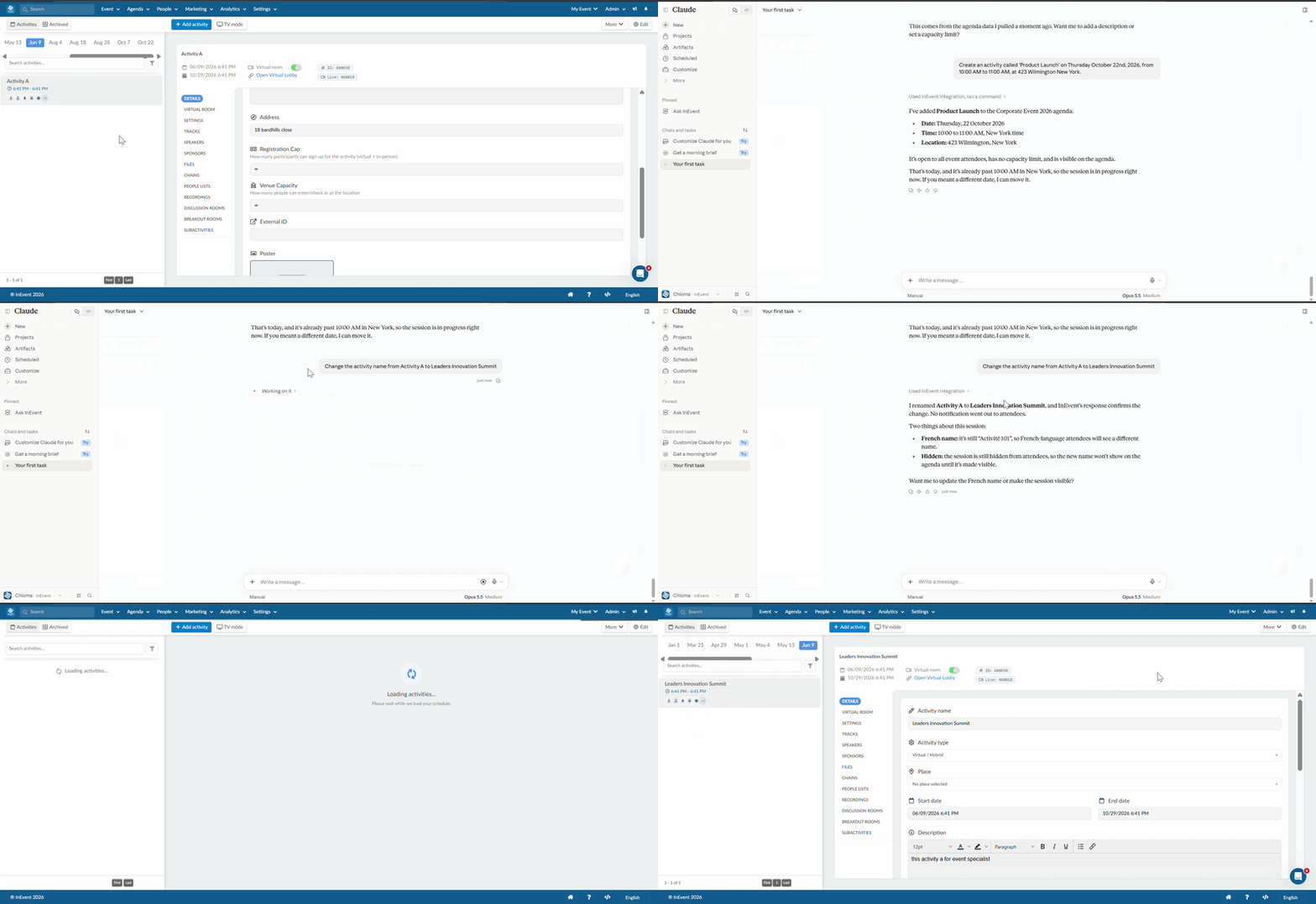
- Disable/Enable all tools under the Settings page of an activity
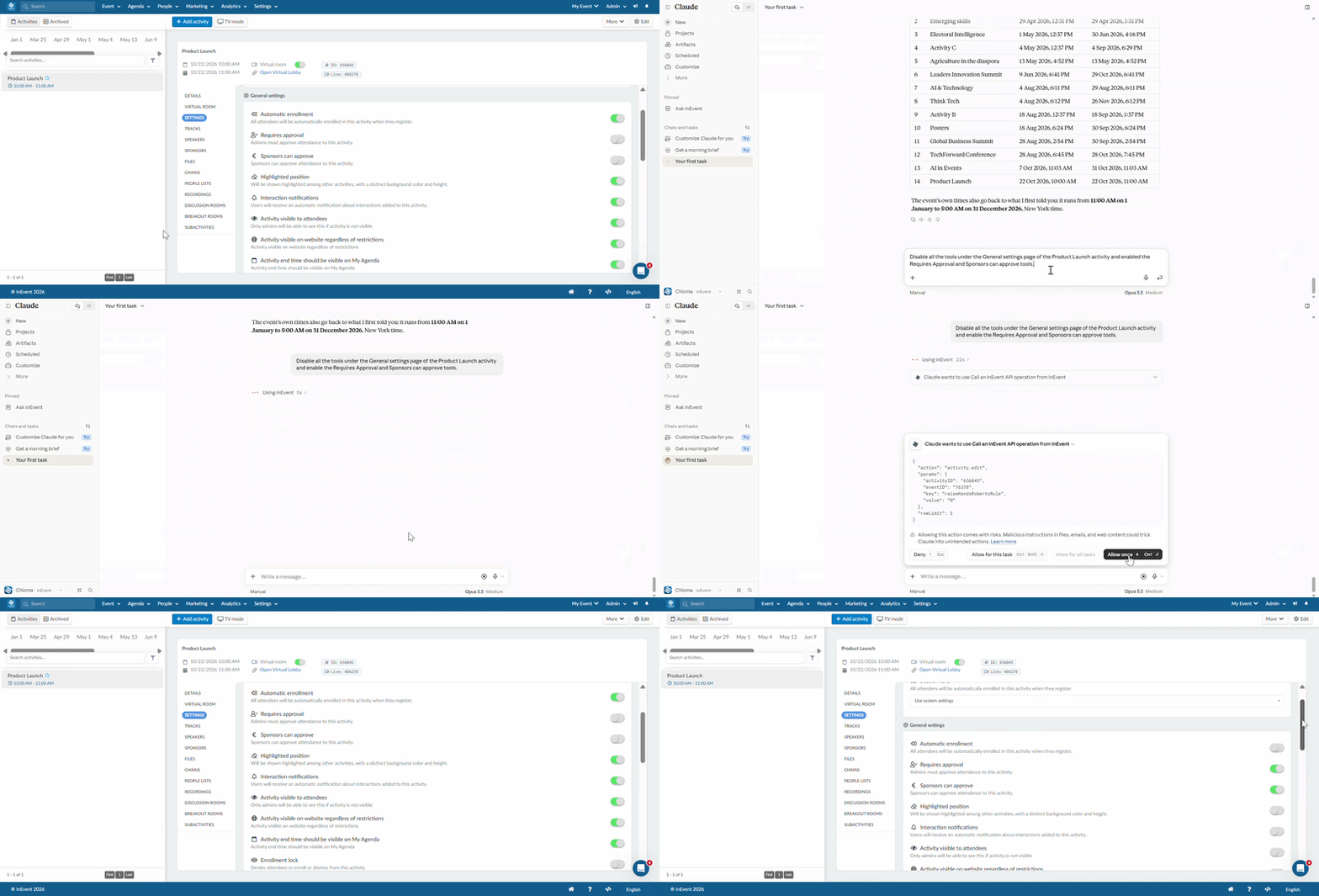
- Export and download an activity report
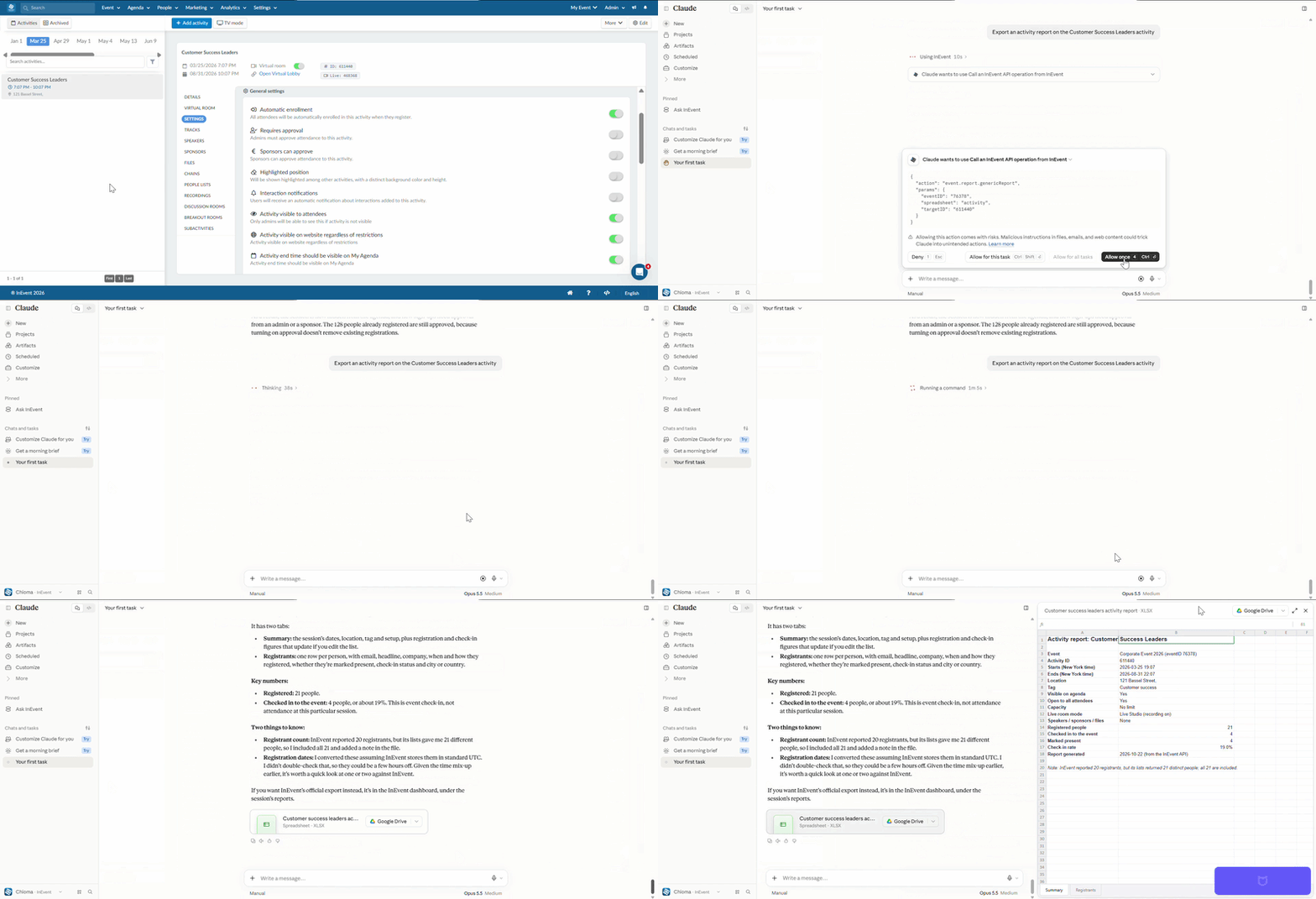
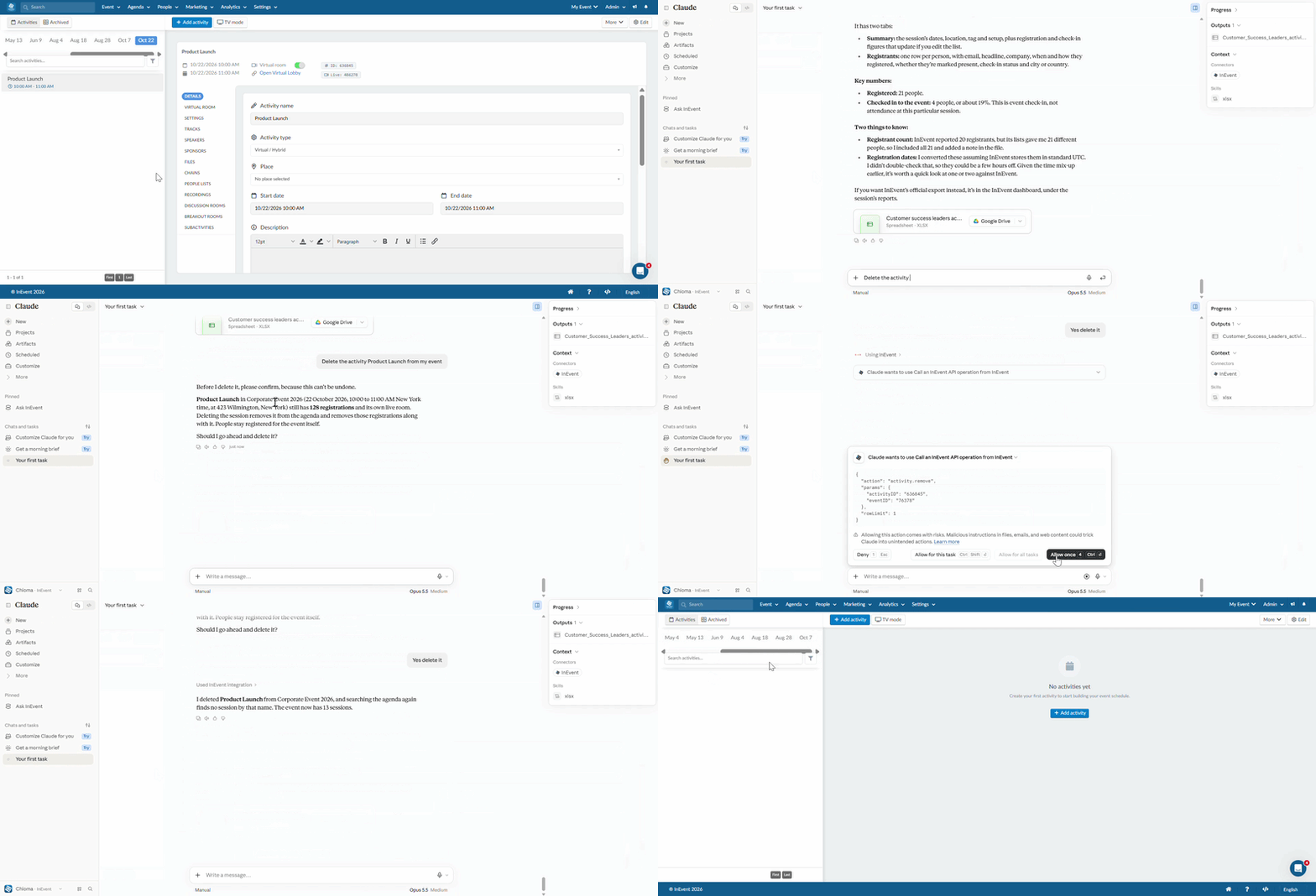
- Delete an activity/activities
Speakers
Use MCP integration to retrieve speaker information, review their assigned sessions, and maintain speaker profiles.
Read-only examples
- Retrieve speaker information
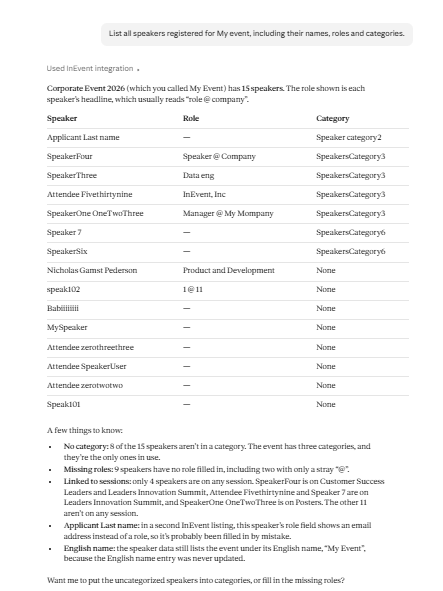
List all speakers registered for my event, including their names, roles and categories.
- Review a speaker's profile
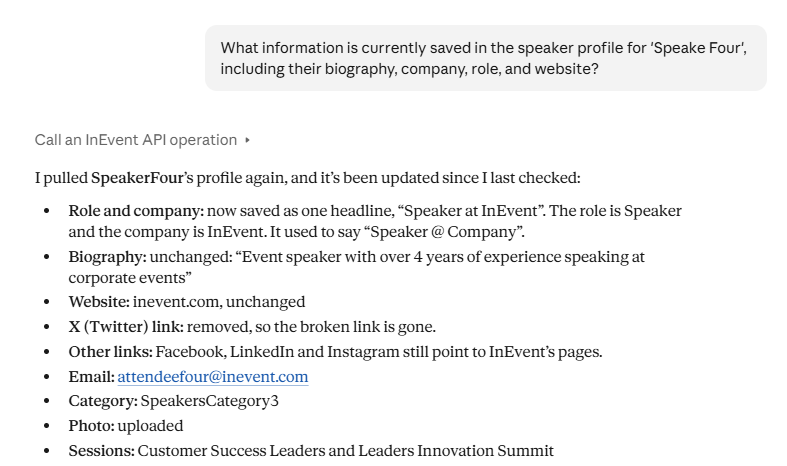
What information is currently saved in the speaker profile for 'Speaker Four', including their biography, company, role, and website?
- Check speaker assignments
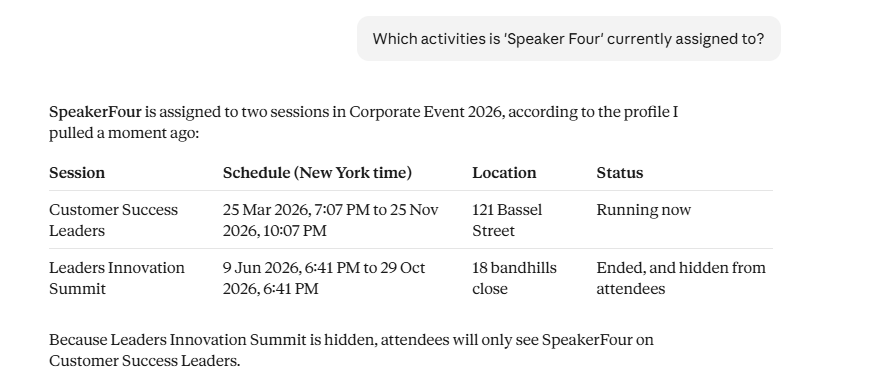
Which activities is 'Speaker Four' currently assigned to?
Write examples
- Create a speaker profile
Create a speaker profile for [Speaker Name], with the role '[Role]', company '[Company]', and biography '[Biography]'.
- Assign a speaker to an activity
Link 'Speaker Ash' to the activity 'Customer Success Leaders'.
- Create a speaker category and link speaker
Create a speaker category called 'Keynote Speakers' with the description 'Speakers delivering the main presentations at the event' and link [speaker} to the category
Sponsors & Exhbitors
Use MCP integration to review sponsor information, retrieve sponsorship details, and update sponsor profiles.
Read-only examples
- Retrieve sponsor information
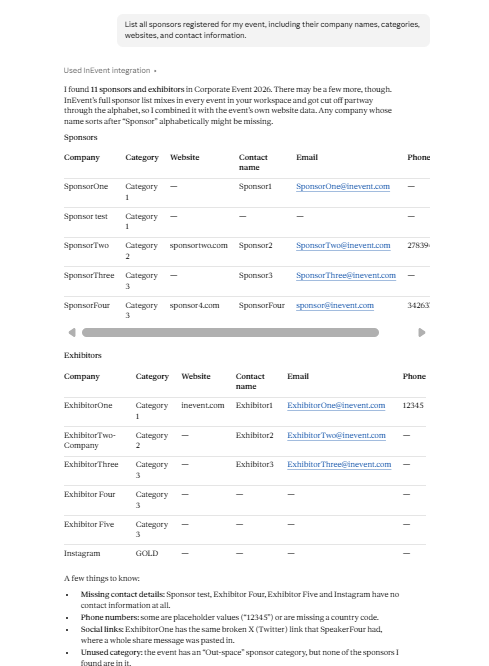
List all sponsors registered for my event, including their company names, categories, websites, and contact information.
- Check sponsor assignments
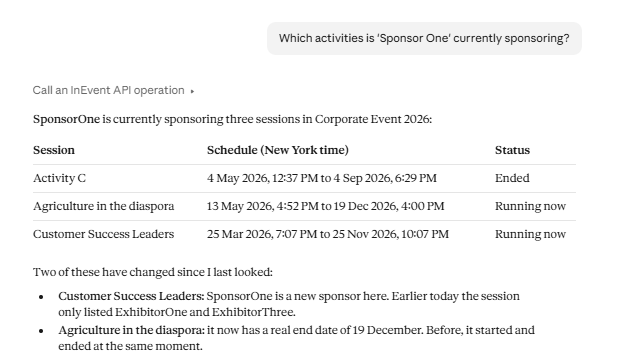
Which activities is 'Sponsor One' currently sponsoring?
- Review sponsor categories
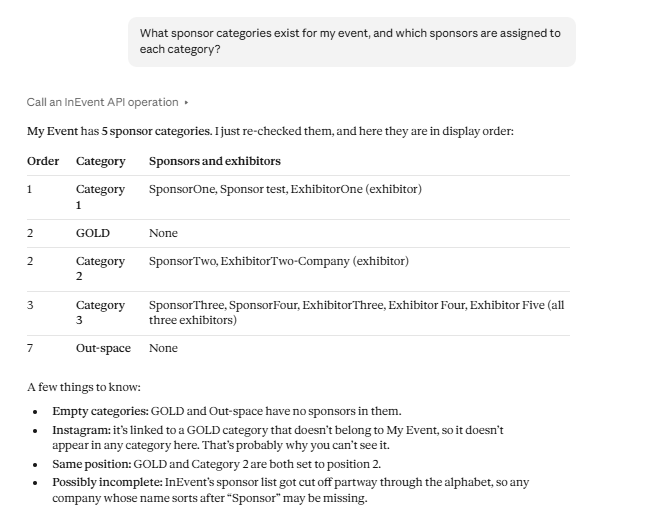
What sponsor categories exist for my event, and which sponsors are assigned to each category?
Write examples
- Create a sponsor profile
Create a sponsor profile for 'Sponsor Name' with the website '[Website URL]' and description '[Sponsor Description]'.
- Create a sponsor category and link a sponsor to the category
Create a category 'Category name - Corporate tier' and link 'sponor name - Visionary partner' to the category.
- Link a sponsor to an activity
Link 'sponsor - Visionary partner' as a sponsor of 'Activity Name - Customer success leaders'.
- Deleting sponsor(s)
Delete [Sponsor name(s)] from my event.
Registration Form
Use MCP integration to retrieve information about your registration form, add fields and make supported changes to the fields, sections and tools.
Read-only examples
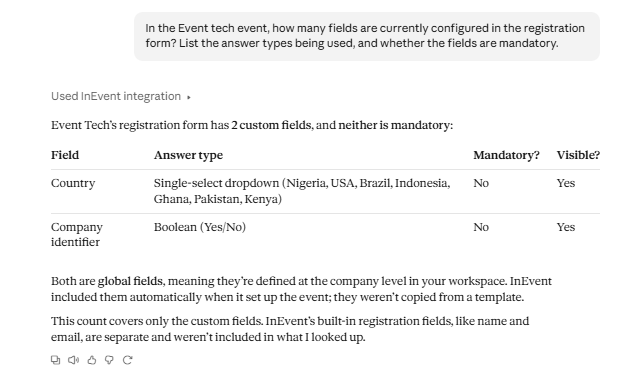
- Retrieve existing registration fields
How many fields are currently configured on my event's registration form? List the answer types being used, and whether the fields are mandatory.
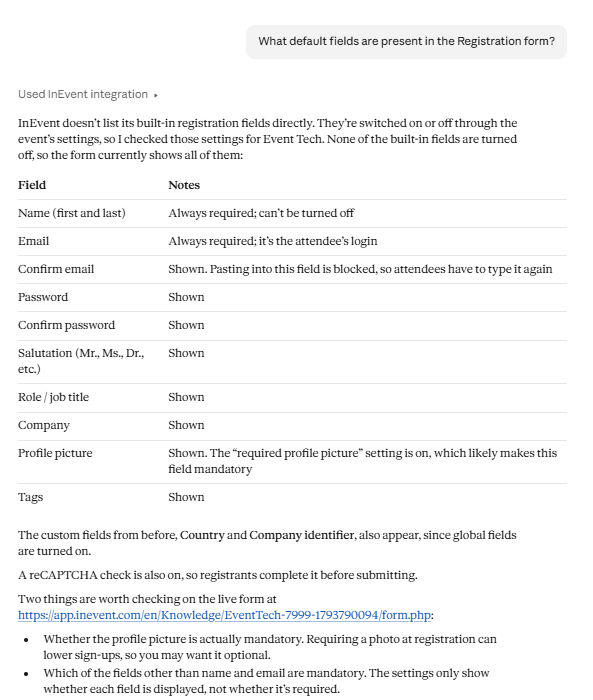
- Retrieve default fields configured in the Registration form
What default fields are present in the Registration form?
- Review answer options are currently configured
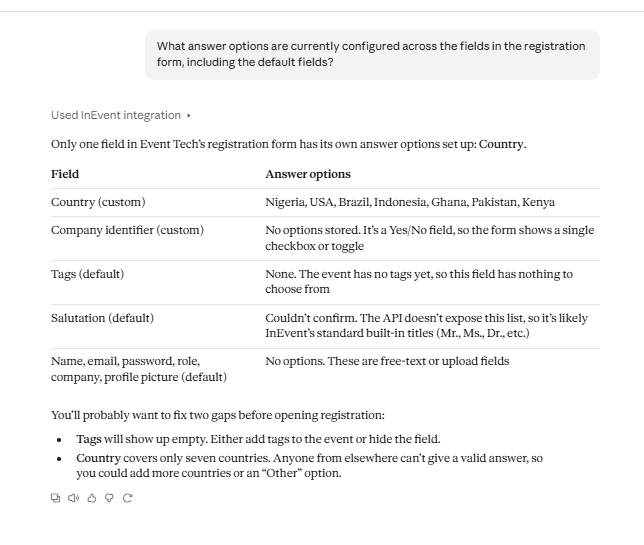
What answer options are currently configured across the fields in the registration form, including the default fields?
Write examples
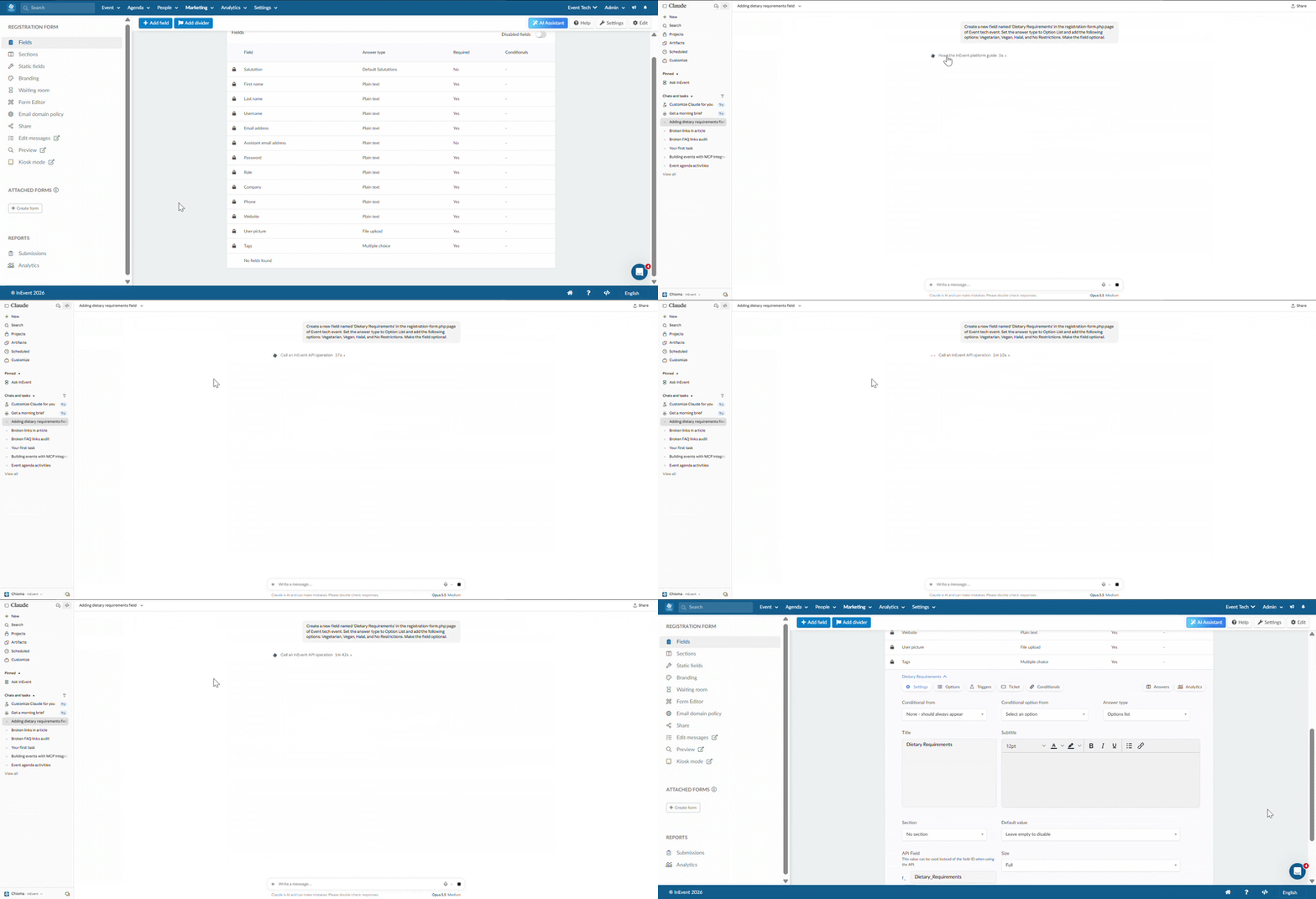
- Create a new registration field
Create a new field named 'Dietary Requirements' in the registration-form.php page. Set the answer type to Option List and add the following options: Vegetarian, Vegan, Halal, and No Restrictions. Make the field optional.
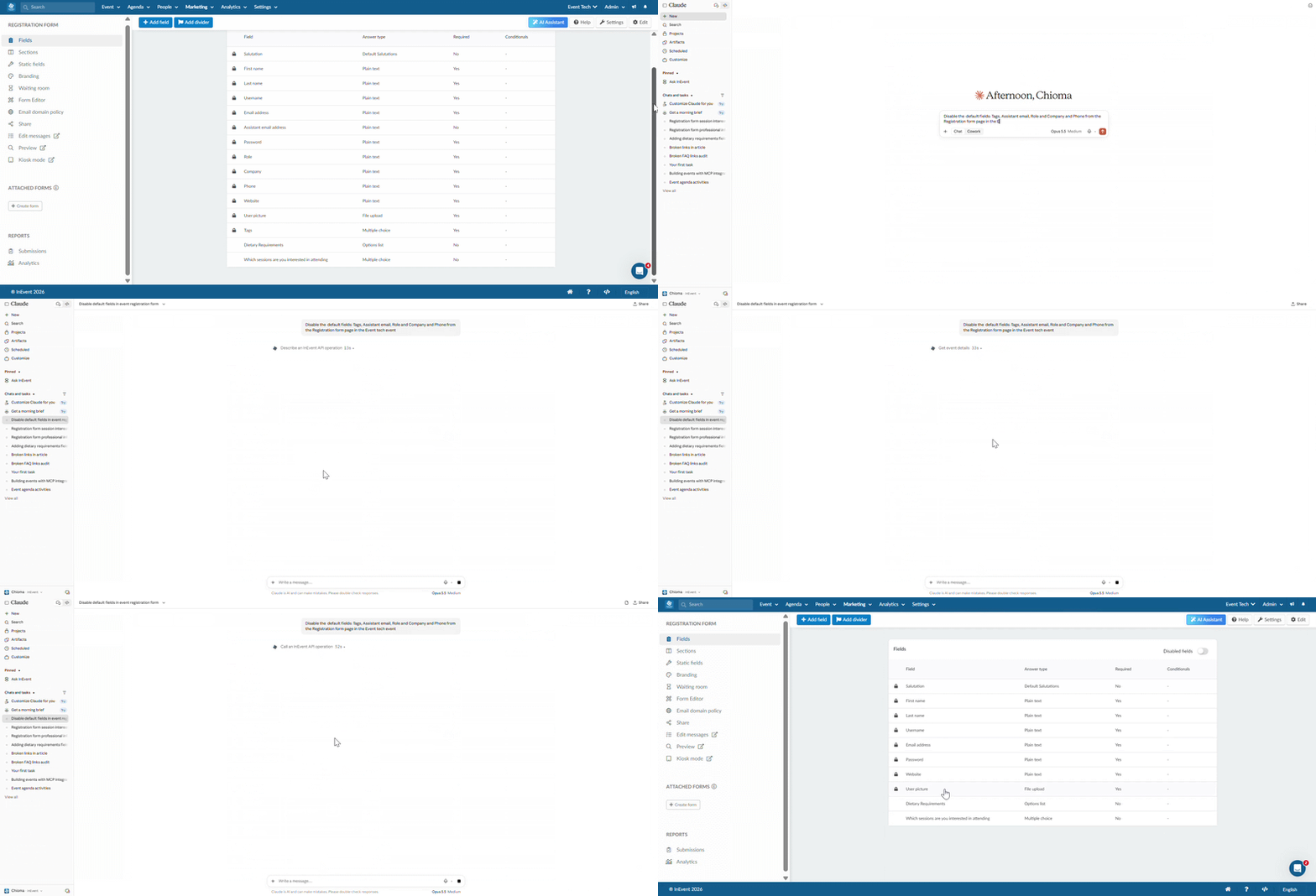
- Disable unwanted default fields
Disable the default fields: Tags, Assistant email, Role and Company and Phone from the Registration form page.
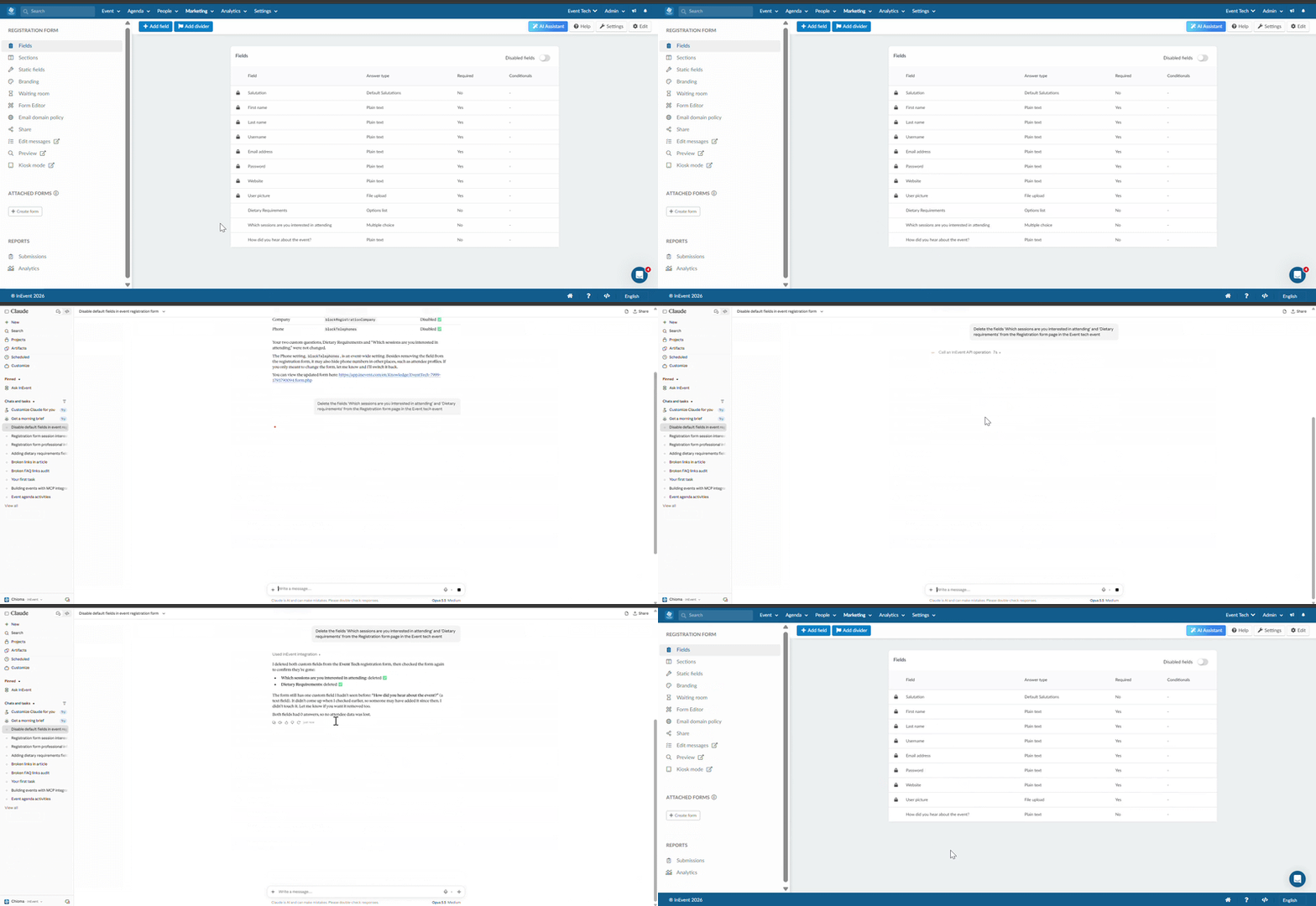
- Delete field(s)
Delete the fields 'Which sessions are you interested in attending' and 'Dietary requirements' from the Registration form page.
- Edit an existing field
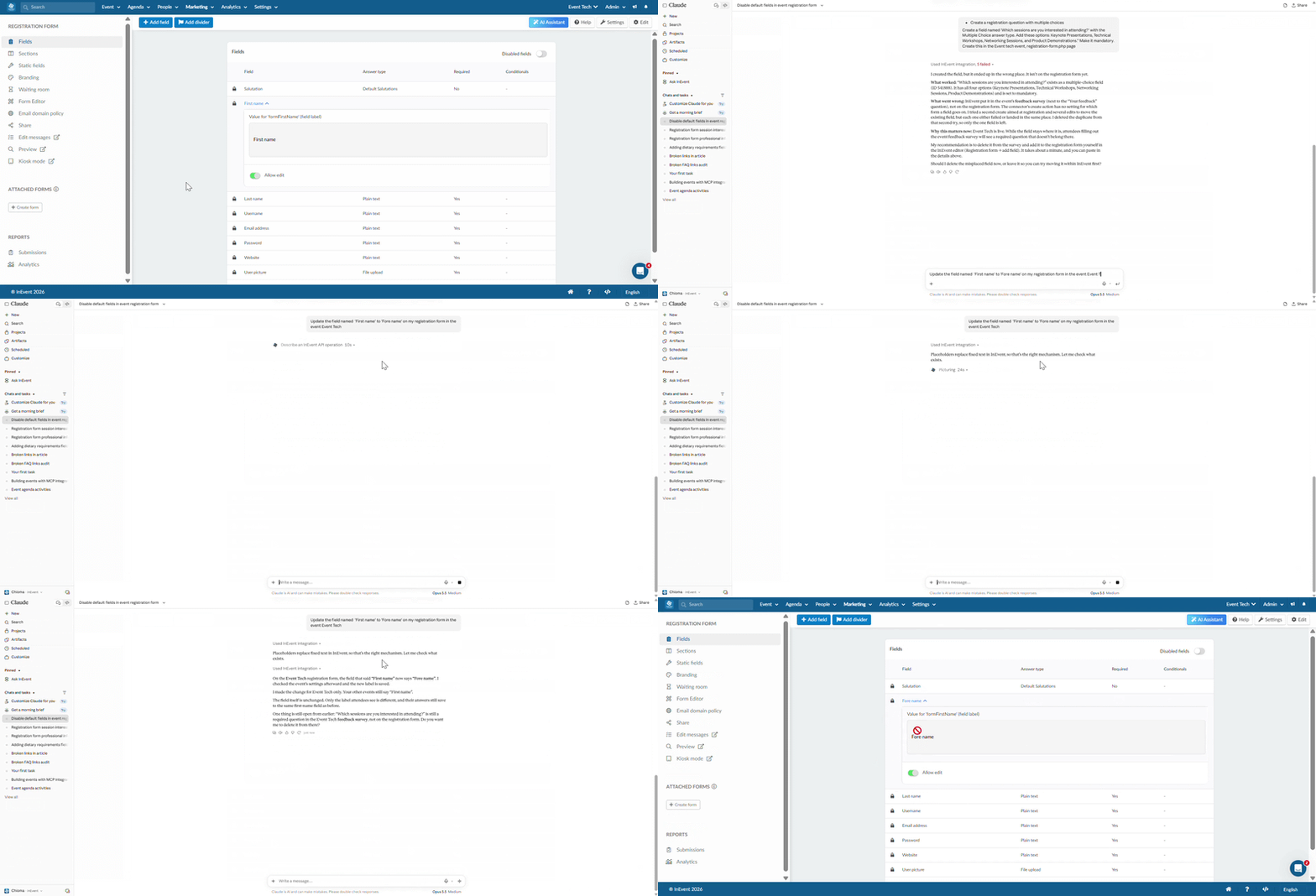
Update the default field named 'First name' to 'Fore name' on my registration form.
Tickets
Use MCP integration to review your ticket setup, ticket offerings, and available ticket information.
Read-only examples
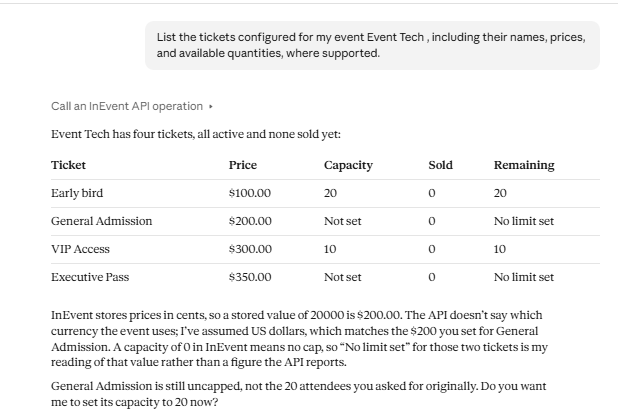
- Review ticket offerings
List the tickets configured for my event, including their names, prices, and available quantities, where supported.
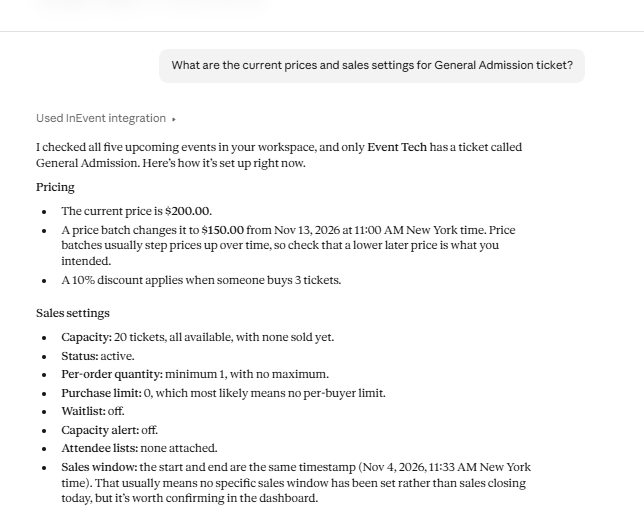
- Review ticket configuration
What are the current prices and sales settings for General Admission ticket?
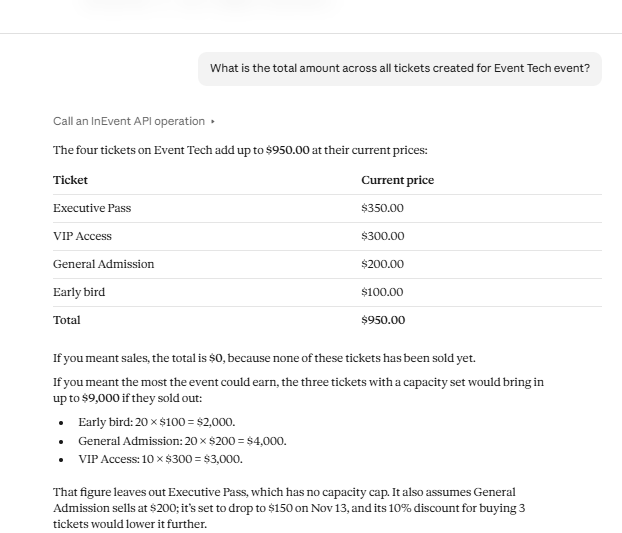
- Total price of tickets
What is the total amount across all tickets created for 'Event Tech' event?
Write examples
- Update ticket pricing
Change the price of 'General Admission' ticket to US$ 300.00
- Add ticket information
Add a description to 'General Admission' ticket and add an Entrance.
- Create ticket group(s)
Create a ticket group 'Standard registration' and associate the 'General Admission' ticket with this group.
- Delete tickets
Delete 'VIP Access' and 'Executive Pass' tickets in my event.
Event Website
Use MCP integration to retrieve information about your event website and make supported changes to your webiste content.
Read-only examples
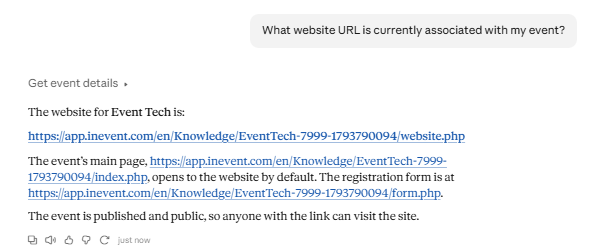
- Review website configuration
What website URL is currently associated with my event?
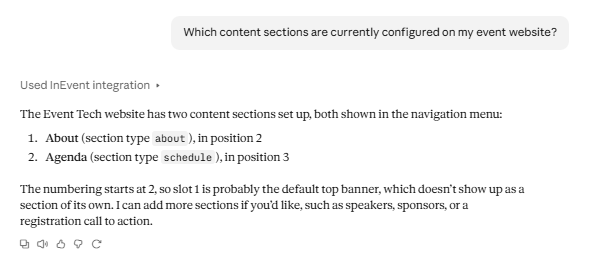
- Review website sections
Which content sections are currently configured on my event website?
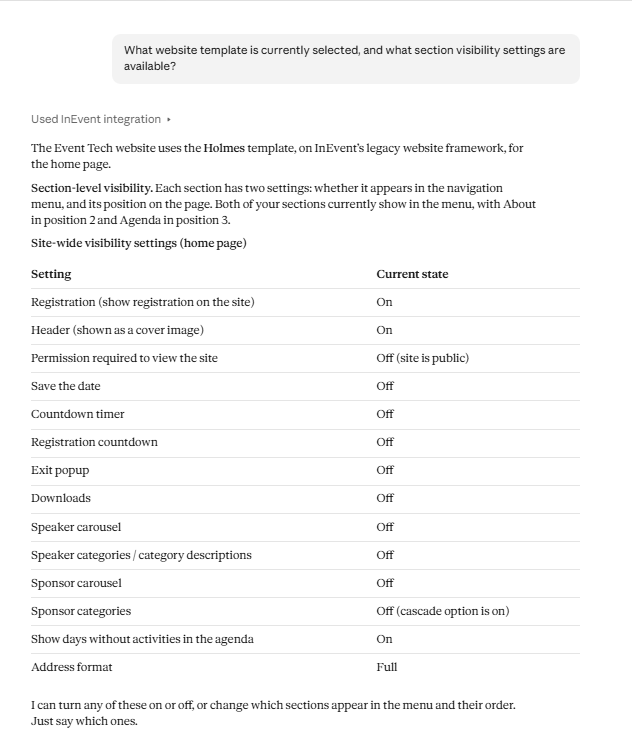
- Review website settings
What website template is currently selected, and what section visibility settings are available?
Write examples
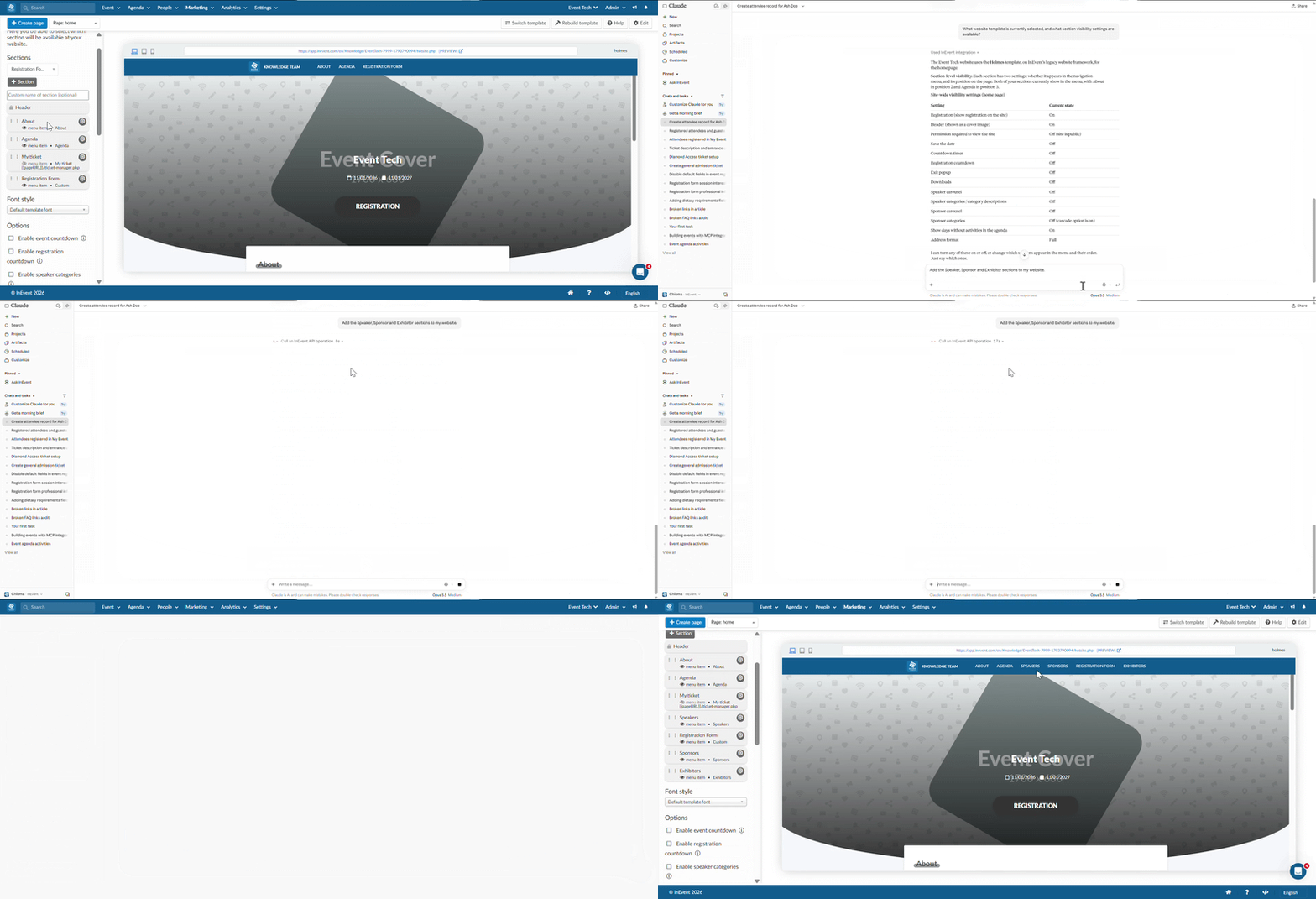
- Configure website sections
Add the Speaker, Sponsor and Exhibitor sections to my website.
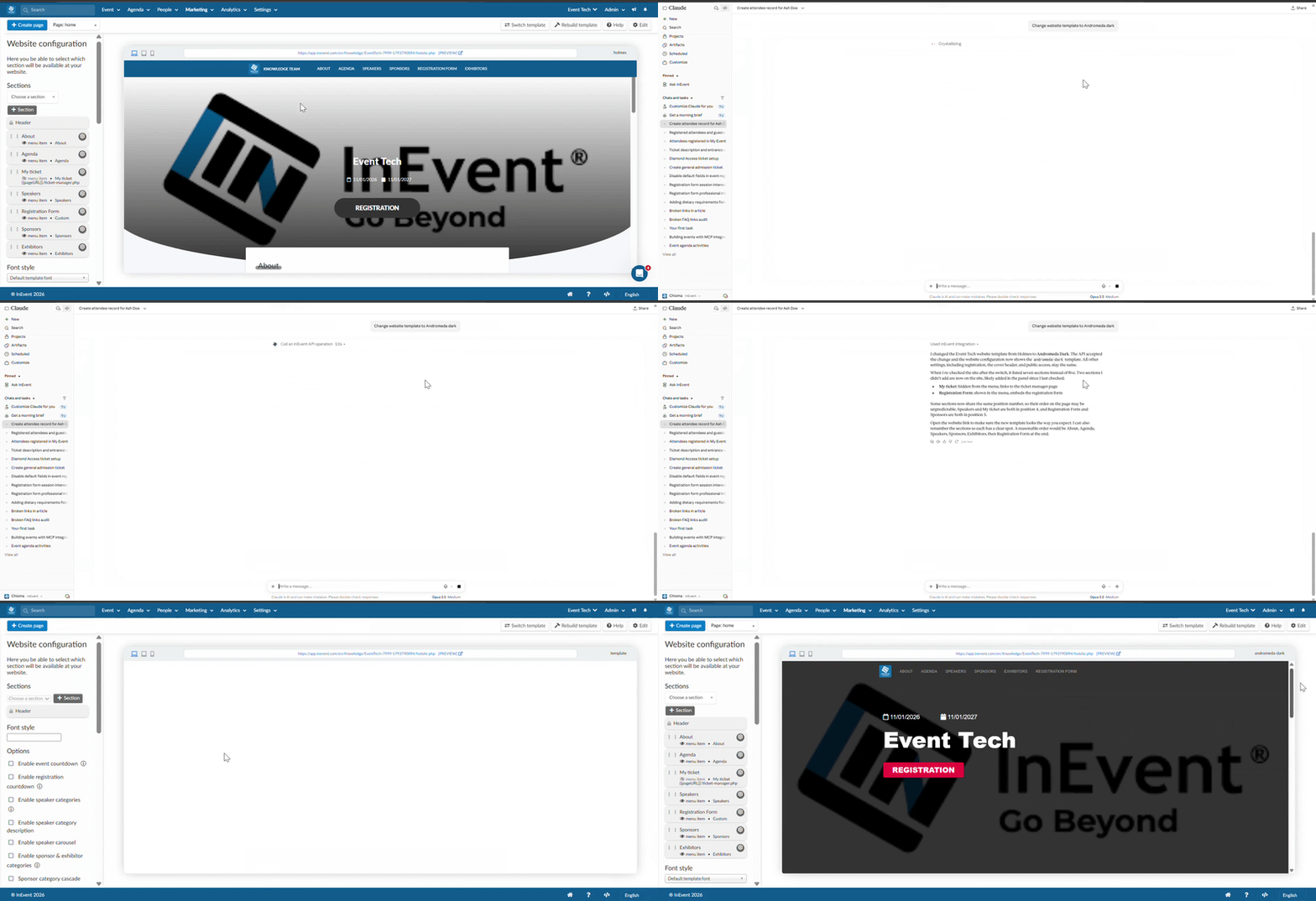
- Change website template to [template name]
Change website template to 'Andromeda dark'
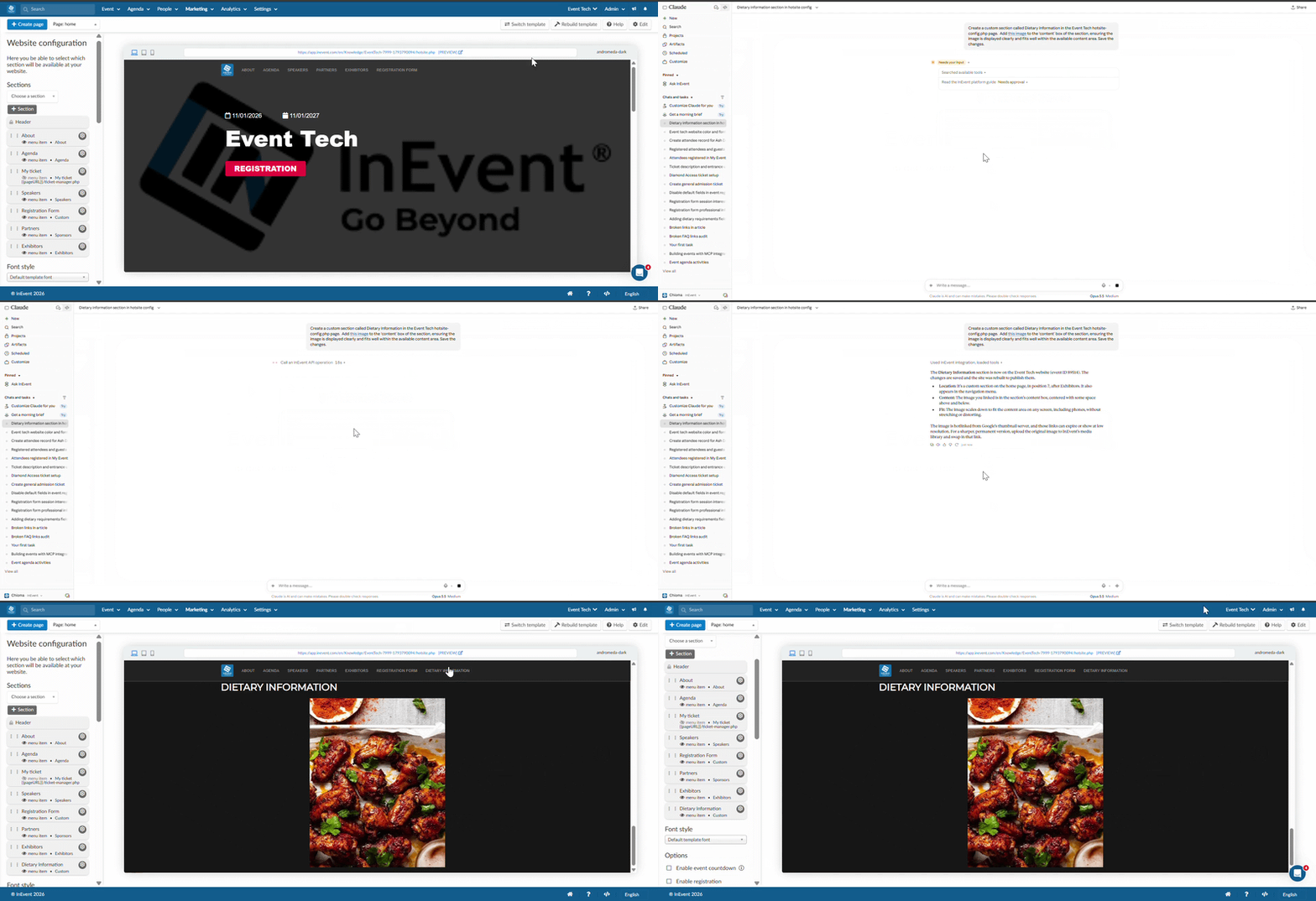
- Create Custom section
Create a Custom section titled 'Dietary information', Add [image URL] to the 'content' tect box.
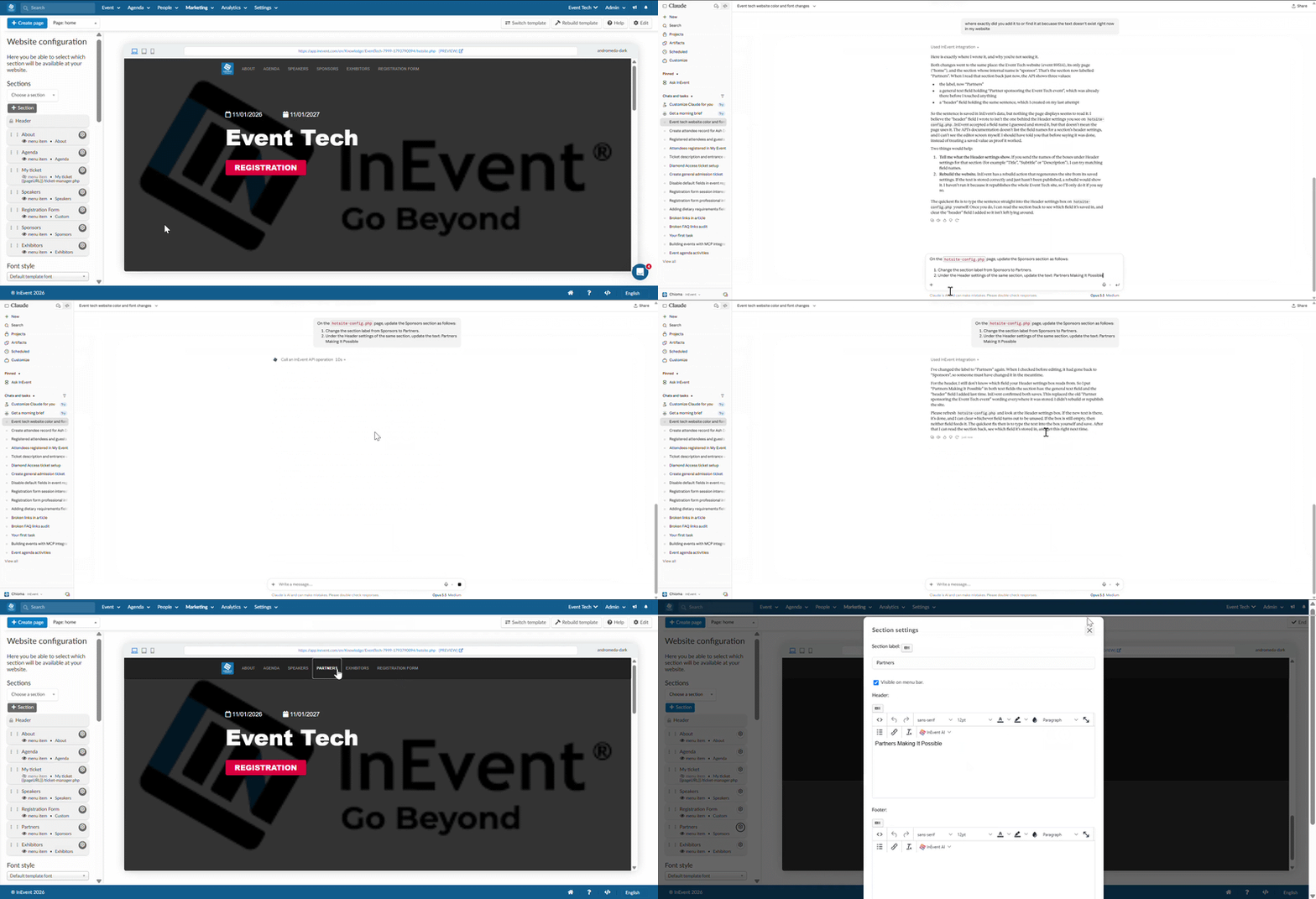
- Customize/Update website section
Change the display name of the [Section Name] section to '[New Section Name]' and update description in Header/Footer.
Virtual Lobby
Use MCP integration to retrieve existing Virtual Lobby settings and customize the interface through supported actions.
Read only examples
- Check the current Virtual Lobby layout
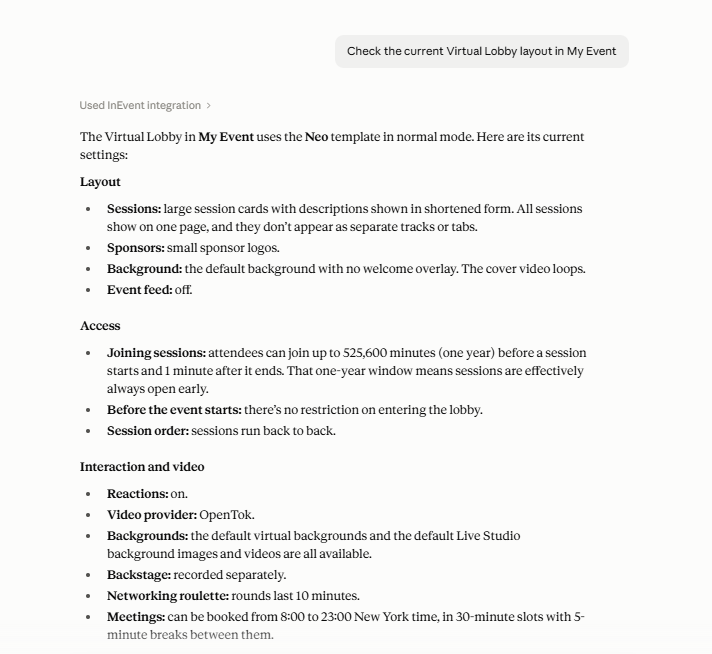
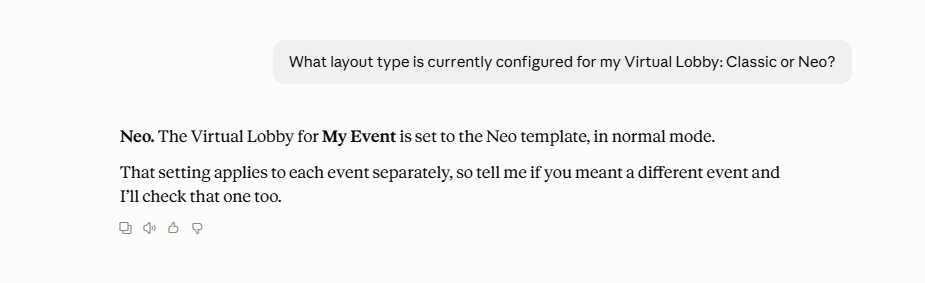
- What layout type is currently configured for my Virtual Lobby: Classic or Neo?
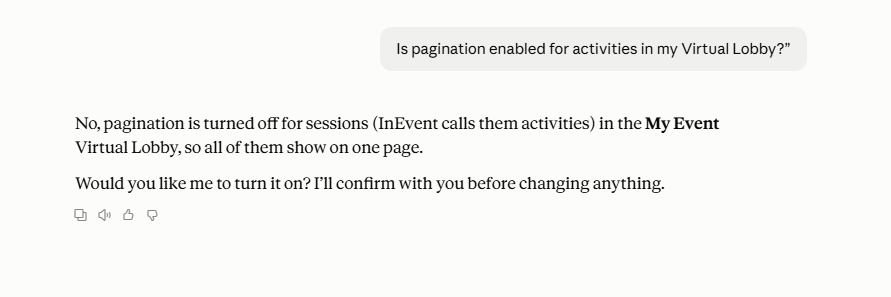
- Is pagination enabled for activities in my Virtual Lobby?
Write examples
Below are a few GIF examples demonstrating how the platform changes in response to the actions performed.
- Turn off pagination
- Change Virtual Lobby layout type to Neo and make the Sponsor/exhbitor layout card Large
- Make changes to the Access & Privacy page
Attendee Management
Use MCP integration to retrieve attendee information and make supported changes to attendee records.
Read-only examples
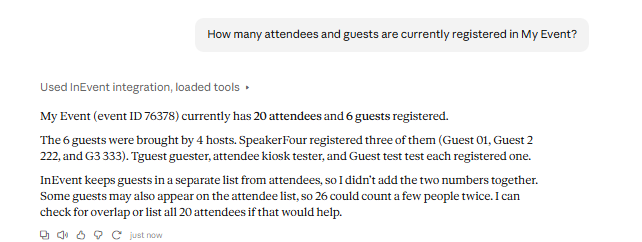
- Review attendee registration
How many attendees and guests are currently registered in my event?
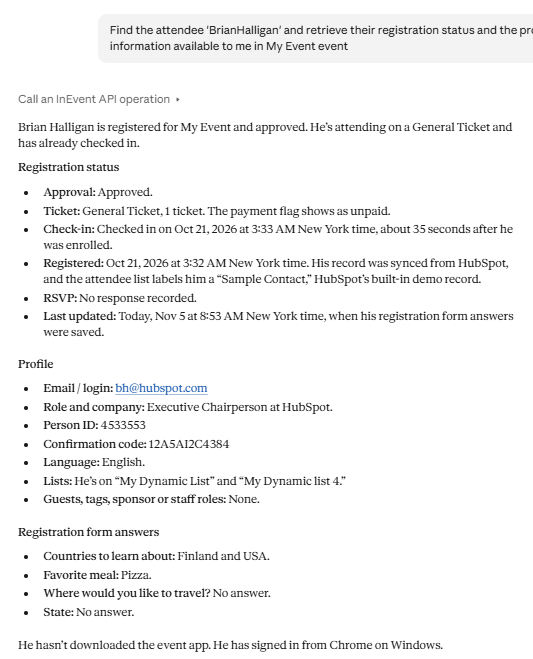
- Retrieve attendee details
Find the attendee '[Attendee Name]' and retrieve their registration status and the profile information available to me.
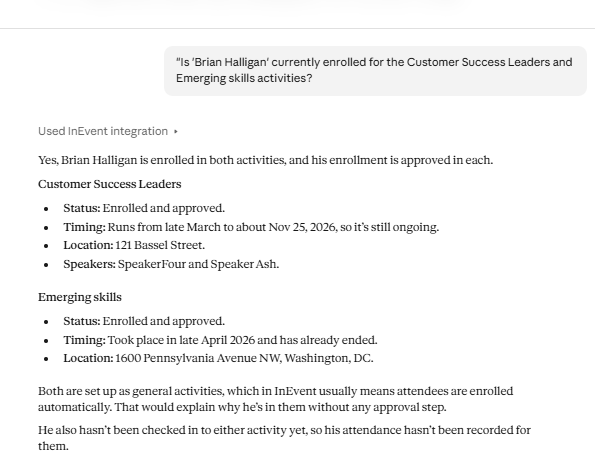
- Check a activity enrollment of a speific attendee
Is 'Attendee name' currently enrolled for the 'Customer Success Leaders and Emerging skills' activities?
Write examples
- Add an attendee
Create an attendee record for '[Attendee name]' using the email address '[Attendee Email]' and company '[Company Name]'.
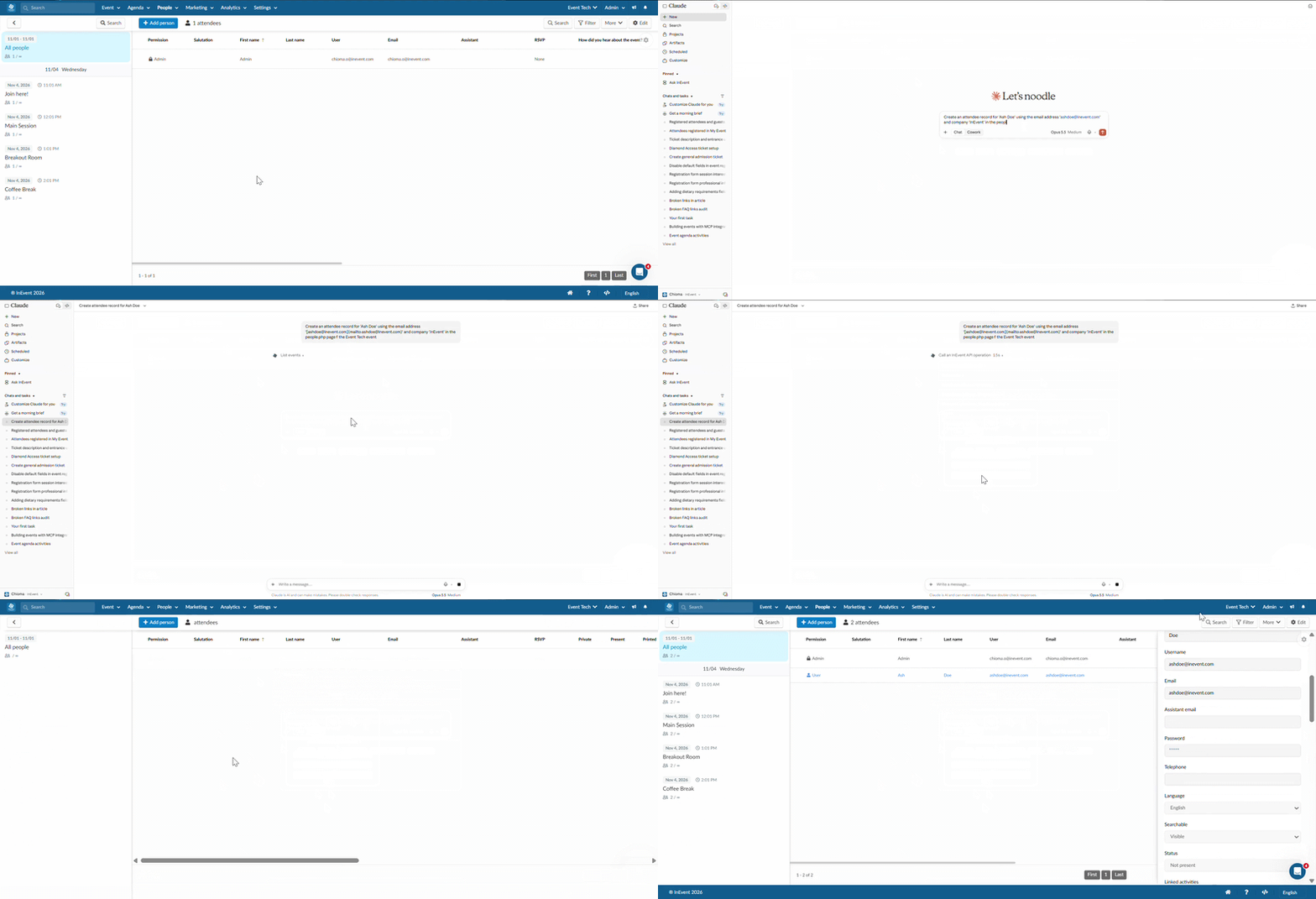
- Update attendee information
Change the attendee name on the attendee profile for '[Attendee Email]' to '[New name]'. Add a [role name] to the attendee profile.
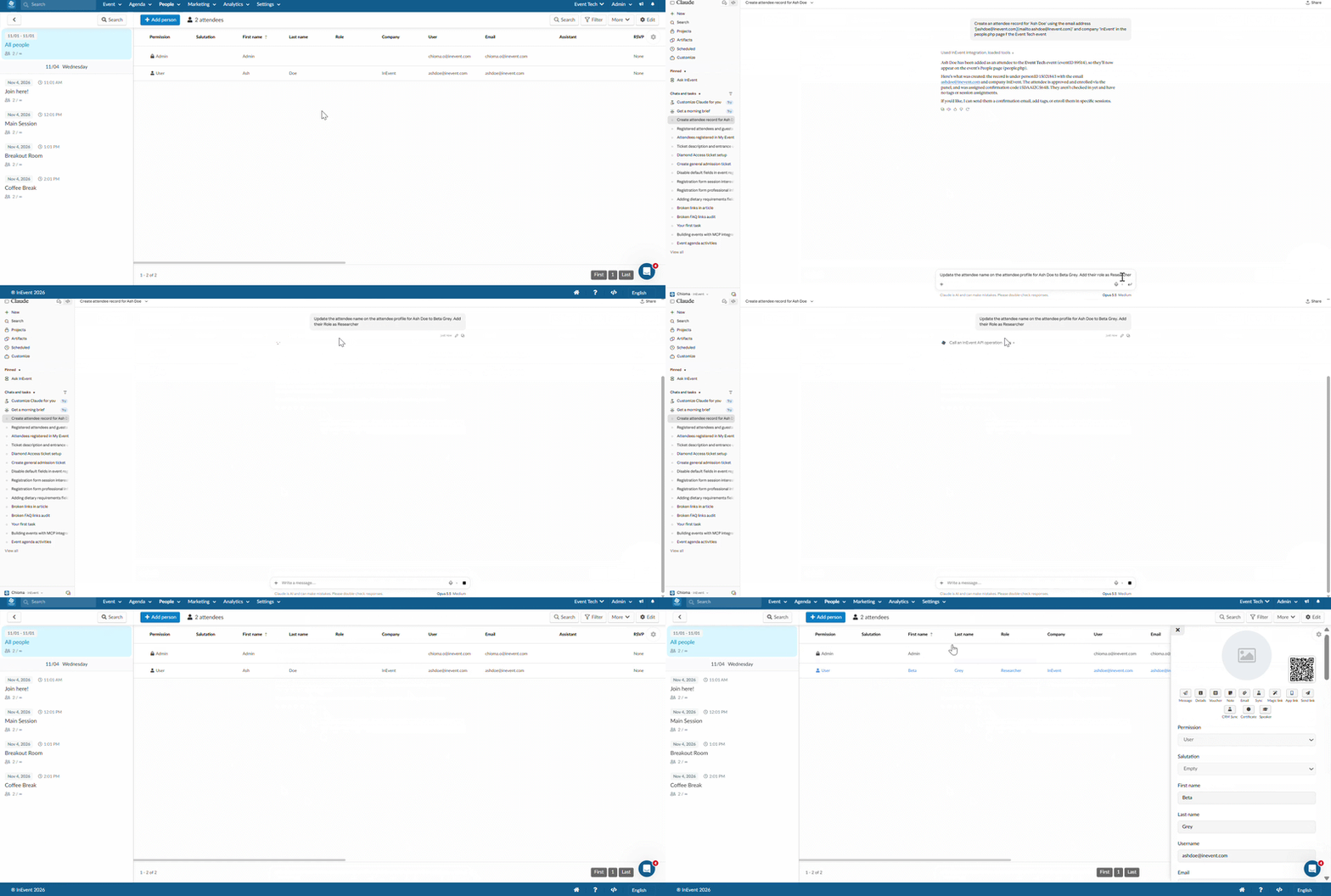
- Update permission profile and assign ticket
Change the permission level of [Attendee name] to {permission level] and assign [ticket name] to the attendee's profile.
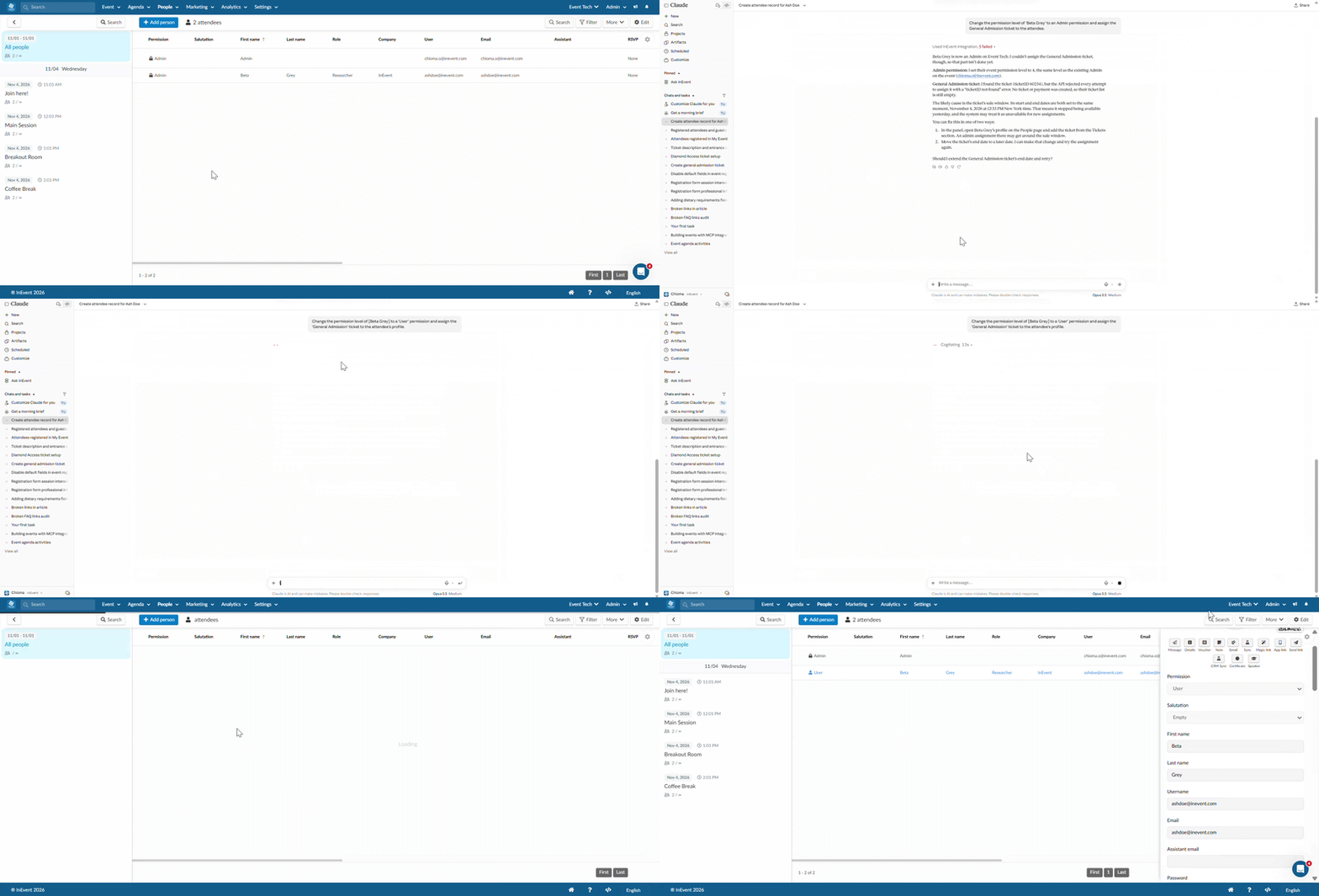
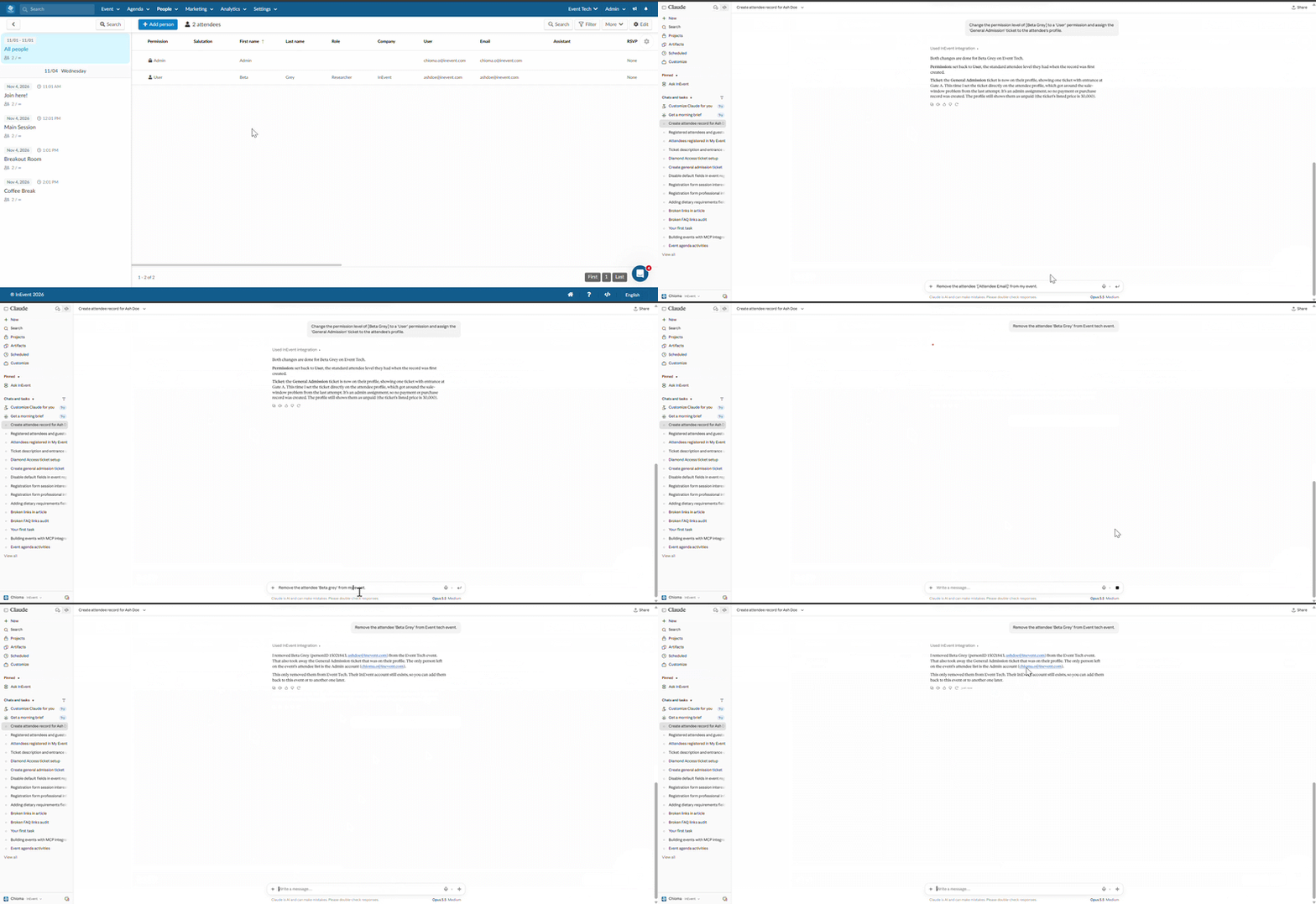
- Remove an attendee
Remove the attendee '[Attendee name]' from my event.
Email communication
Use MCP integration to retrieve email details, review email configurations, and create or update event communications.
Read-only examples
- Retrieve your event emails
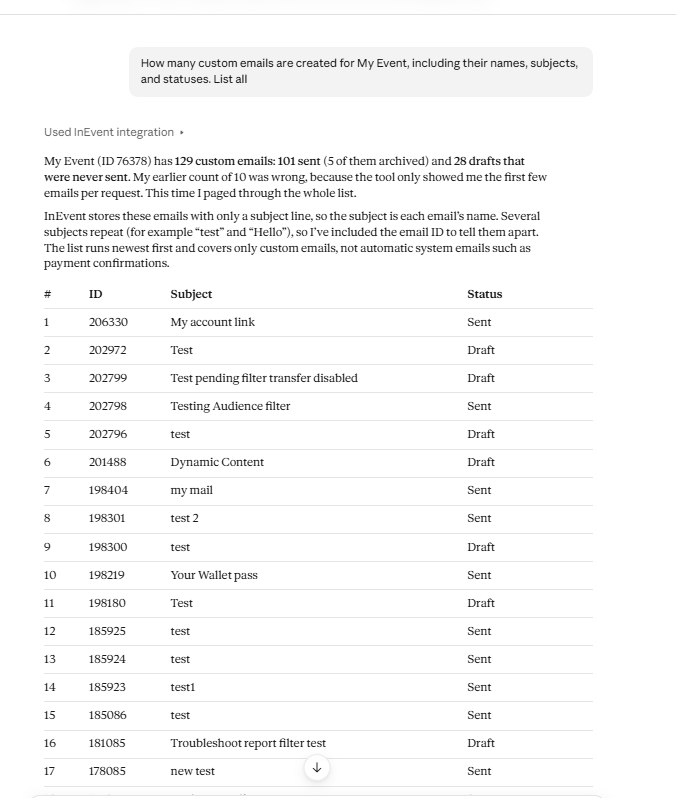
How many custom emails are created for my event, including their names, subjects, and statuses.
- Review automatic emails
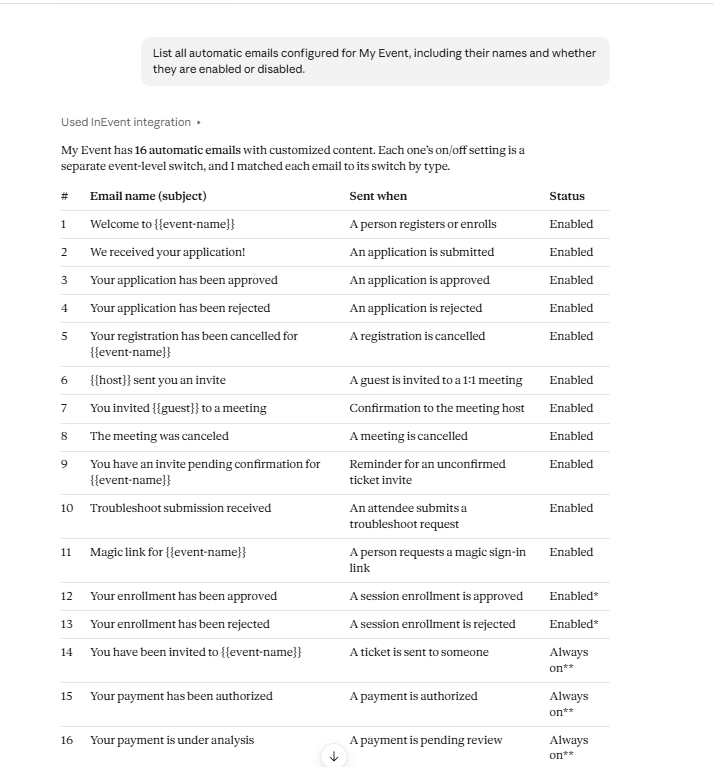
List all automatic emails configured for my event, including their names and whether they are enabled or disabled.
- Check email scheduling
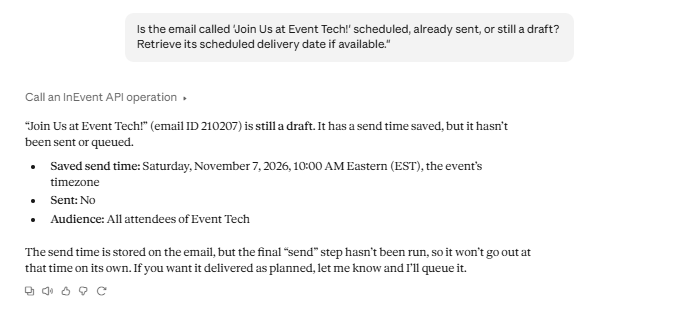
Is the email called '[Email name]' scheduled, already sent, or still a draft? Retrieve its scheduled delivery date if available.
Write examples
- Create a new email
Create an email with the subject 'Welcome to Event Tech!' and the content 'Welcome to Event Tech! We are excited to have you join us.'
- Schedule an email
Schedule the email called 'Welcome to Event Tech' to be sent on November 7, 2026, at 10:00 AM (event timezone).
- Update an email subject
Change the subject of the email called '[Email Name]' to '[New Subject]'.
- Enable automatic email(s)
Enable the automatic emails 'Admission email, 'Approval email' and 'Ticket invite reminder email' for my event.
The MCP integration can also be used for other features such as setting up Polls, Quizzes, Static and Dynamic Lists, etc.
Best practices when using MCP integration
- Be specific: Include the event, activity, speaker, or sponsor name so the AI can identify the correct record.
- Use exact values: Specify dates, times, currencies, URLs, and descriptions when requesting changes.
- Upload image URLs: To upload images, add the image URL in the prompt
- Start with read-only prompts: Retrieve the existing information before asking the AI to change it.
- Review write actions: Verify that the correct information was created or updated in the InEvent platform.
- Refresh when necessary: Refresh the relevant InEvent page to confirm that changes are visible.
- Respect permissions: Only perform actions authorized for your account and supported by the connected MCP tools.
- Protect attendee data: Retrieve or modify personal information only when necessary and authorized.
MCP integration can simplify event setup by allowing you to retrieve information, create records, and update supported settings through natural-language prompts. The examples in this article provide a starting point for exploring the integration across different areas of InEvent.
