InEvent Neo: Attendee guide
 Updated 2 weeks ago
by
Caleb Kotey
Updated 2 weeks ago
by
Caleb Kotey
InEvent Neo allows attendees to access and interact with their company's events from their mobile devices. Depending on the event, you can view event information, access sessions, connect with other participants, receive notifications, and use other available event features directly from the app.
If you are an attendee, this article will provide you with the necessary information to access your company, find an event, log in, and navigate your event using InEvent Neo.
If you are an event organizer, check the InEvent Neo: Guide for event organizers article to learn how to configure the features available to attendees in InEvent Neo.
This guide explains how to access your company, find an event, log in, and navigate an event using InEvent Neo.
Accessing your company
When you open InEvent Neo for the first time, you will be taken to the welcome page where you can access your company.
To access your company:
- Enter your Company Code.
- Select your region:
- North America
- Europe
- Tap on Continue to access your company.
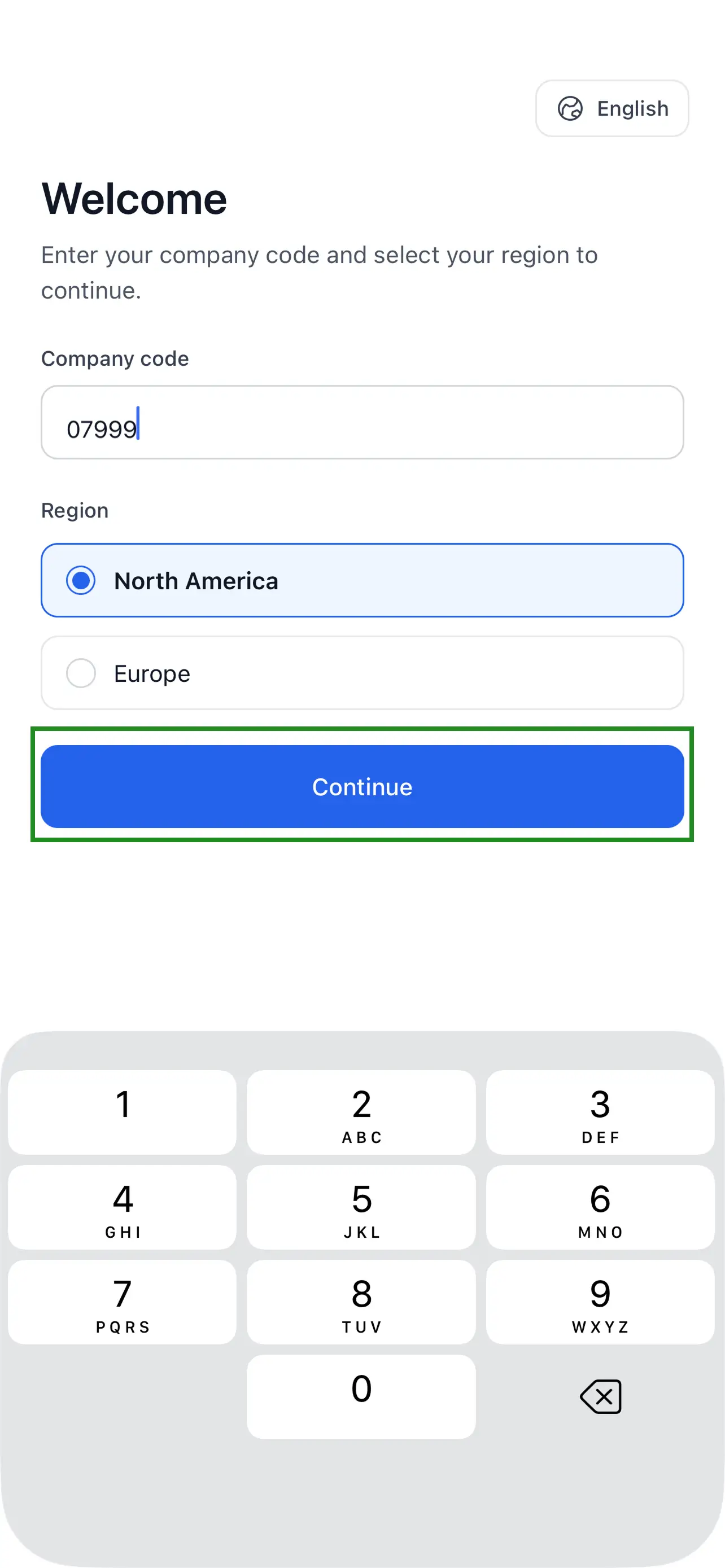
You will then be taken to the Events Directory, where you can access your company's available events.
Finding an event
Once you have accessed your company, you can view the events available to you.
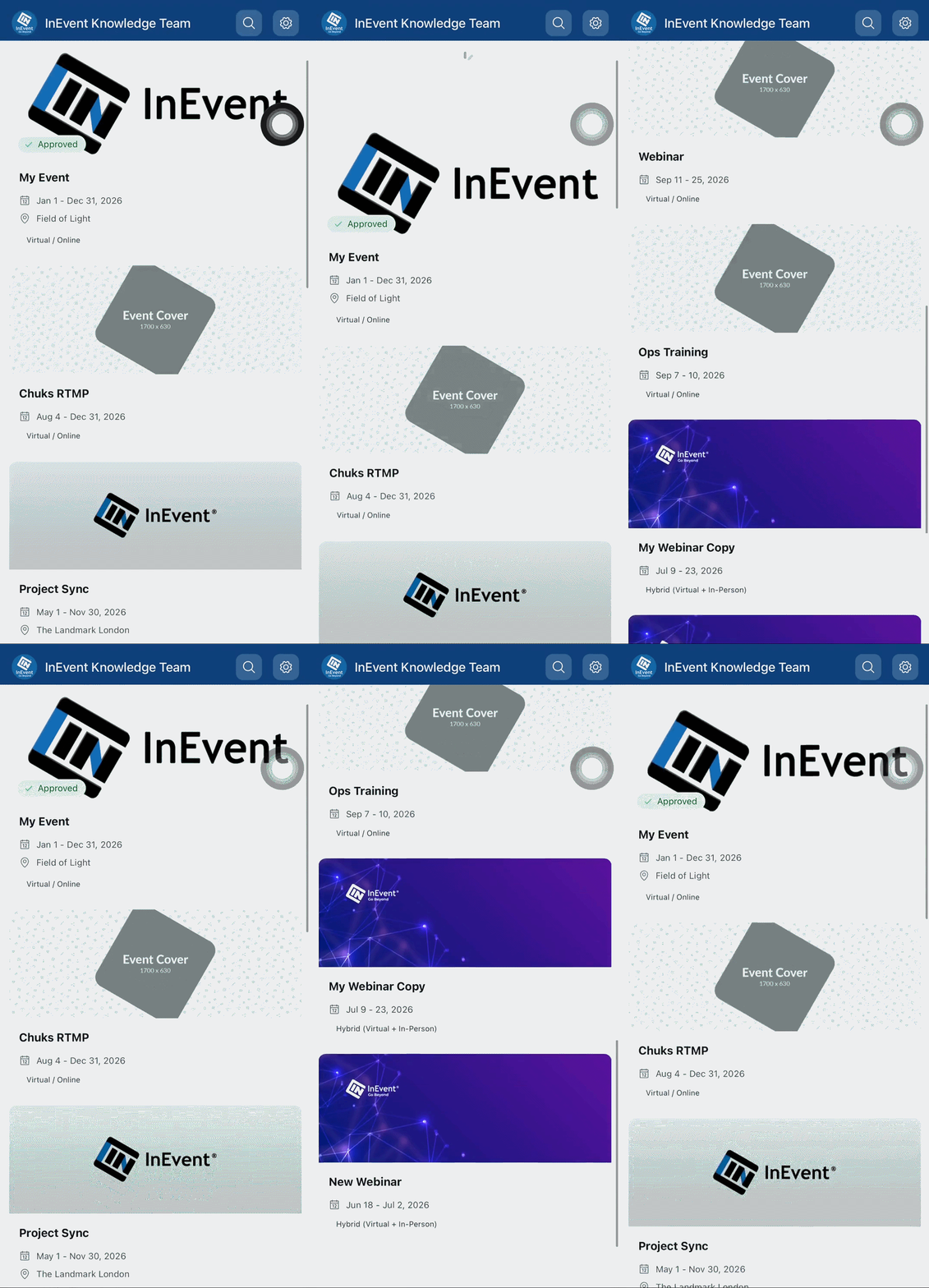
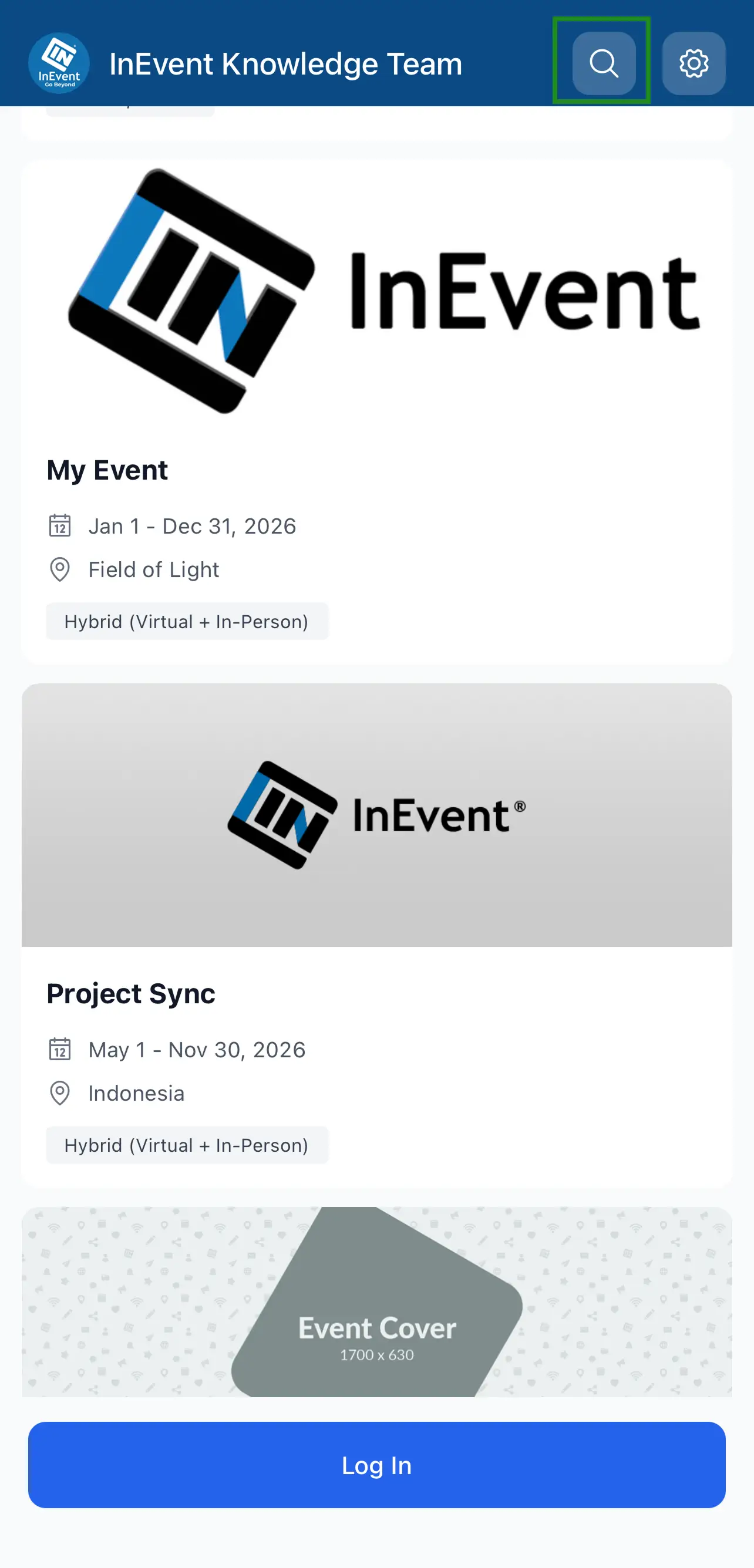
If your company has several events, you can use the Search icon at the top-left of the screen to quickly find an event instead of scrolling through the event list. Select an event to access it.
Logging in to an event
After selecting an event, you will be taken to the event login page, depending on the event's configuration.
If login is required:
- Enter your event credentials.
- Complete the login process.
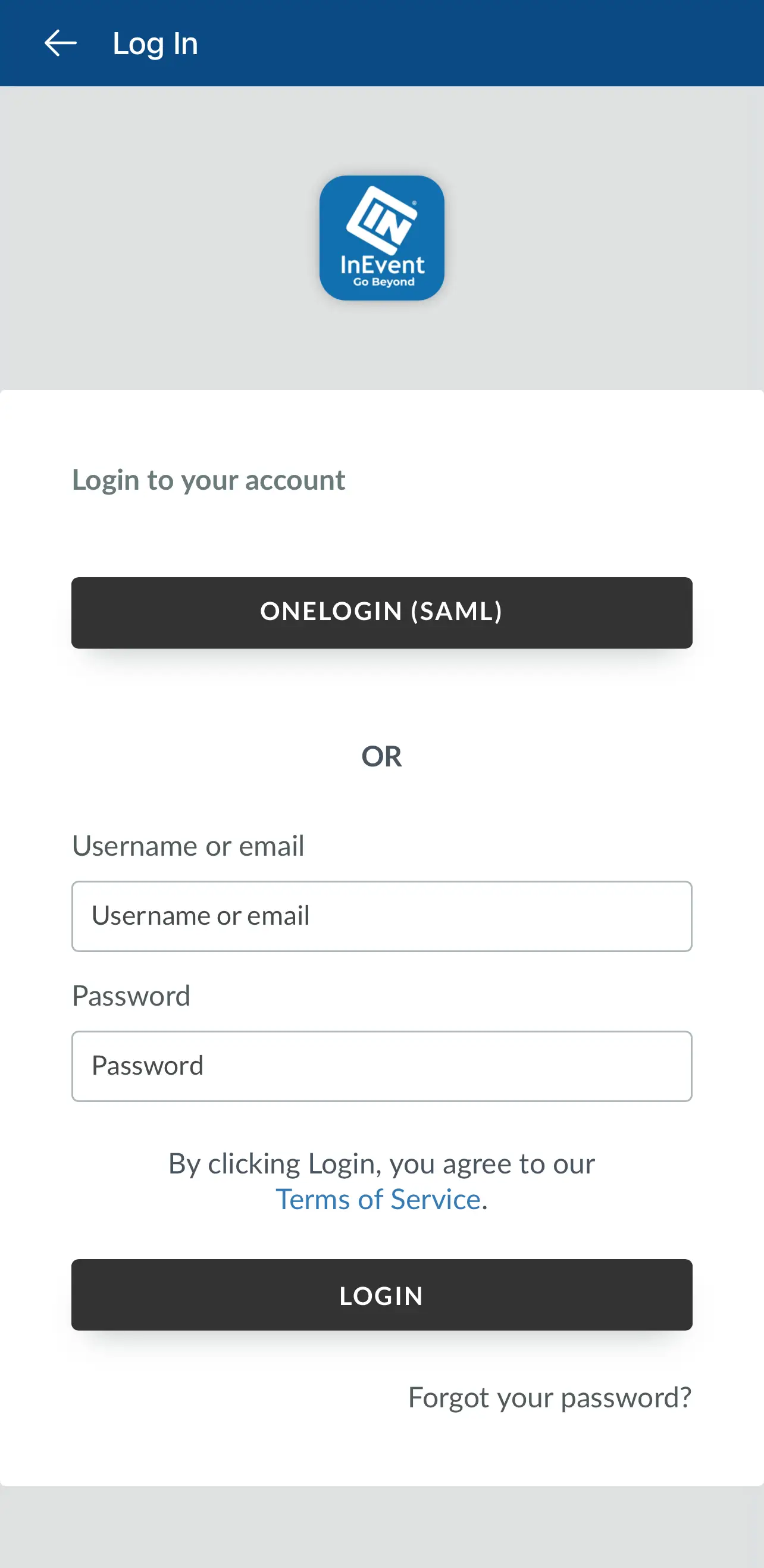
Once authenticated, you will have access to the event.
Changing the app language
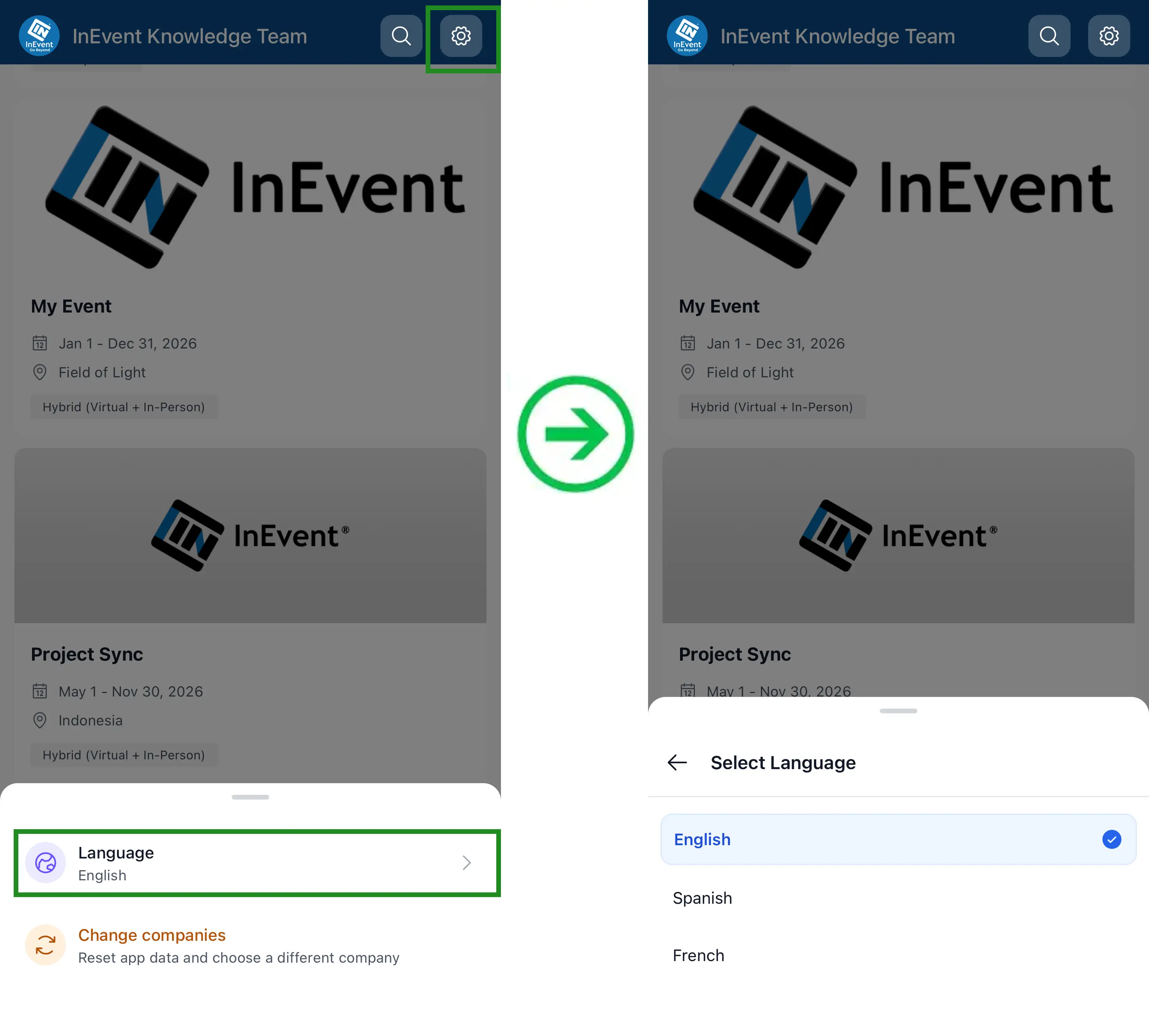
You can change the language used in InEvent Neo from the Settings panel.
To change the app language:
- Tap the Settings icon.
- Select the option to change the language.
- Select your preferred language.
Changing your company
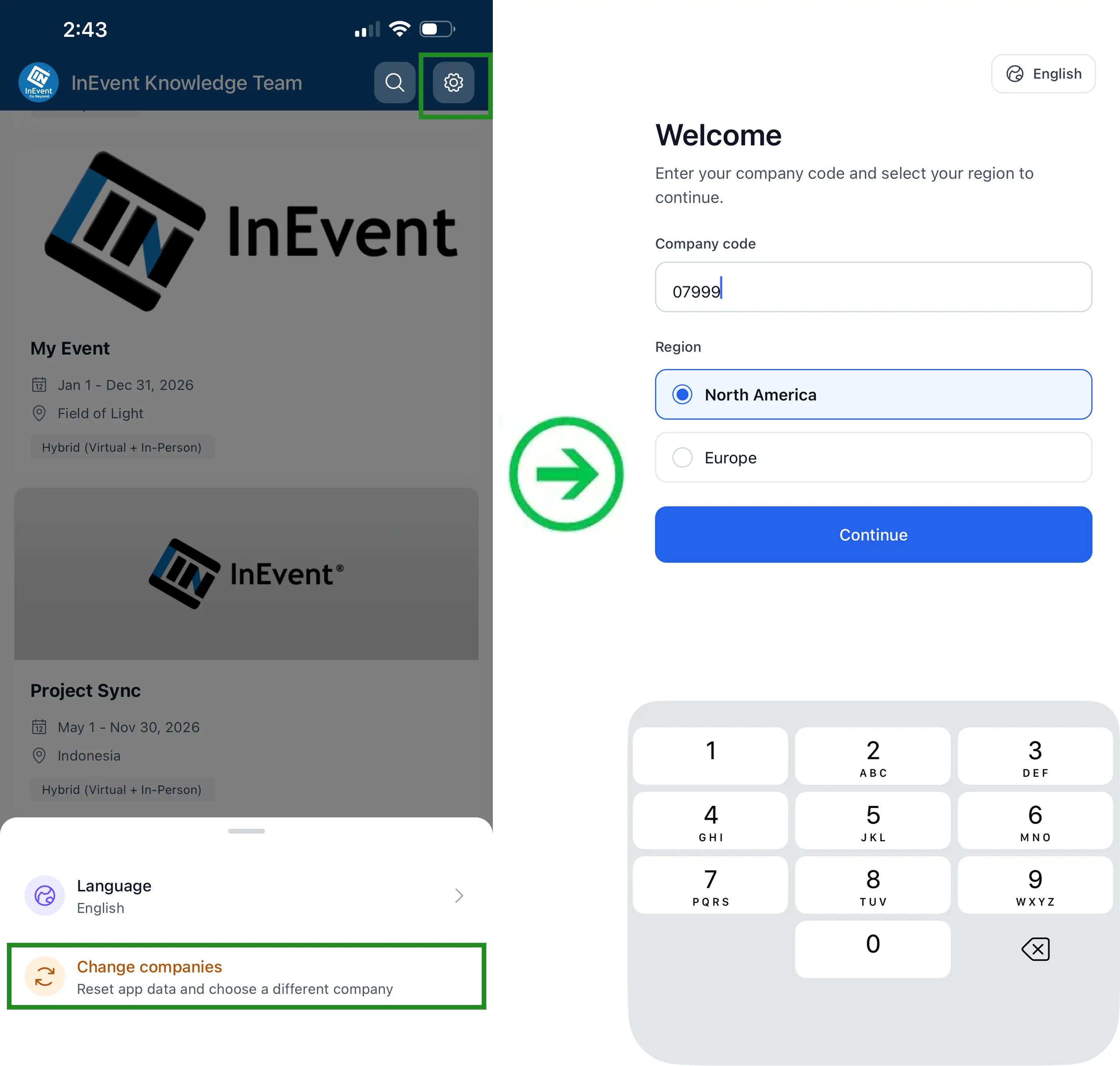
You can change the company you are accessing from the Settings icon.
To change companies:
- Click the Settings icon.
- Select Change company.
- You will be returned to the welcome page.
- Enter the Company Code and select the appropriate region to access another company.
Registering for an event
Some events in your company's Events Directory may require you to register before you can access them. If you do not have access to an event, tapping the event will display a Registration Required prompt.
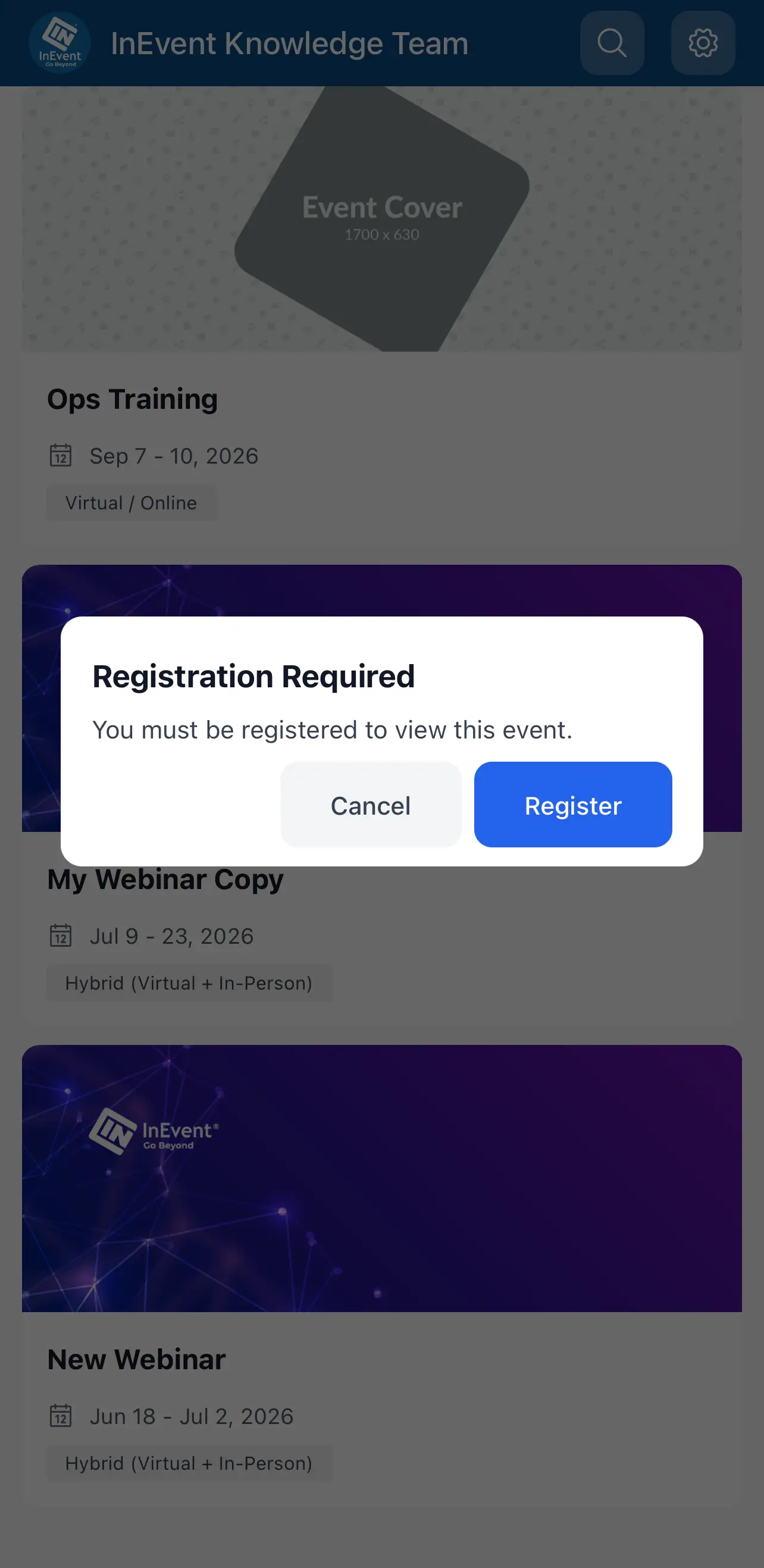
To register for the event:
- Tap the event you want to access.
- Tap Register on the Registration Required prompt.
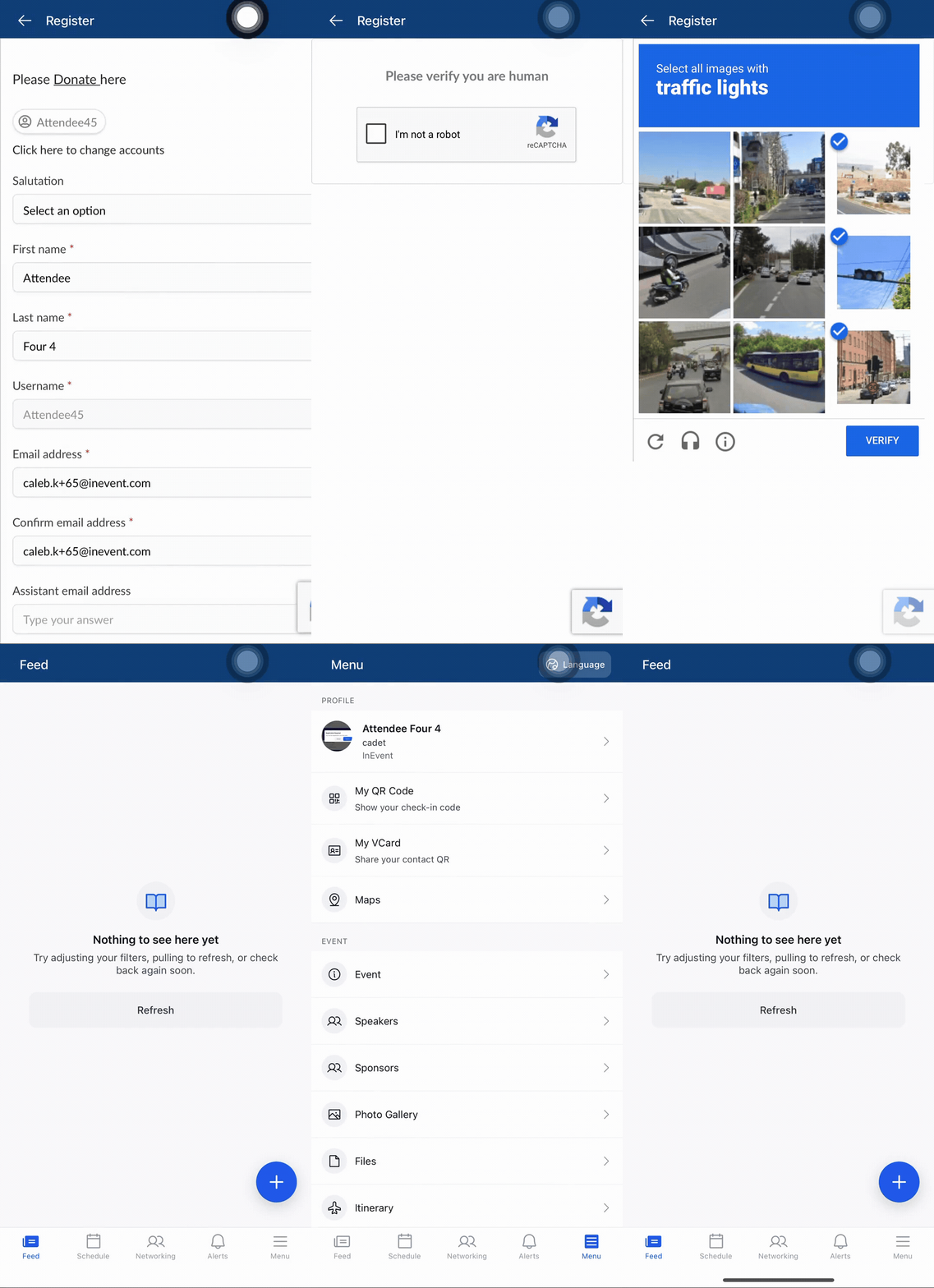
- Complete the registration process.
Once you are registered, you will be redirected to the event.
Navigating an event
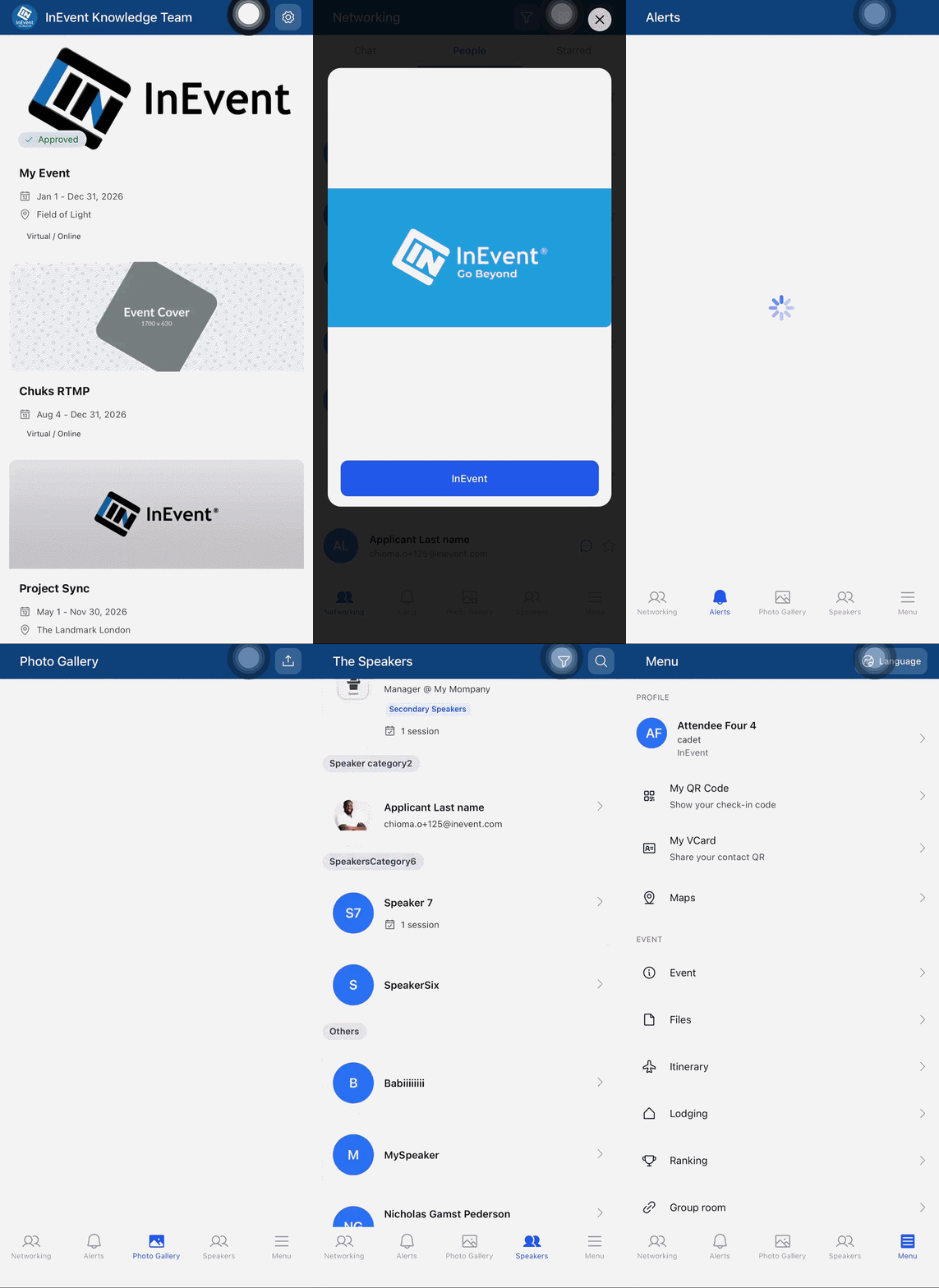
After logging in, you will be taken to the event interface. The tabs available in InEvent Neo depend on the Tabs settings configured for the event in the InEvent platform.
The first four configured tabs are displayed on the bottom navigation bar.
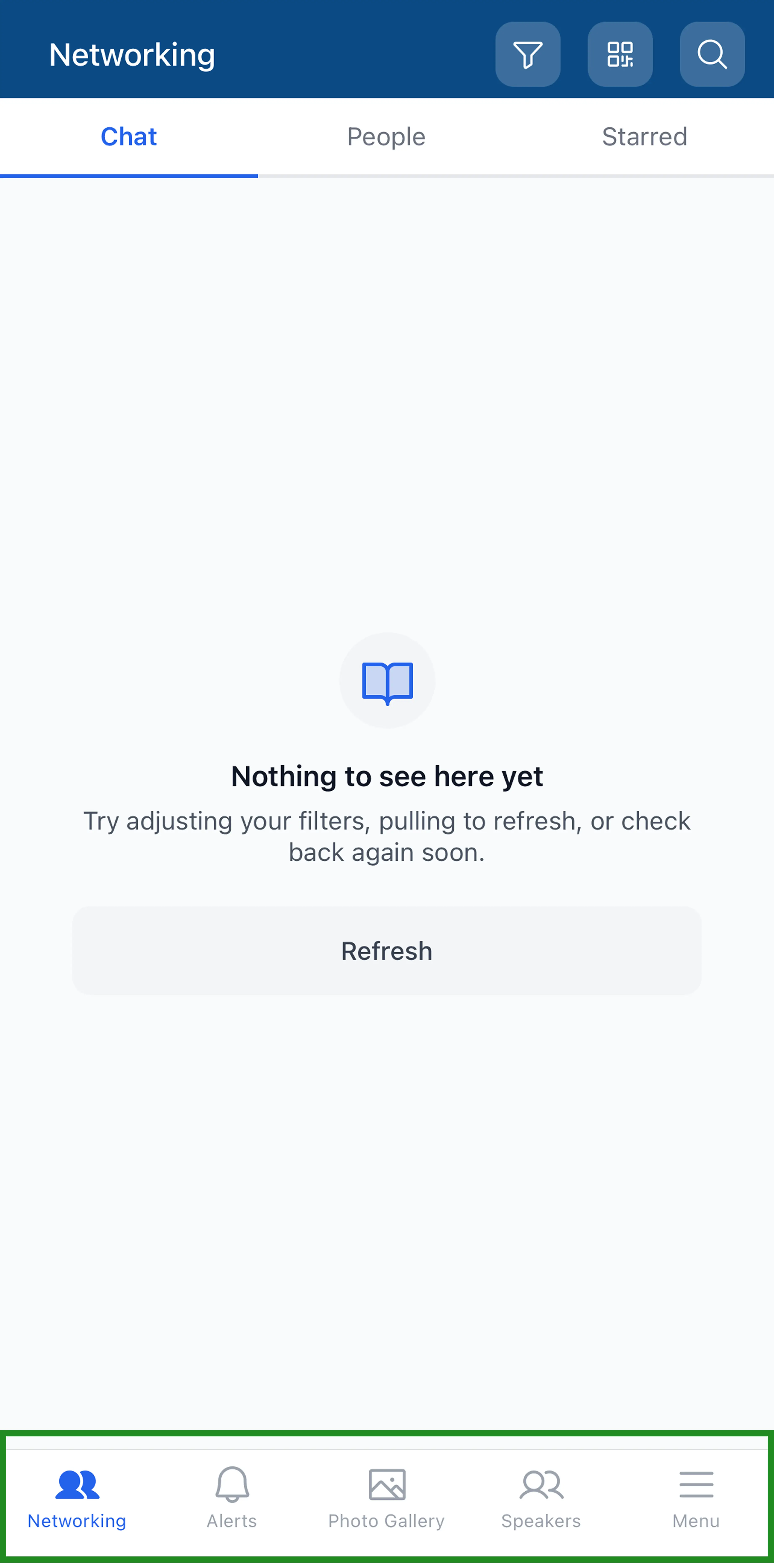
Additional tabs can be accessed from the Menu section.
The tab displayed first after entering an event will also vary depending on the event configuration.
Tab | Description |
Feed | Posts in the event's News feed |
Schedule | Your general Agenda and enrolled activities. InEvent Neo displays the event's general Schedule/Agenda, where you can view the sessions and activities available during the event. Unlike the InEvent Mobile App, InEvent Neo does not display My Schedule as a separate page. |
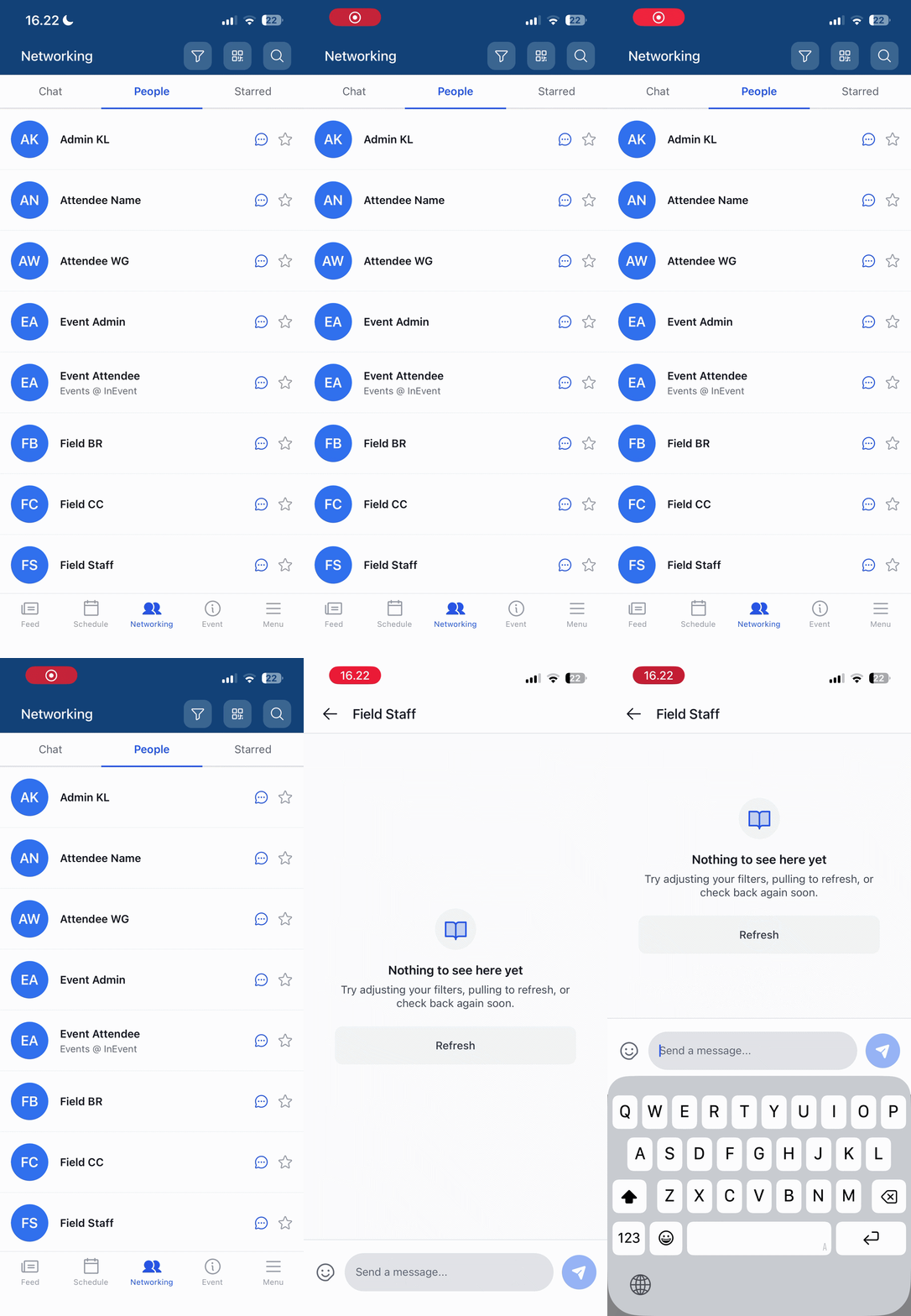
Networking | A set of networking features to assist your connection with fellow attendees. You can manage your mobile conversations under the Chat tab, review a list of public attendees under the People tab, and visit your favorite attendee profiles under the Favorite tab. |
Alerts | Push notifications from event administrators |
Exploring event features
InEvent Neo offers a range of features designed to help you interact with and get the most out of your event.
Event organizers can configure the features available for their event. As a result, some features described below may not be available for your particular event.
Schedule and Activities

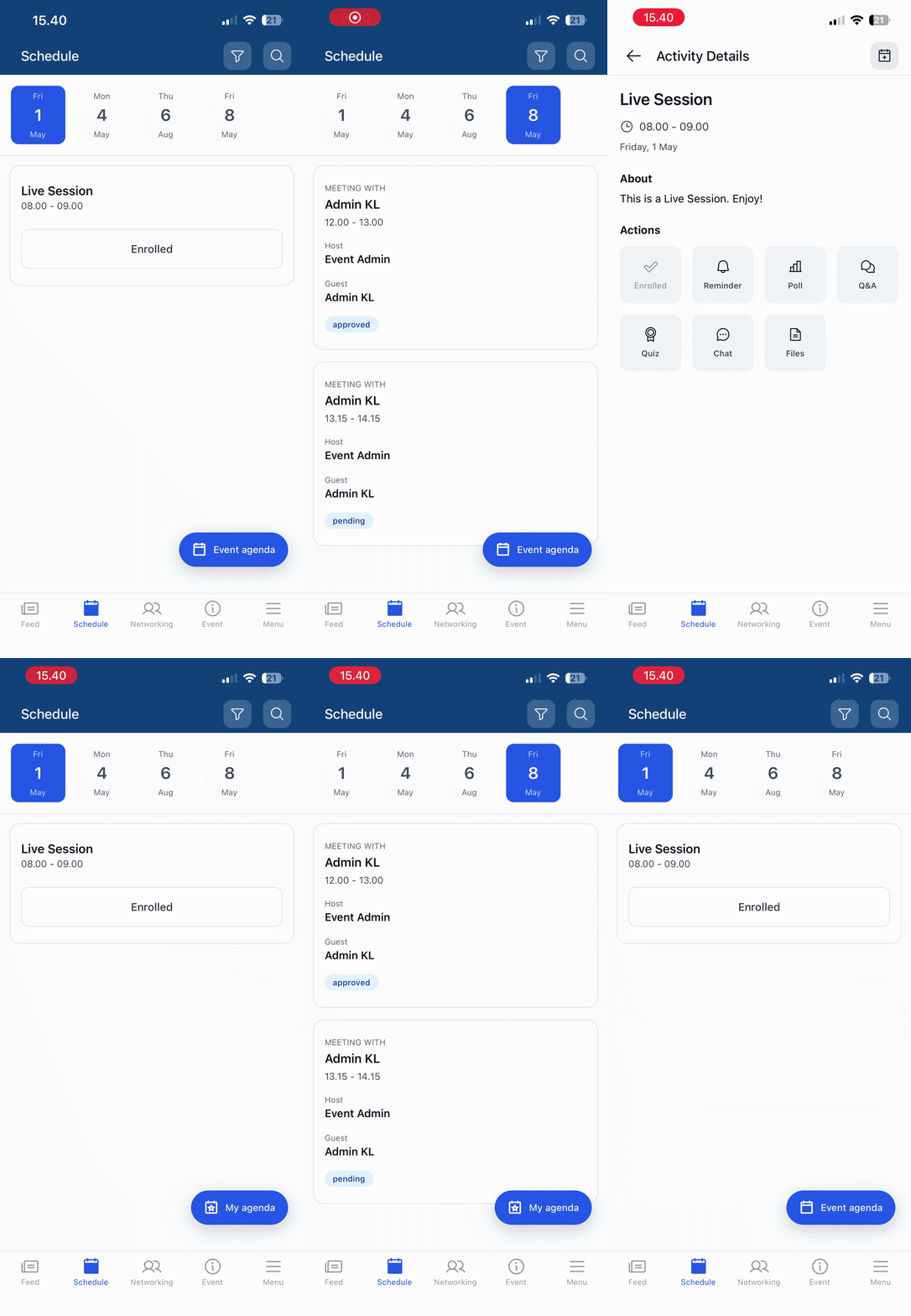
You can view the event's activities and sessions from the Schedule tab. The Schedule displays the event's general agenda, including available activities, their dates and times, and other information configured for each activity.
Tap an activity to view its available details.
Quick menu
The Quick menu provides shortcuts to features that can help you interact with activities during the event. Depending on the event configuration, available options may include Q&A, Chat, Polls, Quiz, Files, and the option to Enroll/unenroll from an activity.
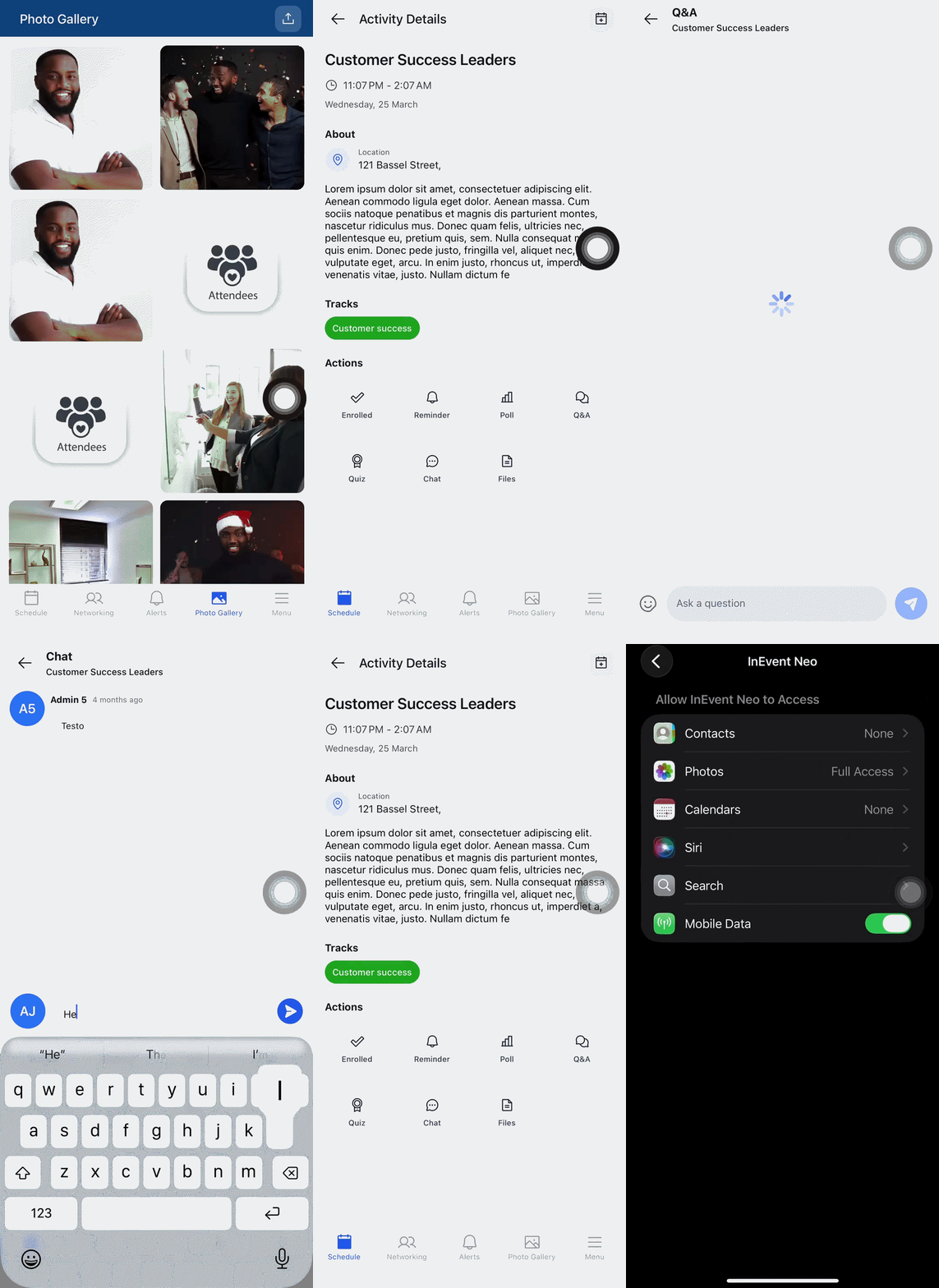
You can also add an activity to your phone's calendar by tapping the Calendar icon in the top-right corner of the activity details page. When prompted, grant InEvent Neo permission to access your calendar, and the activity will be added to your phone's calendar.
Photo Gallery and News Feed
Depending on the event configuration, you can view event photos through the Photo Gallery and access posts shared through the News Feed.
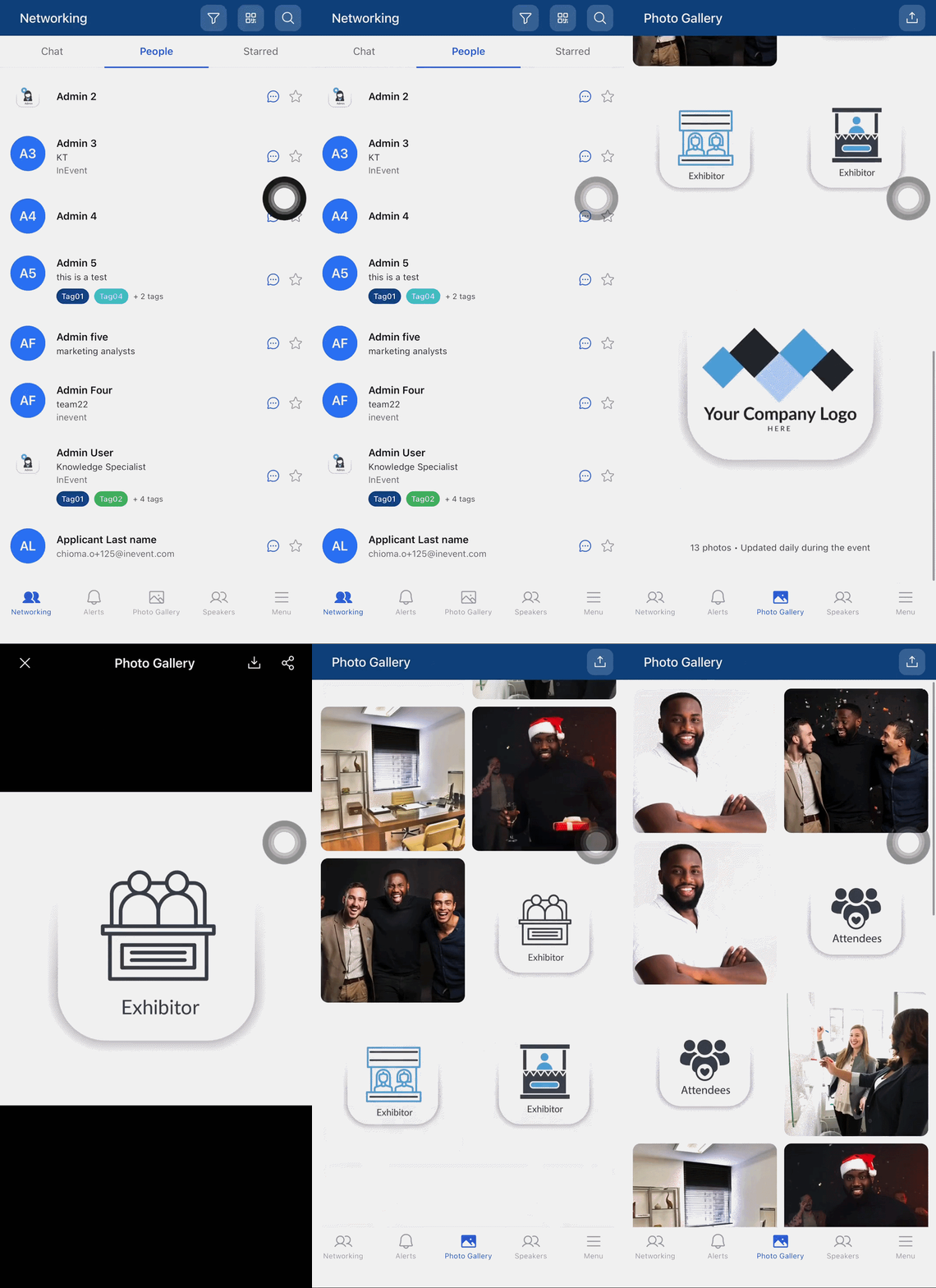
The News Feed allows you to stay up to date with information and posts shared during the event.
Networking
The Networking features allow you to connect and interact with other attendees.
Depending on the features enabled for the event, you may be able to view other attendees, access their profiles, and communicate with them through the app.
QR code
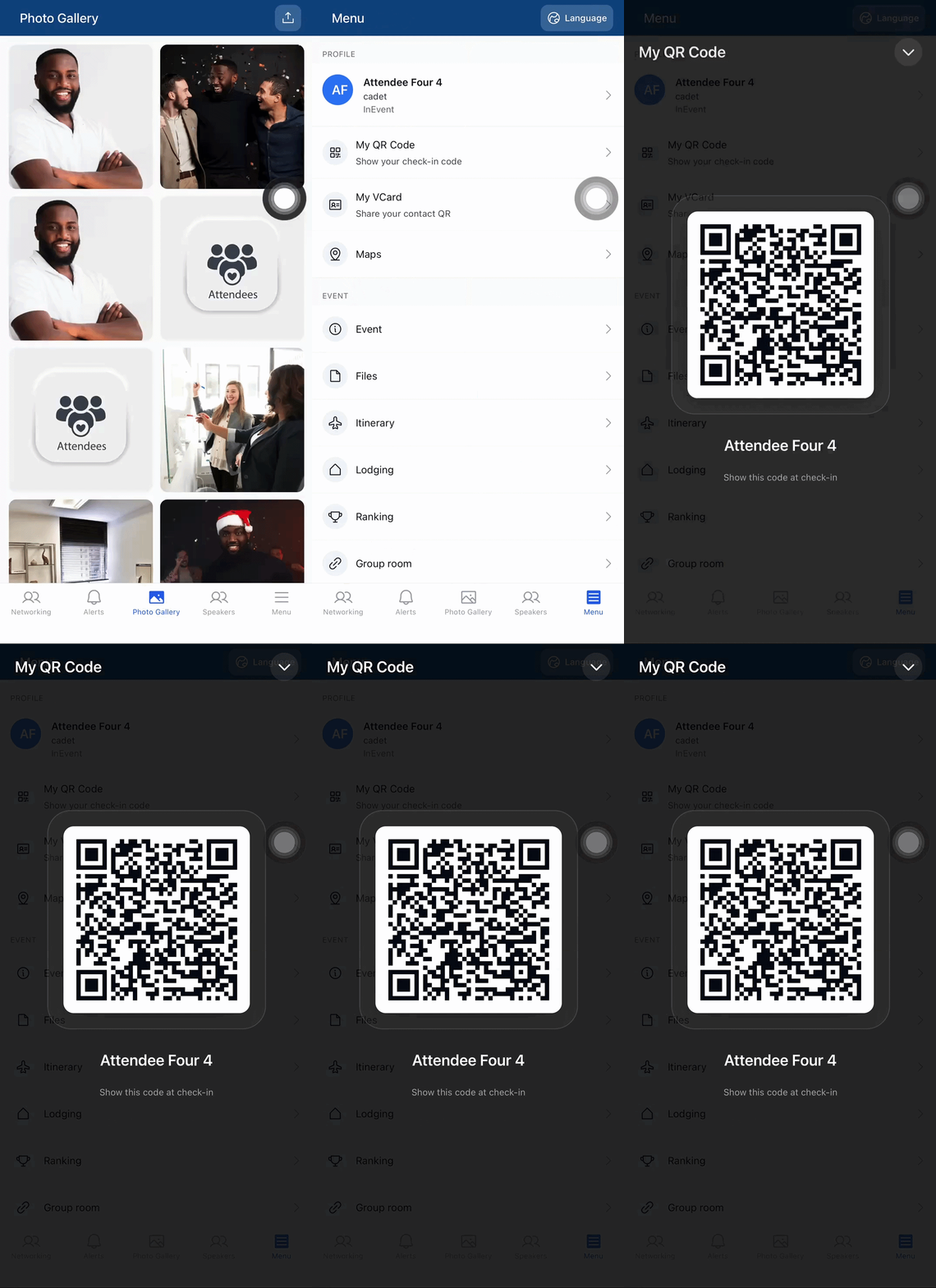
Your attendee QR code can be used for event or session check-ins when this functionality is enabled for the event.
Depending on the event setup, your QR code can also be used as part of the event's badge or access process.
Gamification
Some events will use Gamification to encourage attendee participation through task-based activities.
When enabled, you can complete activities, earn points, and view leaderboard information to track your progress during the event.