Interacting during sessions: Guide for attendees
 Updated 1 month ago
by
Amalia
Updated 1 month ago
by
Amalia
Attendees can interact with presenters, hosts, as well as other attendees during sessions. This guide provides a guide on interacting during activity sessions.
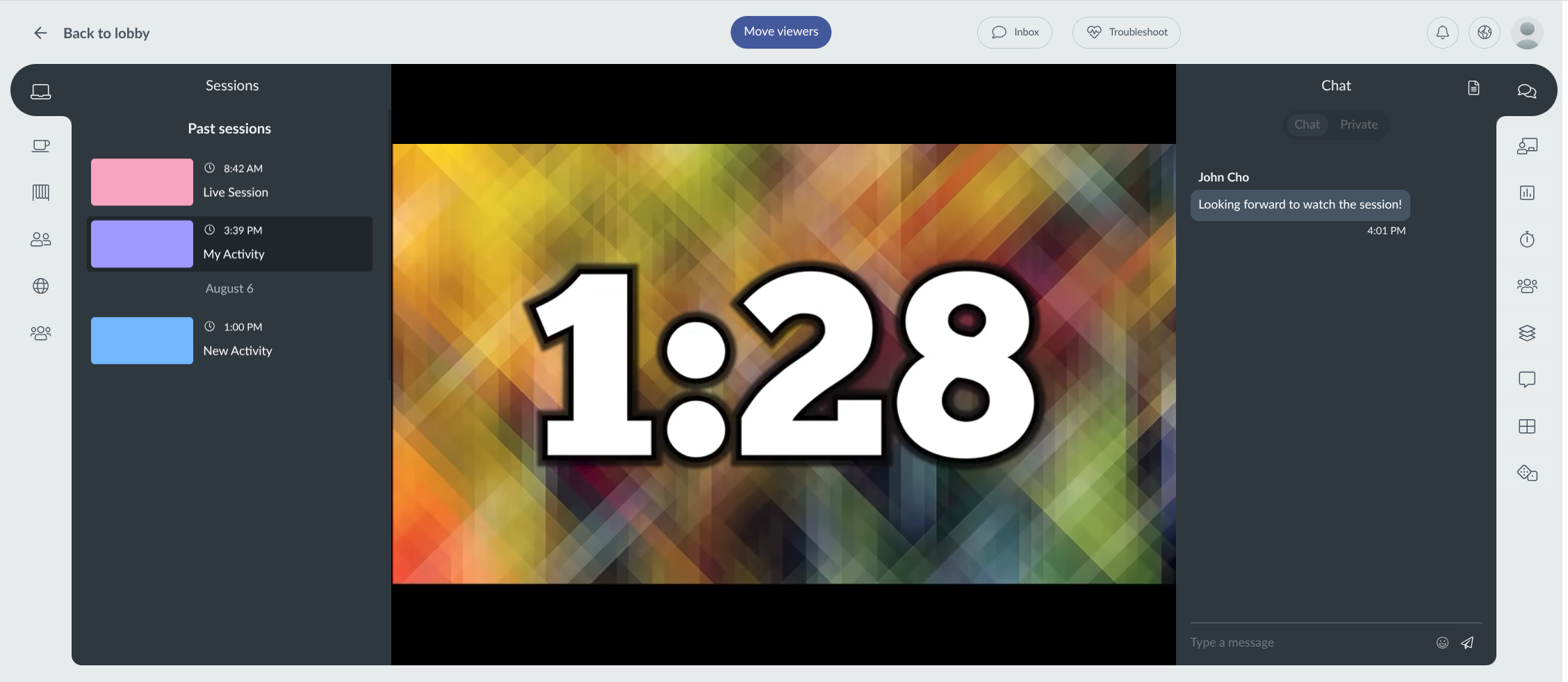
The live session view offers a straightforward interface, separated into three parts: Left Menu, Video Player, and Right Menu.
Left Menu
The left menu consists of multiple tabs to conveniently navigate through event components without leaving the live session. The following items can be accessed here.
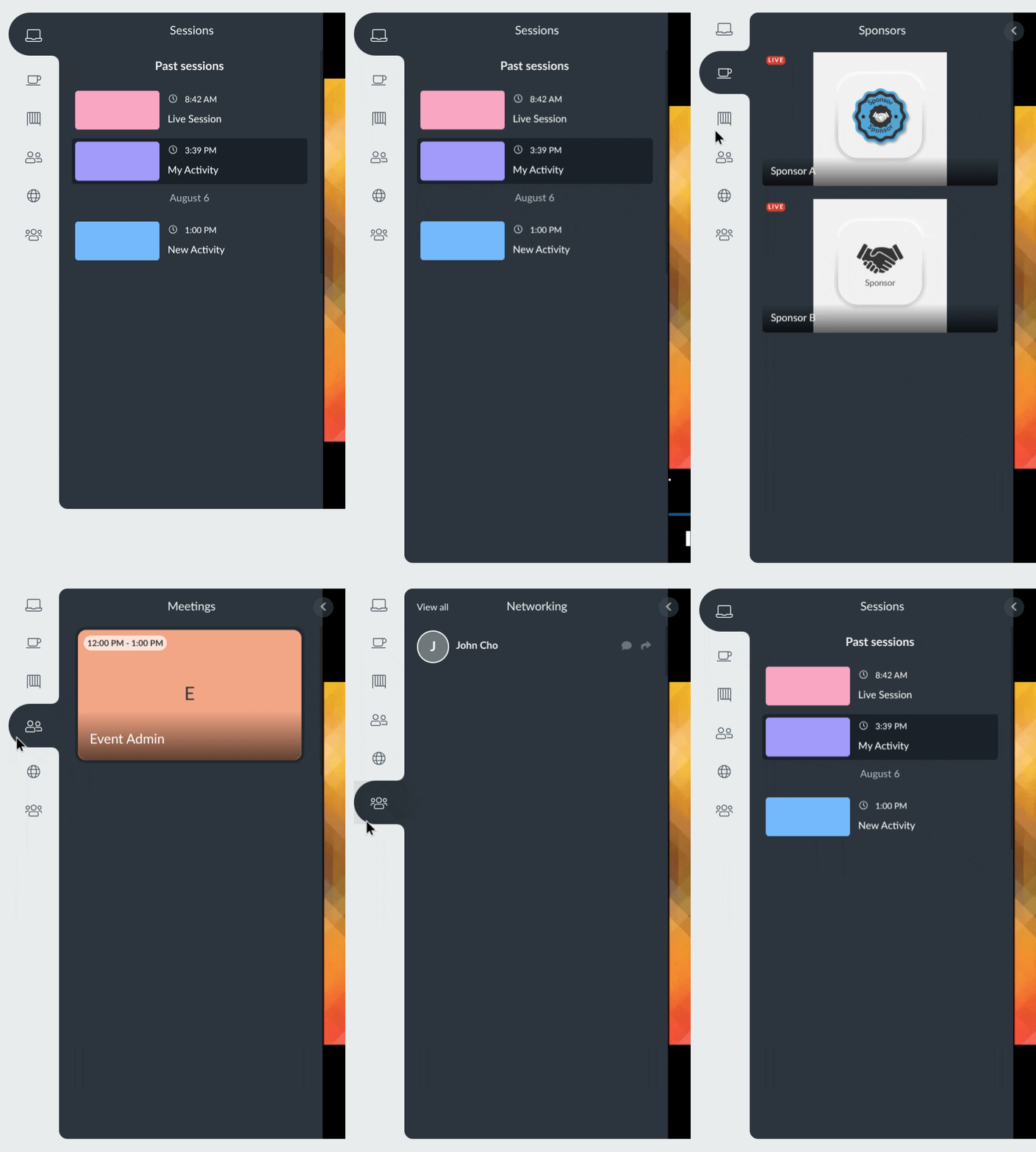
- Other Sessions or Activities: Click the session cards to switch between event sessions conveniently.
- Sponsors and Exhibitor session rooms: Click the session cards to switch between the fixed Sponsors and Exhibitor session rooms.
- Meetings: Click the meeting card to access existing personal meeting rooms.
- Networking: Click the name of event attendees to open their profile card and send them a message or to schedule a meeting with them.
Video Player
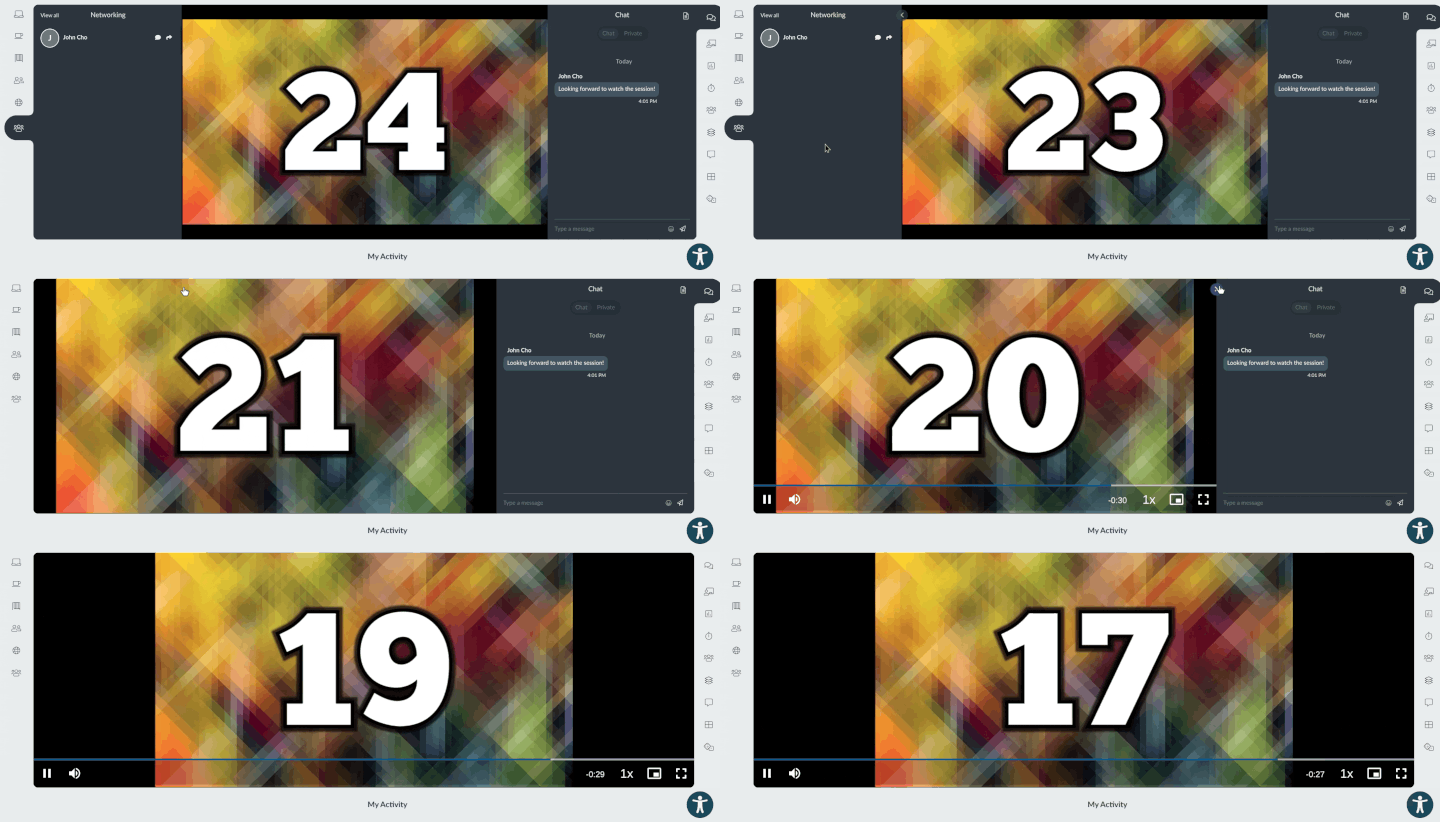
InEvent's video player is a standard HTML5 video player, with functionalities to play and pause, scrobble through on-demand sessions, elapsed time display, playback speed, picture-in-picture player, as well as a full screen button.
The video player can also be expanded by clicking the arrow button on the left and right menu.
Right Menu
The right menu consists of multiple tabs for interacting with the event.
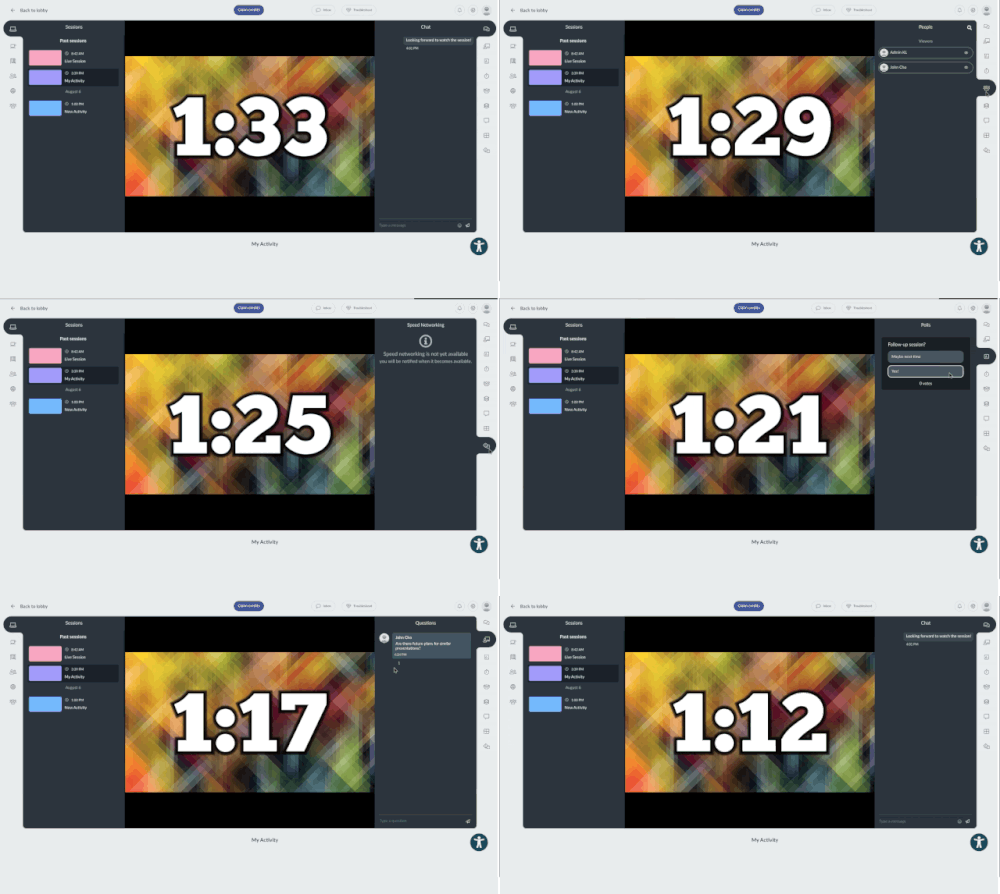
You can interact with the event using the following tabs.
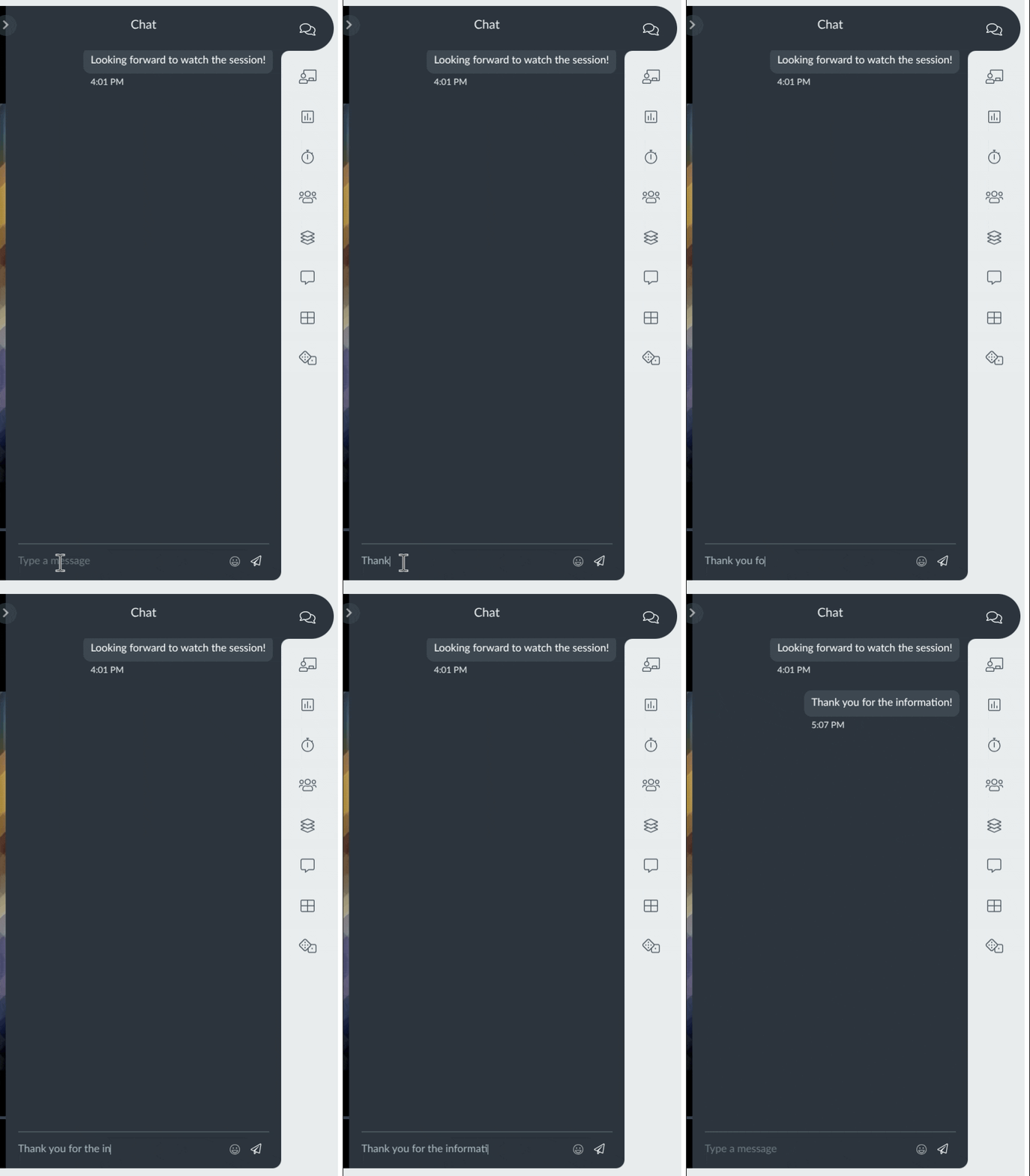
Chat
Straightforward chat or comment box. Type your message in the text field at the bottom, and press the Send button or press Enter on your keyboard to send your message. Chats and comments are preserved in the activity unless removed by an event administrator.
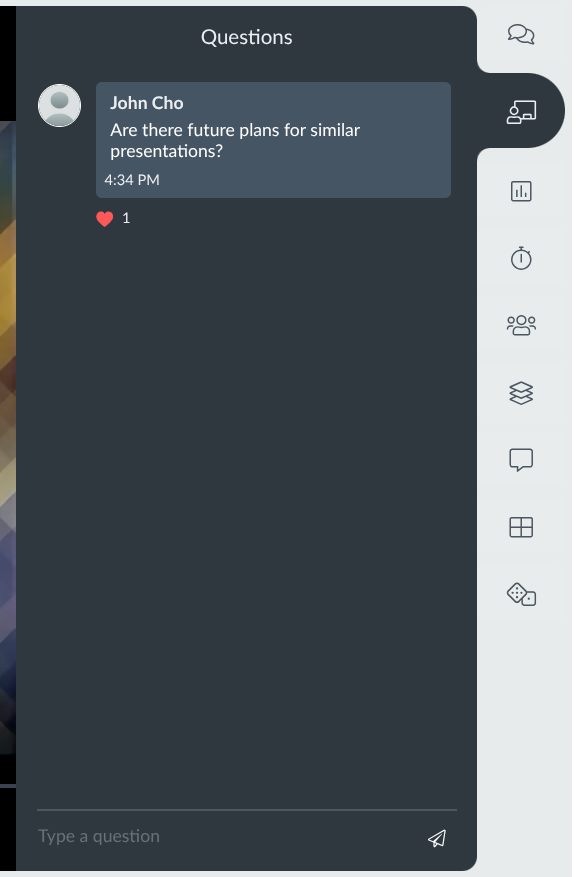
Questions
Send questions during live sessions in a dedicated tab. Type your message in the text field at the bottom, and press the Send button or press Enter on your keyboard to send your question. Attendees can press Like on questions to improve visibility, which is especially useful for sessions with a lot of question entries. Presenters can reply to questions directly on the Questions tab, and select questions and display them on the video player to emphasize. Questions are preserved in the activity unless removed by an event administrator.
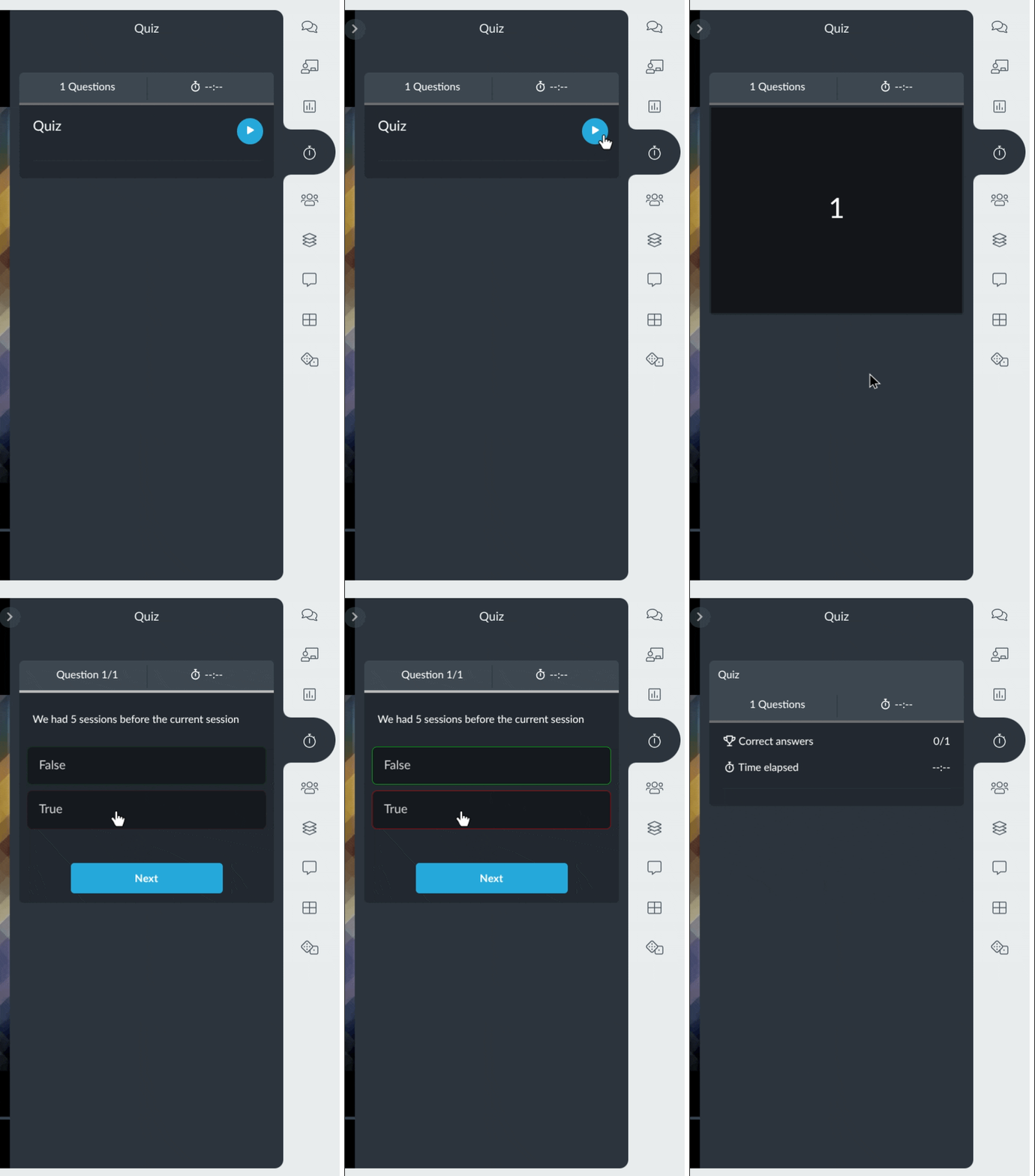
Quiz
Participate in quizzes during live sessions. In sessions where presenters have prepared quizzes, attendees can click the Play button to start the quiz and answer the provided quiz questions.
People
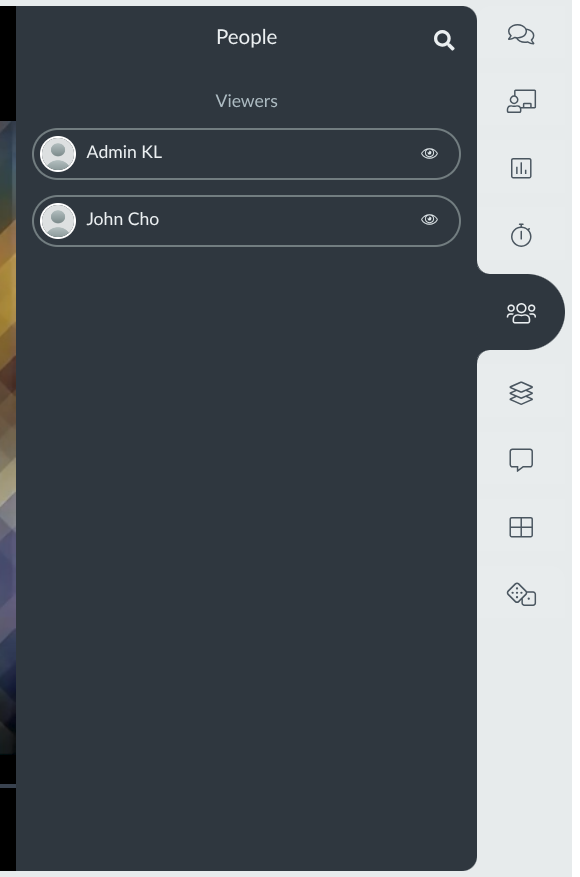
The People tab displays the list of users present in the session room. The People tab separates between Presenters, or people who are currently presenting or on stage, and Viewers, or people who joined as viewers and are not actively participating on stage. Click on attendee entries to display their profile card, from which you can send them messages or invite them to meetings.
Files
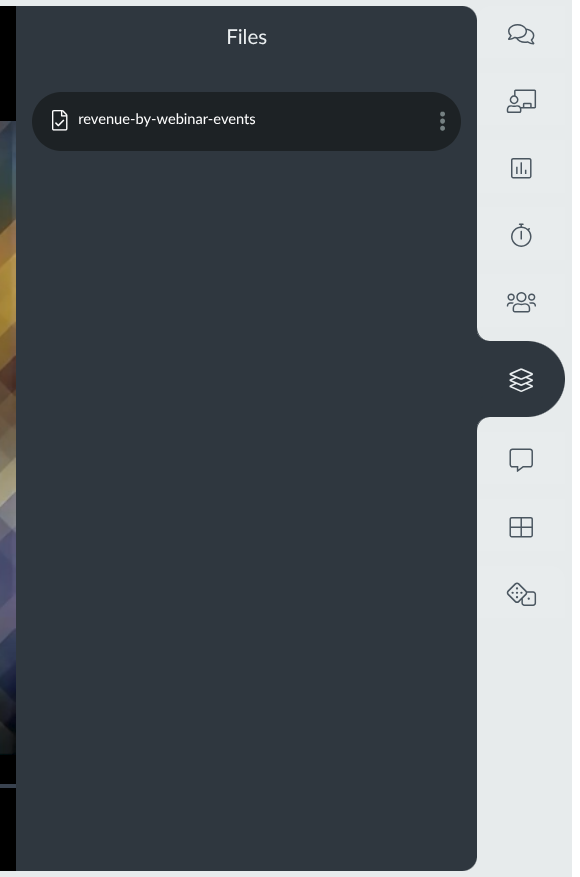
Presenters can prepare files for attendees to download directly from within the activity. Click the existing file entries to download them to your computer.
Discussion rooms
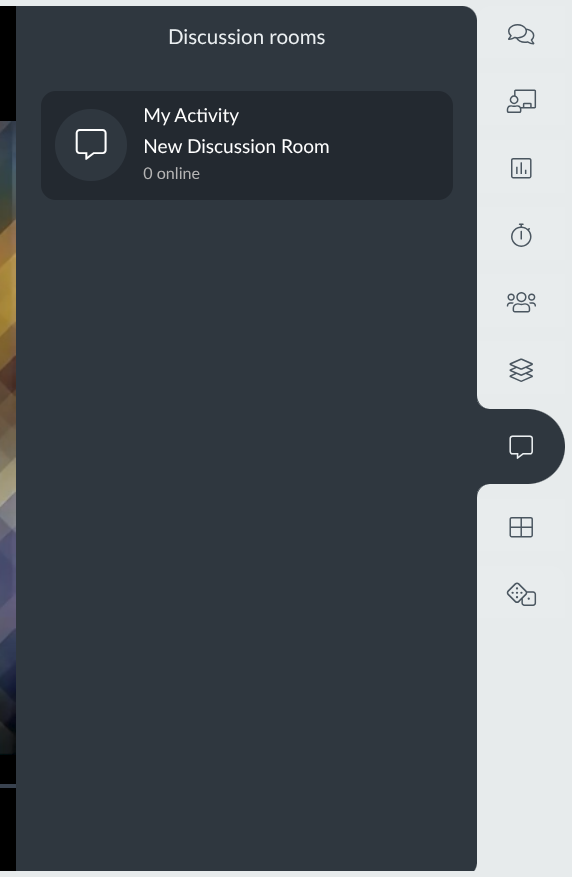
Presenters can create discussion rooms within the session, and attendees can join them if needed. Click the target discussion room to enter it and start the discussion.
Breakout rooms
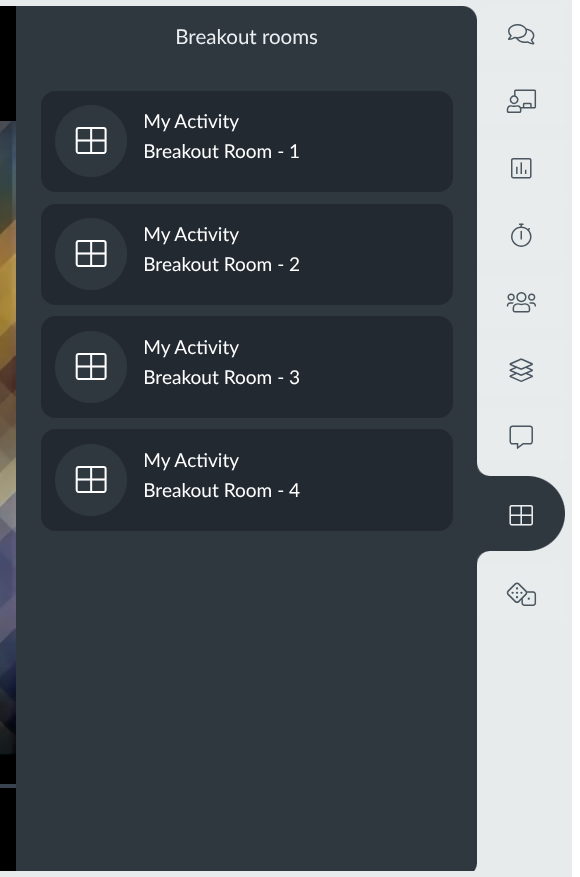
Presenters can create breakout rooms within the session and automatically move attendees into the rooms as well as back into the session. If not automatically moved, attendees can click on the available breakout rooms to join.
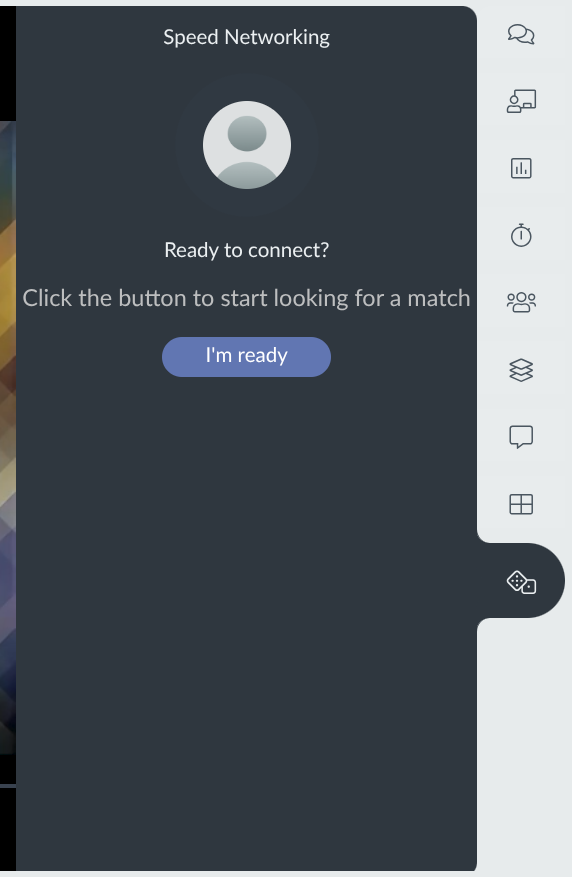
Speed networking
Speed networking is an InEvent networking feature to randomly network and discuss with a random attendee. When speed-networking within sessions, you will be connected with other session attendees. Click I'm ready to start being matched with a random attendee.