My Tickets
 Updated 6 months ago
by
Amalia
Updated 6 months ago
by
Amalia
InEvent's Virtual Lobby provides a centralized page to manage attendees' purchased tickets. Within My Tickets, you can review tickets associated with your account, purchase additional tickets, transfer tickets to your desired recipients, or swap your ticket with a different ticket. Additionally, you can also submit a ticket refund request from My Tickets page.
Accessing My Tickets
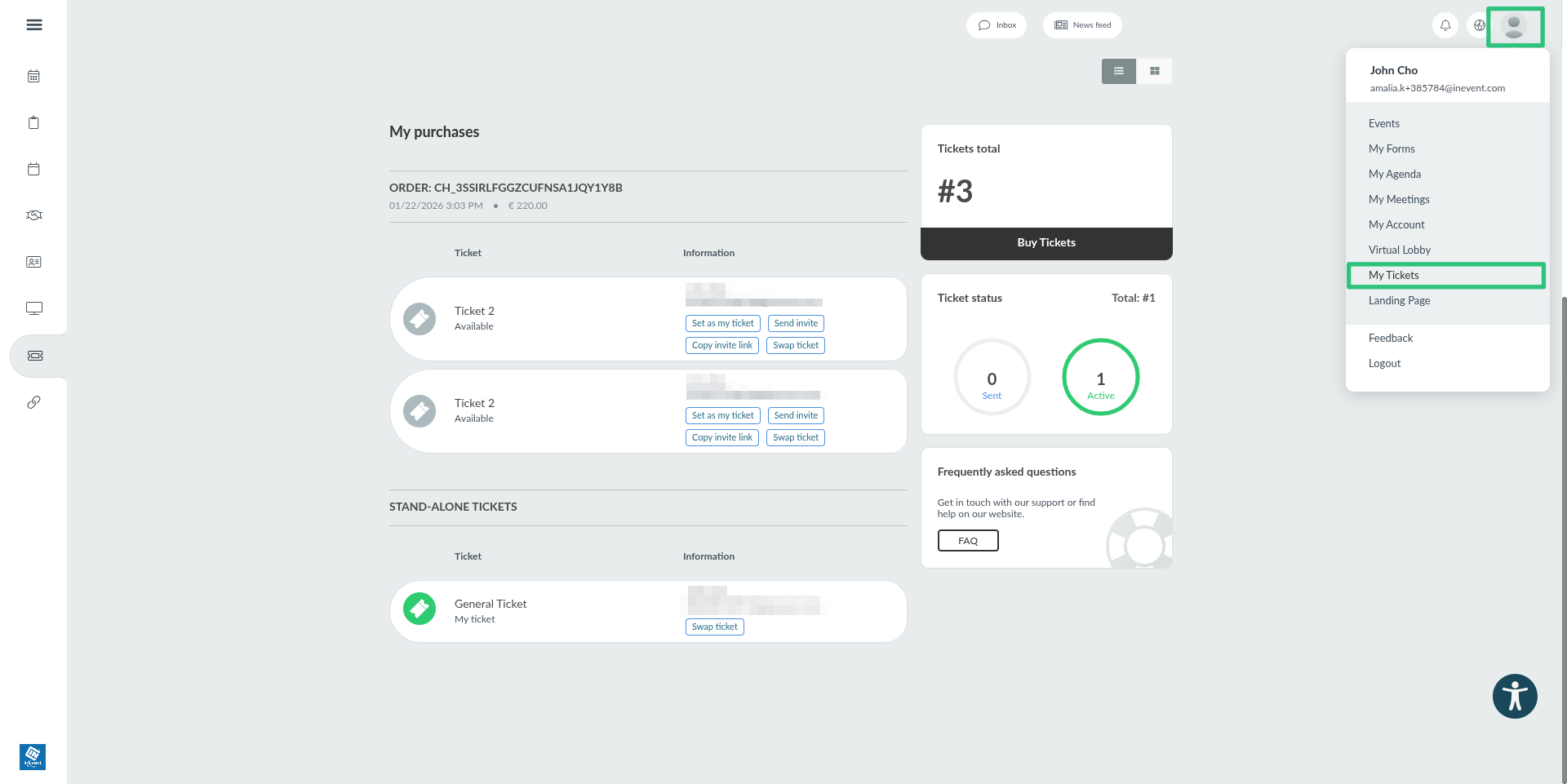
My Tickets can be accessed by opening the Virtual Lobby menu and clicking or tapping the My Tickets tab. Alternatively, you can also open it by clicking your profile picture on the top right corner and clicking My Tickets.
Ticket actions
There are multiple ticket-related actions you can perform on this page.
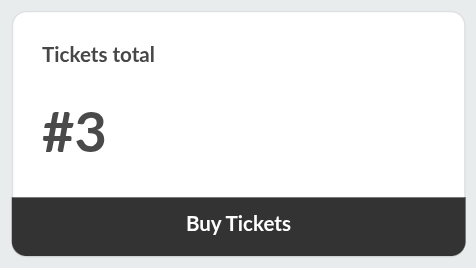
Buy tickets
Clicking on Buy tickets will take you to the Purchase form, where you can purchase extra tickets for yourself, or for transferring to other people.
Set as my ticket
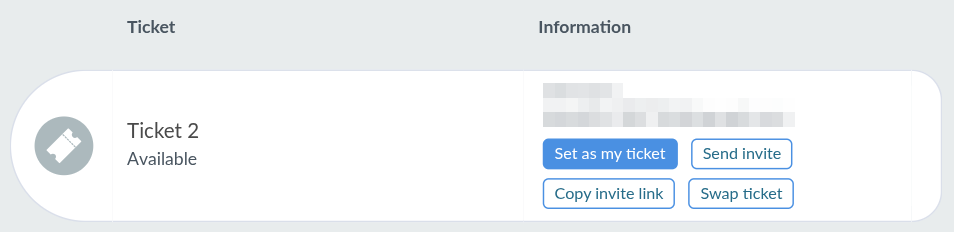
If you have purchased different ticket types, you might want to define a specific ticket as your active ticket. To do so, click on the Set as my ticket button.
Transfer ticket
You can start the process of transferring tickets to your desired recipient by clicking on Send invite or Copy invite link. For complete information about transferring tickets, refer to our article on sending extra tickets to another person.
Swap ticket
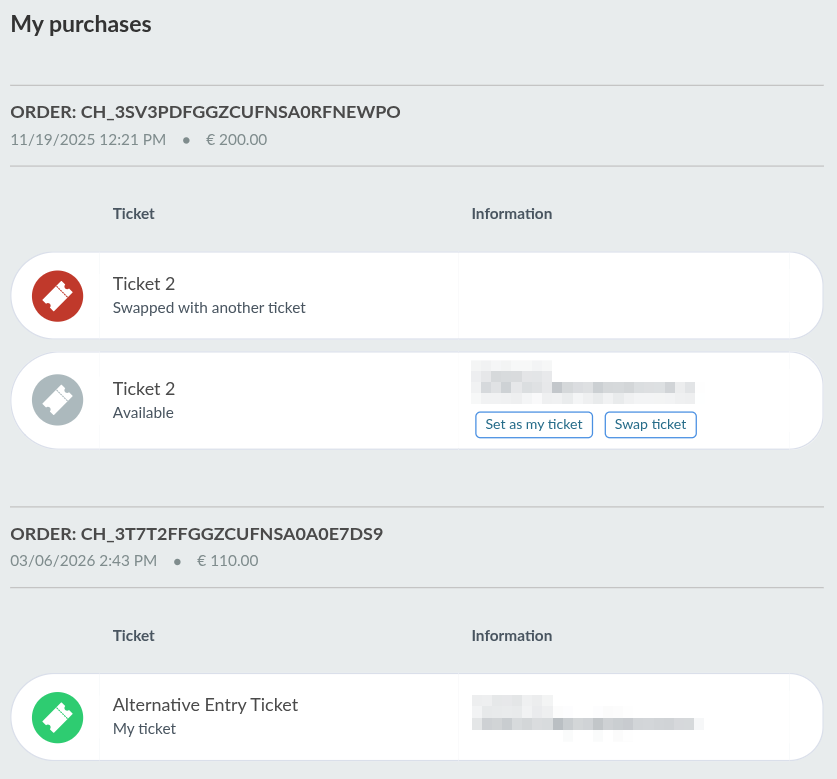
Tickets purchased on the platform can be directly swapped or switched with other tickets on the same event by clicking on Swap ticket.

Doing so will direct you to the Purchase form, where you can select a target ticket to swap.
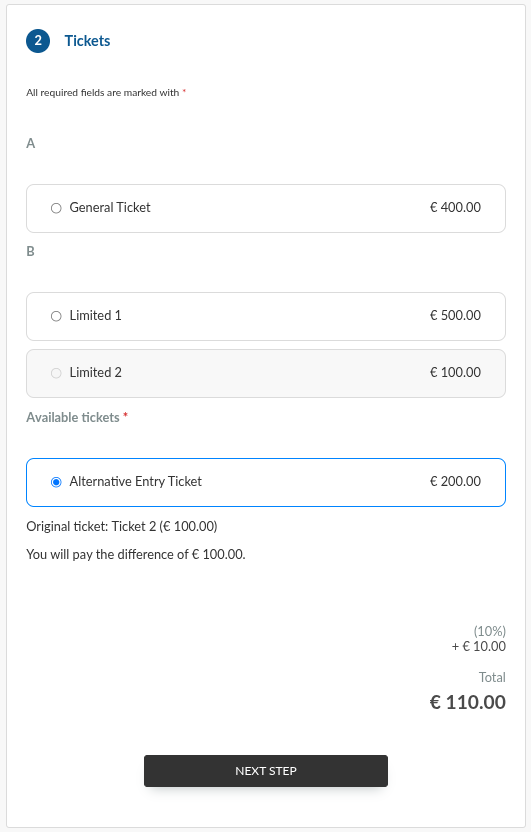
Price differences between the original and the target ticket will be automatically calculated and applied. If the target ticket is priced above the original ticket, you only need to pay the difference instead of the full ticket price; if the target ticket is priced lower, you will be refunded the difference.
Upon a successful ticket swap, you will be able to set the swapped ticket as your active ticket from My Tickets. Your original ticket will also still be displayed on the page.
Request refund
Event organizers may allow refunds up to a specified time frame. During this period, you can request a refund for your ticket purchase by completing the following steps.
- Navigate to My Tickets from the Virtual Lobby.
- Locate the purchase for which you want to request a refund.
- Click Request refund. A confirmation pop-up box will be displayed.
- Press the Request refund button to finalize your request.
After your refund request is made, a Refund requested notice will be displayed.
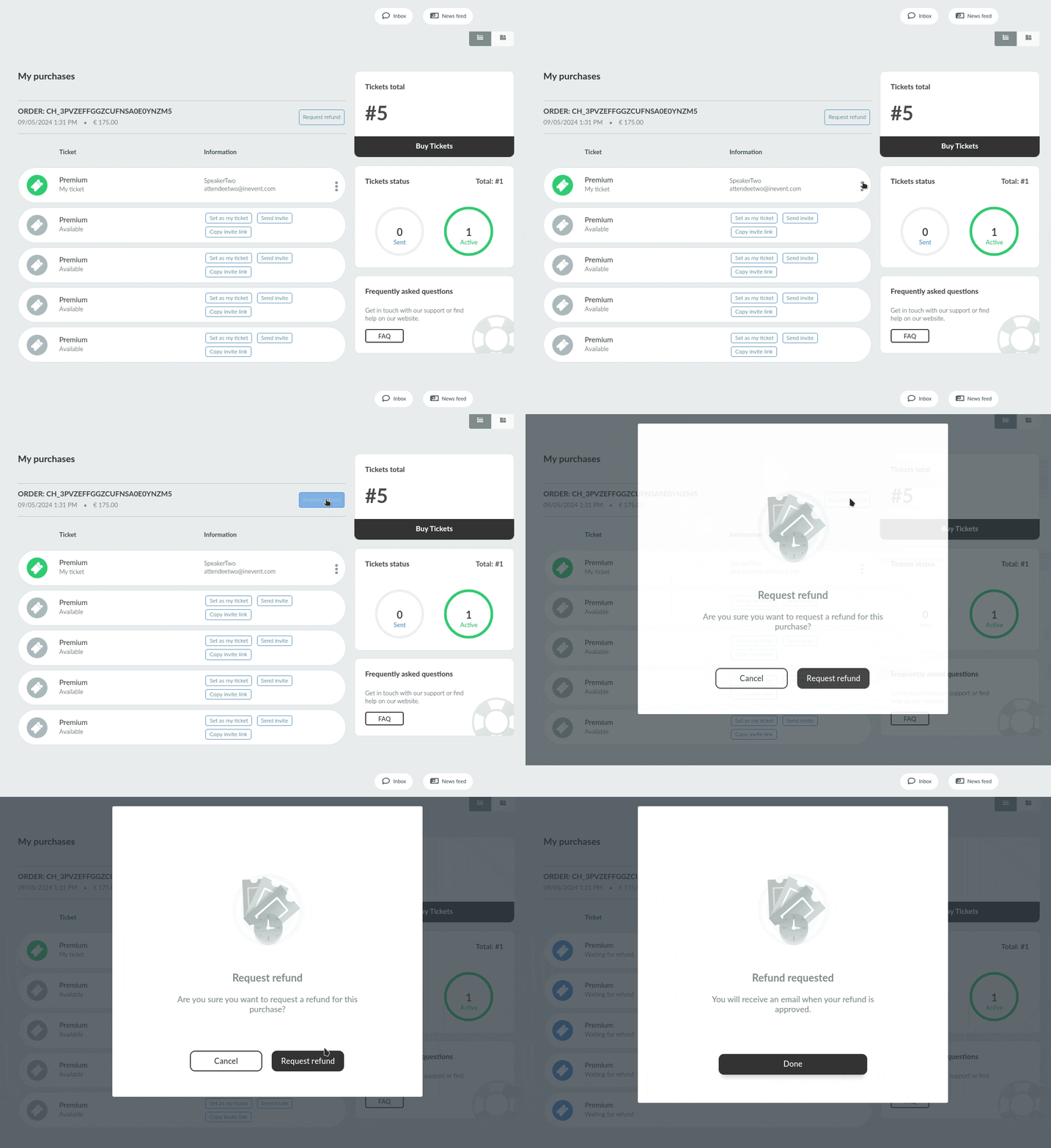
Your request will then await the event organizers' approval. Once approved, you will receive an email notification that your purchase has been refunded.
