Embedding event content on external websites
 Updated 4 months ago
by
Caleb Kotey
Updated 4 months ago
by
Caleb Kotey
InEvent allows event organizers to embed certain event components on external websites using an iframe. This lets you display key event information, such as registration forms, ticket offerings, and the public agenda, directly on your own website.
Not all event components have dedicated embed URLs. Some, such as registration forms, ticket offerings, and custom forms, provide standalone embed URLs, while others, like Speakers, Sponsors, etc. can be embedded using the page= parameter. This article outlines some components that can be embedded, how to locate the correct URLs, and any limitations to be aware of when embedding InEvent content externally.
Embedding event agenda
InEvent allows the public event agenda to be embedded on an external website using an iframe. This embed displays the agenda as shown in the Virtual Lobby agenda view.
Agenda iframe structure
<iframe id="inevent-public-agenda-iframe"
        src="https://inevent.com/en/{{Company}}/{{Event}}/public-agenda.php?embed=true"
        width="100%"
        height="400"
        frameborder="0">
</iframe>
Replace:
{{Company}}with your company slug{{Event}}with your event slug
height value in the iframe can be adjusted depending on how much of the agenda you want visible on your external website.Embedding the registration form
You can embed your event’s Registration Form or Purchase Form into an external website using an iframe.
To locate the form URL and embed code:
- Navigate to Marketing > Registration > Registration Form
- Click Share on the left-hand menu
On the Share page, you will find:
- A direct URL to the registration or purchase form
- A ready-to-use iframe embed code
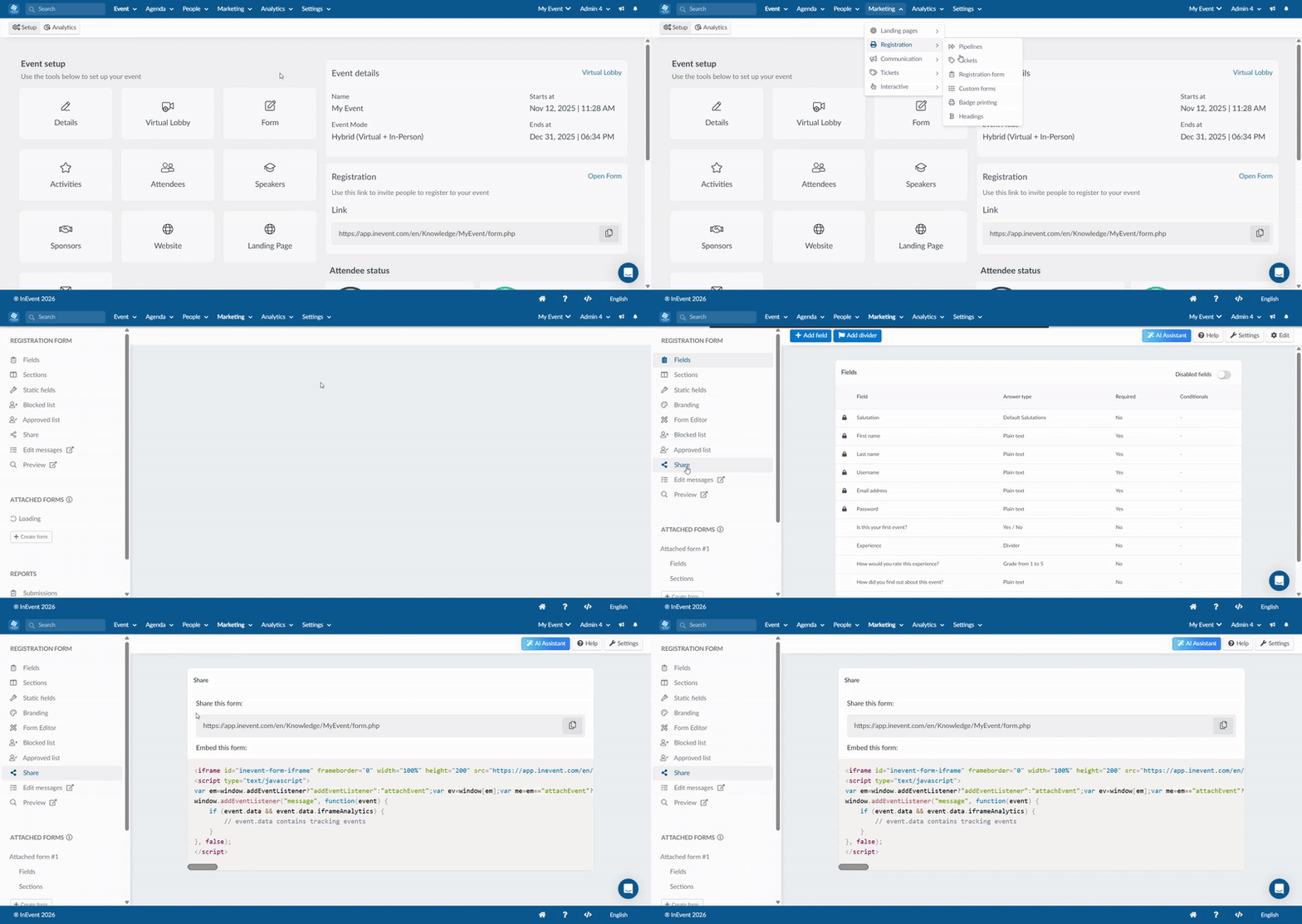
This embed displays the full registration or purchase flow, including ticket selection, attendee details, and payment details. For more information, refer to the Add registration form to external website article.
Embedding ticket offerings
In addition to embedding the full registration or purchase form, InEvent allows you to embed only the Ticket Offerings section on an external website.
This option displays the list of available tickets without the full registration flow and is useful when ticket selection needs to be presented separately on a website.
Ticket offerings iframe structure
<iframe id="inevent-ticket-offerings-iframe"
        src="https://app.inevent.com/en/{{Company}}/{{Event}}/ticket-offerings.php?embed=true"
        width="100%"
        height="200"
        frameborder="0">
</iframe>
Replace:
{{Company}}with your company slug{{Event}}with your event slug
height value can be adjusted as needed.Embedding custom forms
InEvent allows Custom Forms to be embedded on external websites using an iframe. This includes, but is not limited to, Review Forms, Submission Forms, and other Custom Forms created for the event.
Review Forms
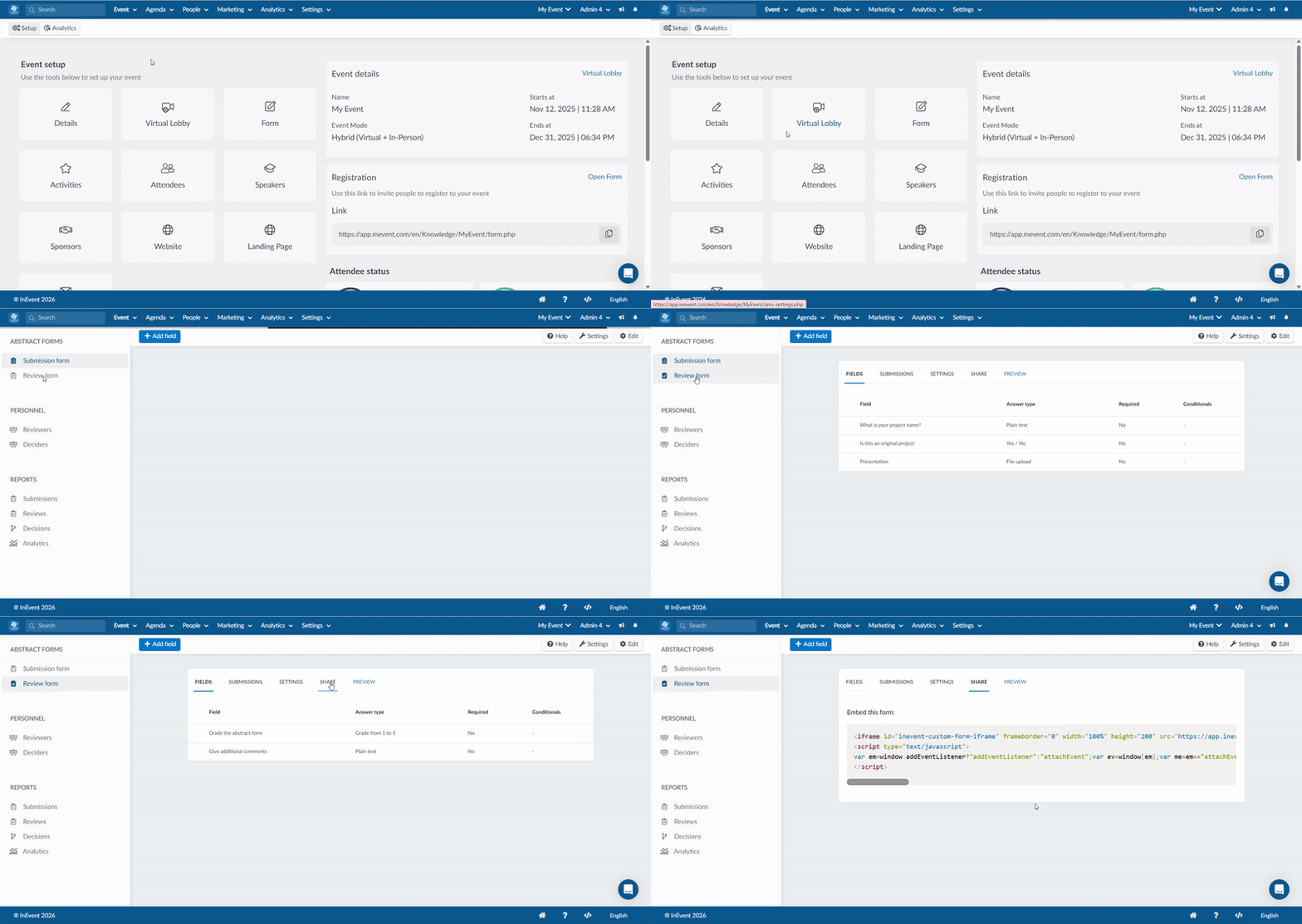
To locate the form embed code:
- Navigate to Event > Abstracts
- Select Review Form on the left-hand menu,
- Click Share
On the Share page, you will find a ready-to-use iframe embed code.
Submission Forms
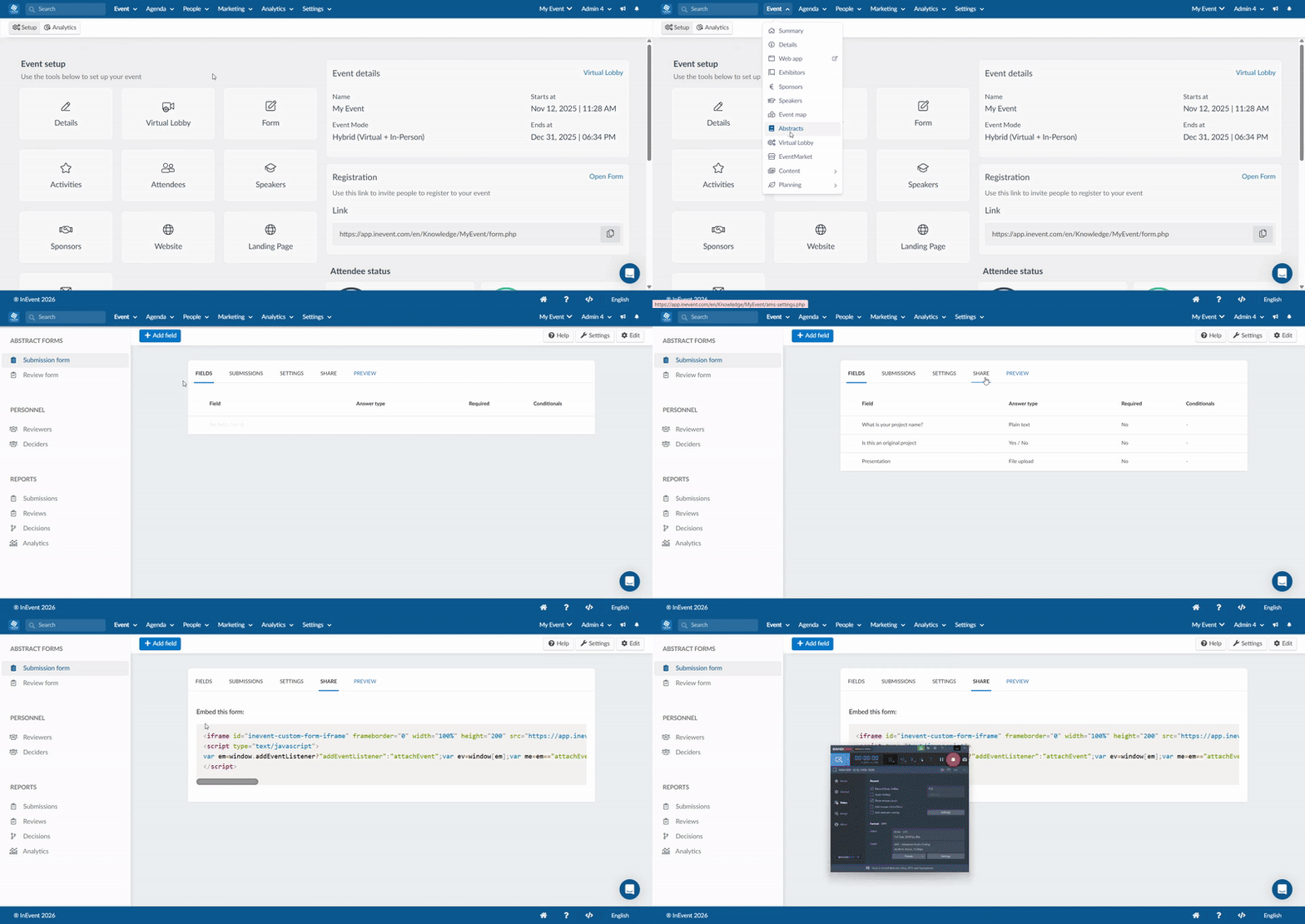
To locate the form embed code:
- Navigate to Event > Abstracts.
- Select Submission Form on the left-hand menu.
- Click Share.
On the Share page, you will find a ready-to-use iframe embed code.
Custom Forms
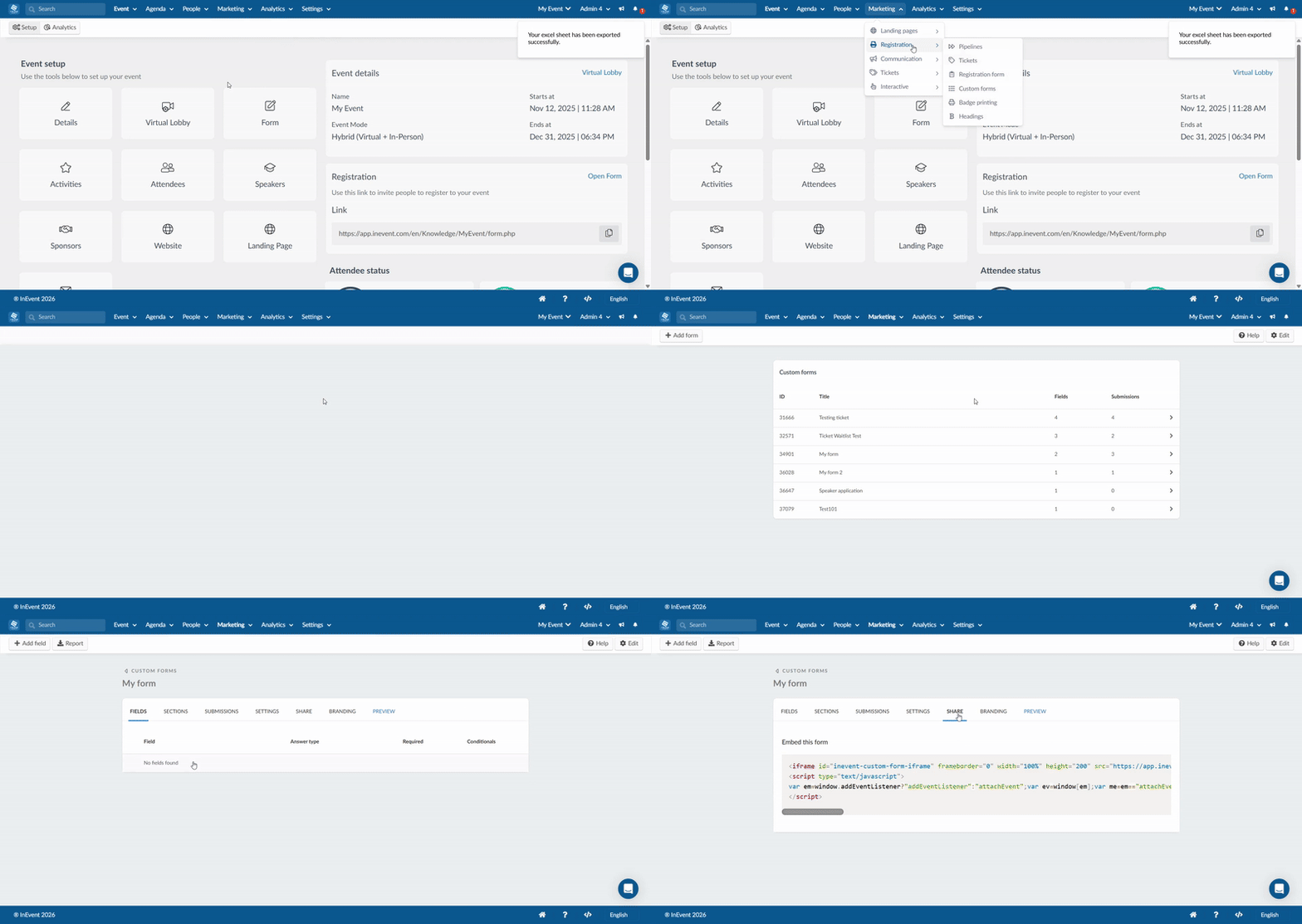
- Navigate to Marketing > Registration > Custom Form.
- Select a form.
- Click on Share.
On the Share page, you will find a ready-to-use iframe embed code.
height value as needed to display content fully.Embedding website sections: Speakers, Sponsors, Exhibitors, map, etc..
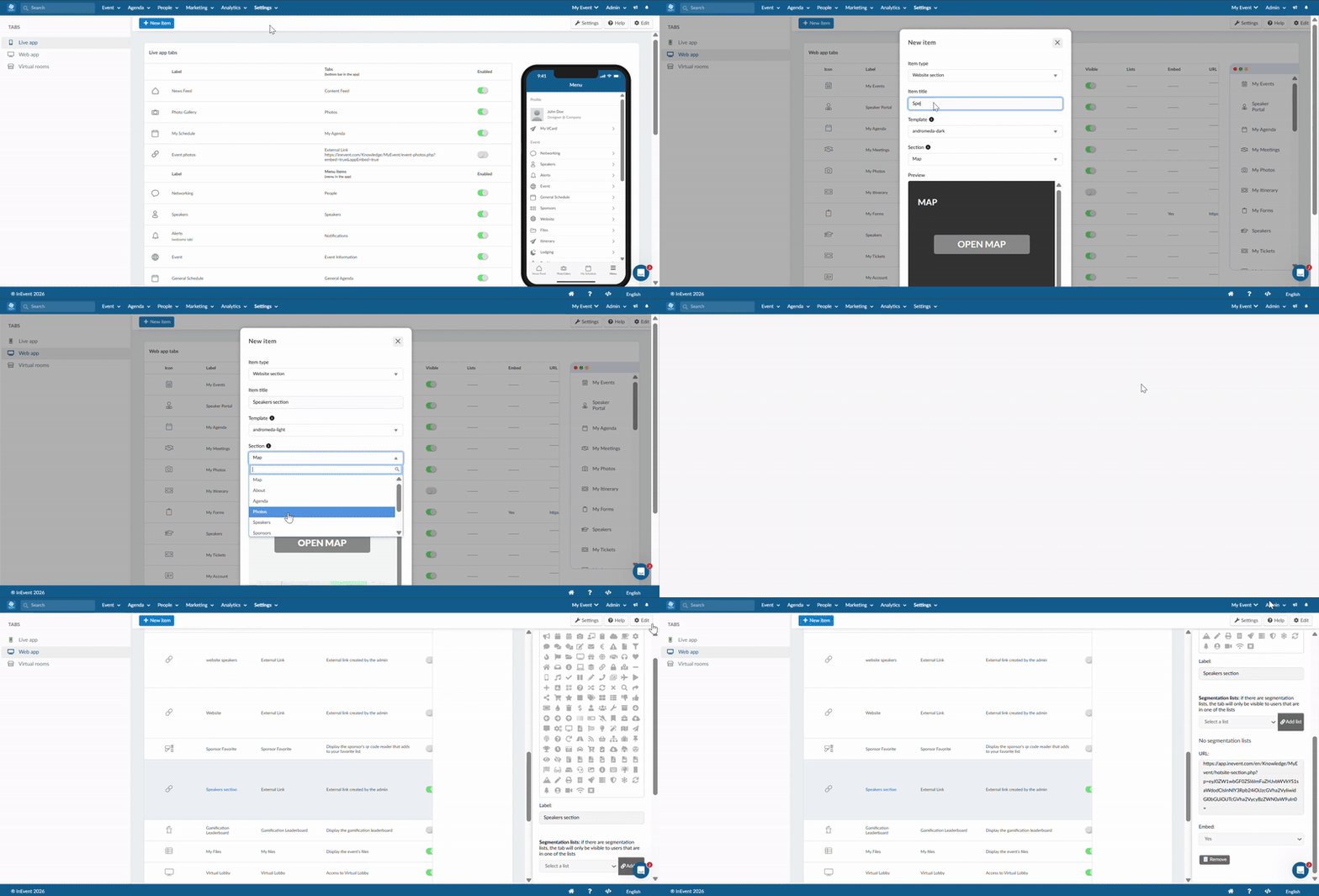
Some website sections, such as Speakers, Sponsors, and the Event Map, etc. can be embedded on an external website by first creating a custom website tab for each section and then using the generated tab URL as the iframe source.
Creating a custom tab
To create a custom tab for Speakers, Sponsors, Exhibitors, the Event Map, or similar website sections:
- Go to Settings > Tabs.
- Select Web app from the left-hand menu.
- Click + New item. The New item pop-up will appear.
- For Item type, select Website section.
- Enter an Item title.
- Select a Website template.
- Choose the desired section (for example: Map, Sponsors, Exhibitors, or Speakers).
- Click Create to finish creating the custom tab.
- Once created, copy the URL of the section and use it as the
srcvalue in your iframe.
iframe structure
Below is an example of the iframe structure for embedding sections such as sponsors, speakers, maps, exhibitors, etc to your external website.
<iframe id="inevent-{{page}}-iframe"
        src="https://inevent.com/en/{{Company}}/{{Event}}/hotsite-section.php?p={{pageID}}"
        width="100%"
        height="1500"
        frameborder="0">
 </iframe>
Replace:
{{Company}}with your company slug{{Event}}with your event slug{{pageID}}with the ID from the URL of the custom Website tab you created (the string of letters and numbers afterp=)
height value as needed.Embedding website pages
InEvent lets you embed specific pages of your event website on an external website. Each website page can contain one or more sections (such as Agenda, Speakers, Sponsors, or Map), depending on its configuration.
By using the page parameter in the website URL, you can define which page loads first when the embedded website is displayed. This allows you to guide users directly to a specific page while still embedding the full website experience.
To embed the event website and define which website page loads first, follow the steps below:
- Navigate to Marketing > Website in your event backend.
- Open the Website configuration.
- Click Add page to create a new page for your website.
- Add the sections you want to display on that page (for example: Agenda, Speakers, Sponsors, or Map).
- Publish the website.
For more information on pages, refer to the Creating multiple website pages for my event article.
Once published, copy the website URL and append the page parameter to the iframe in the following format:
iframe structure
Below is an example of the iframe structure for embedding website pages
iframe id="inevent-{{page}}-iframe"
        src="https://inevent.com/en/{{Company}}/{{Event}}/hotsite.php?page={{page-name}}"
        width="100%"
        height="1500"
        frameborder="0">
 </iframe>
Replace:
{{Company}}with your company slug{{Event}}with your event slug{{page-name}}with the name of the page you created in your website configuration
