Quiz experience for attendees
 Updated 4 minutes ago
by
Chioma Okenwa
Quizzes allow attendees to answer questions during an event and test their knowledge. You can participate in quizzes through the Virtual Lobby or the InEvent App.
Taking a quiz in an activity
- Access the activity from the Virtual Lobby.
- Open the Quiz tab to view the available quizzes.
- Select the quiz you want to take. A 3-second countdown will appear before the quiz begins.
- Answer each displayed question. After submitting an answer, the answer box will be highlighted to indicate whether your answer is correct or incorrect:
- Correct answers: The answer box is highlighted in green.
- Incorrect answers: The answer box is highlighted in red.
If a question has multiple correct answers, a prompt will indicate how many options you need to select (e.g., Select 2 options). - Submit your answers to complete the quiz.
If the quiz has a timer, it will be displayed at the top of the quiz. Make sure to submit your answers before the timer expires.

If the event organizer has enabled the Show as pop-up feature, a pop-up notification will appear on your screen, prompting you to answer the quiz. You can answer directly from the pop-up or go to the Quiz tab to respond.
Taking a quiz in the InEvent App
- Open the event in the InEvent App.
- Access the quiz available for the event.
- Answer the displayed questions.
- Submit your answers to complete the quiz.

Viewing quiz results
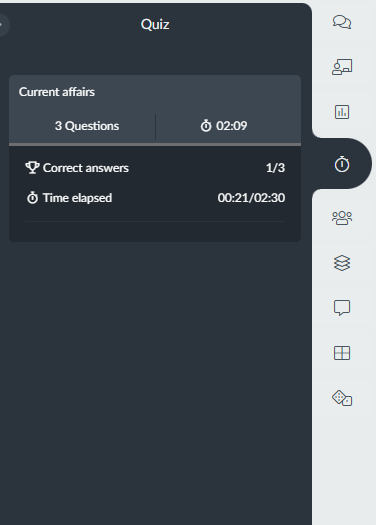
After completing a quiz, your result will be displayed.
Viewing the leaderboard
The event organizer can choose to share the leaderboard showing the top 10 participants based on their quiz performance.
