Attendee reports for multiple events
 Updated 5 months ago
by
Faisal Durrani
Updated 5 months ago
by
Faisal Durrani
Analytical data being synchronized is essential for running reports, and that's why we aggregate information from multiple events into one report.
Viewing the list of your overall attendees
Navigate to the company level by clicking on your company's logo at the top left corner of the platform. Once at the company level, click on Reports at the left menu bar and then click click on Attendees.
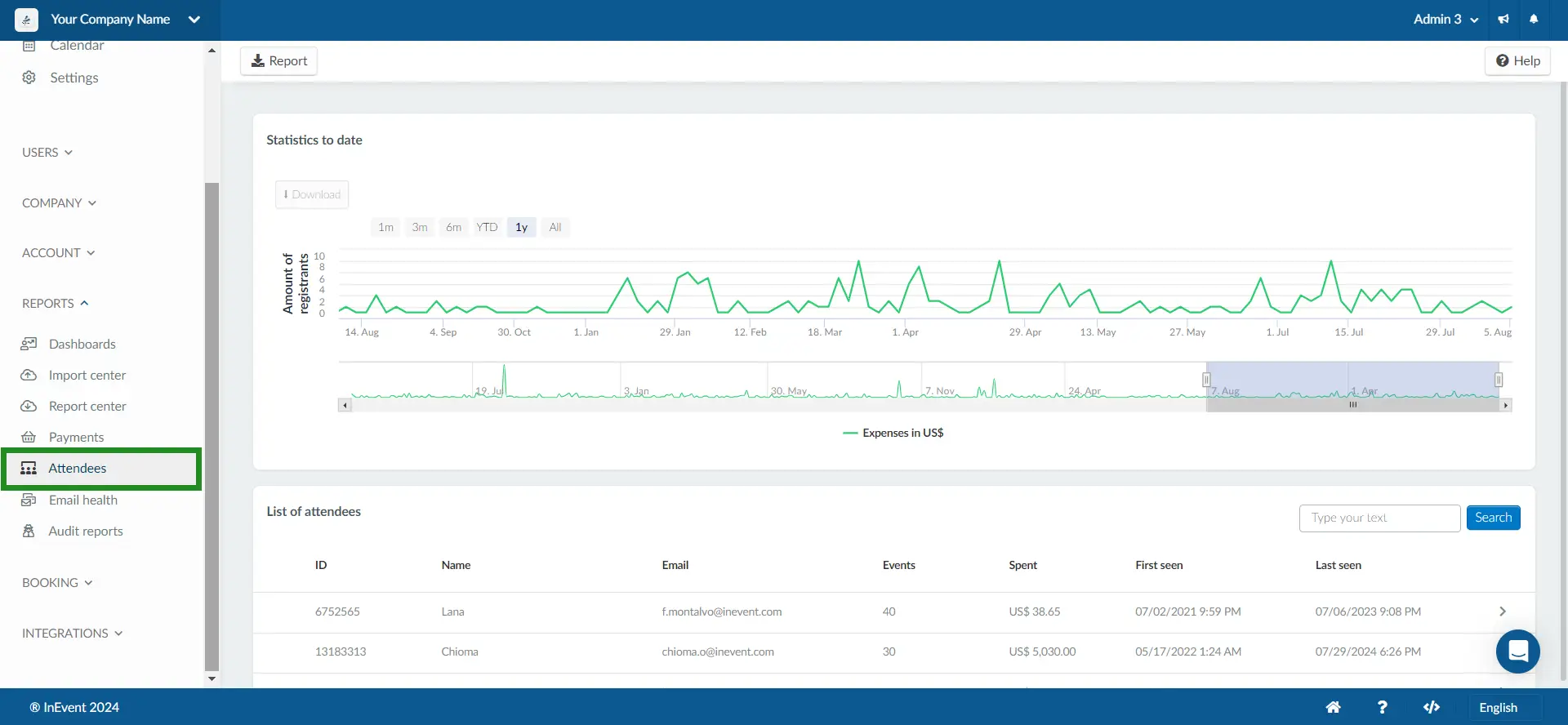
Amount of registrants
On this page, you can view the statistics to date regarding the Amount of registrants.
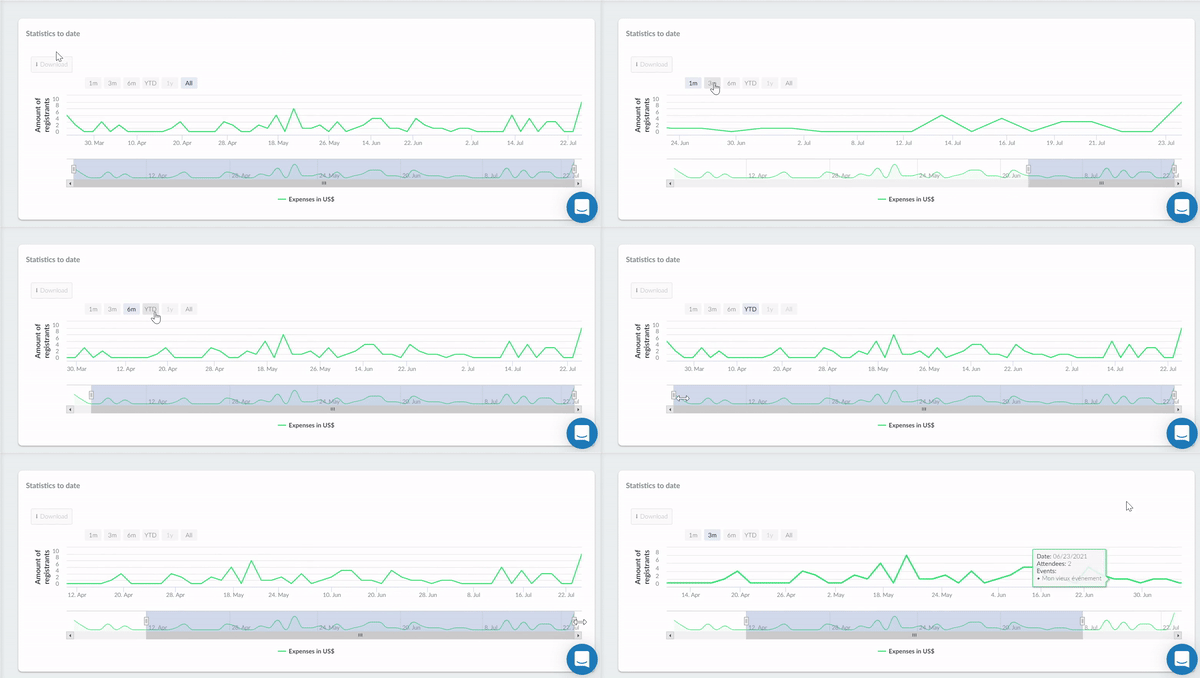
Besides that, you can define the time period to be analyzed and shown in the graph. To do this, use the filters: 1m, 3m, 6m, YTD (year to date), 1y.
Downloading attendee reports
This information can be extracted from the platform by pressing the Download button in the upper left.
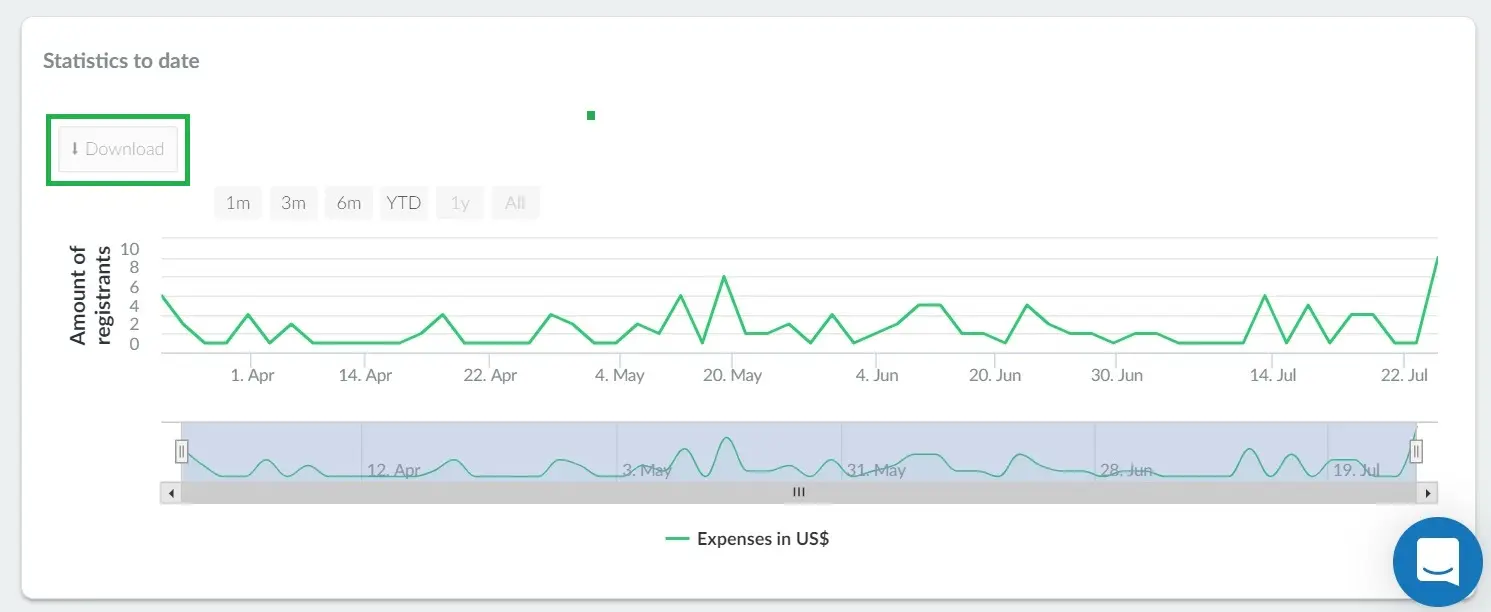
The graphic will be downloaded as a picture and saved in your default download location.
List of attendees
If you scroll down the page, you'll see the list of all attendees who have enrolled in your events.
The dashboard displays the following columns: ID, Name, Email, Events (number of events they have attended within the company), Spent (total amount spent on tickets), First seen, and Last seen.
You can use the search bar on the left to find a specific attendee by typing their name and clicking Search.
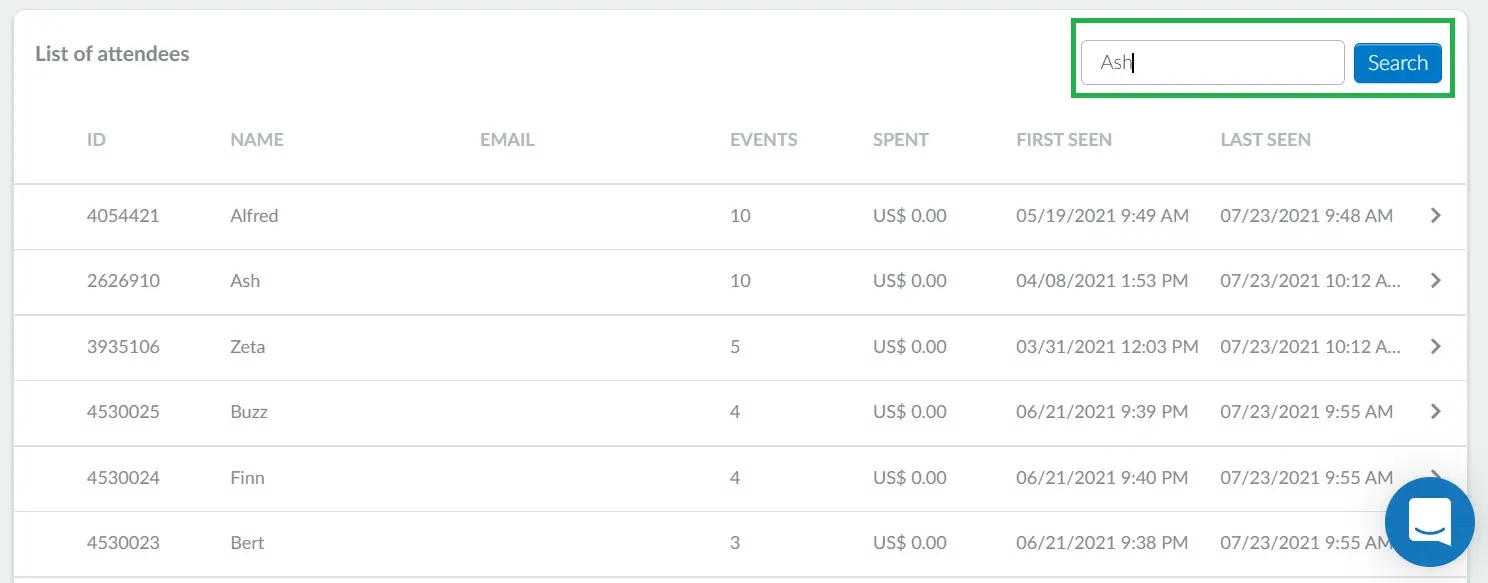
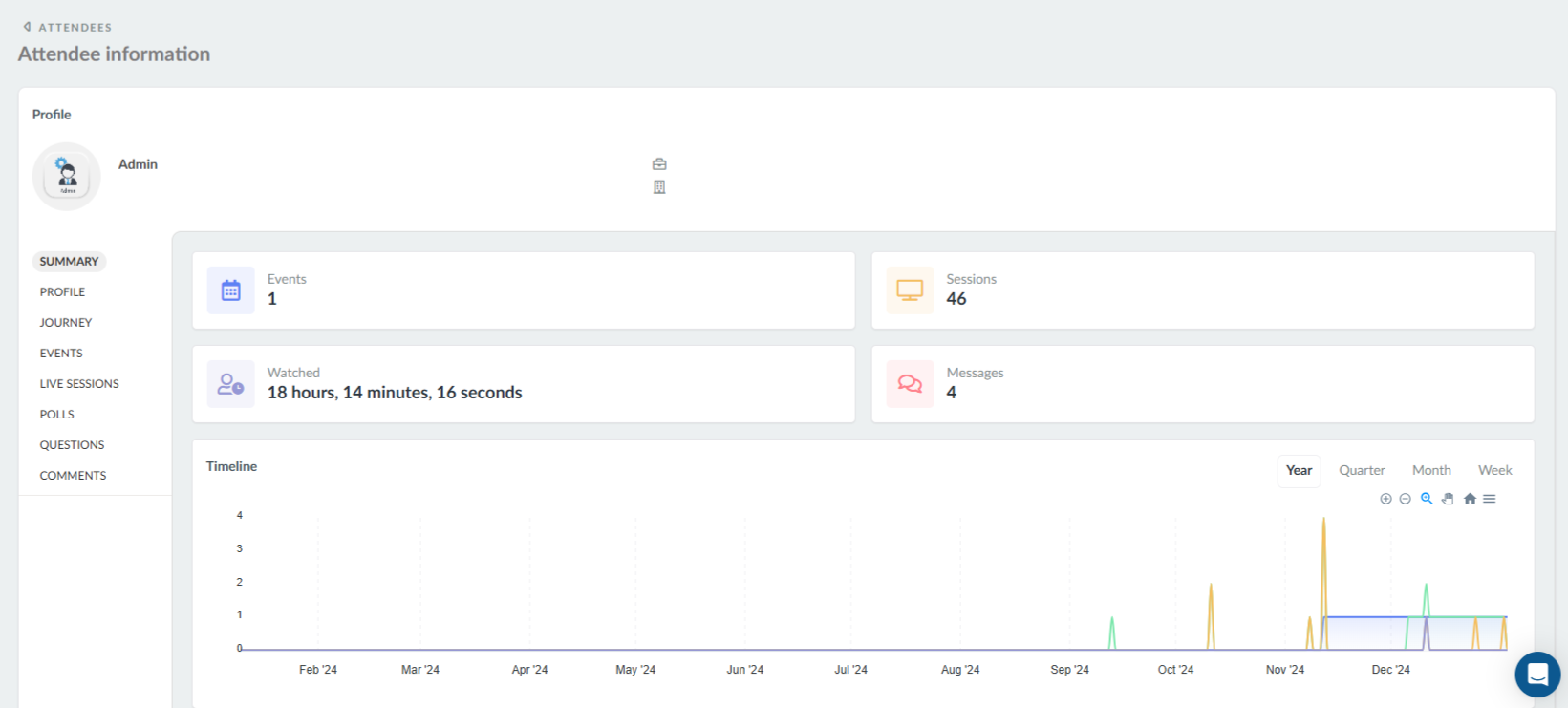
You can click on the name of an attendee to view information such as profile information, events and activities (sessions) this attendee has enrolled in as well as the polls and questions answered, among other data.
You can navigate through the attendee's information by using the menu tabs on the left-hand side.
Exporting and downloading attendee reports
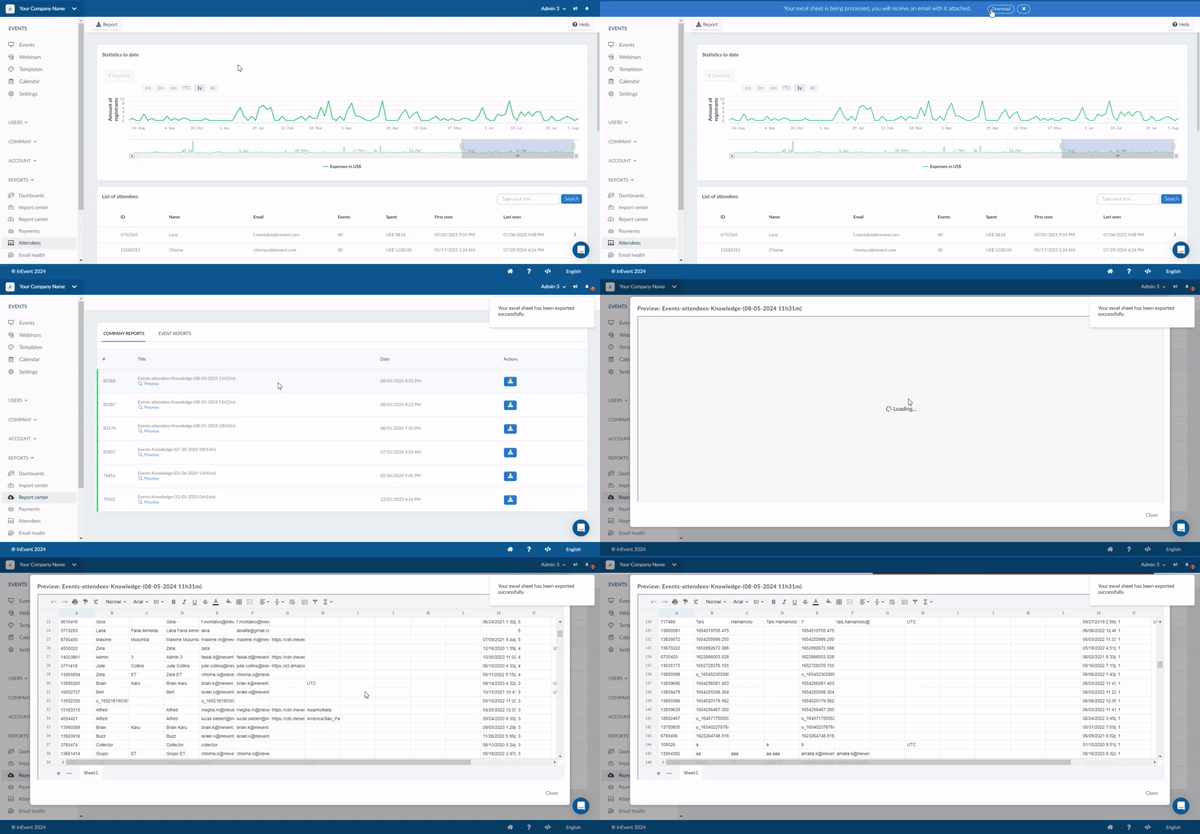
To export and download the attendee reports, click on Report on the top left corner. You will be notified that your report is being processed. Once the process is done, the report will be sent to your e-mail.
The reports contain attendee information such as: PersonID, firstName, lastName, name, username, email, image (profile picture link), timezone, telephone, social media IDs (LinkedIn, Twitter, Facebook), date (first event registration), events (number of events registered in), spent (total amount spent on tickets within the company), dateBegin, and dateEnd (the timestamps showing when the attendee first entered and last interacted with an activity session).
Event reports
You can also track various types of information by event. InEvent offers you Virtual Lobby reports, email analytics, check log reports, audit reports, and much more! Refer to the Analytics: Viewing and extracting event reports? article for further information.