Speaker portal and its use of communicating
 Updated 1 hour ago
by
Chioma Okenwa
Updated 1 hour ago
by
Chioma Okenwa
On the Event > Speakers page in the InEvent platform, you can engage speakers through the Speaker Portal by posting announcements and assigning tasks. This provides an efficient way to share key event updates, keep speakers informed, and encourage proactive participation with a clear to-do list of tasks or missions.
Announcements
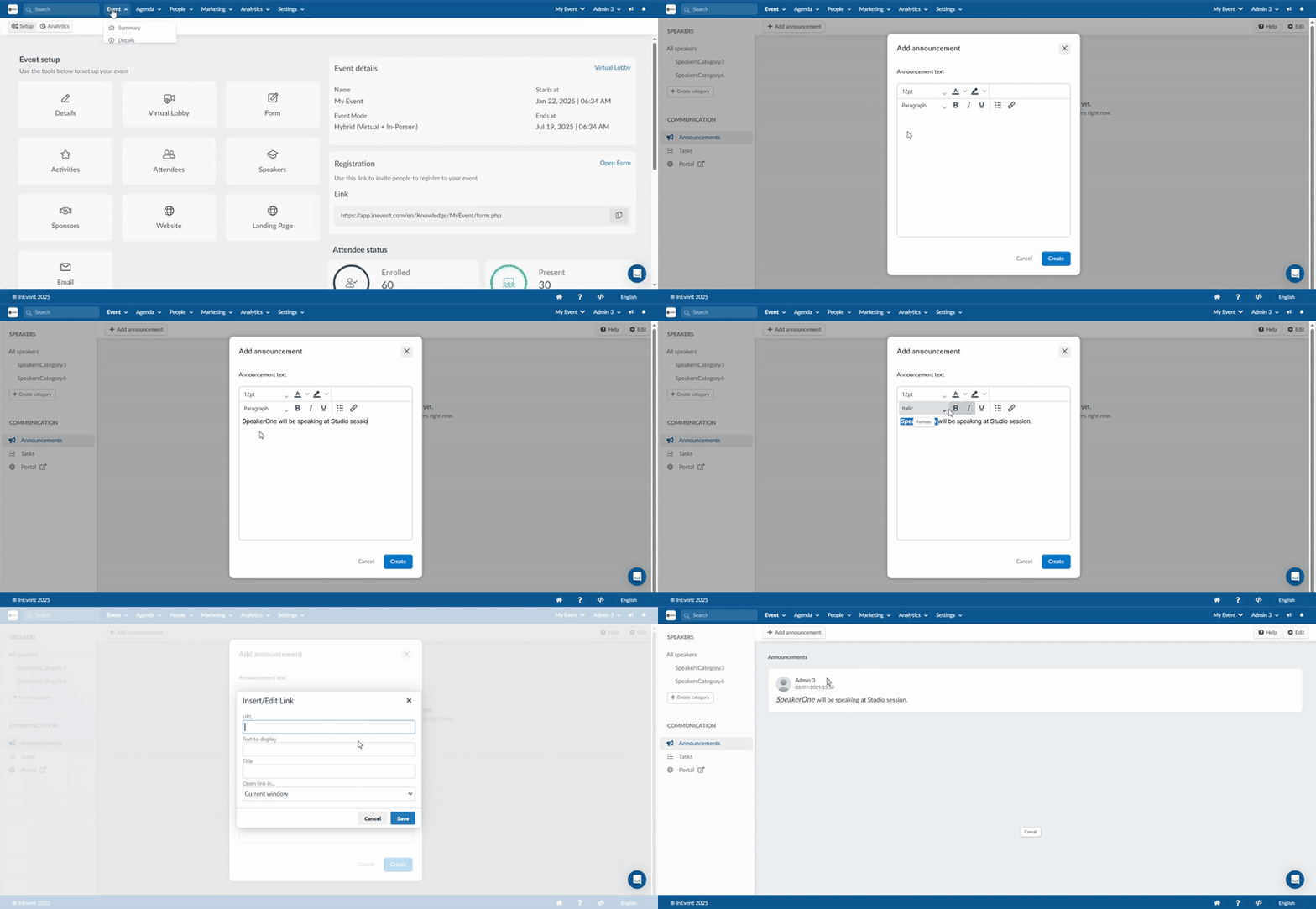
- Navigate to Event > Speakers > Announcements.
- Click the + Add announcement button.
- In the new window, write the announcement or brief description in the field provided.
- Click on the blue Create button to finish.
Tasks
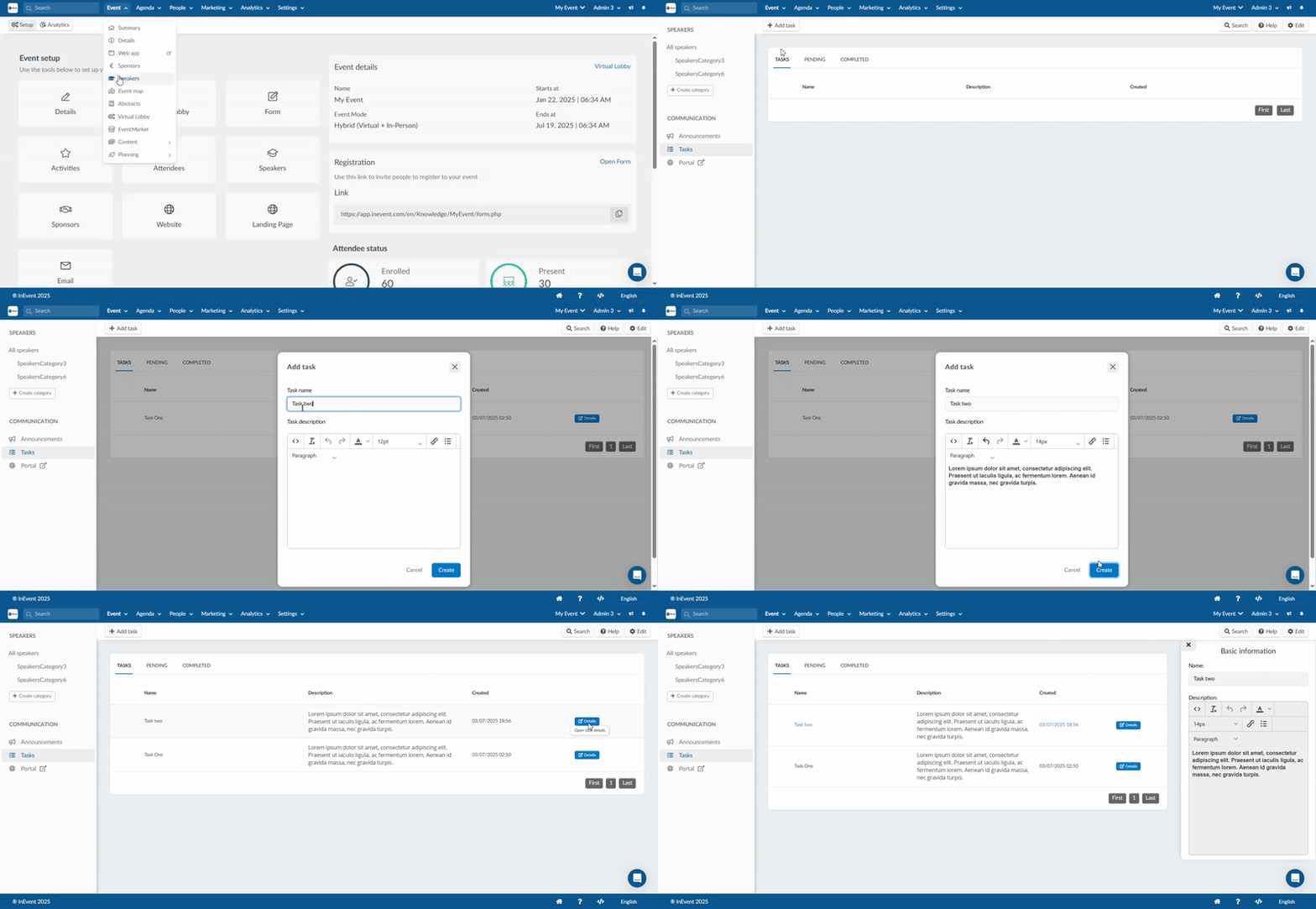
- Navigate to Event > Speaker > Tasks.
- Click on the Add task button.
- In the new window write the task name and its description.
- Click on create to finish.
The created tasks will be displayed in the Tasks tab. If you want to edit the task name or its description, click on the blue details button corresponding to the task. This will open the details card of the task. Click on Edit to make the changes. Click on End to finish and refresh your browser to see the changes made.
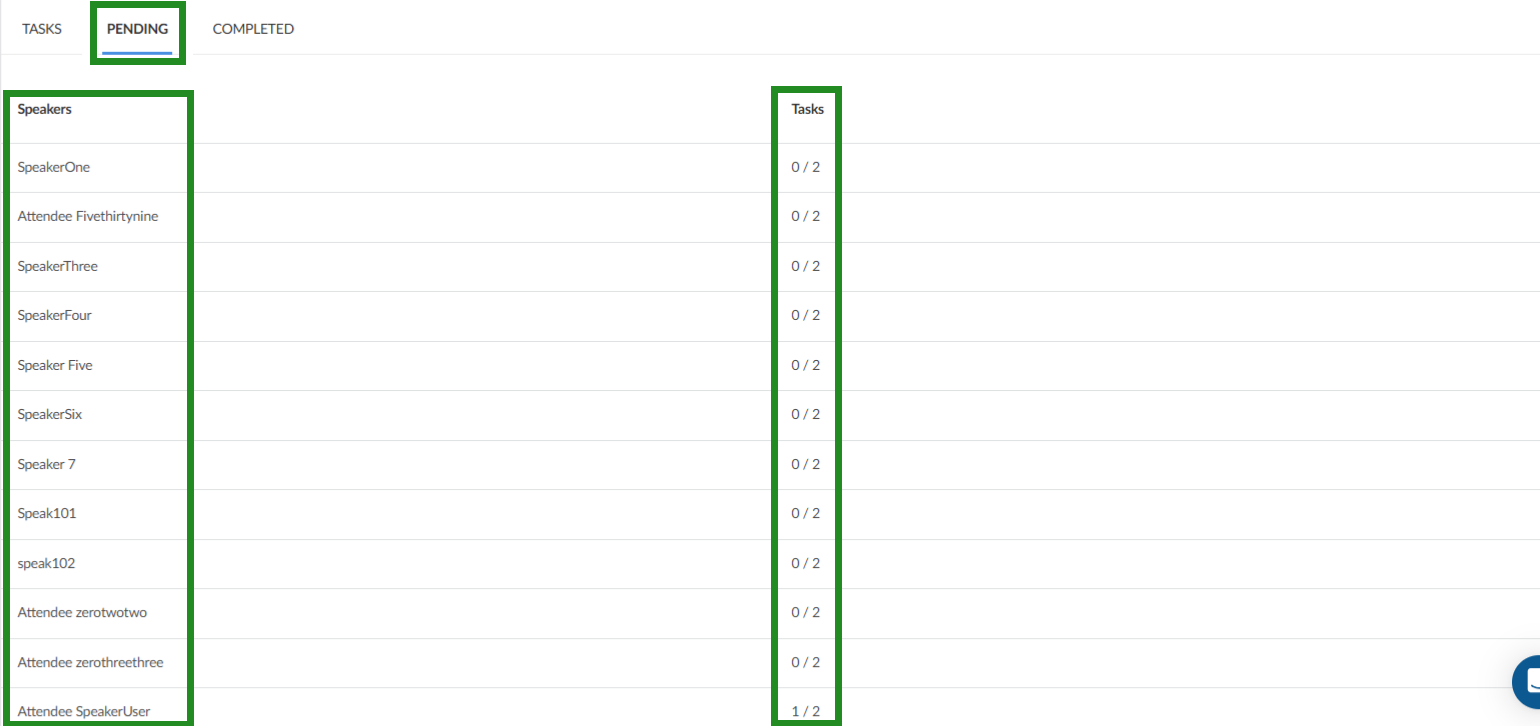
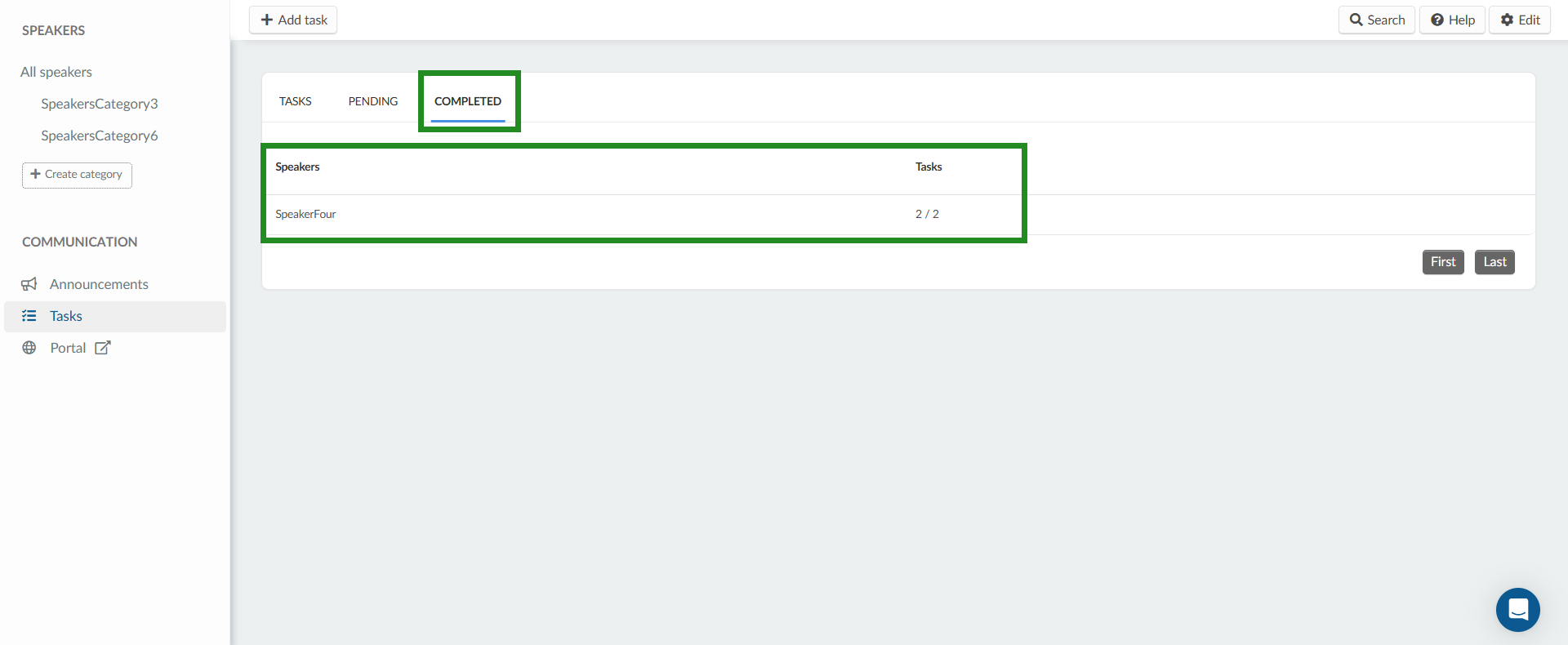
The pending tab shows the list of all speakers and the number of tasks they have completed out of the total tasks.
The Completed tab shows the speakers who have completed all the tasks.
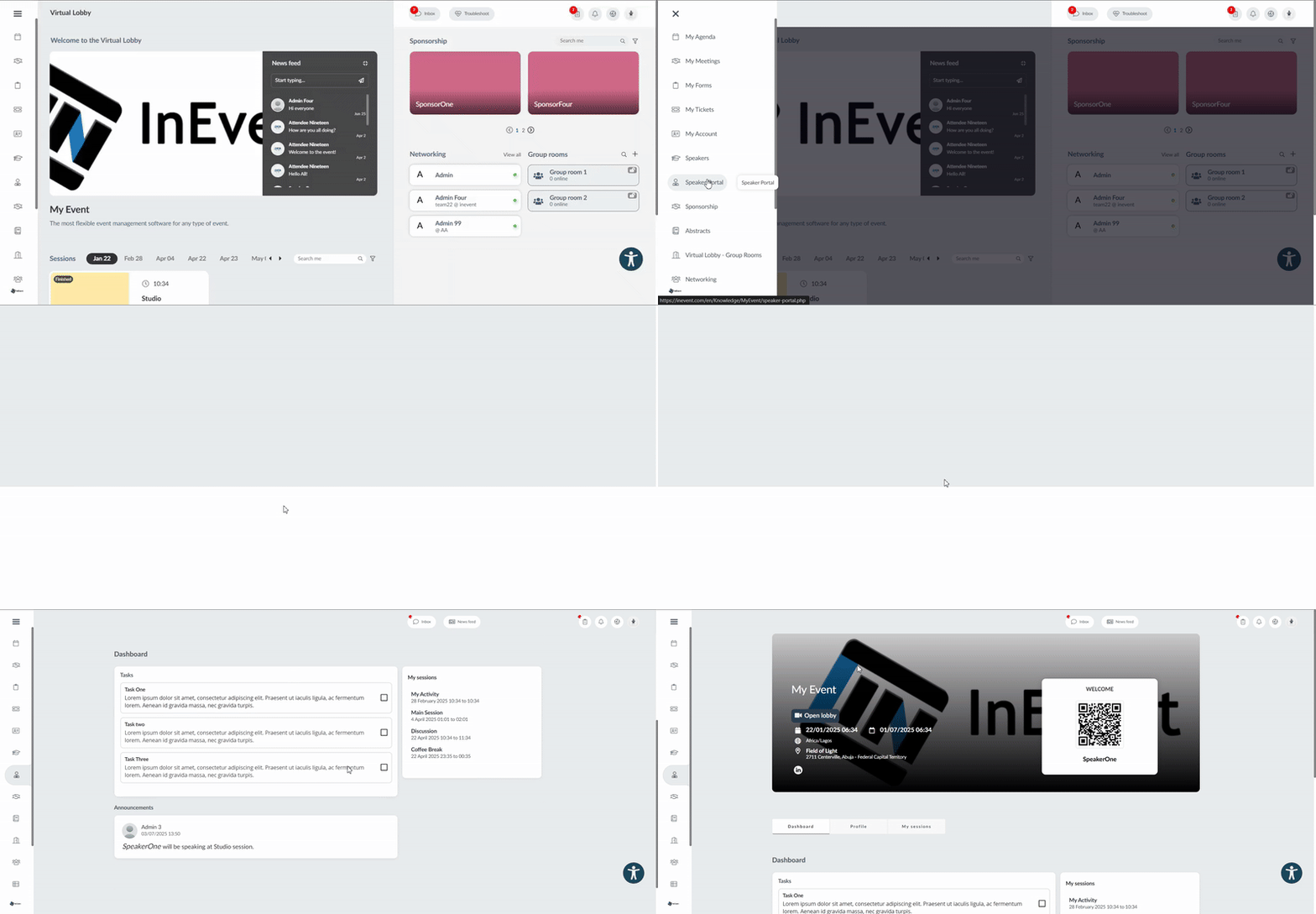
The speakers will have to click on the box corresponding to the tasks on the dashboard of their speaker's portal in order mark it as complete. Below is an example of how a speaker accesses the speaker's portal on the web app and completes a task.
To extract an excel report of all your tasks, navigate to Event > Speakers> Tasks. Click on the Edit button, then press the Report button at the top left corner of the page. You will receive a message letting you know that your excel sheet is being processed and will be sent to your email once completed.
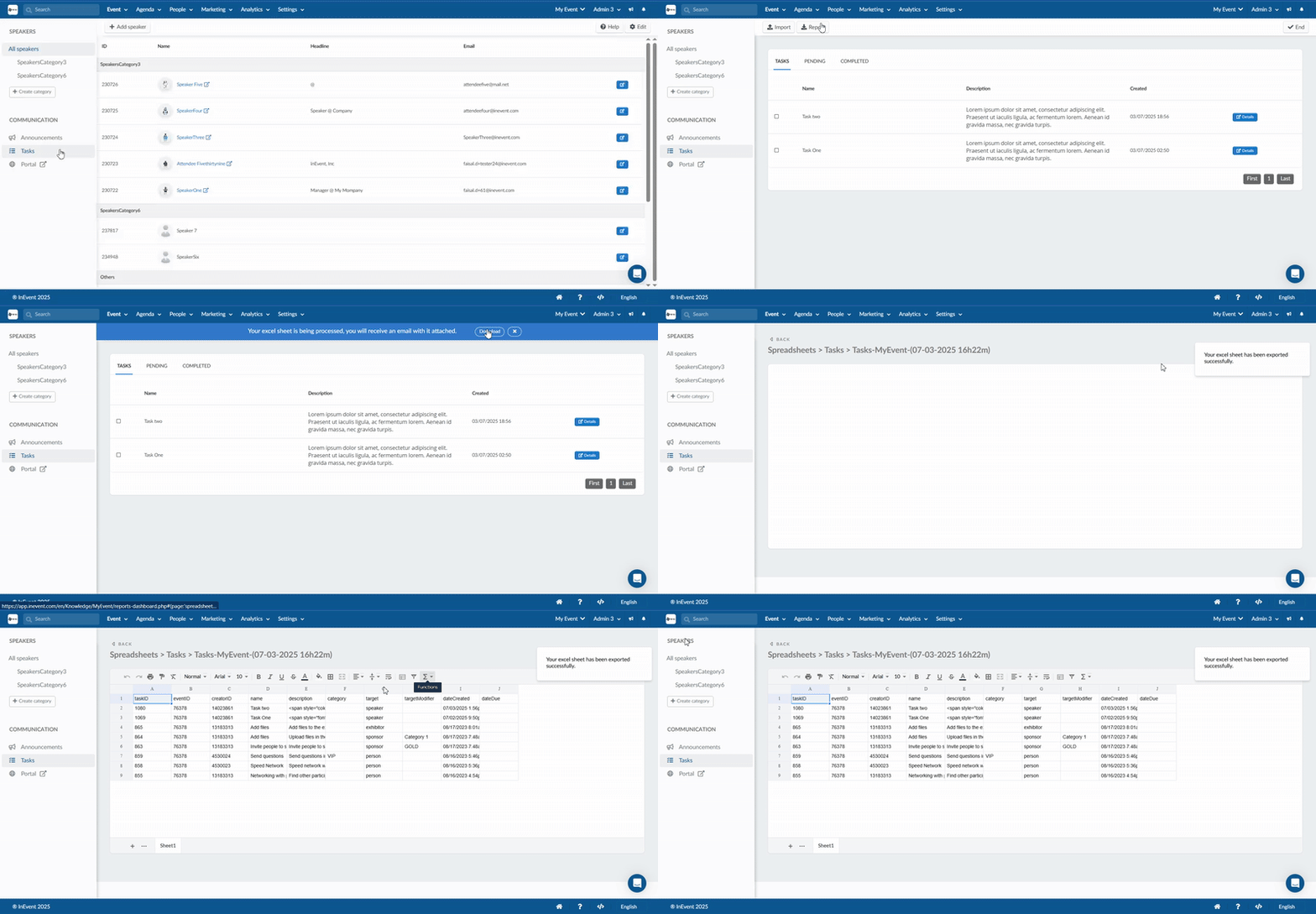
The report will contain information such as: taskID, eventID, creatorID, name, description, target, dateCreated etc.
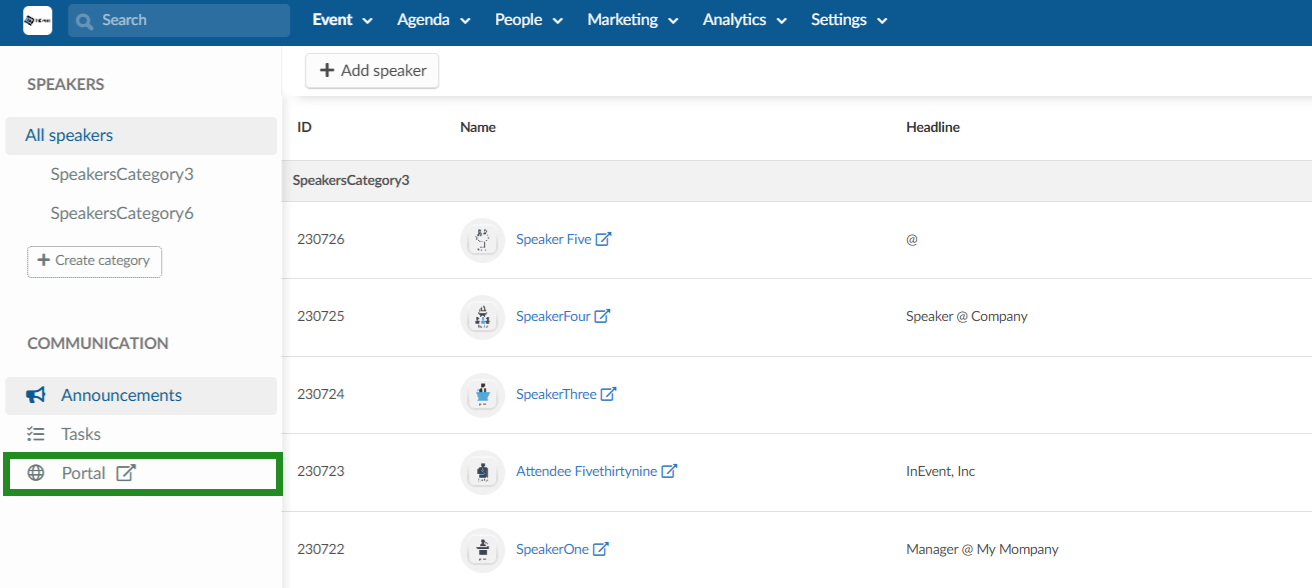
Portal
The speakers can access the Speaker portal from the menu on the left-side of the web app. To learn more about what actions the speakers can perform at the Speaker portal on the web app, refer to our Web app article.