Facial Recognition AI
 Updated 2 months ago
by
Amalia
Updated 2 months ago
by
Amalia
InEvent's Facial Recognition AI is a simple yet advanced AI feature on the InEvent Kiosk app to enhance your in-person event experience. This feature improves the convenience and speed of attendee check-in operations, improving the experience for both attending parties and event organizers.
This article contains information on installing the InEvent Kiosk app and using the Facial Recognition AI feature.
Installing the InEvent Kiosk app
The InEvent Kiosk app can be installed from Apple App Store in iOS and iPadOS devices, and from the Google Play Store in Android devices. Tap Install, and once installed, tap Open.
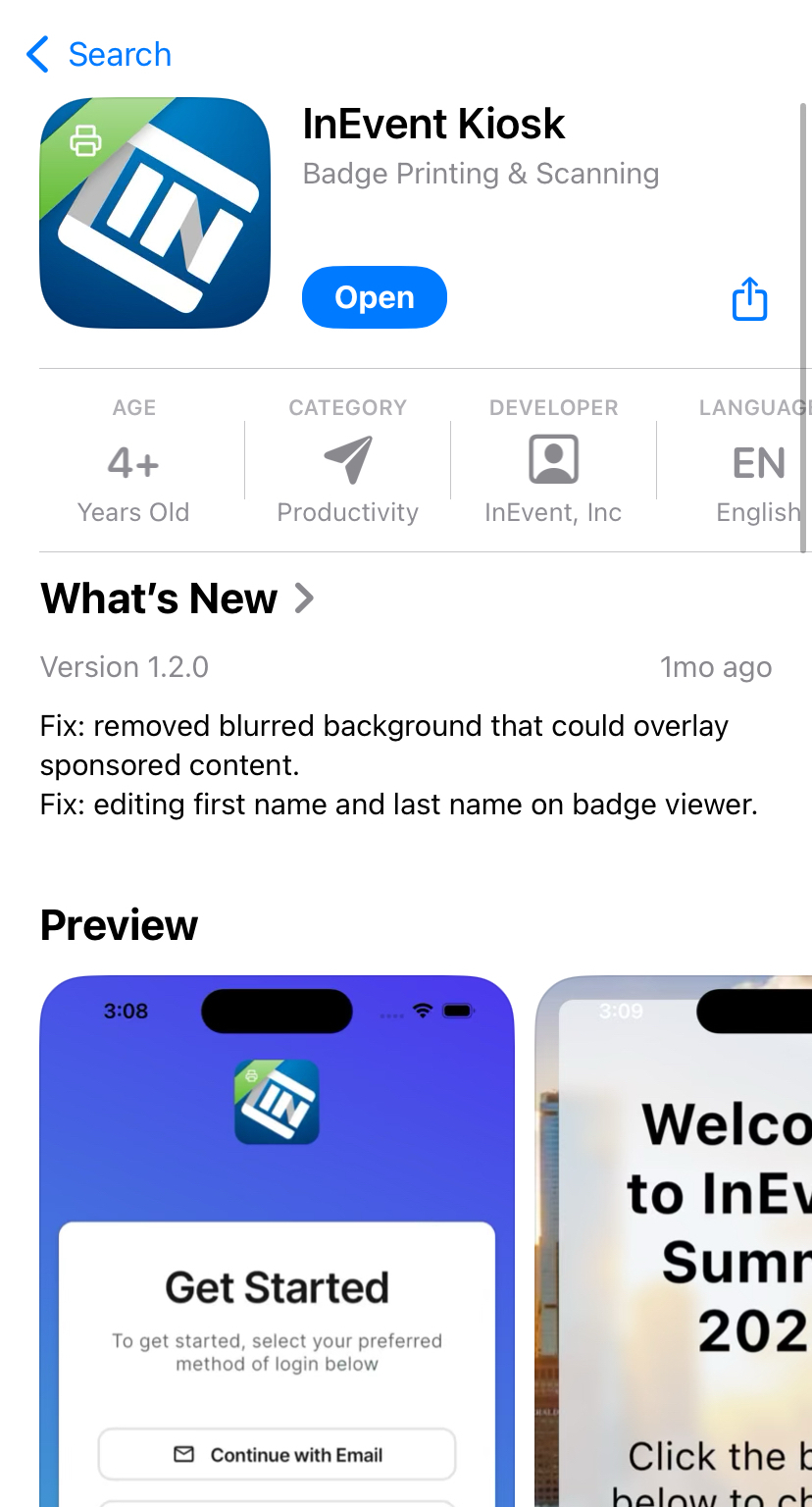
For complete information on navigating the InEvent Kiosk app features, including logging in, accessing events, and configuring kiosk settings, refer to our InEvent Kiosk app: Guide for event organizers article.
Enabling the Photo Match AI tool in the InEvent platform
To ensure that the Facial Recognition AI is fully visible within the InEvent Kiosk app, ensure that the Photo Match AI tool is enabled within Event tools.

Accessing Facial Recognition AI
After opening the InEvent Kiosk app, log in using an account with the required permissions for check-in operations.

Once logged in, you will be taken to the app's Admin Dashboard. To access Facial Recognition AI follow the steps below:
- On the Admin dashboard, tap the Settings icon at the top-right corner to open the Admin Settings page.
- Tap Open Kiosk Mode.
If prompted, enter the Kiosk PIN to access Kiosk mode.
- Tap Check-in to view the available attendee check-in options.
- Select Face AI to start using Facial Recognition AI.
- Position the attendee's face within the camera's scanning area and allow the AI to analyze and match their face with their profile picture on the InEvent platform.
Once a match is found, the attendee will be checked in to the event.
Using the Facial Recognition AI for event check-in
Using the Facial Recognition AI is as simple as tapping on the Face AI button and start scanning an attendee's face. The AI will analyze and match their face with their existing profile picture on the InEvent platform, and upon match, check the attendee in to the event immediately.

Using Facial Recognition AI and automatic badge printing, attendees can breeze through the check-in process and obtain their event IDs without having to reach for their phones.
