InEvent Kiosk app: Access control & usage guide for event organizers
 Updated 1 month ago
by
Caleb Kotey
Updated 1 month ago
by
Caleb Kotey
The InEvent Kiosk app is a dedicated kiosk app for event check in needs. The app is straightforward and streamlined, providing a fast and convenient check-in experience for event organizers, check-in station operators, and attendees.
This article is a guide for event organizers, and contains information about obtaining, navigating, and using the InEvent Kiosk app for check-in process.
Installing the InEvent Kiosk app
The InEvent Kiosk app can be obtained from Apple App Store in iOS and iPadOS devices. Tap Install, and once installed, tap Open.
The app requires iOS/iPadOS 14.0 or later, or macOS 11.0 or later.
Prerequisites
There are some prerequisites to ensure QR scanning & checking in of attendees progress smoothly, namely enabling the Access control tool and preparing an operator account with Checklog permissions.
Enabling the Access control tool
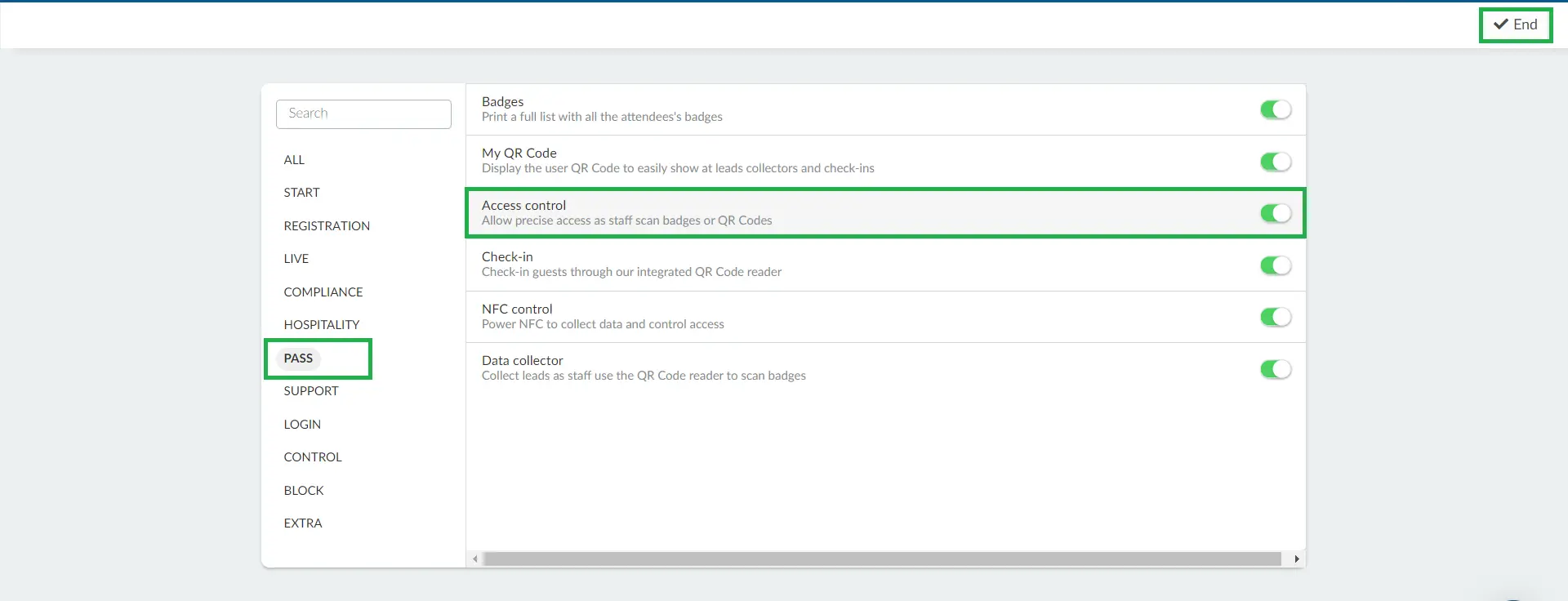
Navigate to Settings > Tools at the Event level and click on the Pass section. Then, press Edit, and toggle the button corresponding to Access control. Press End to save the changes.
Access control as log: Allowing multiple attendee QR code scans while checked in
By default, attendee QR codes can only be used for checking in into the event once. In order to use the QR code for checking in again, the attendee must first be checked out of an event. This is recommended for event administrators who prefer stricter entrance flow, as this does not allow scanning the same QR code multiple times while the attendee is still checked in to the event.
In events where attendee entry is not restricted based on check-in status, event organizers can allow the same attendee QR code to be scanned multiple times, even if the attendee is already checked in. This can be done by enabling the Access control as log tool at the Event level.
Creating an operator profile with Checklog permissions
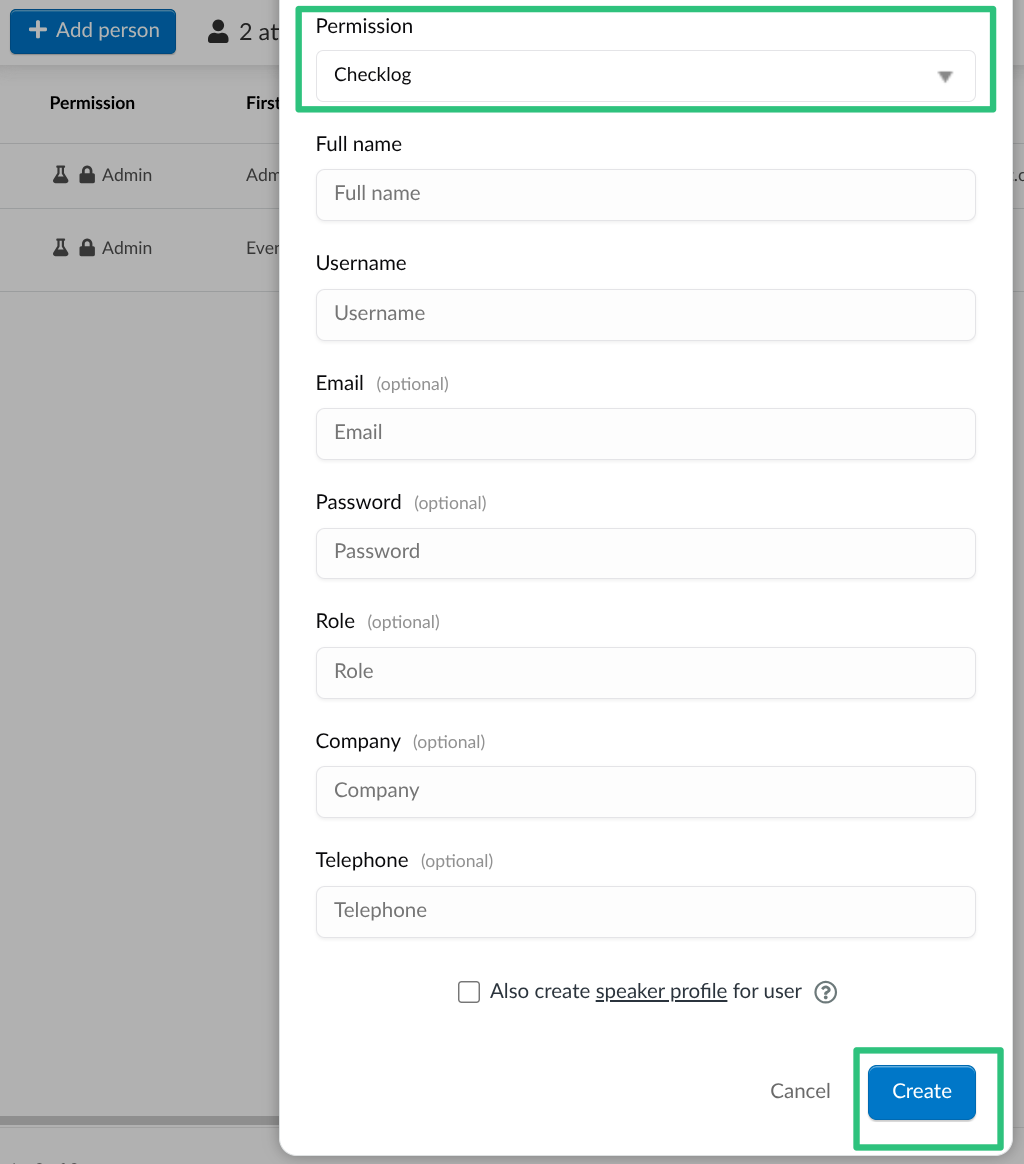
Creating a profile with Checklog permissions is simple and easy. Navigate to People > Attendees at the Event level. Click the + Add person button and select Checklog using the Permissions drop-down menu. Complete the rest of the fields as needed, and click Create.
Logging in to the operator account

When opening the app for the first time, you will be asked to log into an account for check-in operations.
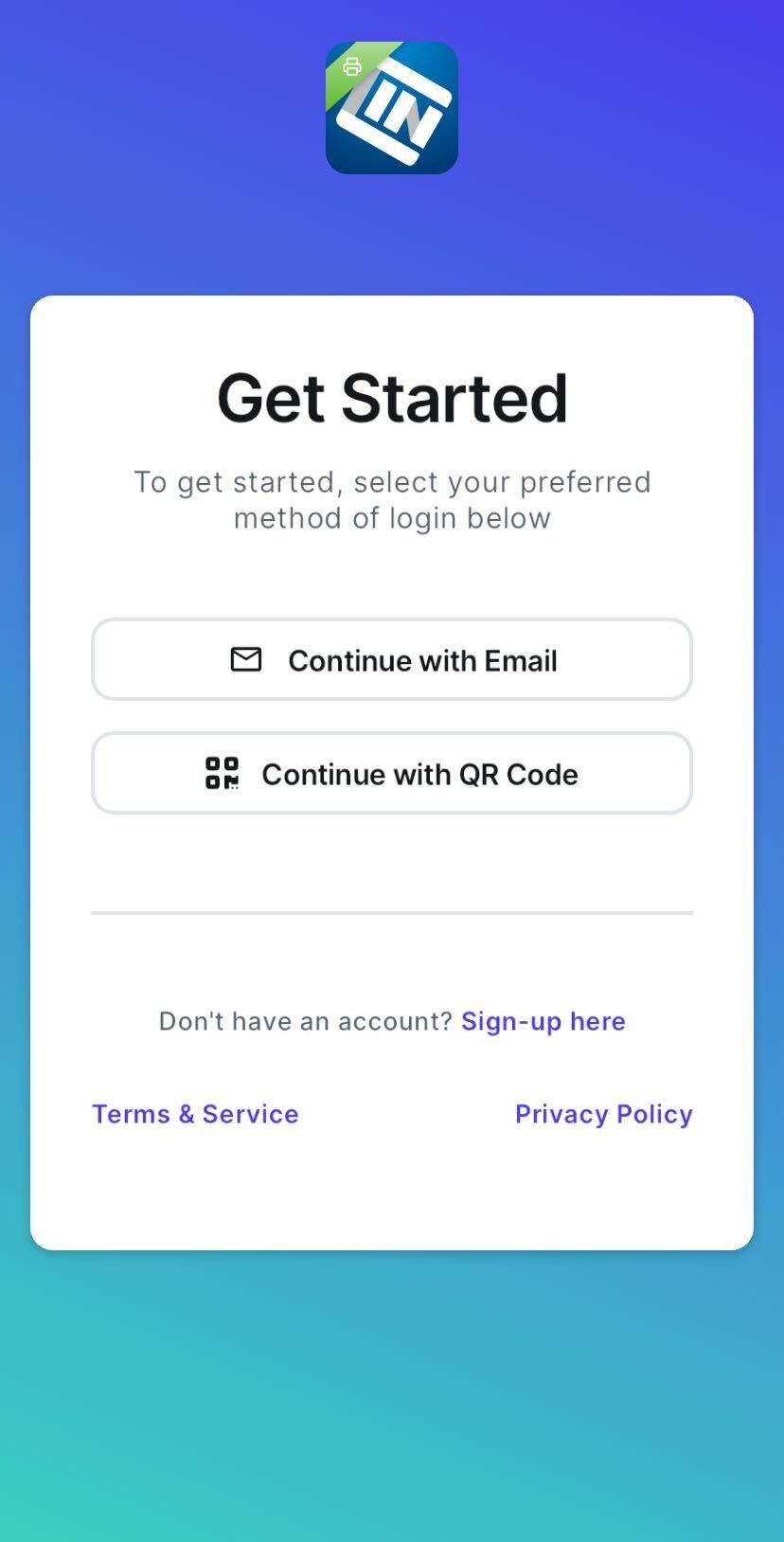
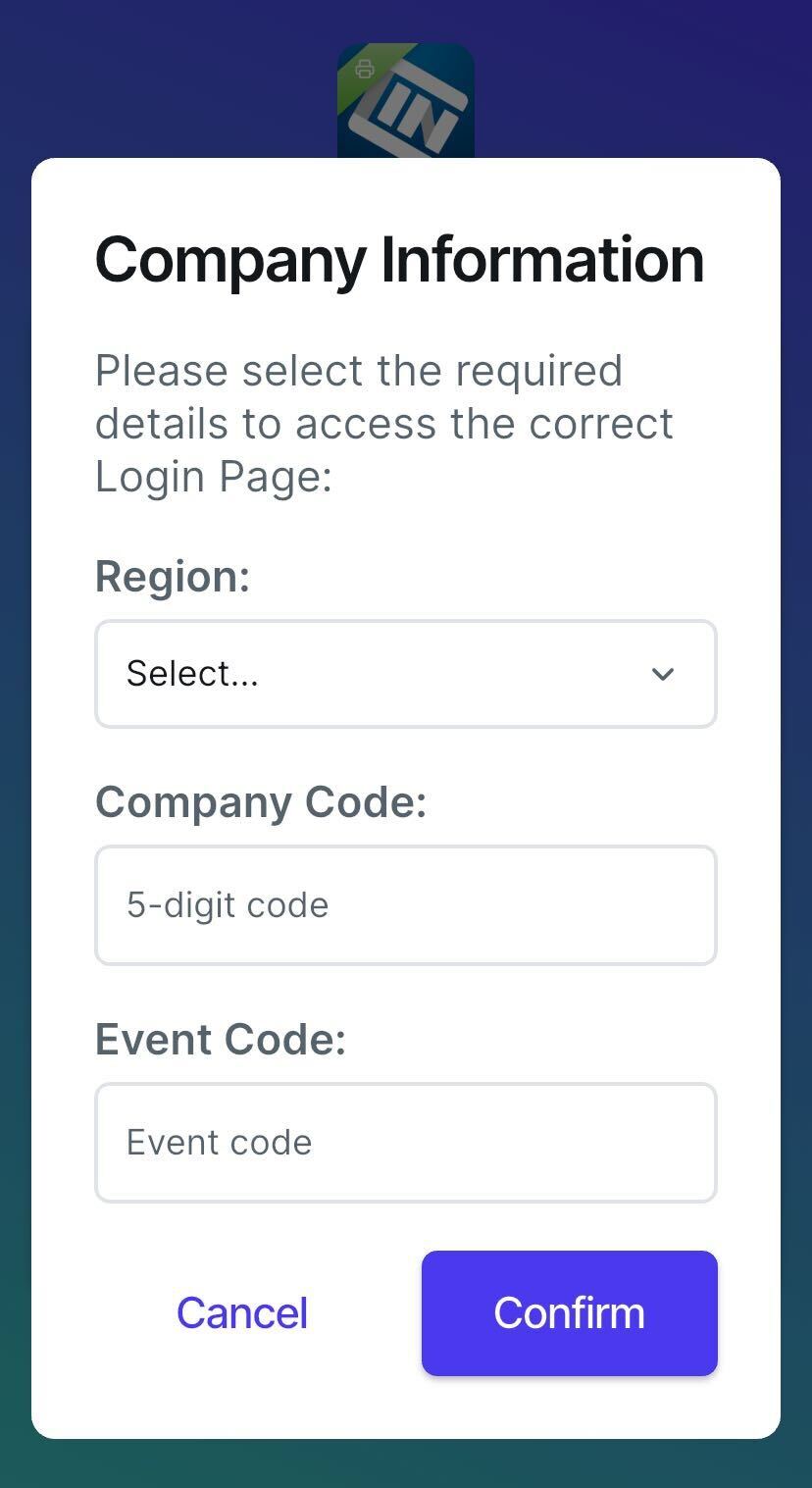
You can proceed by tapping on Continue with Email to log in with the company's InEvent region, company code, and event code. You will also be prompted to enter your InEvent credentials.
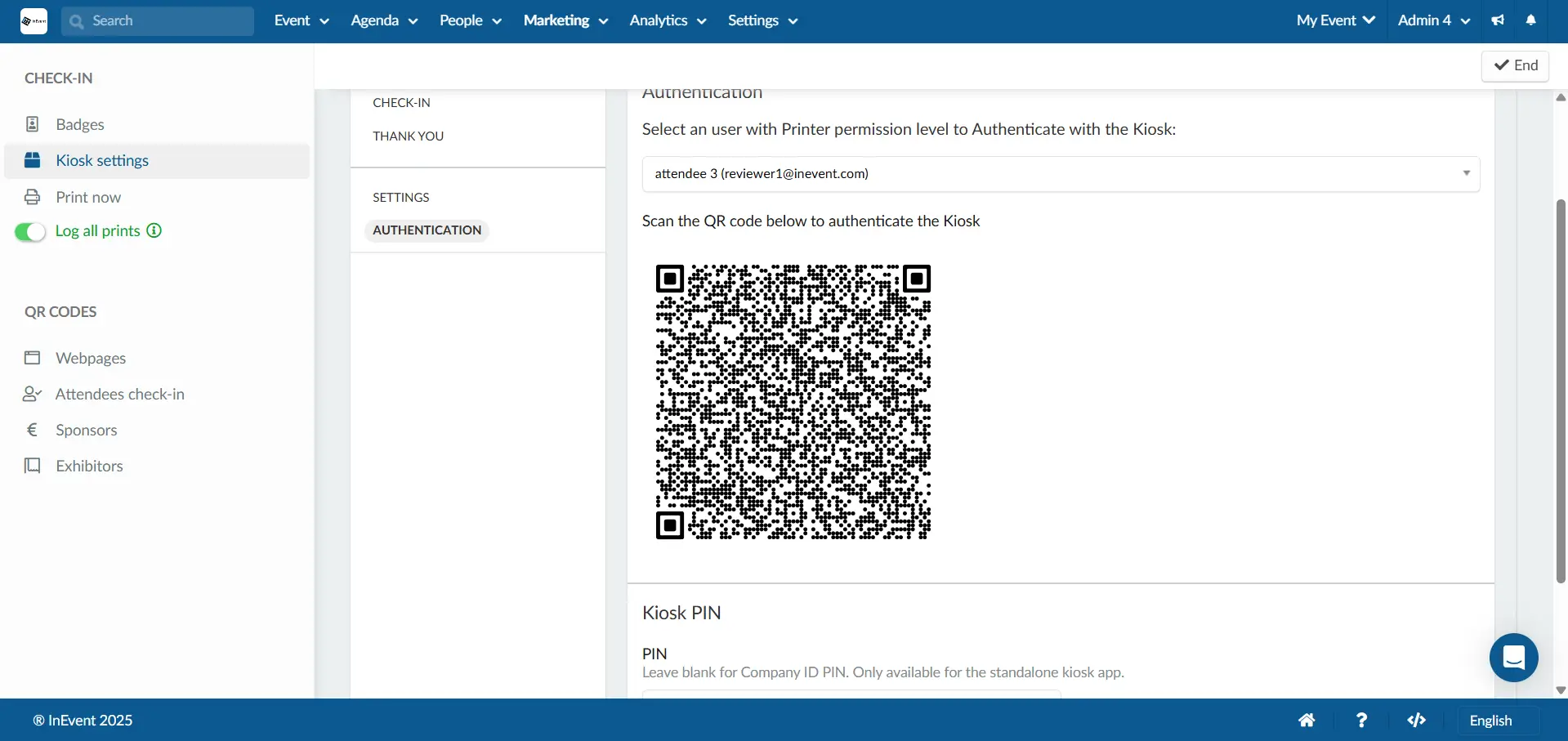
Alternatively, you can also choose the Continue with QR Code to scan the Kiosk QR code. After scanning, you will automatically be logged in to the Kiosk. You can find the QR code by navigating to Marketing > Registration > Badge printing > Kiosk settings > Authentication on the InEvent platform.
Once successfully logged in, the app will display an interface with, Event Scan, and Session Scan navigation options at the bottom of the screen.
Home screen
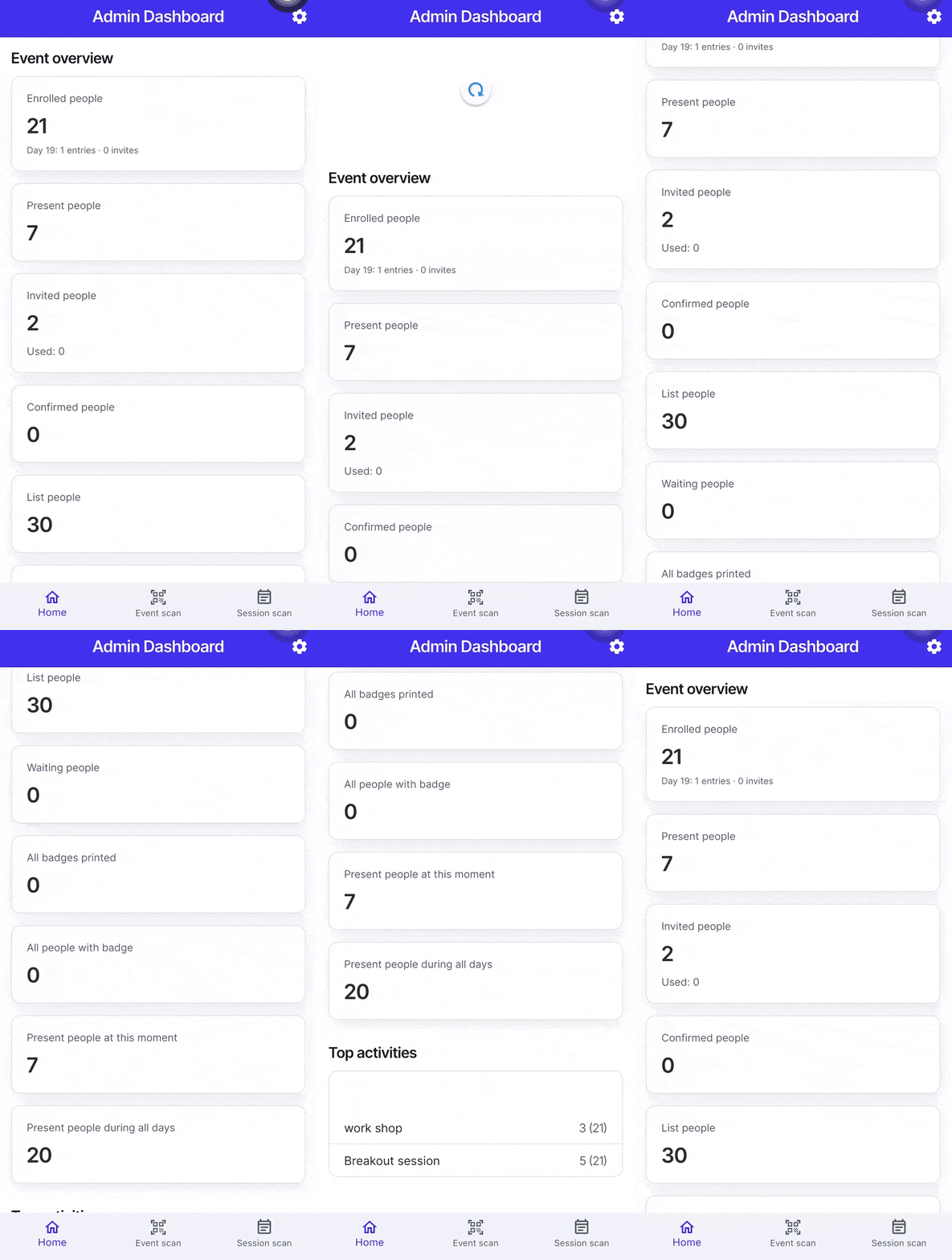
This displays the Admin Dashboard, which provides an overview of the event, including:
- Total number of people enrolled
- Number of entries on the day of the event
- Number of people present
- Number of invited and confirmed attendees
- Lists of attendees (waiting, all, and those with printed badges)
- Number of people currently present
- Attendance across all event days
- Top activities
Event scan
The Event Scan tab allows you to scan attendees’ QR codes directly to check them into an event. Alternatively, you can tap the hamburger menu at the top-left corner to manually check in attendees using the event search. Search for the attendee’s name and tap it to complete the check-in.
You can also perform check-out using the same process. To switch the scanner to check-out mode, tap the reload button on the top right corner.
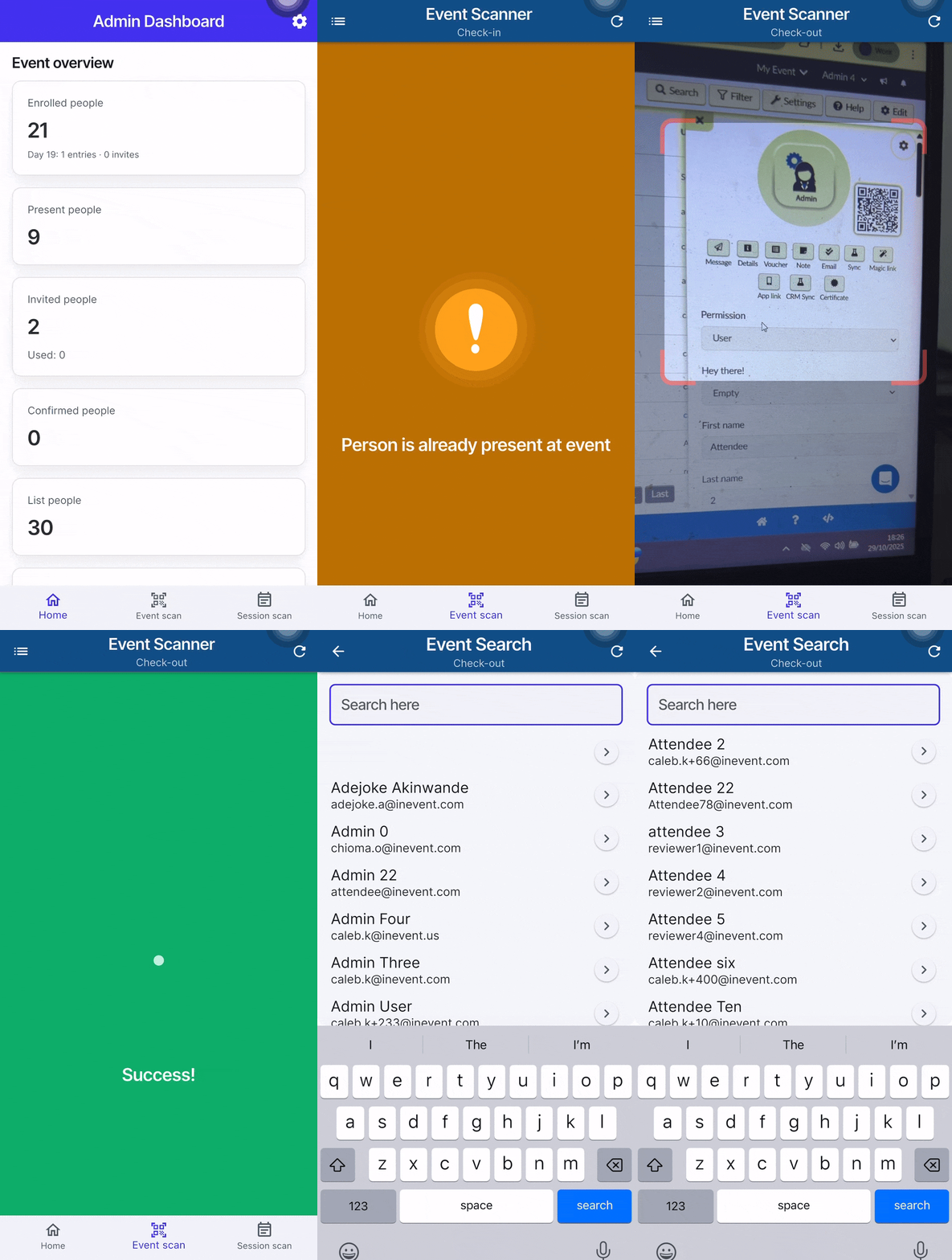
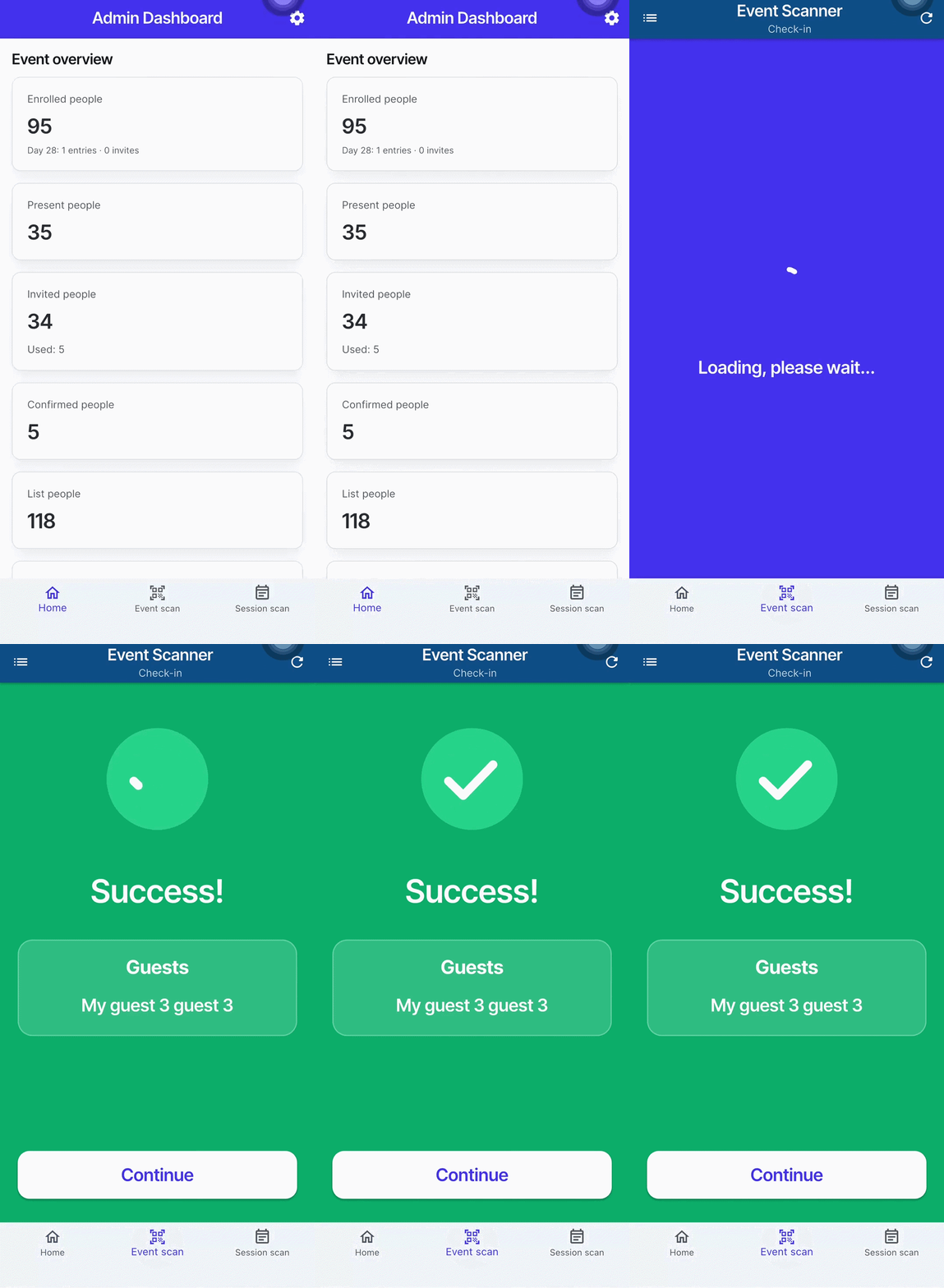
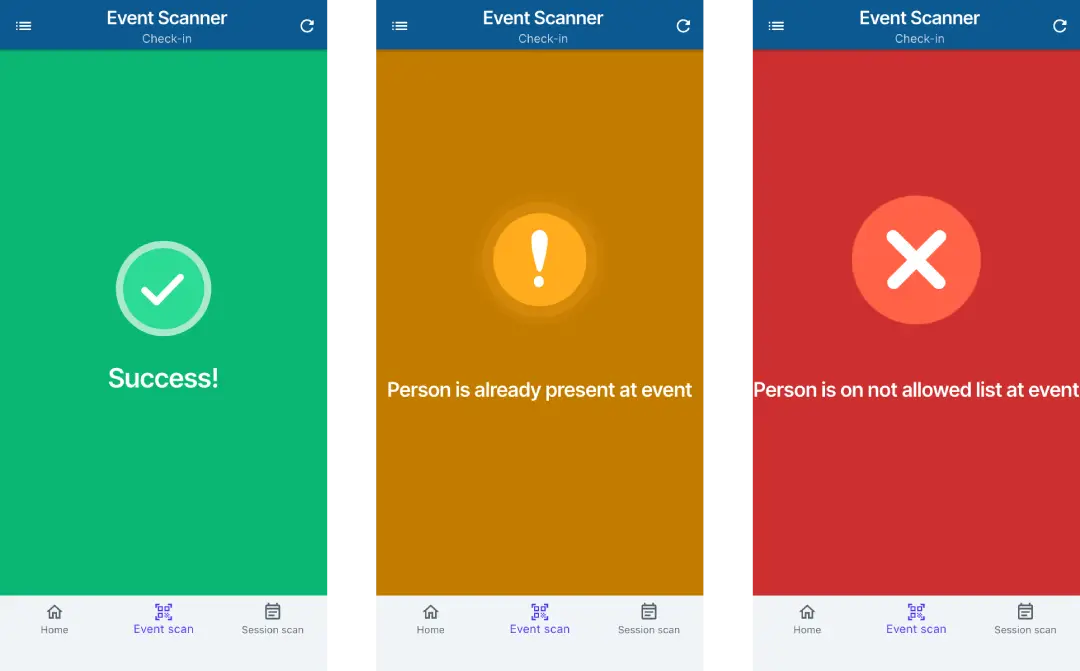
The event scanner returns the following results upon performing check-in operations. The green Success status screen is displayed upon a successful check in. Check-ins performed to an attendee that is already checked in will return the yellow Person is already present at event status screen. Check-ins performed to attendees in a check-in block list will return the red Person is on not allowed list at event status screen.
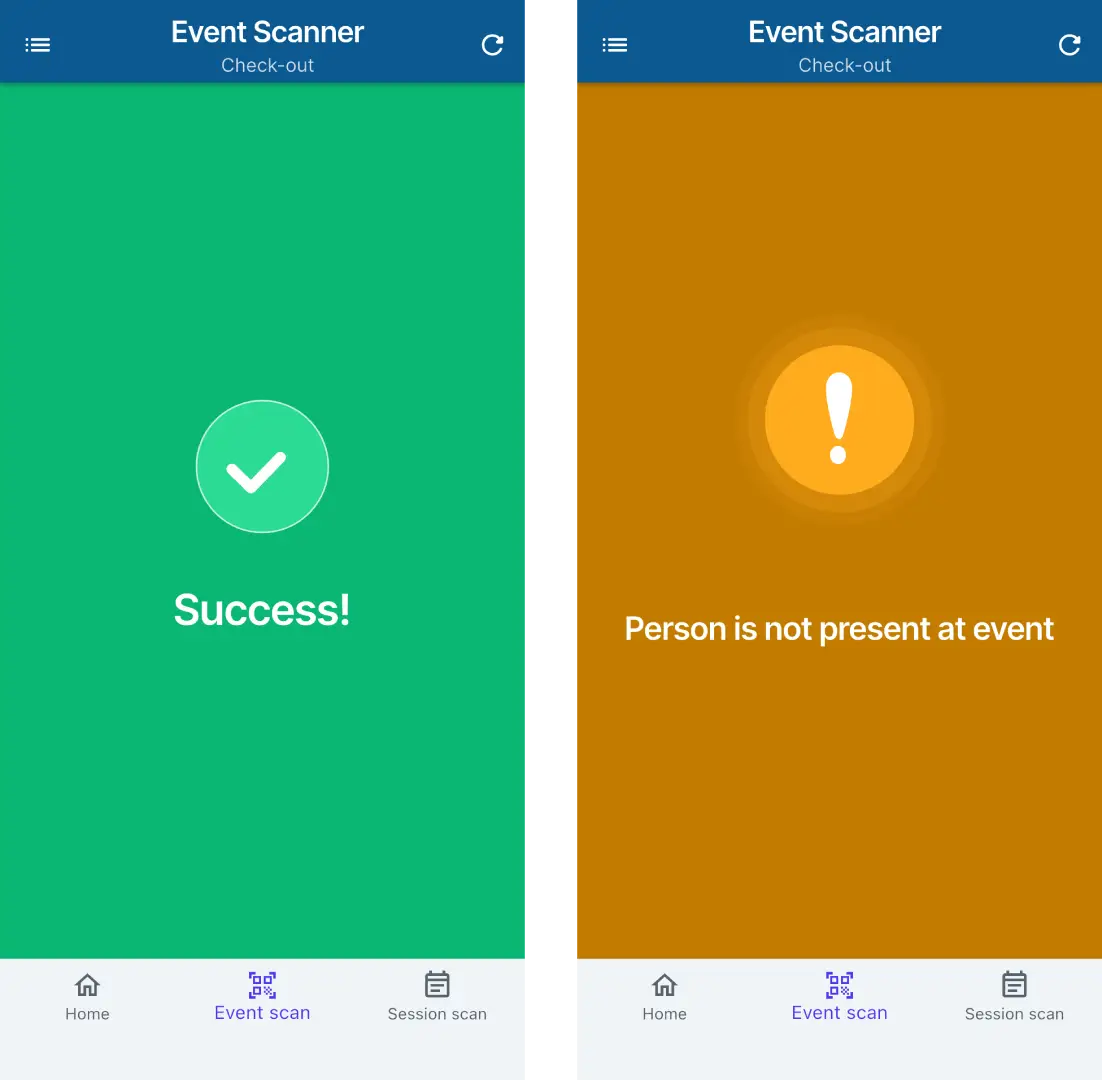
The following status are returned upon performing check-out operations. The green Success status screen is displayed upon a successful check-in; check-outs performed to an attendee that is not already checked in will return thr yellow Person is not present at event status screen.
Session scan
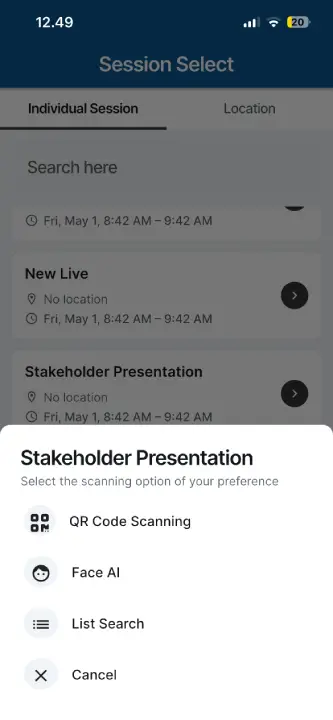
The Session scan tab allows you to perform check-ins for activities within an event. Upon entering the tab, you can select an activity within the event. Then, you will be prompted to choose between QR Code Scanning, Face AI, and List Search.
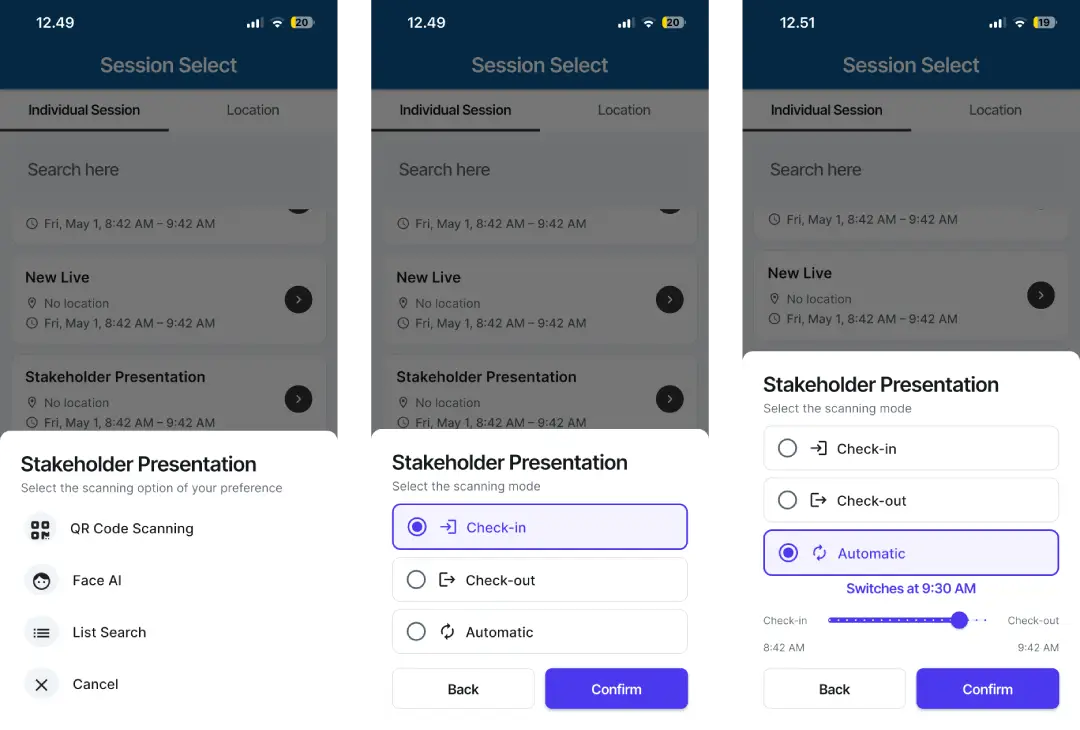
When selecting any of the available scan modes, you will be prompted to choose between Check-in, Check-out, or Automatic scanning modes. To perform a defined action, choose either Check-in or Check-out. To allow for automatic switching between Check-in and Check-out, select Automatic, and adjust the mode switch time using the slider.
Switching between sessions
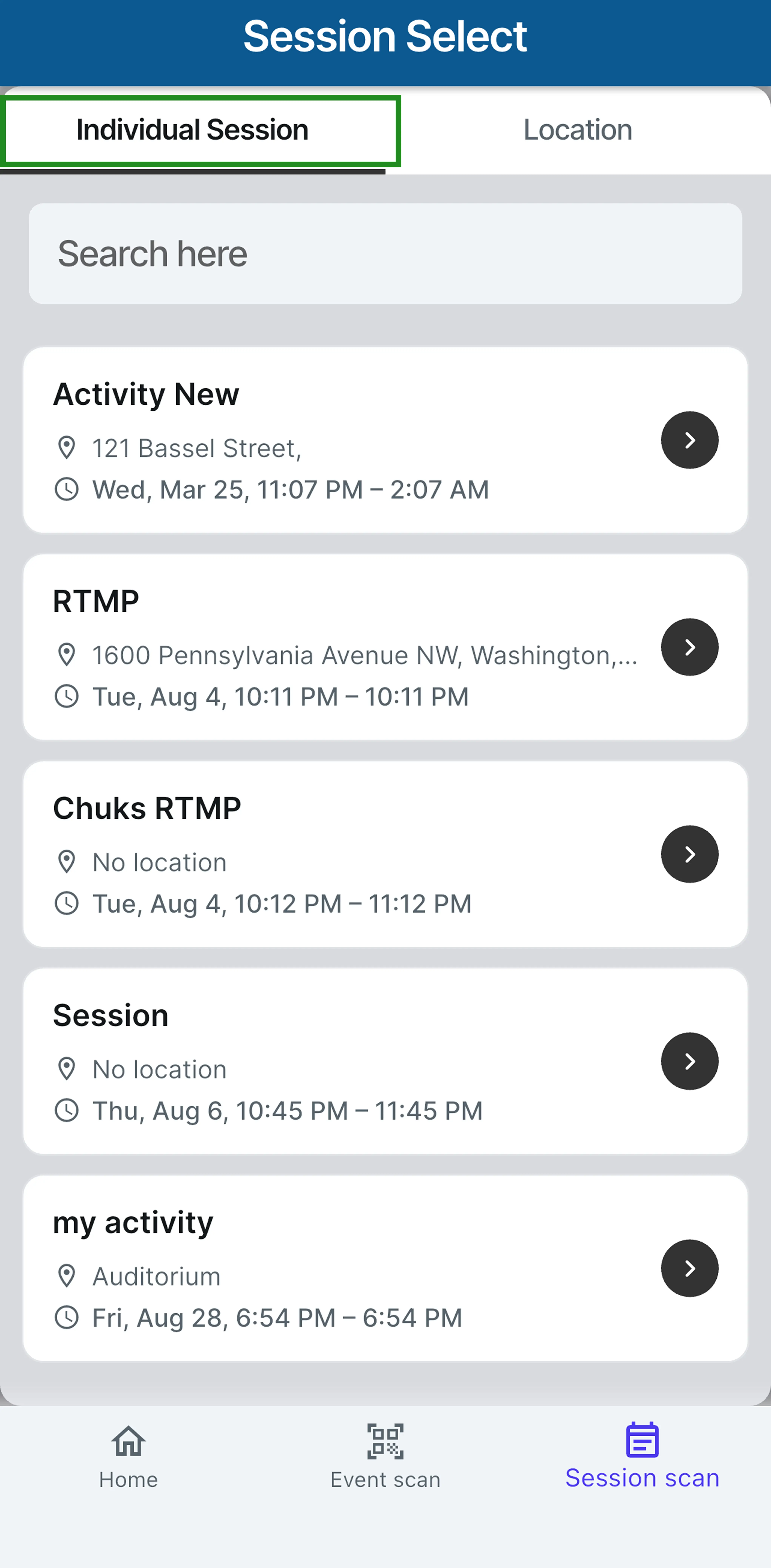
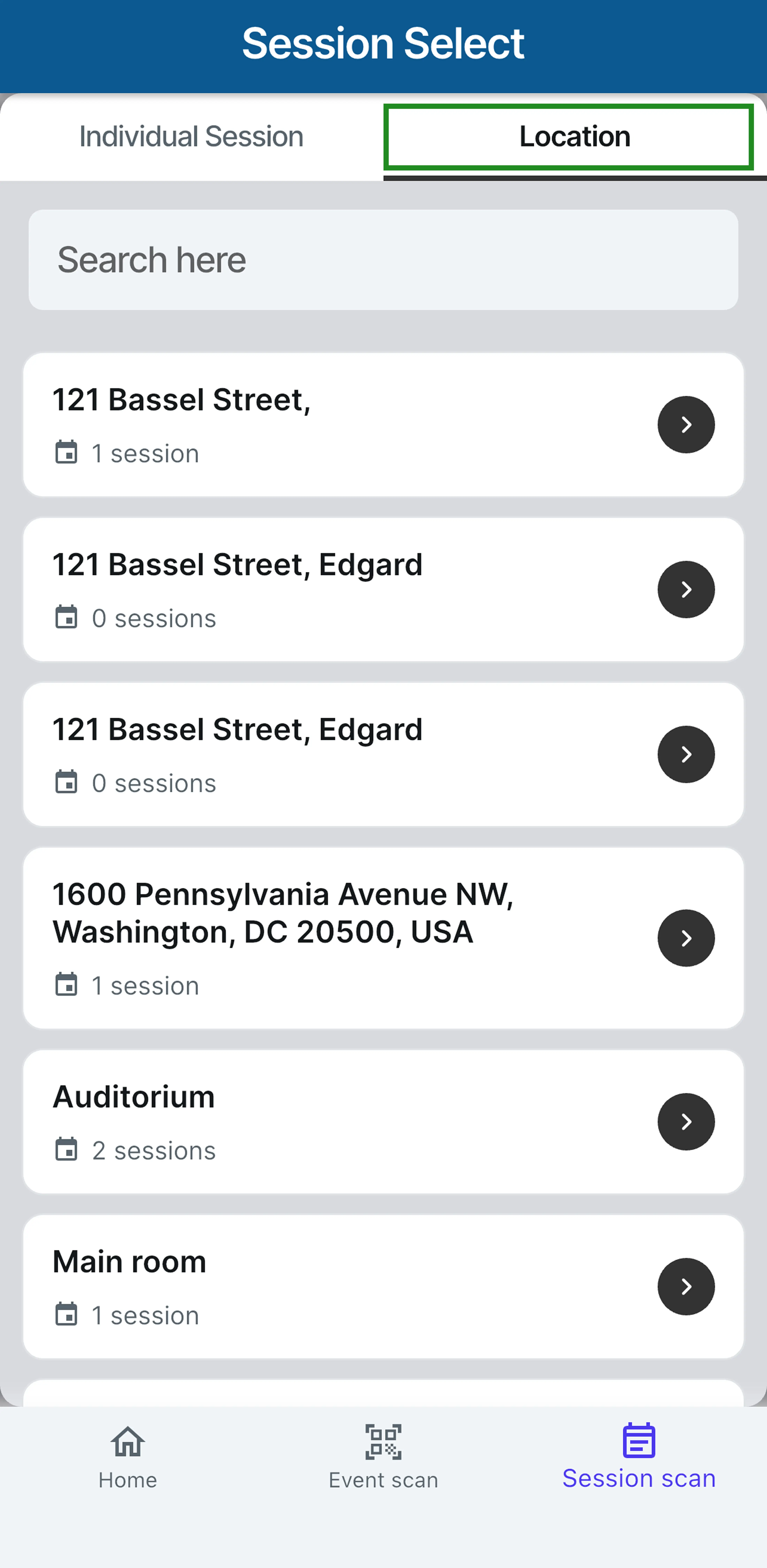
The Session scan page allows organizers to easily browse and switch between sessions when managing session check-ins. Sessions can be viewed using two tabs:
- Individual sessions: view and select sessions individually.
- Sessions by locations: browse sessions grouped by location.
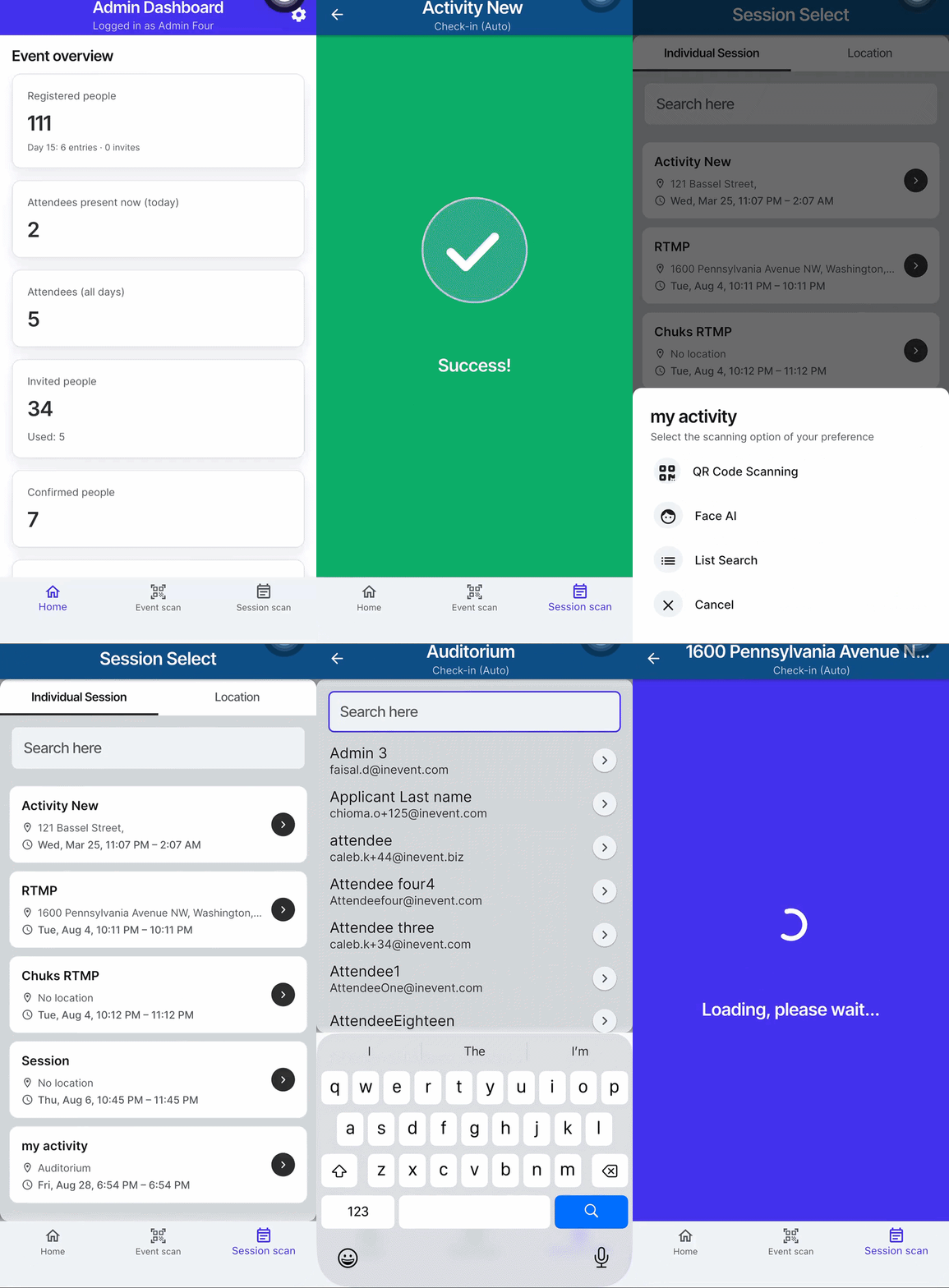
To switch between sessions:
- Open the Session scan page.
- Select the Individual sessions or Sessions by locations tab.
- Browse and select the session you want to manage.
- Click the return arrow in the top-left corner to return to the session list.
- Select another session to continue managing its check-in.
This allows organizers to quickly move between sessions and manage check-ins without leaving the Kiosk interface.
Kiosk mode
The app offers a simplified Kiosk mode. When this mode is selected, the app is locked to the Kiosk mode. To exit out of the Kiosk mode back to the admin panel, or make configuration modifications, the Kiosk PIN must be entered first. This mode is especially useful to prevent unauthorized changes to the check-in configurations.
To enter the Kiosk mode, follow the steps below.
- Tap the Settings icon at the top-right corner to open the Admin Settings page.
- Tap Open Kiosk Mode.
- Tap Check-in to view the available options for attendee check-in.
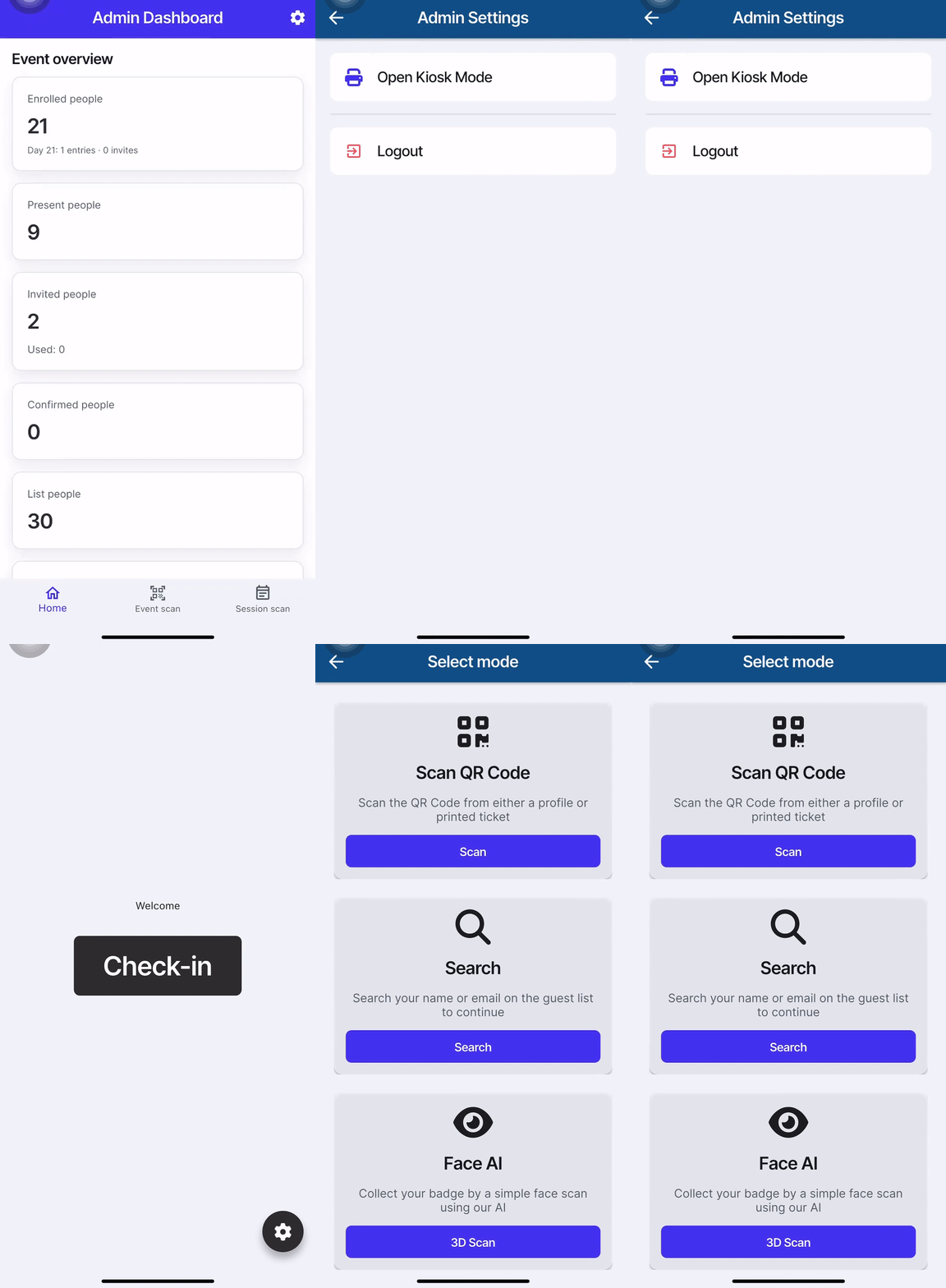
Attendee scanning options
The InEvent Kiosk app supports multiple attendee scanning options.
Scan QR Code
Perform check-in by scanning attendee's QR codes on their Confirmation email or the InEvent mobile app. This method is available for Event scan, Session scan, and within the Kiosk mode.
Search
Perform check-in by manually searching for the attendee's entry within the list of event attendees. This method is available for Event scan, Session scan, and within the Kiosk mode.
In the Event scan tab, tap the hamburger menu on the top left corner of the display to enter the Event Search menu.
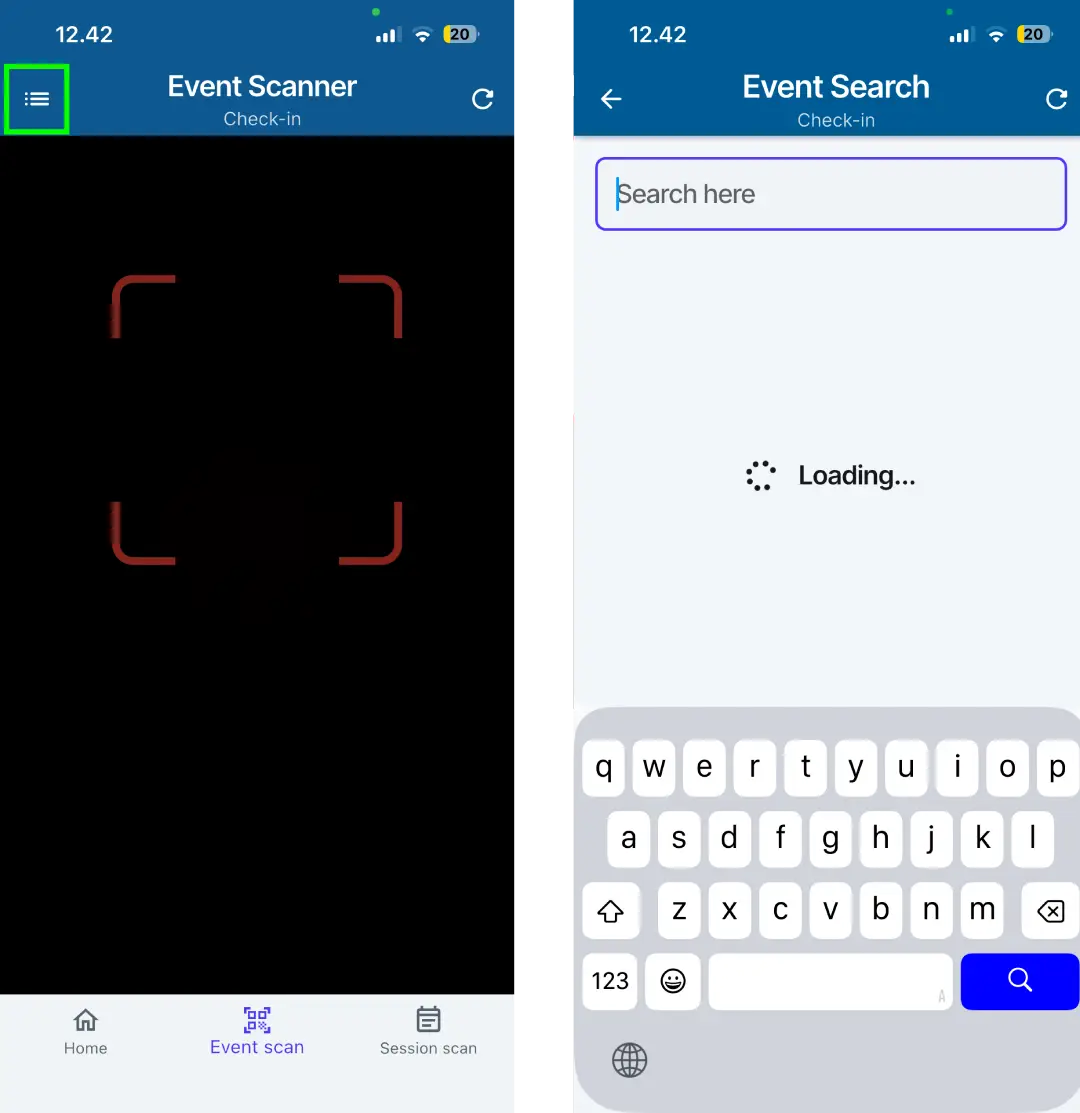
In the Session scan tab, tap List Search.
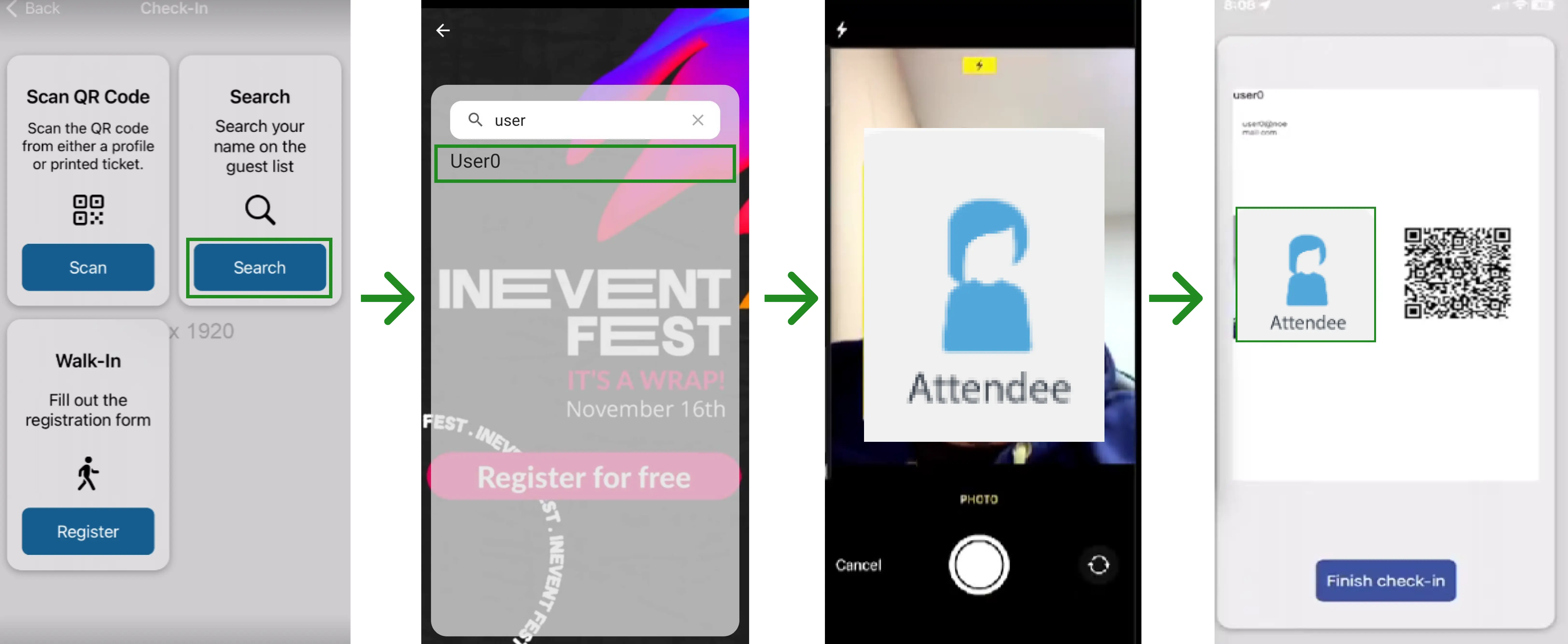
In the Kiosk mode, tap the Search button under Search to manually enter the name and/or email of the attendee to check them in.
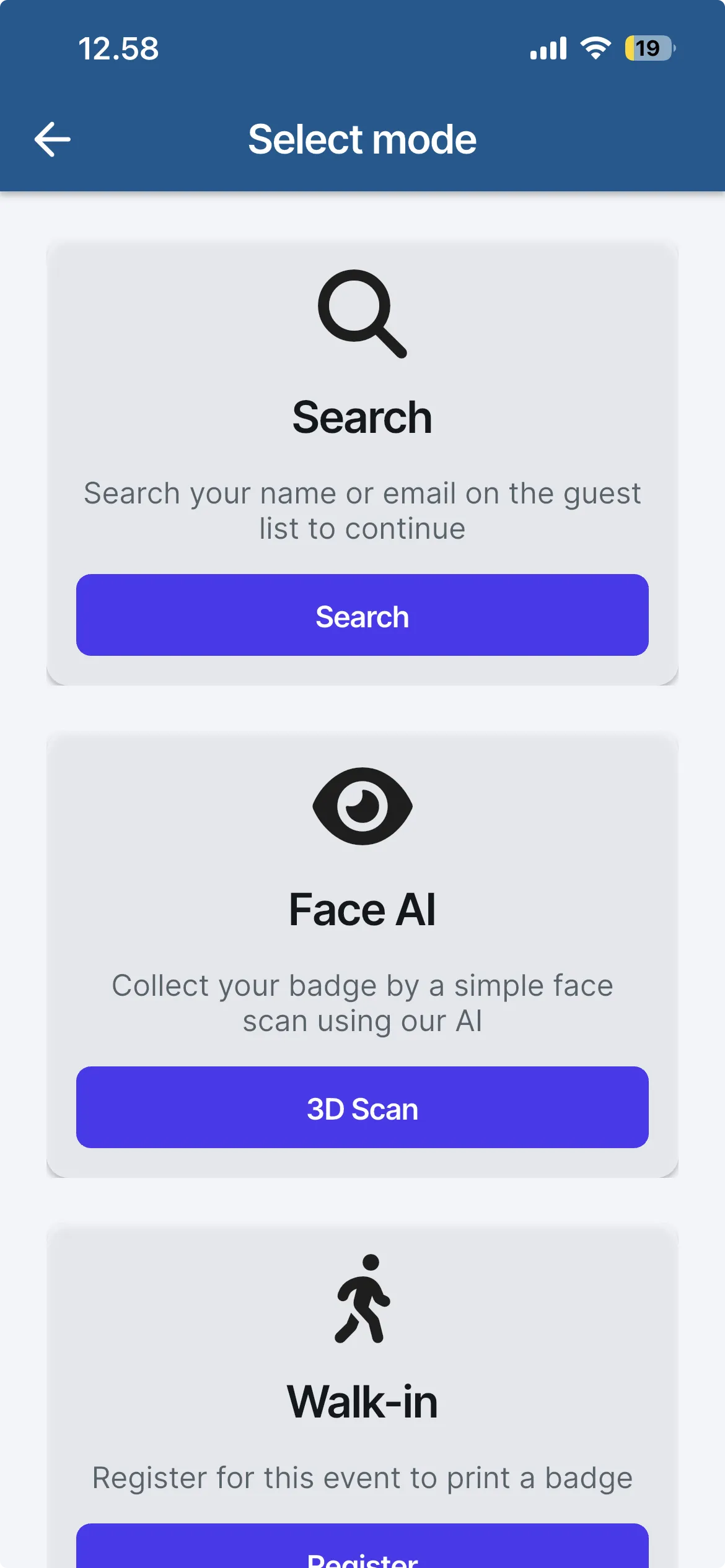
Face AI
Perform check-in by scanning the attendee's face with the scanning device's camera. This method is available for Session scan and within the Kiosk mode.
In the Session scan tab, tap Face AI.
In the Kiosk mode, tap the 3D Scan button under Face AI. When using this method, the camera will scan the attendee's face and match them using the Facial Recognition AI.
Badge printing
To enable automatic badge printing upon attendee check-in, ensure that you have enabled and configured the feature within the InEvent platform.
Editing attendee details on check-in before badge printing
The InEvent Kiosk app supports a two‑way synchronization with the InEvent backend. This allows event organizers and administrators to update attendee information upon check-in, right before printing badges, and all updates will automatically be reflected on the InEvent platform.
To edit attendee details in the Kiosk app, follow the steps below.
- Navigate to Kiosk Mode and tap Check-in.
- Choose one of the available check-in options: QR scan, manual search, Face AI or Walk-in. Once the attendee is checked in, a badge preview with their information will appear on the screen.
- Choose an action by tapping Print Badge to print immediately, or Modify to edit the attendee’s details before printing.
- Make the necessary edits and tap Save to confirm.
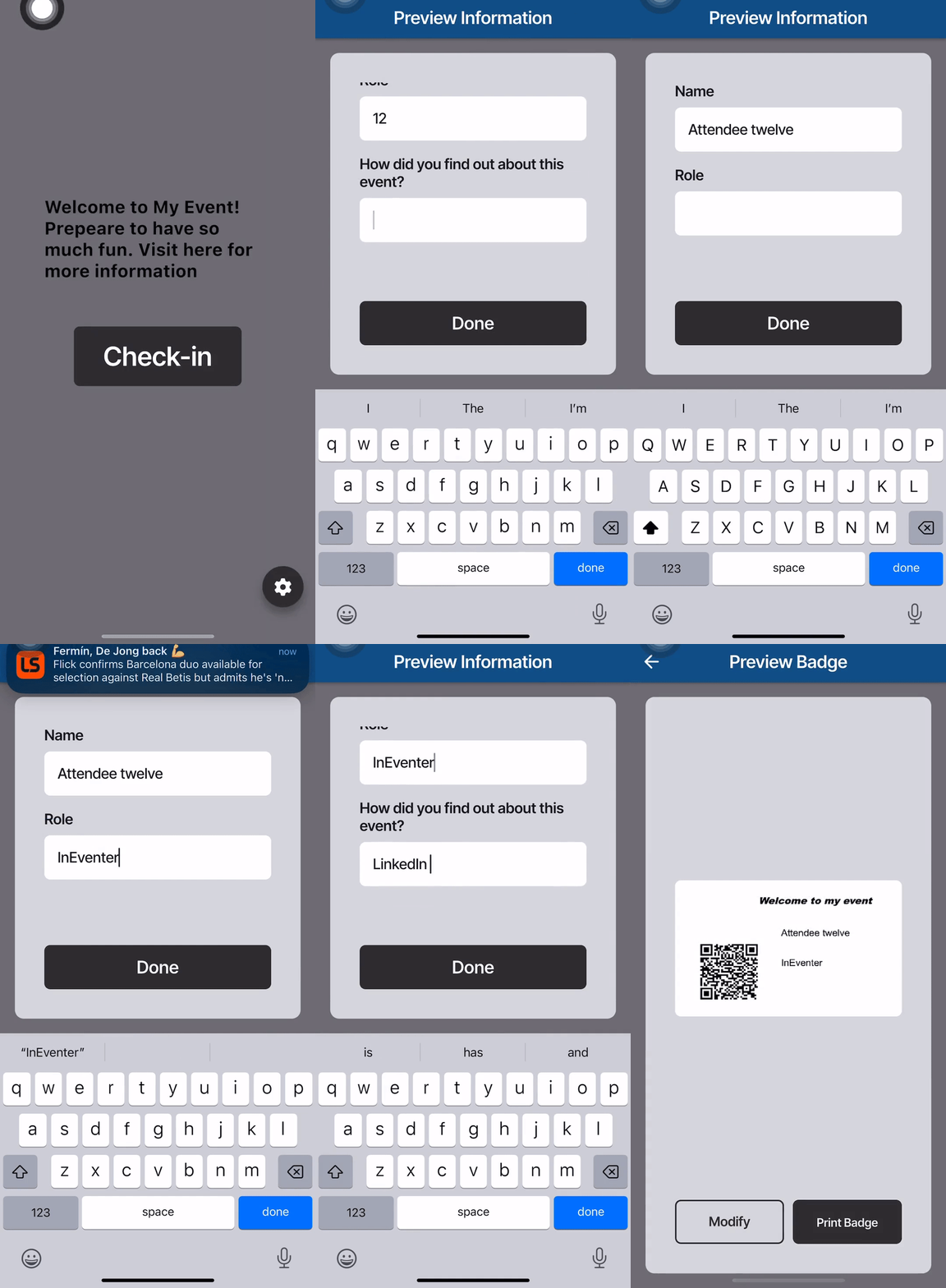
The changes will automatically sync with the InEvent platform.

Kiosk settings within the app
Kiosk mode settings can be accessed by tapping the gear button at the bottom right corner of the initial Check-in screen. You will be prompted to enter a Kiosk PIN.
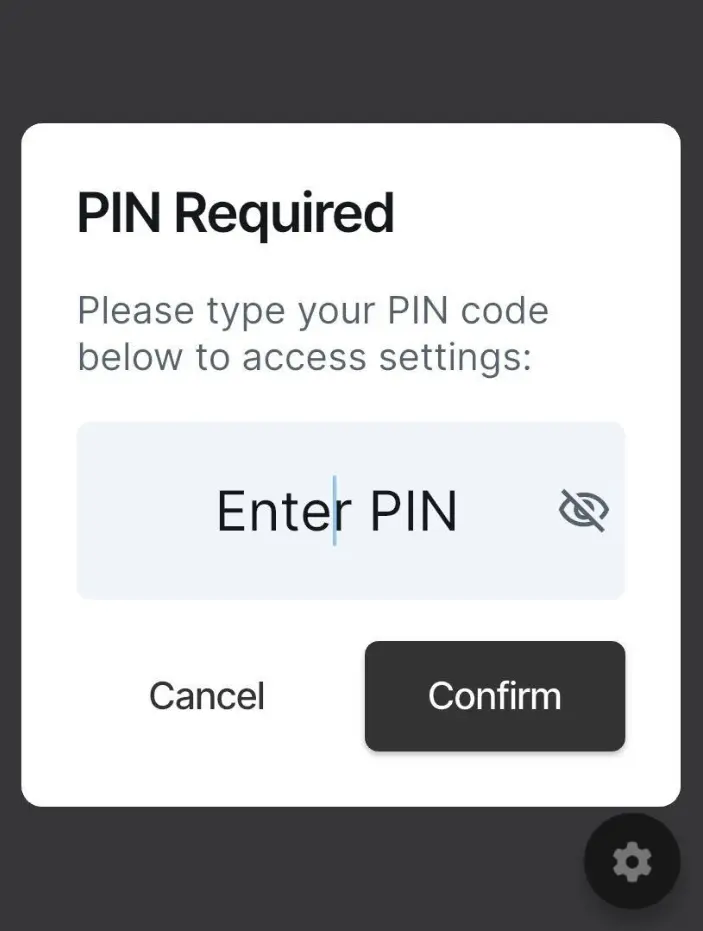
After entering the correct PIN, the settings for Kiosk mode will be displayed. From this menu, you can access the following items.
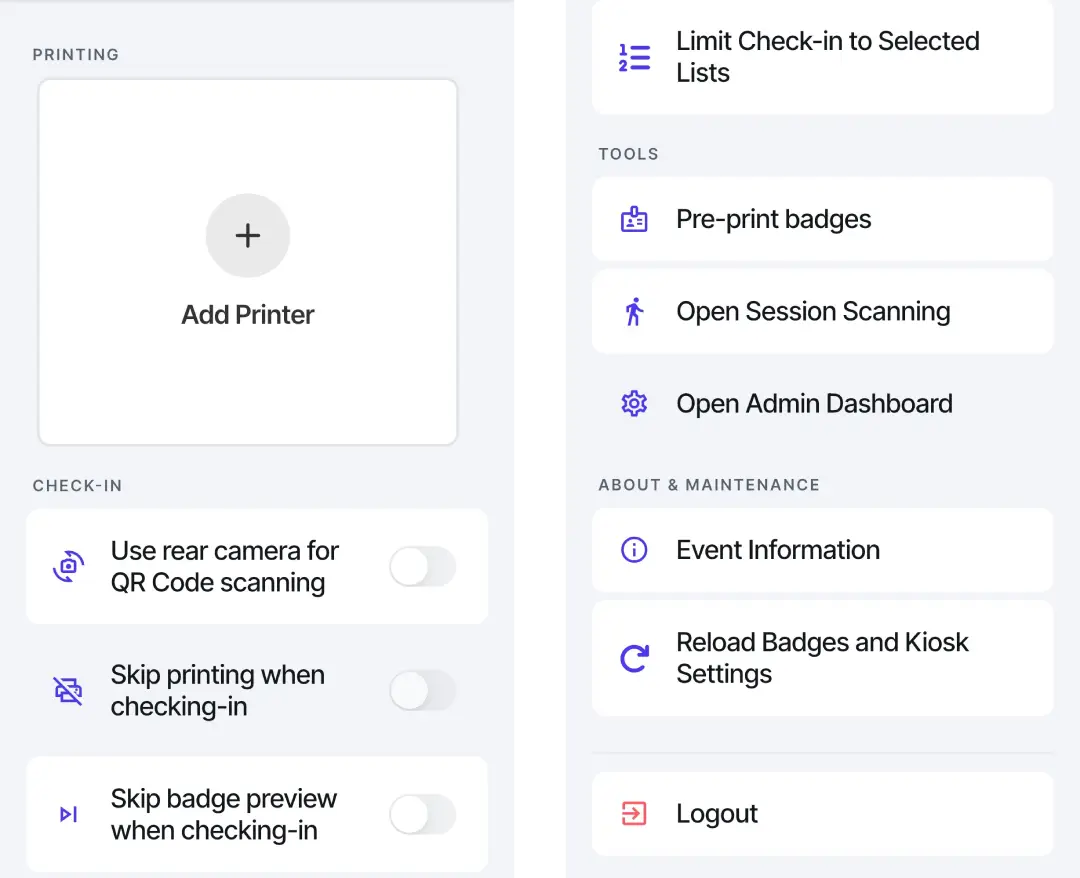
Add Printer
Tapping Add Printer will take you to the printer selection menu. When opening this menu for the first time, you will be asked whether to allow discovery of eligible devices on the active local network for easy connection to printers. With the printer discovery allowed, you can easily select the printer to connect it to the InEvent Kiosk app.
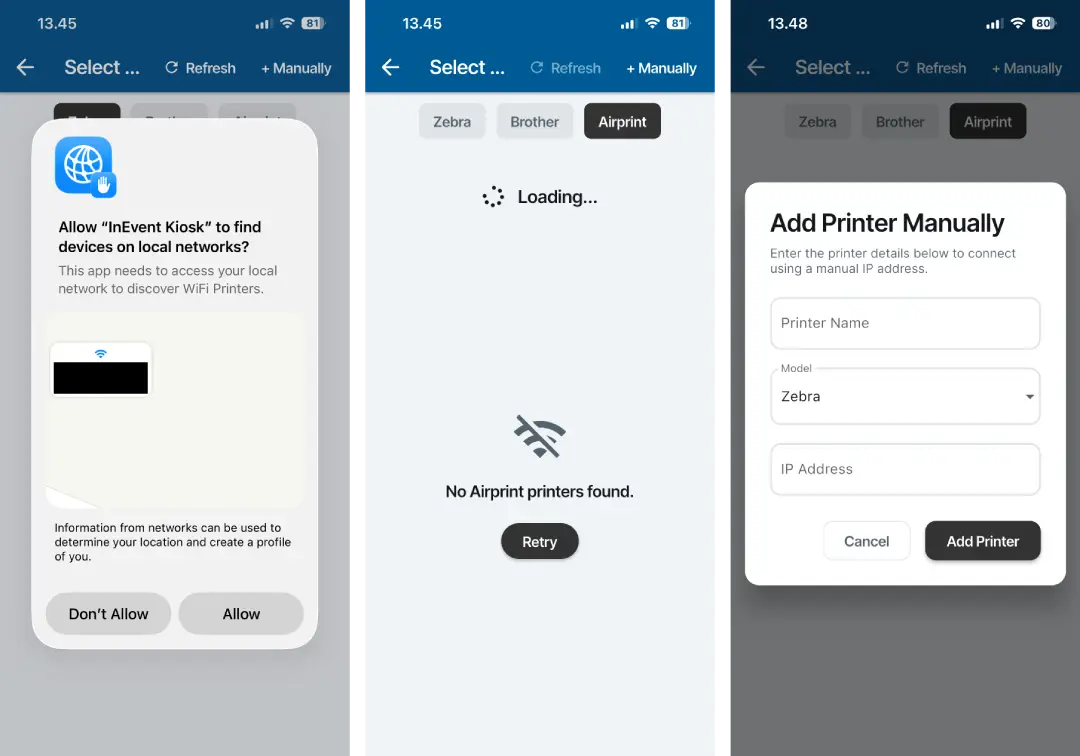
Manually connecting printers
If automatic printer discovery is disabled, such as in enterprise or networked environments with specific requirements where printers may not be automatically detected, organizers can set up manual connection of printers to the InEvent Kiosk App.
Tap + Manually on the top left corner. Then, enter the following details into the available fields.
- Printer Name: Identifier name of the printer
- Model: Model of the printer. The available options are Zebra, Brother, and Airprint.
- IP Address: IP address of the printer in the active local network
Tap Add Printer to save the configuration.
Check-in
The following options are available in the Check-in category.
- Use rear camera for QR Code scanning: Selects the rear camera instead of the front camera for QR code scanning when enabled.
- Skip printing when checking-in: Disables automatic attendee badge printing upon performing check-in.
- Skip badge preview when checking-in: Disables previewing of attendee badges upon performing check-in.
- Limit check-in to selected lists: Only allow check-ins of attendees in predefined lists.
Tools
The following options are available in the Tools category.
- Pre-print badges: Perform printing of attendee badges on-demand.
- Open Session Scanning: Opens the Session Scan interface.
- Open Admin Dashboard: Return to the app's Admin Dashboard or home screen.
Pre-print badges
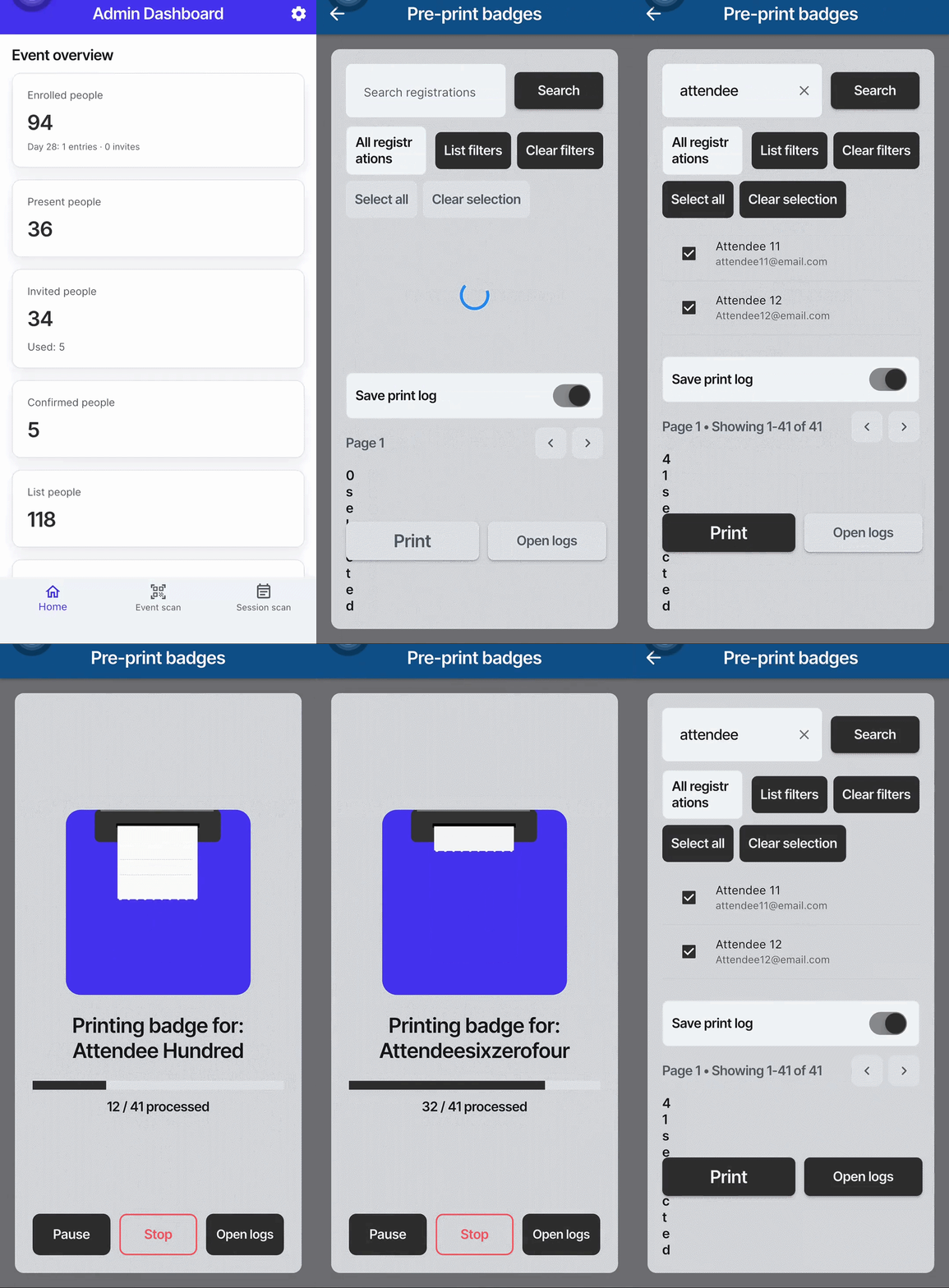
The Pre-print badges feature allows event organizers to search, select, and print multiple attendee badges in advance. This is especially useful for preparing badges before attendee arrival and improving on-site check-in efficiency. To use pre-print badges, follow the steps below:
- Tap the Settings icon in the top right corner.
- Select Open Kiosk mode.
- Tap the Settings icon at the bottom right corner.
- Enter your event Kiosk pin.
- Select Pre-print badges from the list of options.
- Select the target attendee by checking the box next to their name. The Search registrations field can help you locate target attendees, and the following options are also available to manage attendee selection.
- List filters: Filter attendees by specific lists or select All registrations to display all attendees. Multiple lists can be selected at the same time.
- Clear filters: Remove any applied filters and reset the attendee list.
- Select all: Automatically select all displayed attendees for badge printing.
- Clear selection: Deselect all currently selected attendees.
- Enable Save print log to keep a record of printed badges.
- Tap Print to print the selected badges.
After completing the steps above, the selected badges will start printing.
About & Maintenance
The following options are available in the About & Maintenance category.
- Event information: Displays information about the event, including the event's Name, Start/end time & date, and Timezone.
- Reload Badges and Kiosk Settings: Performs a reload/refresh of the app's settings.
Logout
Logs the active account out from the InEvent Kiosk app.
Kiosk settings on the platform
Event administrators can further manage kiosk mode appearance, behavior, and other settings on the InEvent platform. To do so, navigate to Marketing > Badge printing > Kiosk settings. On this page, you will find five setting sections for the kiosk mode. Each section is described below.
Home
You can configure a custom welcome message in rich text format. You can also set an image as a custom welcome screen, set to landscape or portrait orientation.
1920*1080px.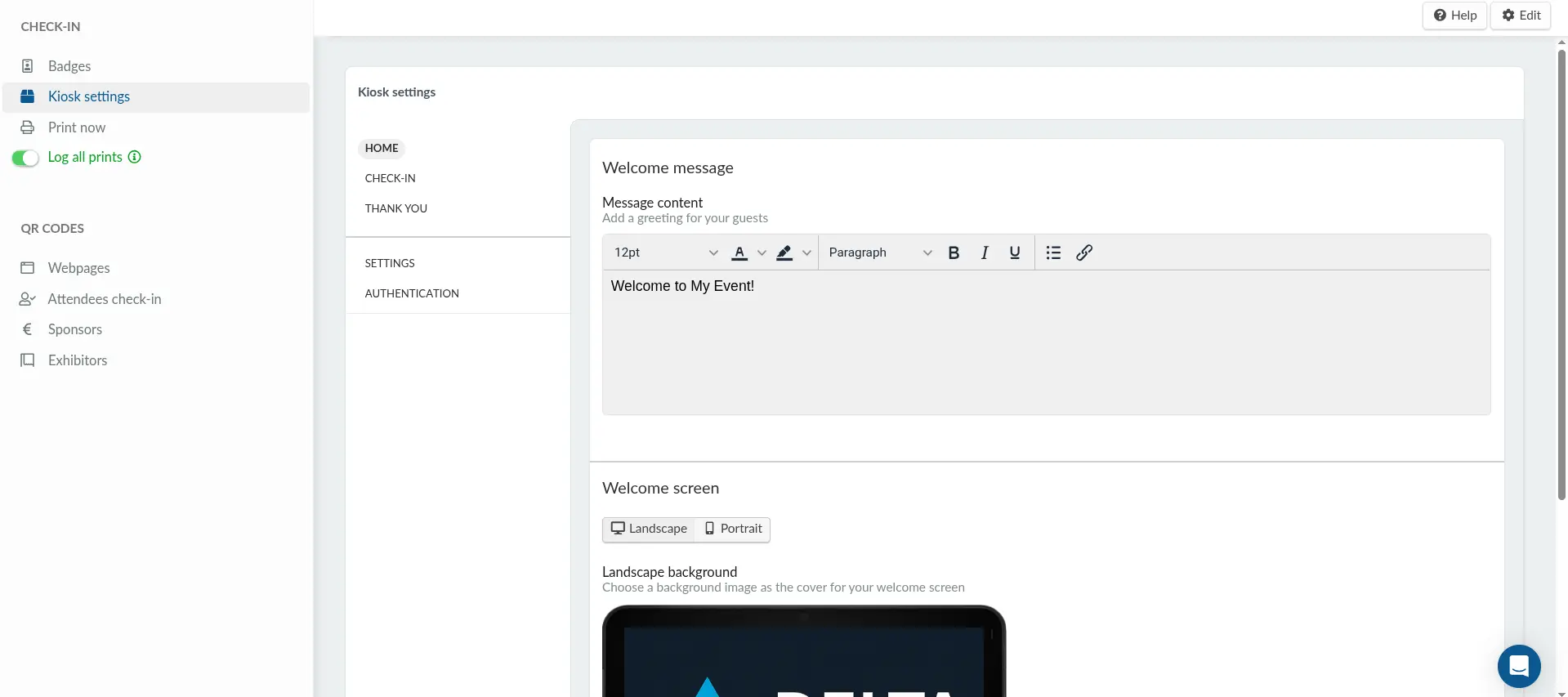
Check-in
Options and settings that change the kiosk behavior can be edited here. Under Check-in options, the following options can be configured.
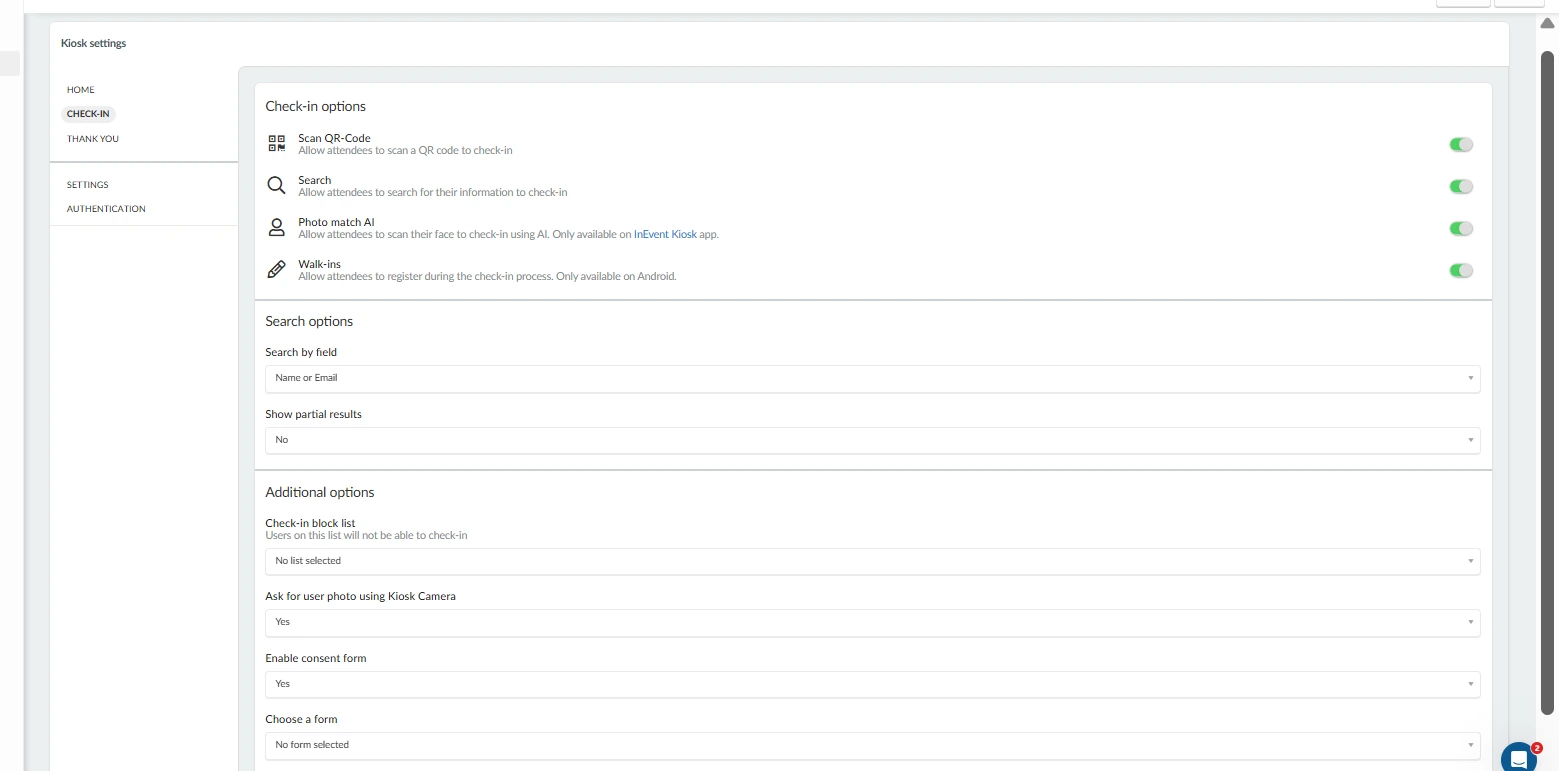
- Scan QR code: Enables QR code scanning method on the kiosk. To disable it, select No.
- Search: Enables manual search method on the kiosk. To disable it, select No.
- Photo Match AI: Enable this option to allow attendees to scan their faces for check-in using the Photo Match AI feature. This feature is only available through the InEvent Kiosk app. Refer to the Facial Recognition AI article for more information.
- Walk-ins: Enables new walk-in or in-person registrations. To disable it, select No.
Under Search options, the following options can be configured.
- Search by field: Selects the preferred fields to search. You can select to search Name or Email fields, or Username fields.
- Show partial results: Enables showing of partial search results. To disable it, select No.
Under Additional options, the following options can be configured.
- Check-in block list: Defines a list of attendees blocked from checking in. To disable the block list feature, select No list selected.
Attendees in the defined block list will still be listed within the list of attendees. However, they cannot be successfully checked in to the event. When a check-in is performed for attendees in the block list, the following screen will be displayed.

- Ask for user photo using Kiosk Camera: Sets the kiosk app to take attendee photos upon check in. When this option is enabled, the app will activate the device's camera, using which the attendee photo is taken. If the badge template includes User photo, the photo will be printed on the badge. To disable the photo prompt, select No.
- Enable consent form: Defines a custom form to be displayed as a consent form. When Yes is selected, you will be prompted to select a target custom form.
Thank you
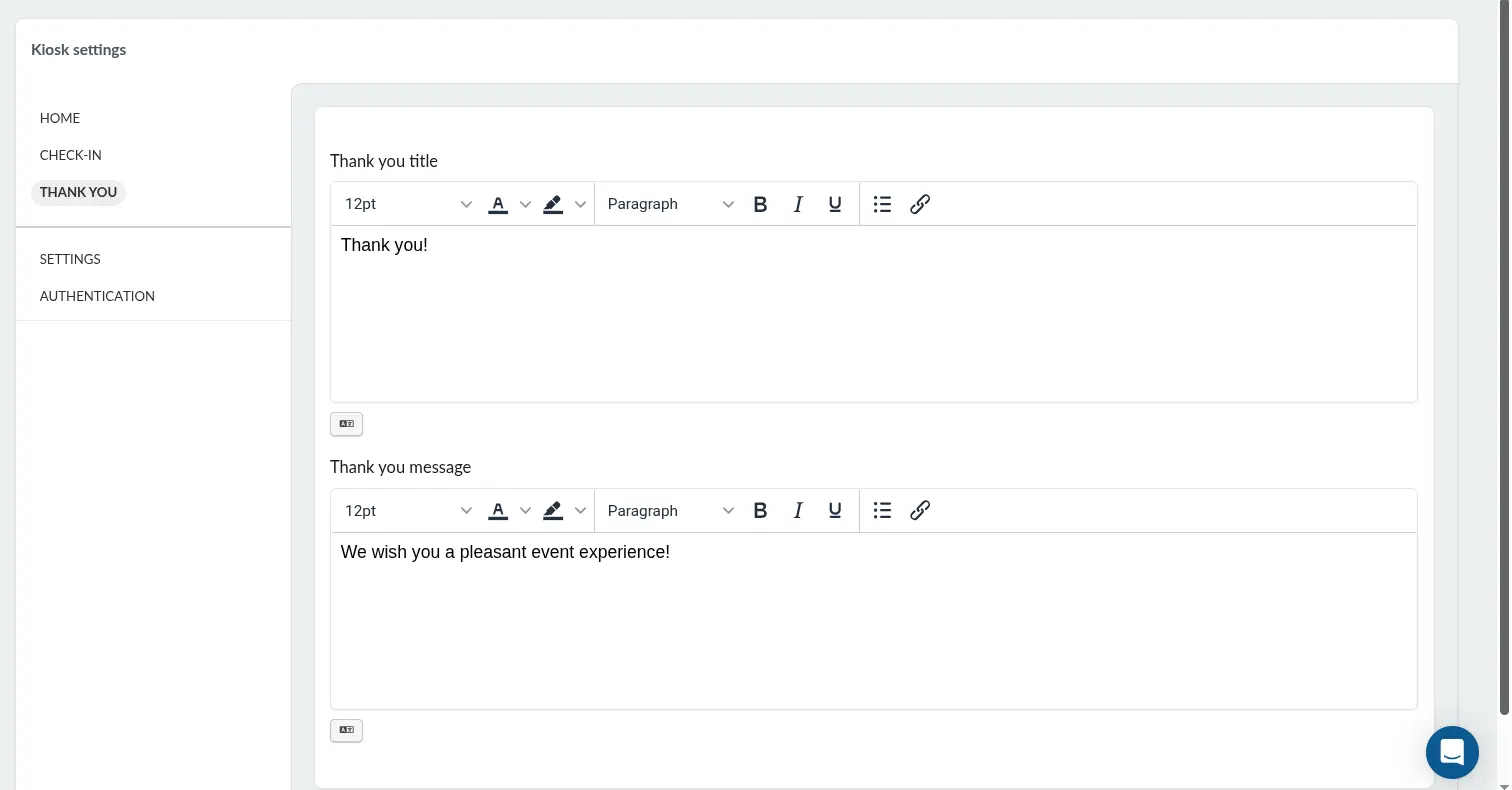
You can configure a custom title and message in rich text format to be displayed after an attendee successfully checks in.
Settings
This section contains the following options.
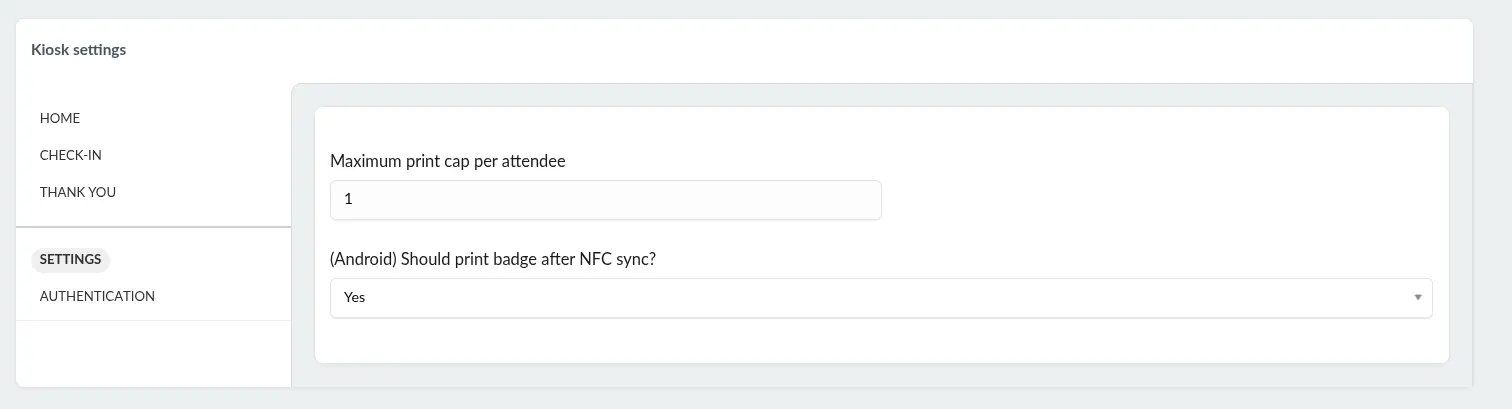
- Maximum print cap per attendee: Sets a cap or limit to the printed badges for one attendee, including reprints.
- (Android) Should print badge after NFC sync?: Defines whether a badge will be printed after an attendee checks in by NFC syncing.
Authentication
This section contains the login QR code to access the event within the InEvent Kiosk app. Event administrators can scan this QR code on the target device and immediately access the kiosk without having to enter company codes and user account credentials.
You can also define a Kiosk PIN on this page. The Kiosk PIN is used to access in-app kiosk settings.