Exporting and understanding submission reports of booking, membership and custom forms
 Updated 1 hour ago
by
Chioma Okenwa
You can generate reports for an entire form or an individual submission of your booking, custom or membership forms.
Downloading a report
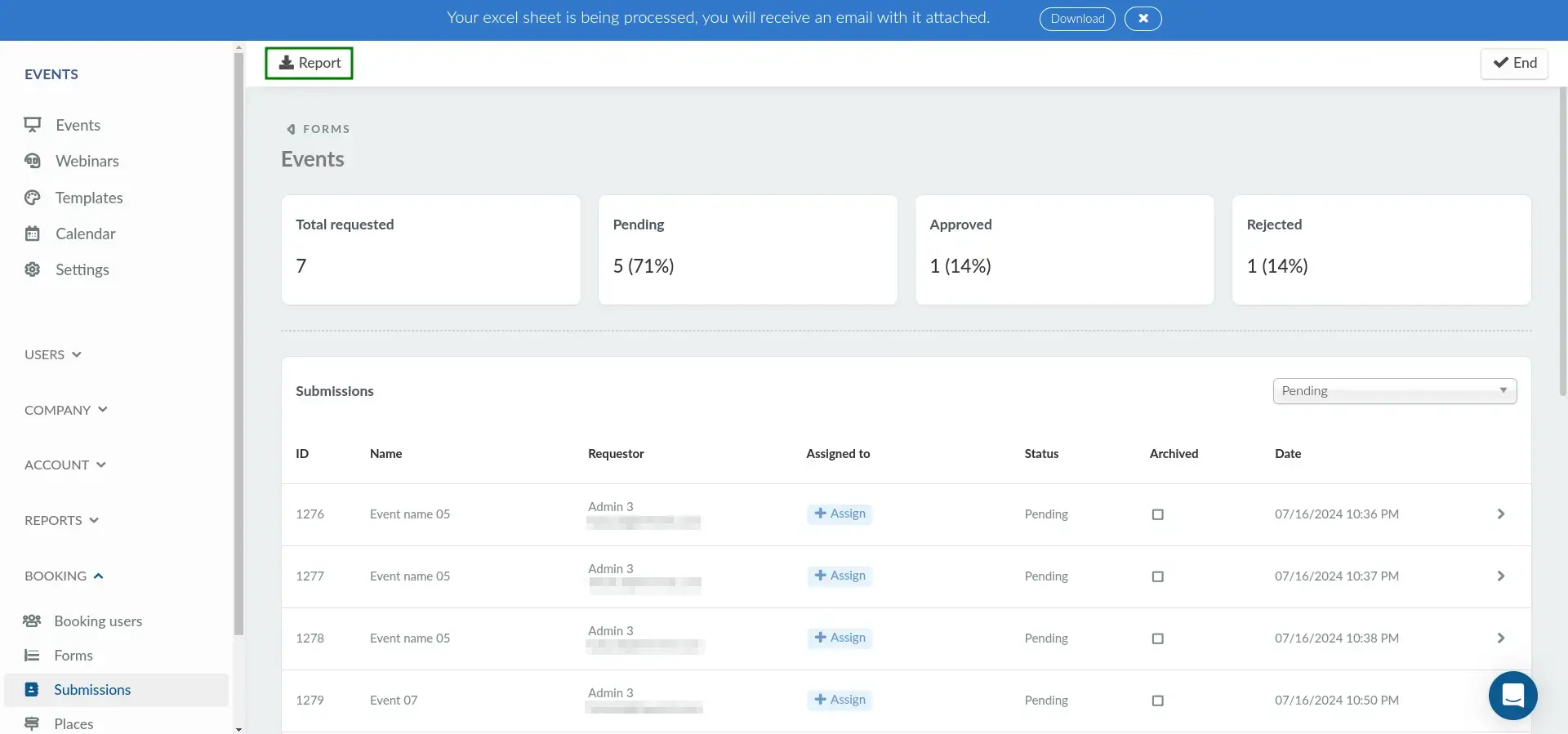
To download a report for a form:
- Navigate to Booking > Submissions.
- Select the form you want to export.
- Click Edit > Report.
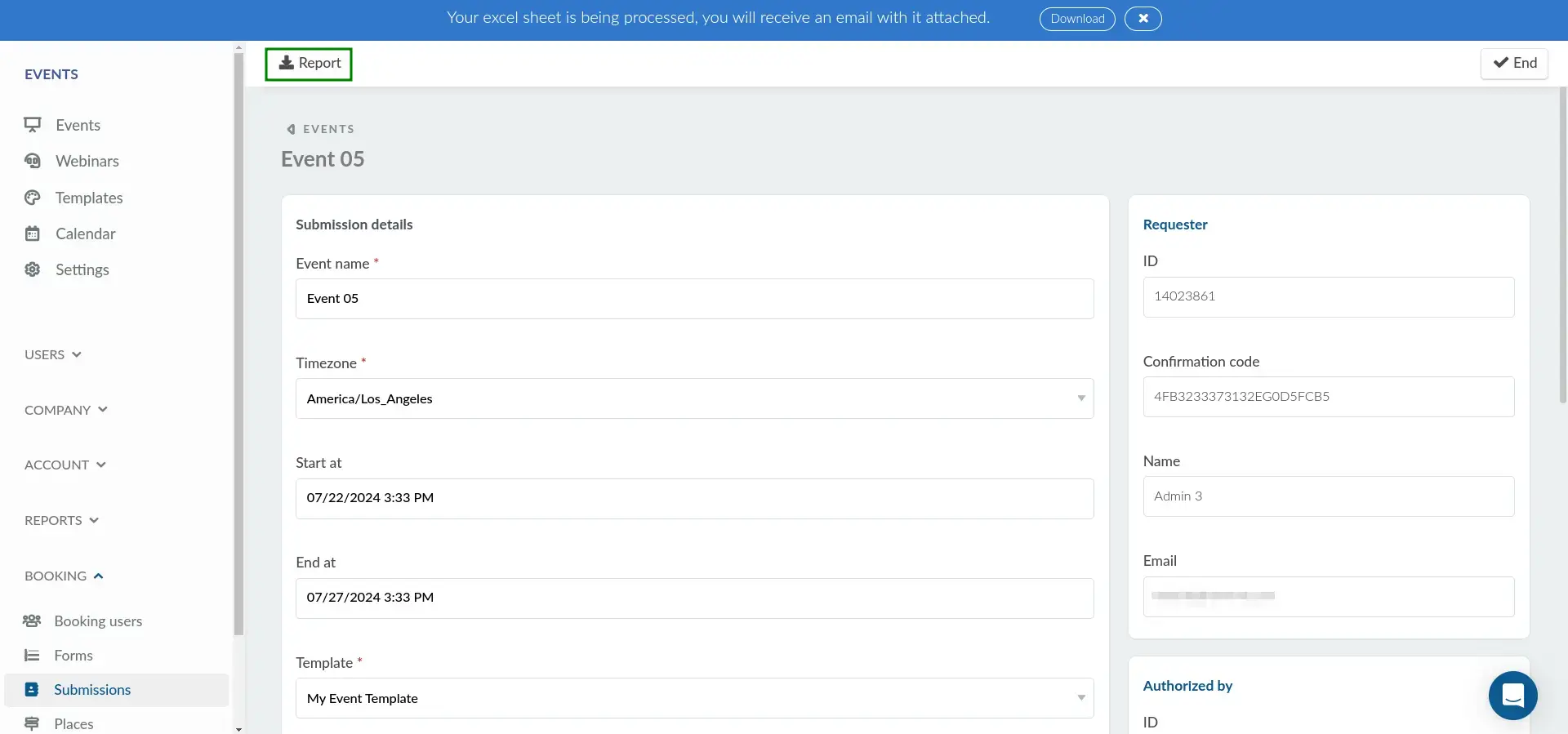
To download a report for an individual submission:
- Open the relevant submission.
- Click Edit > Report.
Once you generate a report, a blue notification banner will indicate that it is being processed. When the report is ready, it will be sent to your email address.
Alternatively, click Download in the notification banner to access the Report center, where you can preview and download the report.
Information included in reports
Event booking form reports
Reports include submission details such as:
- Submission ID, person ID, form ID, and confirmation code.
- Submission status and date.
- Applicant name and email.
- Event name, timezone, start date, and end date.
- Event ID and event nickname.
- Event location, budget, and template.
- Authorization status and authorizer details.
- Assigned event administrator details.
- Preselected administrators.
- Custom form field responses.
The
eventID and eventNick fields are generated only after the event booking request has been approved.
Membership and custom form reports
Reports include:
- Submission ID, person ID, and form ID.
- Submission status and date.
- Applicant name and email.
- Custom form field responses.

Additional notes:
- Membership form reports do not display the form fields.
- Archived submissions are not included in the spreadsheet reports.
- Pending submissions will not display information in the
statuscolumn.
