Attendee center: Access your event information and personal account
 Updated 1 week ago
by
Faisal Durrani
Updated 1 week ago
by
Faisal Durrani
The Attendee Center is your personal space for accessing and managing your event information in InEvent’s web app. Depending on the event, you can use it to view your registered events, update your profile, access tickets and forms, explore the agenda, download event files, and more.
You can access the Attendee Center through your event website, email links, or the Web app.
What can you access from the Attendee Center?
The Attendee Center includes several pages that help you manage your event participation and access event-related information.
Depending on the event's configuration, you may have access to the following pages:
- Events: View the events you are registered for and access them.
- My Account: View and update your personal information and profile.
- My Photos: View photos matched to your profile and, when enabled, browse or upload event photos.
- My Tickets: View and manage your event tickets.
- My Agenda: View the event schedule and your personal agenda.
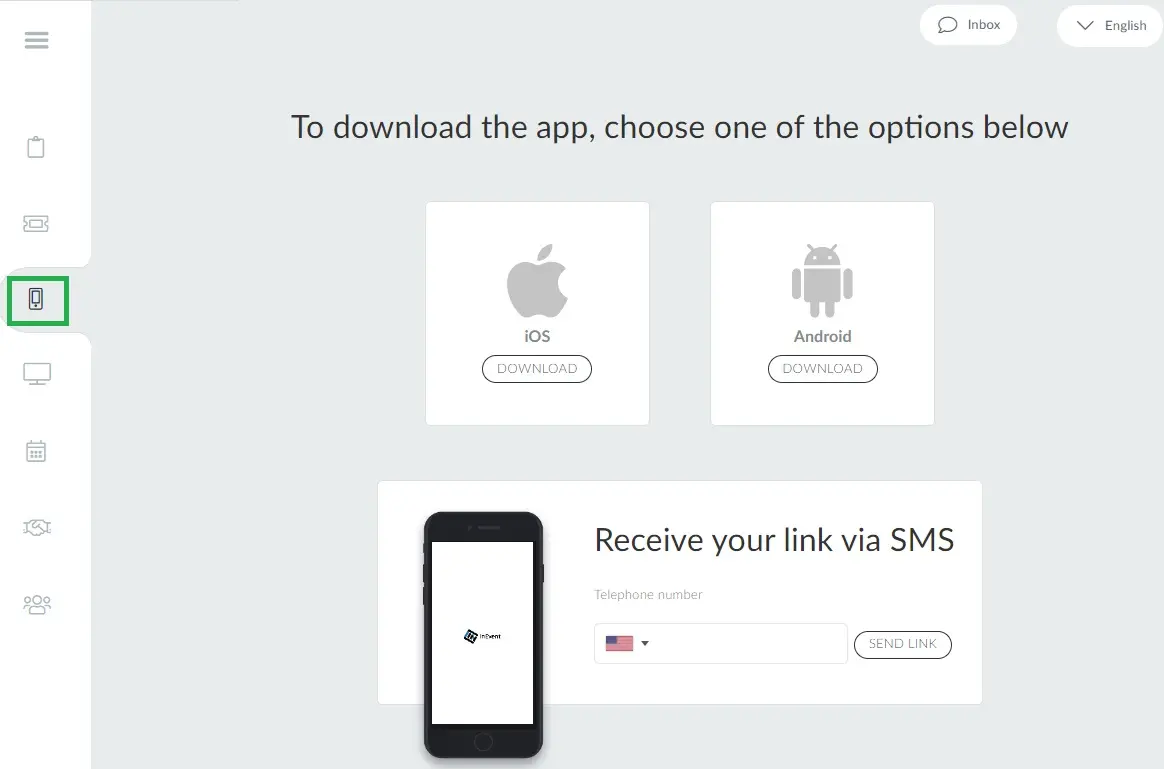
- My App: Access the download link for the event's mobile app.
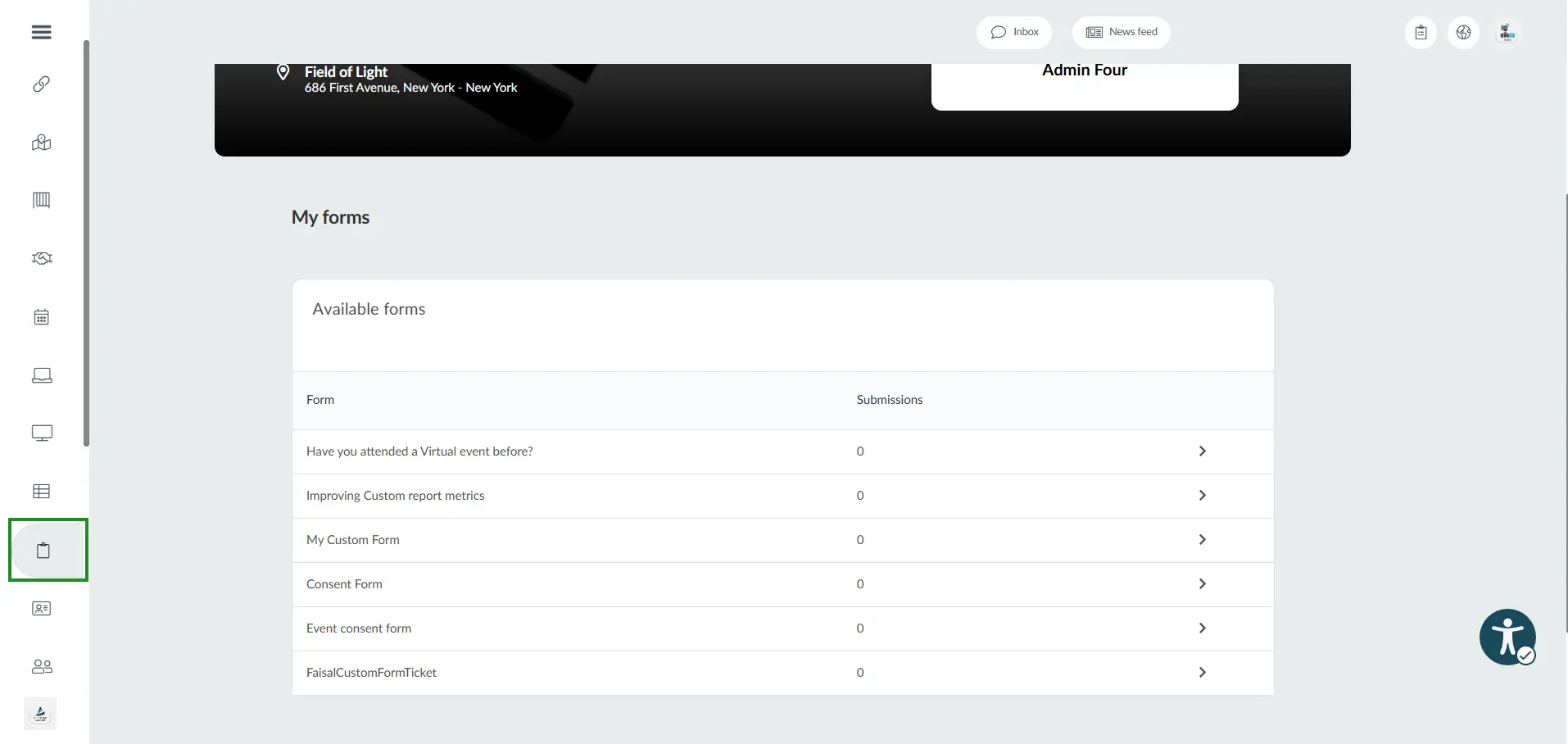
- My Forms: Access forms made available by the event organizer.
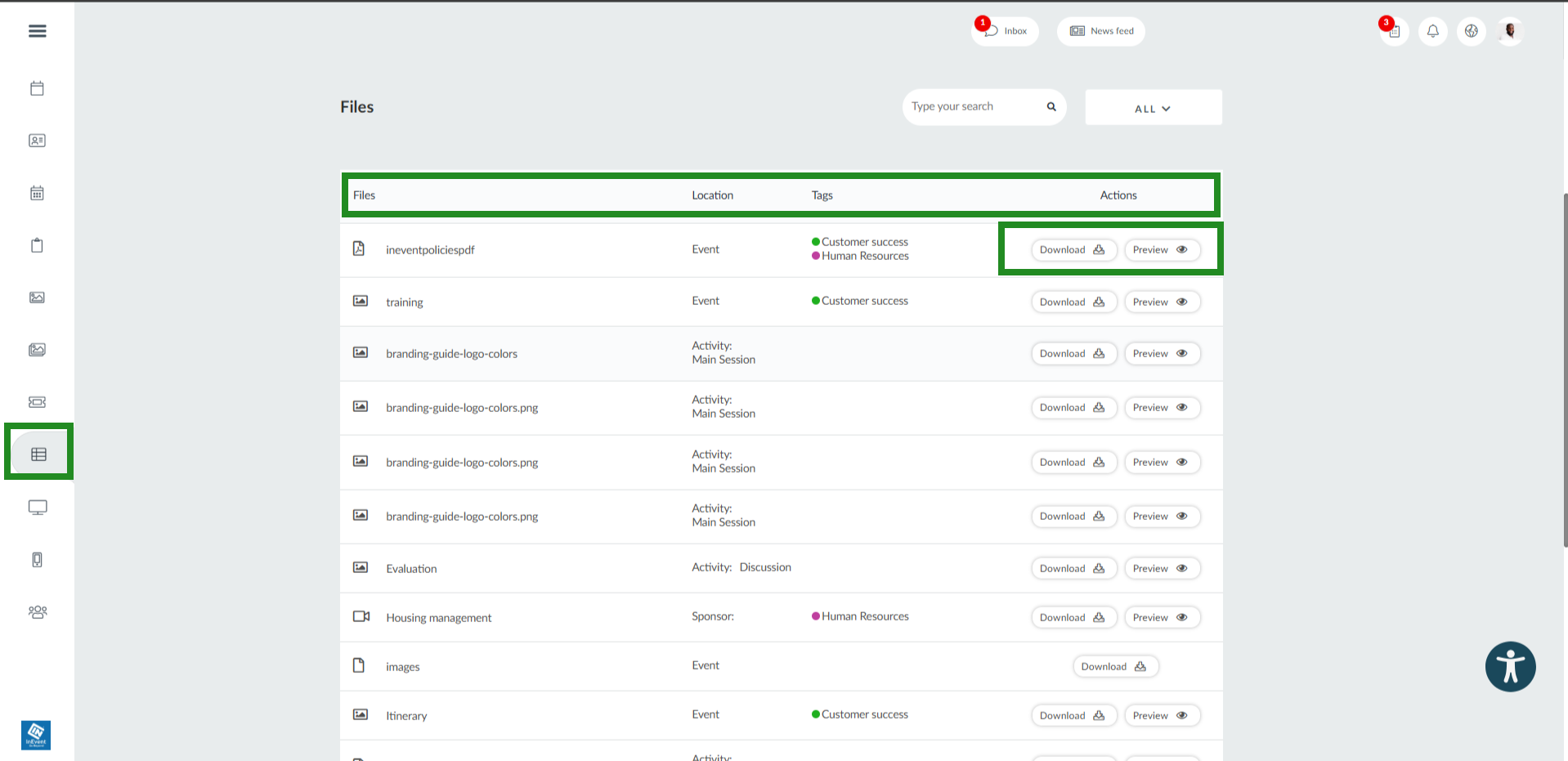
- My Files: Access files shared with event participants.
Events
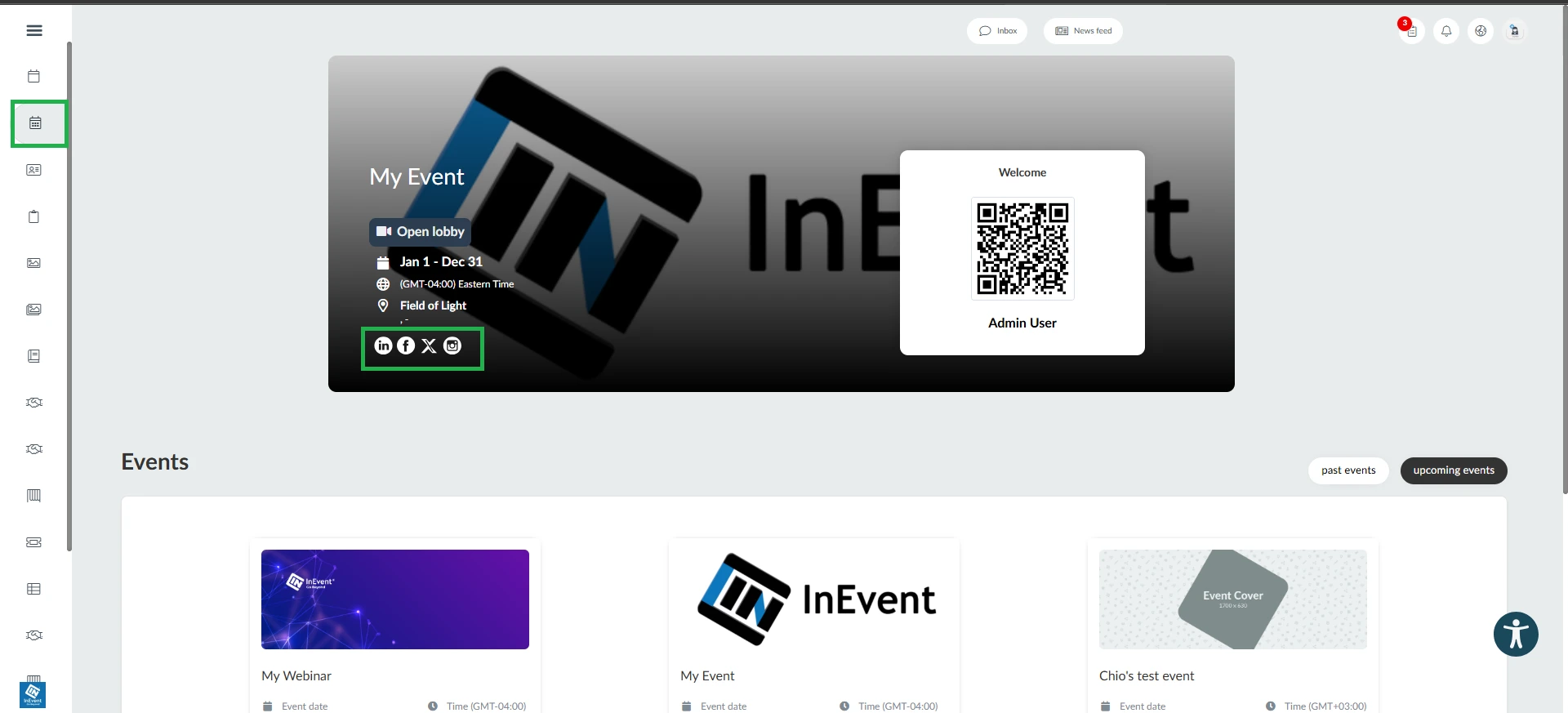
The My Events page lets you see the event/events you are registered for using the same login credentials.
To access an event, select it from your event list.
My Account
The My Account page provides a central location where you can view and manage information associated with your attendee profile. This includes your personal information, social media links, website, tags, and responses to questions from the Registration Form. Depending on the settings configured by the event organizer, you may also be able to update some of this information directly from the page.
To learn more about the features and actions available on the My Account page, refer to the My Account article.
My Photos
The My Photos page allows you to view photos associated with your participation in the event. Depending on the available features, you may be able to:
- View photos in which you appear.
- Browse the event's photo gallery.
- Upload photos to the event gallery.
Viewing photos that include you
The event may use photo matching to identify photos in which you appear. When available, the photo matching feature compares your profile picture with photos in the event's photo gallery. Photos in which you may appear are displayed in My Photos.
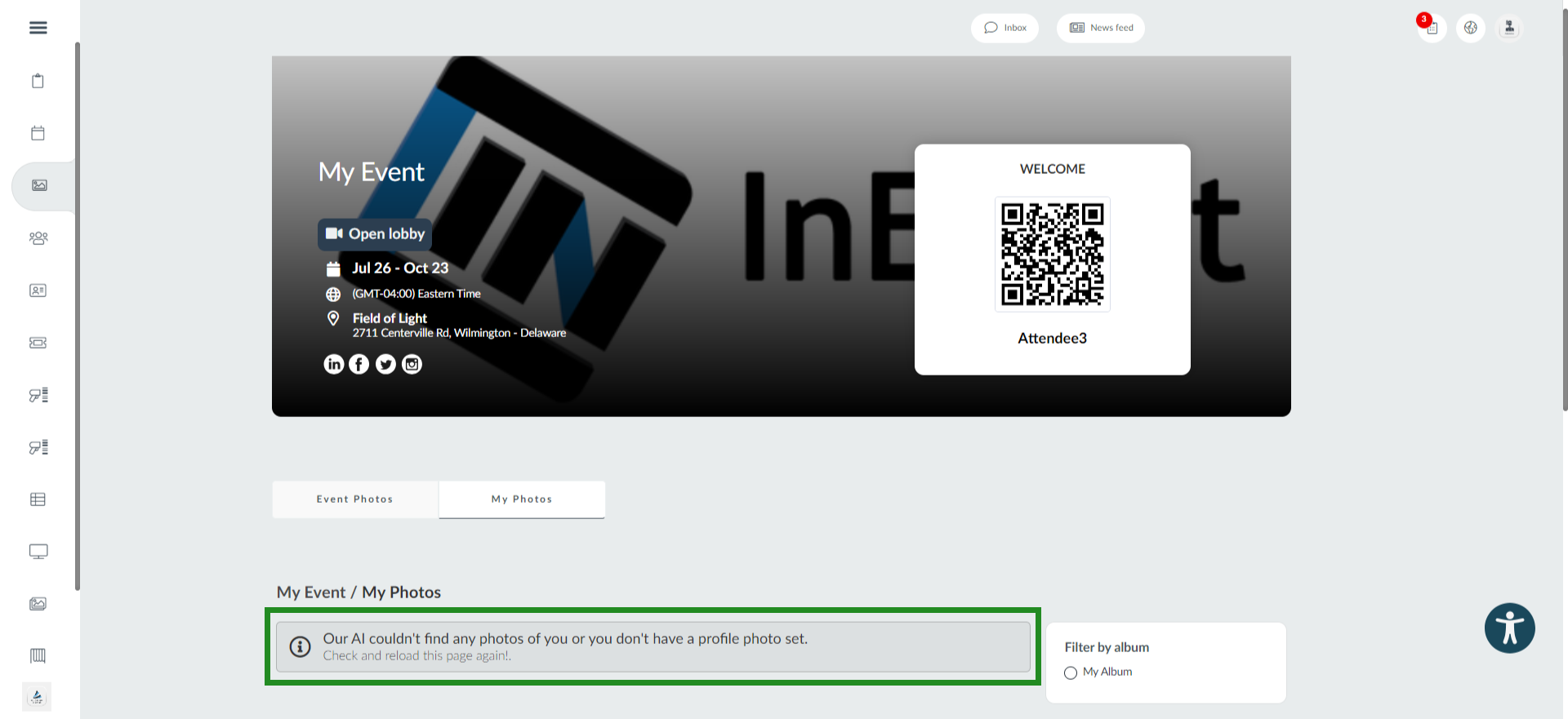
If there is no profile picture uploaded in the My Account tab, or if your profile picture doesn't match any of the available event photos, you will see the message below:
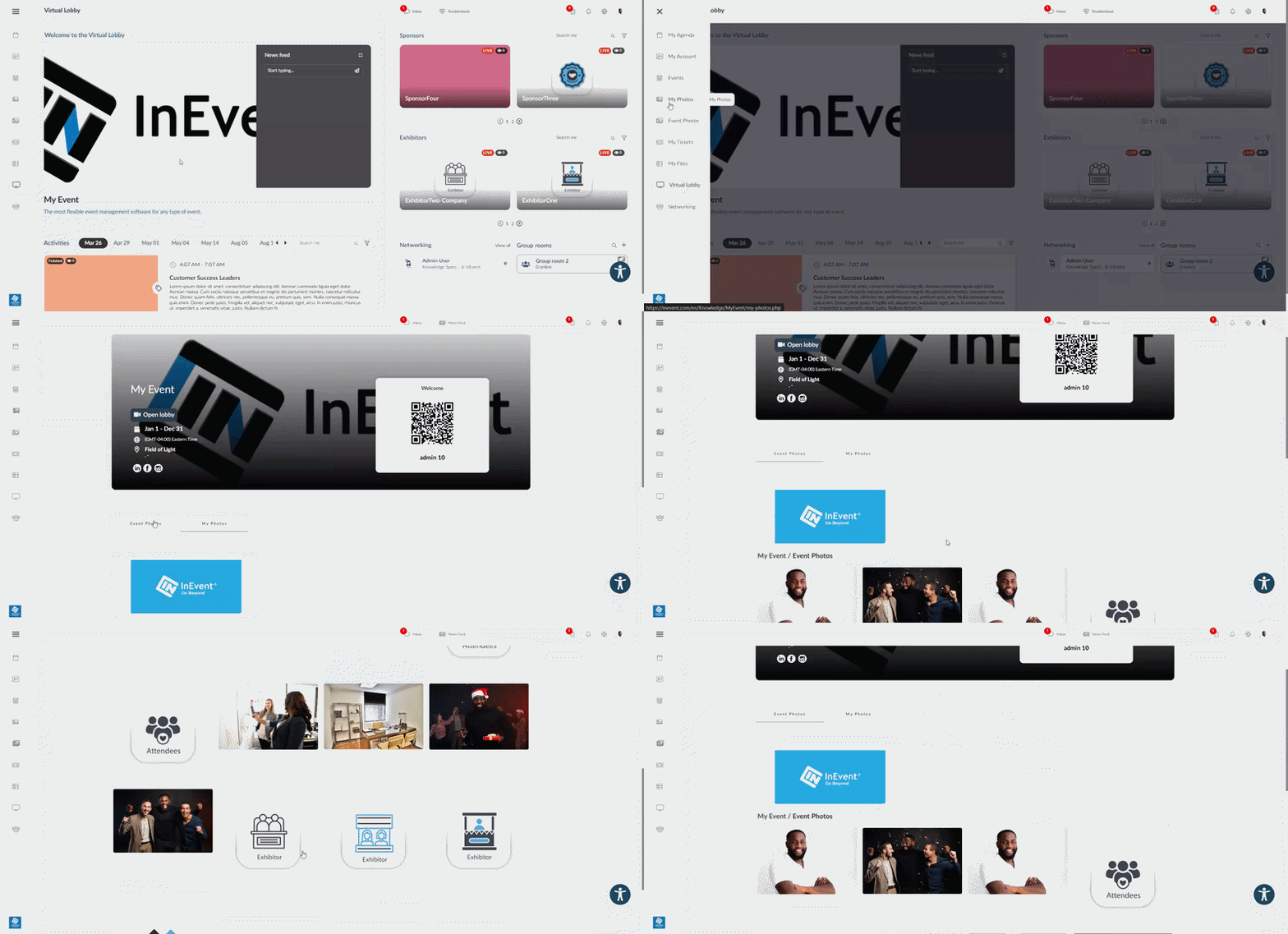
Browse the event photo gallery
If the event provides an Event Photos section, you can browse the event gallery from the My Photos page. To browse through event photos:
- Open My Account.
- Select Event Photos.
- Browse the available photos.
The photos you view depend on the event's gallery configuration by event organizers.
Uploading photos through the event gallery
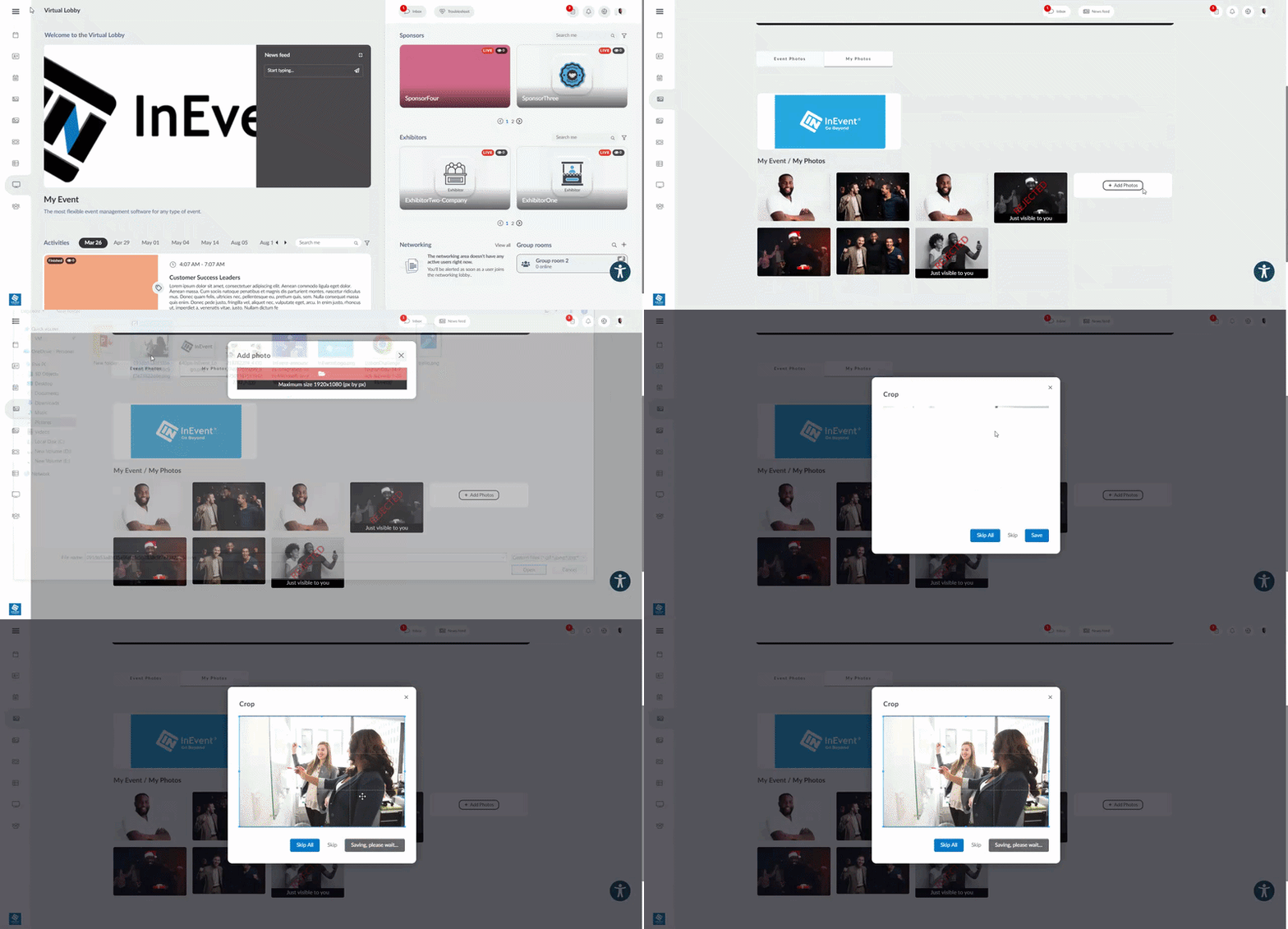
If photo uploads are available, you can add your own photos to the event gallery. To upload a photo:
- Open My Photos.
- Select Add Photo.
- Choose the album where you want to upload the photo.
- Select the file upload button.
- Choose the photo you want to upload.
- Select Save.
My Tickets
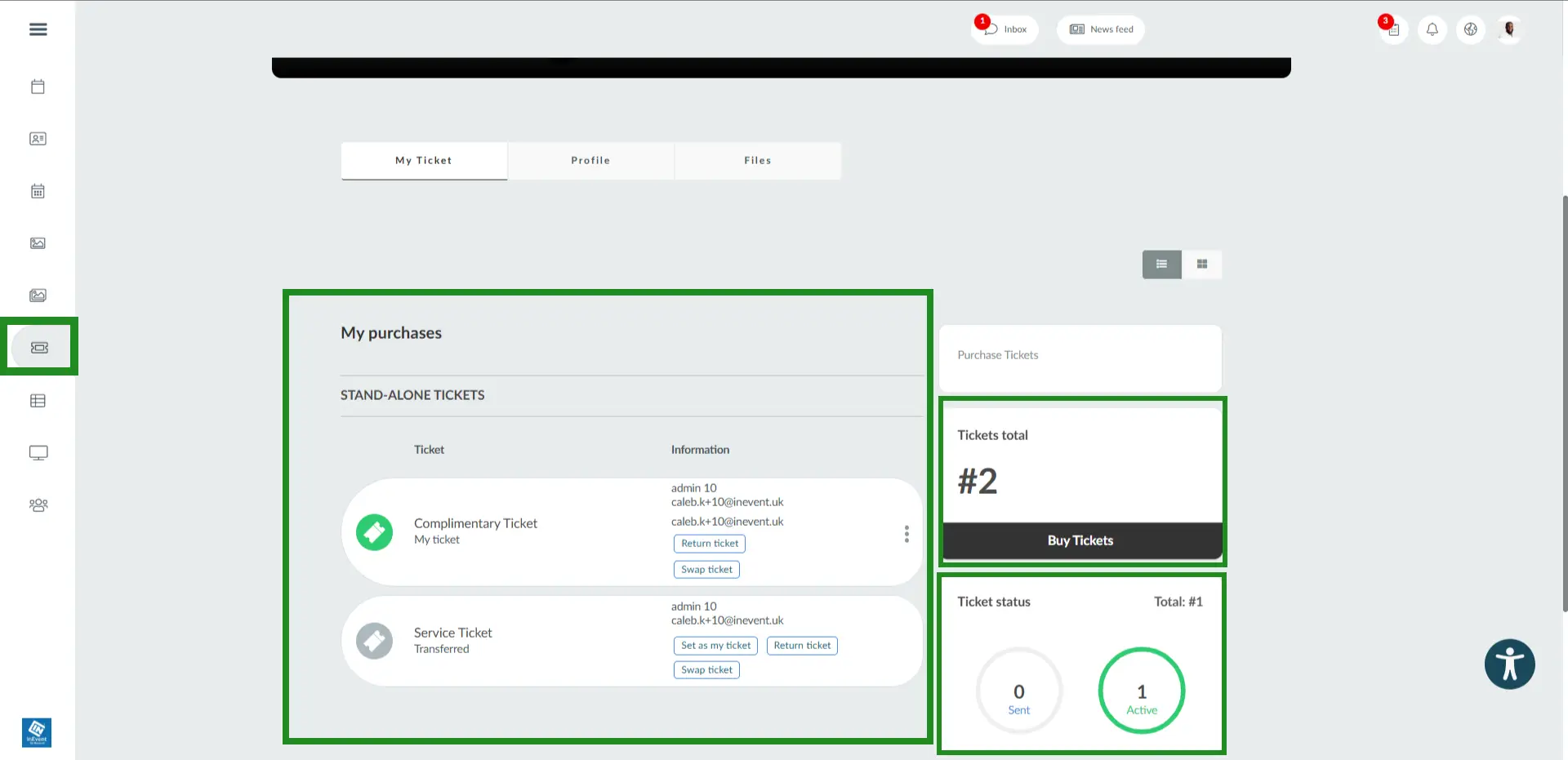
The My Tickets page allows you to view and manage tickets associated with your event registration. Depending on the event's ticketing options, you can:
- View your purchased tickets.
- Check your ticket status.
- Purchase additional tickets.
- Request a refund.
- Transfer a ticket to another person.
To learn more about these actions, refer to the My Tickets article
My Agenda
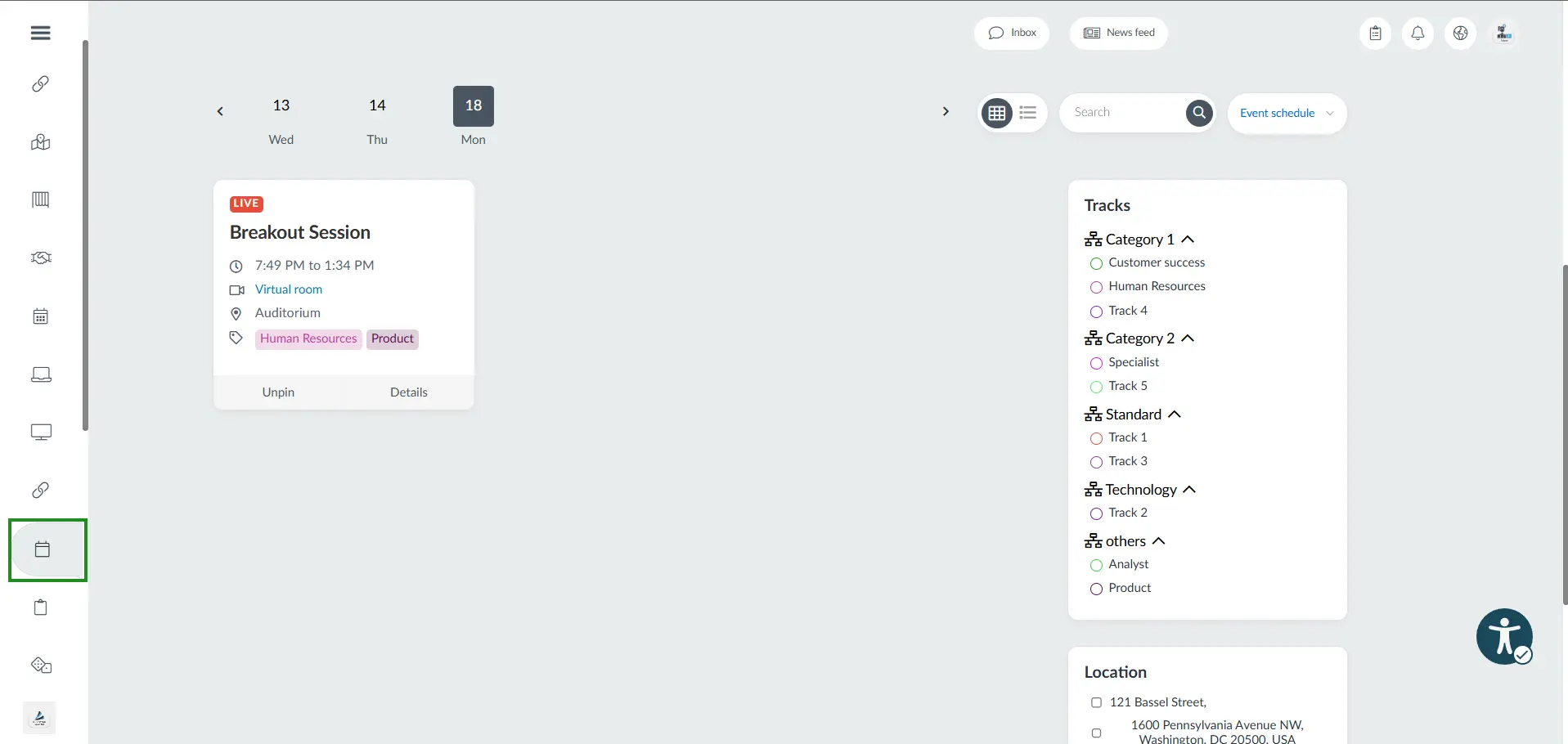
The My Agenda page allows you to view event activities and information about the event schedule. Refer to the My Agenda article for further information.
My App
On this page, you should find the download link to event's mobile app.
My Forms
On this page, you will see forms created by the event organizer. Refer to the Custom Forms article for further information.
My Files
On this page, you will see all event files. Refer to the Files and documents article for further information.
Accessing the Attendee Center
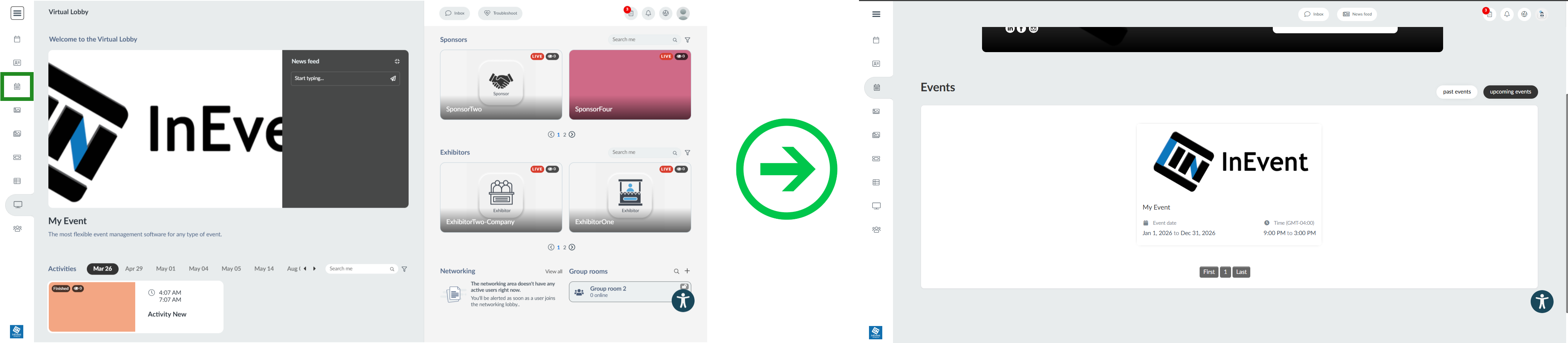
You can access the Attendee Center, including the My Account page, in multiple ways. You can immediately access it from the Virtual Lobby, and in addition, event organizers can provide more ways to access the page.
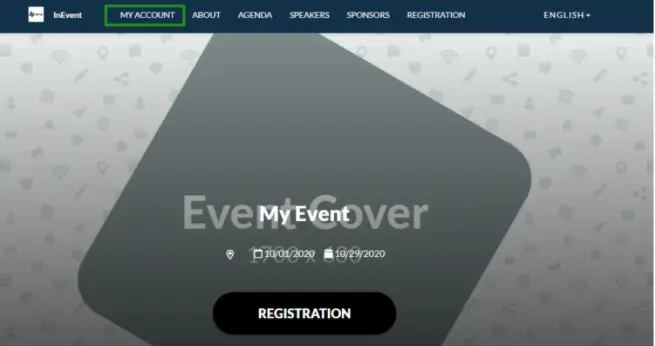
Through the website
It's possible for you to access the Attendee Center via the website if the event organizer has added the extra tab for My Account functionality.
Through email
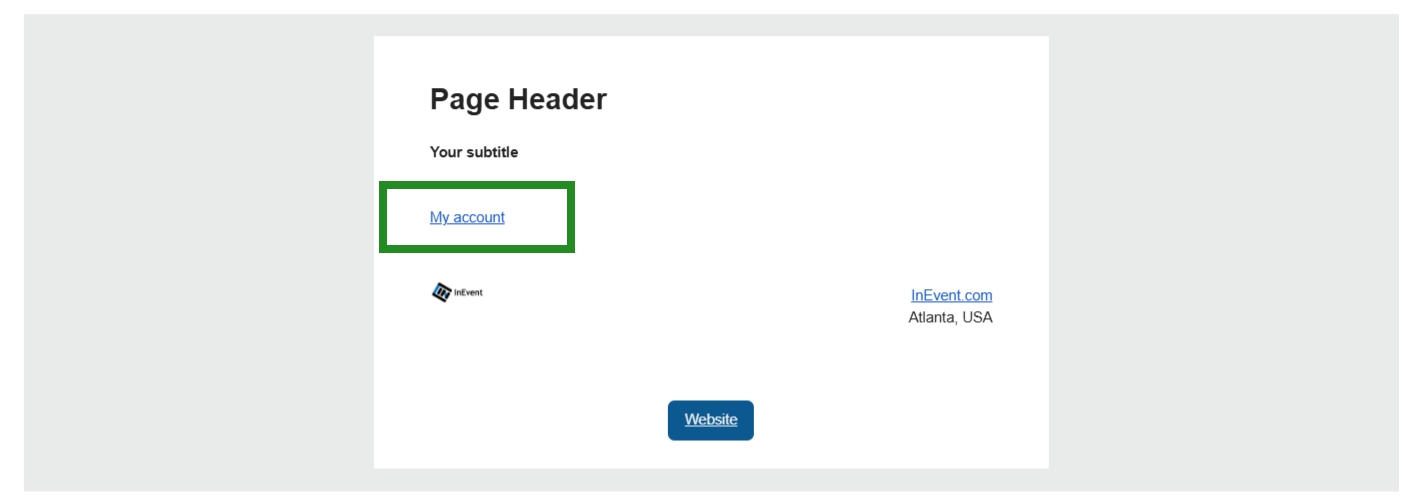
If the event organizer has added a dynamic link for My Account, you can access the Attendee Center via that link.