My Accout page
 Updated 1 hour ago
by
Chioma Okenwa
Updated 1 hour ago
by
Chioma Okenwa
The My Account page provides a central location where you can view and manage information associated with your attendee profile. This includes your personal information, social media links, website, tags, and responses to questions from the Registration Form. Depending on the settings configured by the event organizer, you may also be able to update some of this information directly from the page.
Accessing the My Account page
You can access the My Account page by clicking the three-line menu (☰) in the top-right corner of the web app, then selecting My Account.
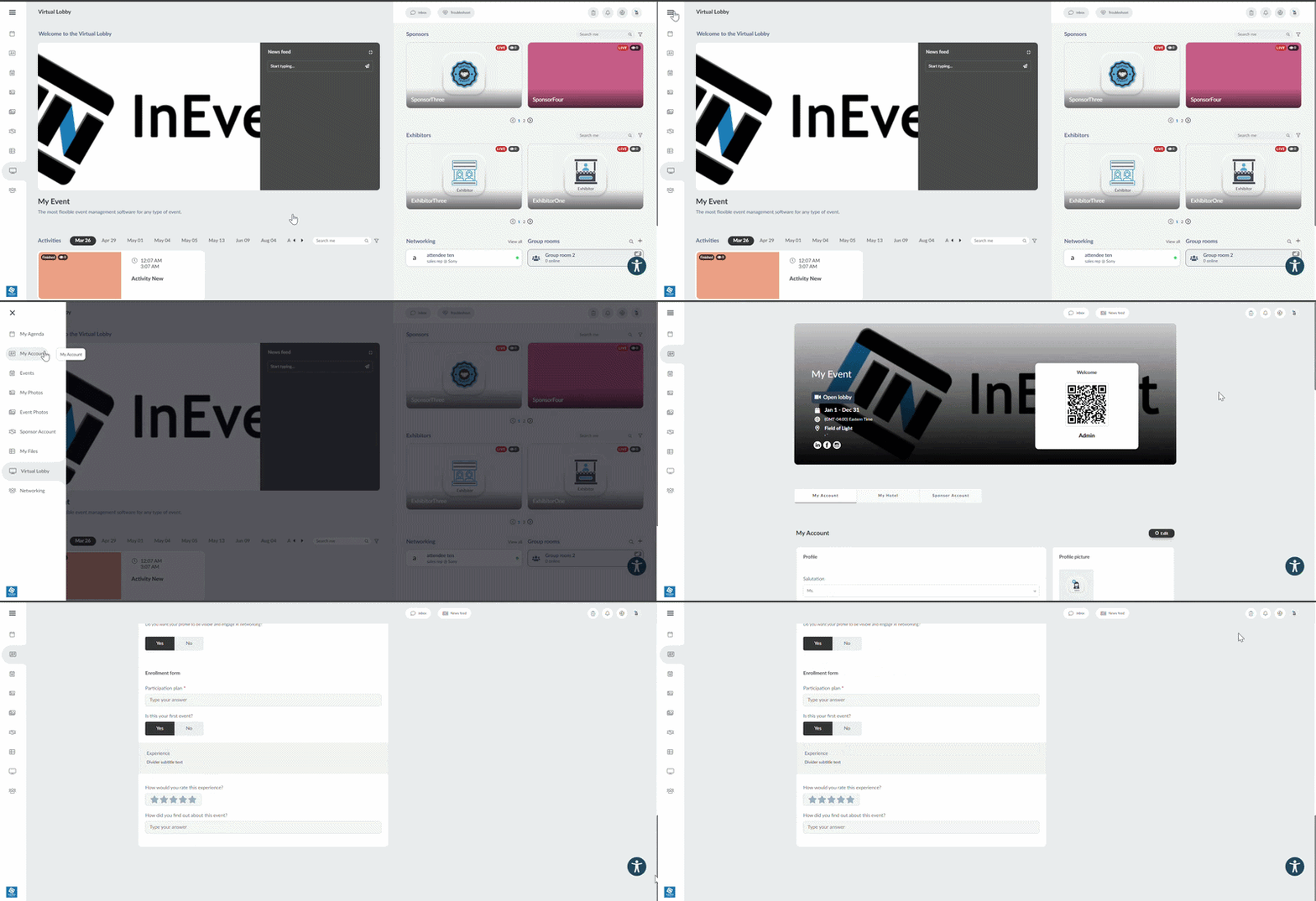
Actions available on the My Account page
On the left-hand side of the page, you can update your profile information provided during the registration process.
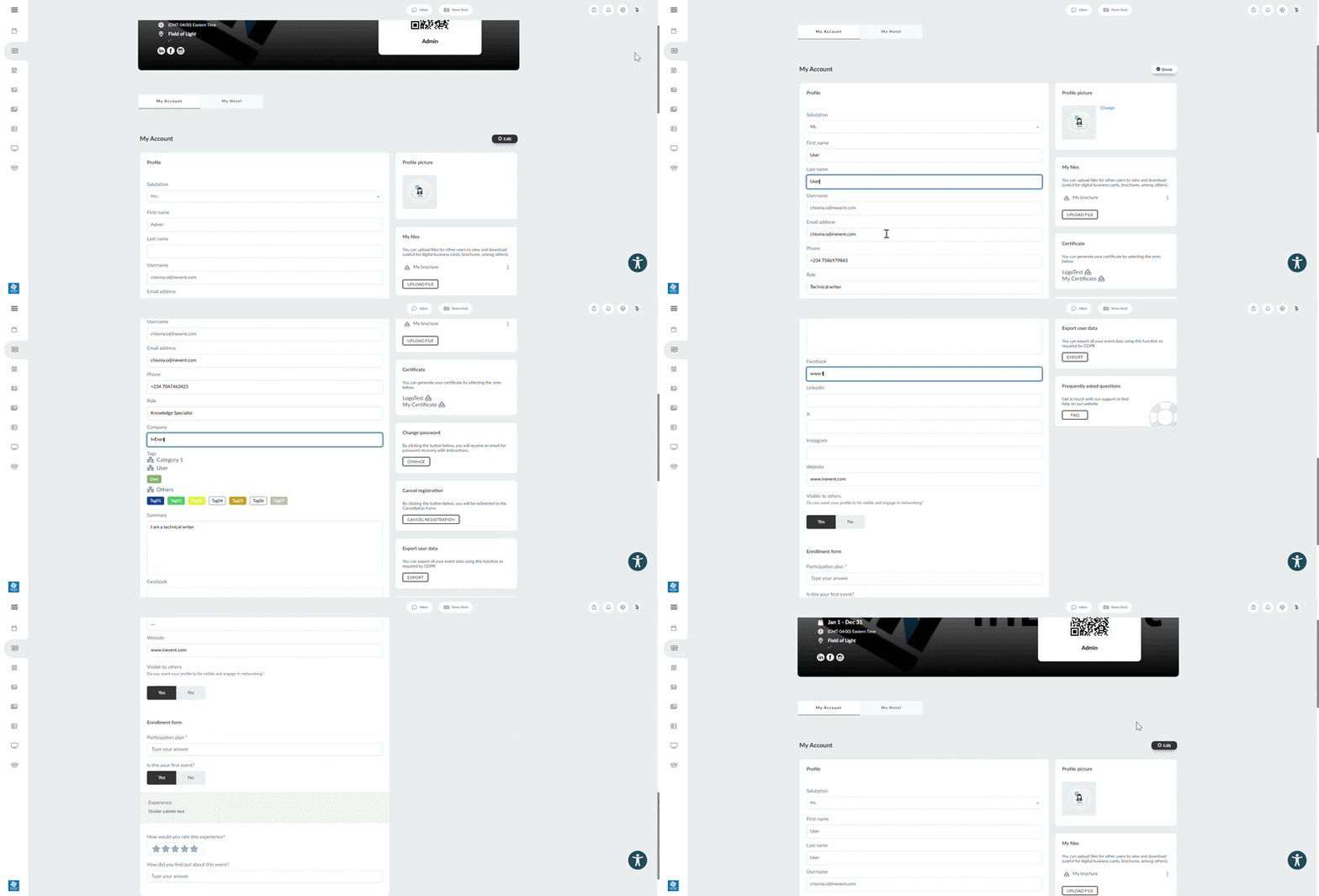
On the right-hand side you can:
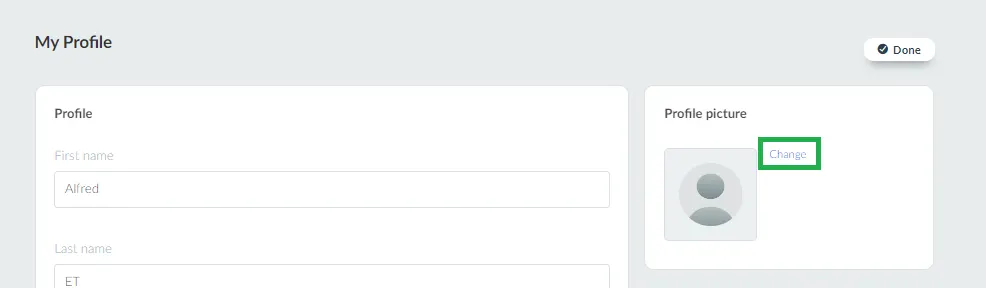
- Upload a profile picture by clicking on Edit, and pressing the Change button, then selecting a picture.
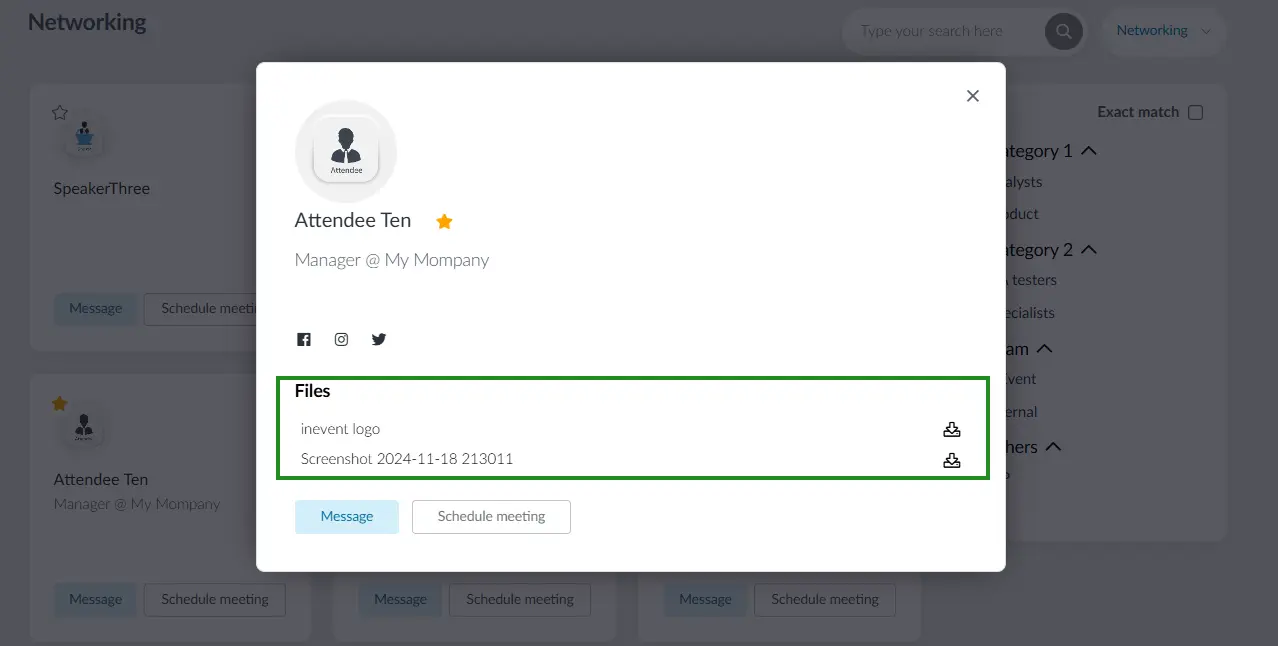
- Upload a file such as digital business cards, brochures, etc. for other users to view when networking. To upload a file, click on the UPLOAD FILE button. When uploading the file, you will be able to change the file name, then click on Create, to upload it. A download icon will appear for you to download the file once it is uploaded.
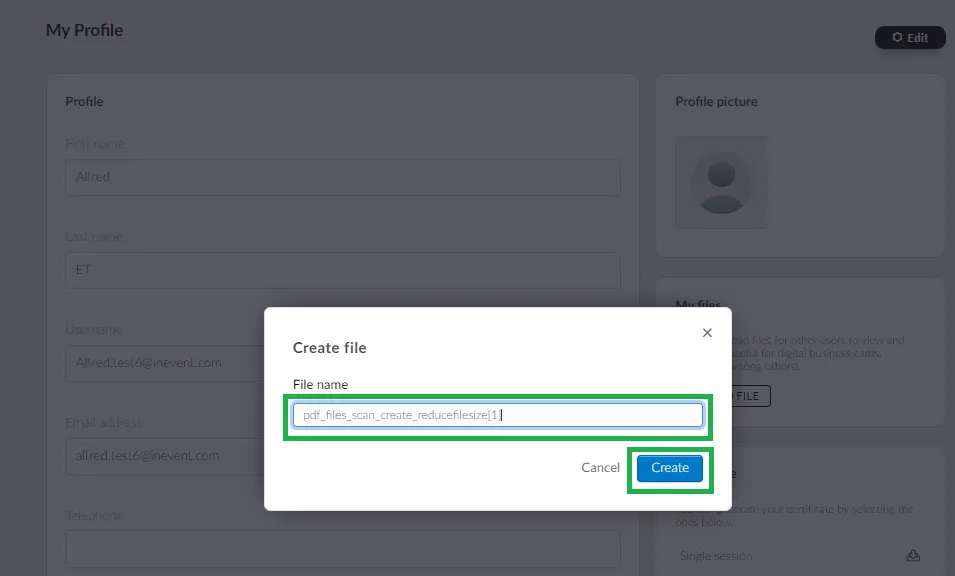
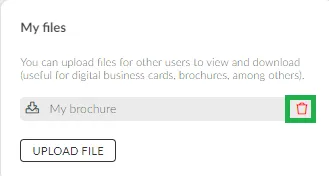
To delete a file after uploading, simply click on the trash icon beside the file.
- Download your certificate of attendance (if enabled). Refer to the Downloading the certificates from My Account article for more information.

- Change your password
- Cancel your registration to the event by clicking on the Cancel Registration button.
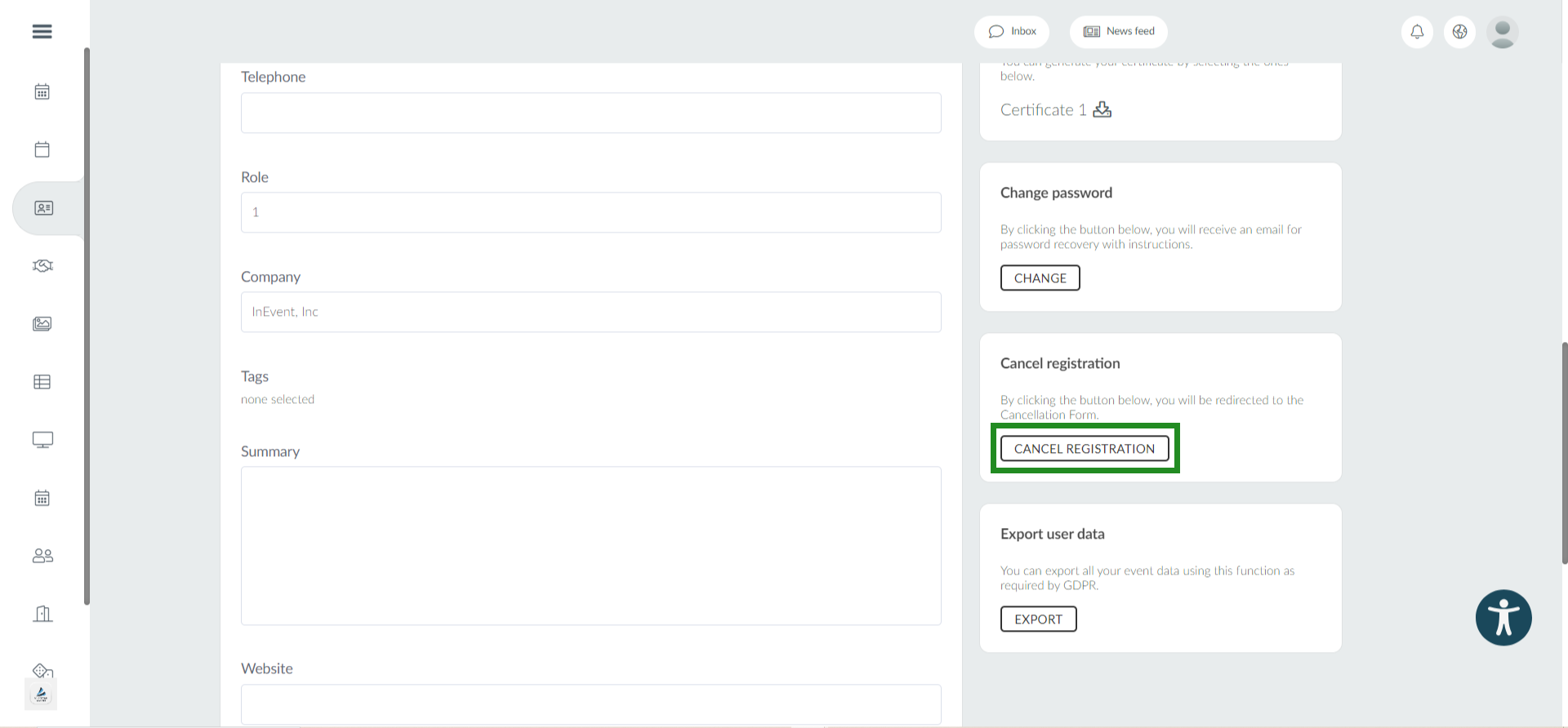
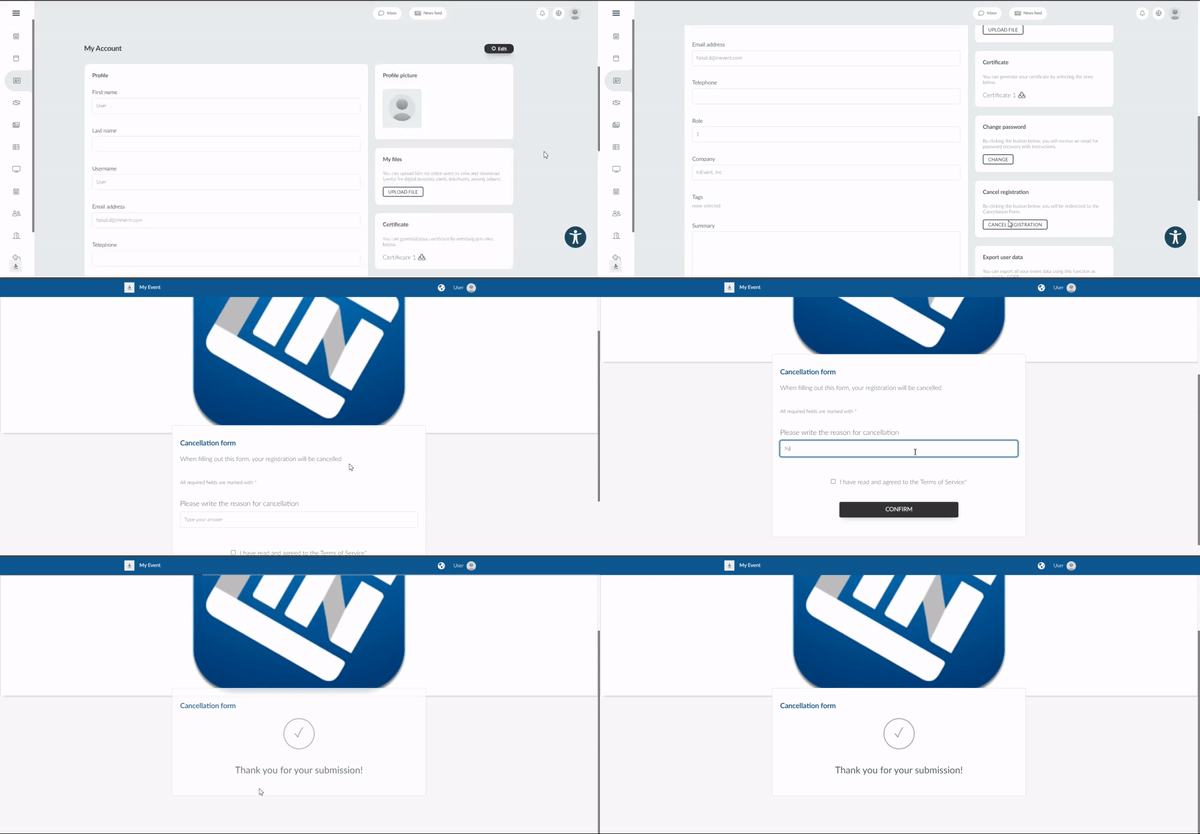
Once you click on the Cancel registration button, you will be redirected to the cancellation form where you can give the reason for cancellation and finally submit the form. You will be removed from th event immediately you submit the form.
- Export your user data pertaining to the event,
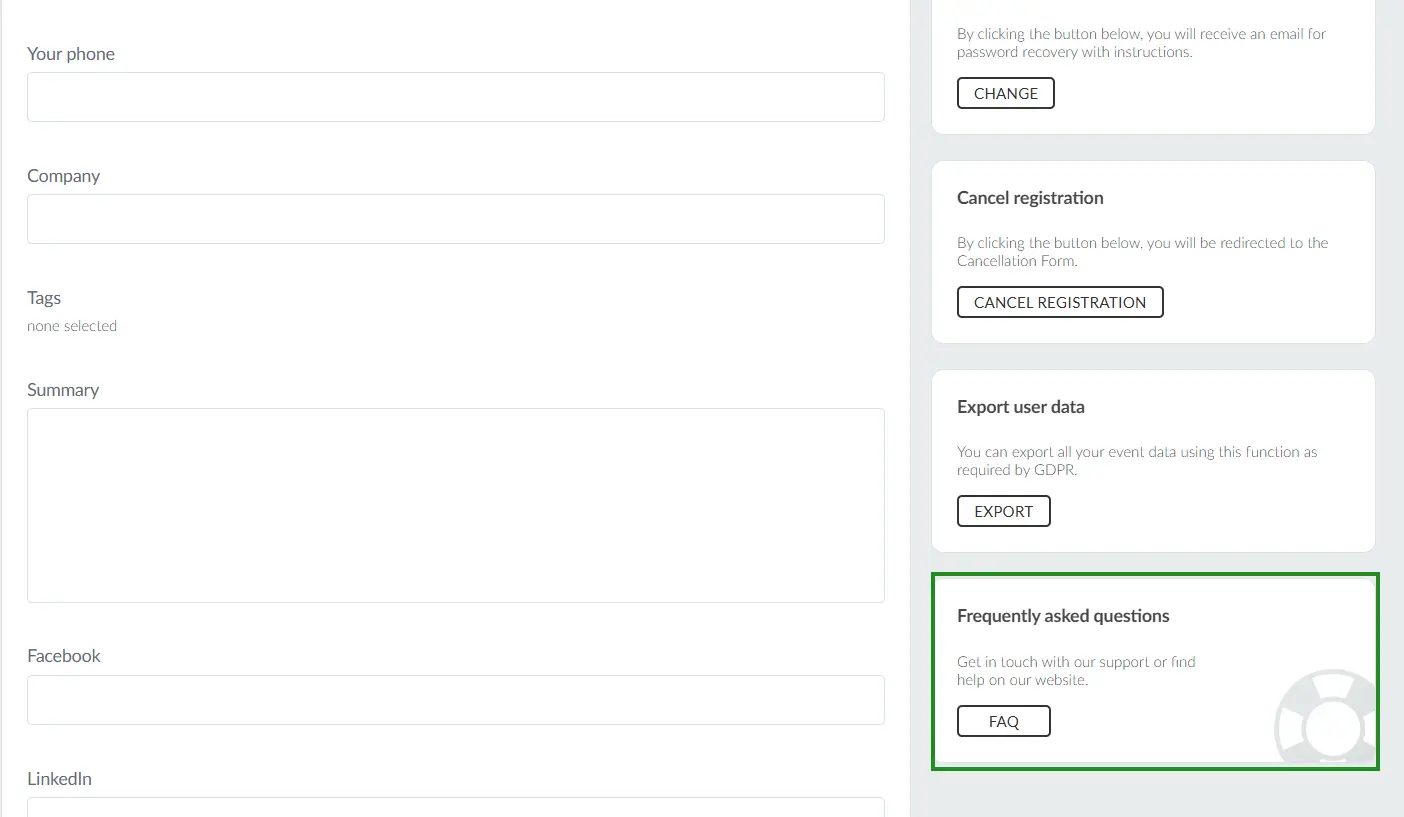
- Frequently asked questions: access the company's FAQ (if enabled).
Your uploaded file(s) will be displayed in the your networking profile in the Networking tab for other participants to download.
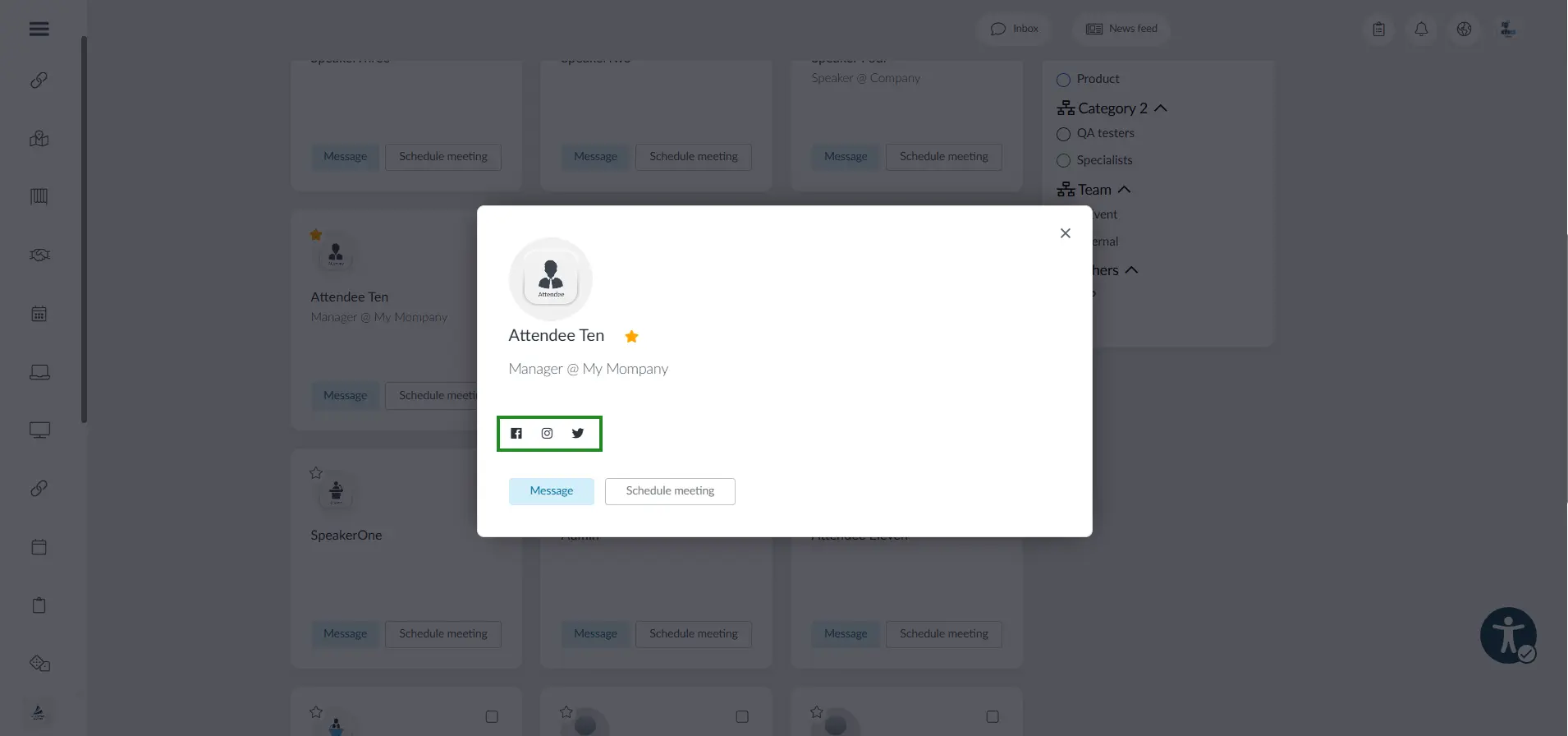
Social networks or website links added in the My Account area will be shown in your Networking profile.
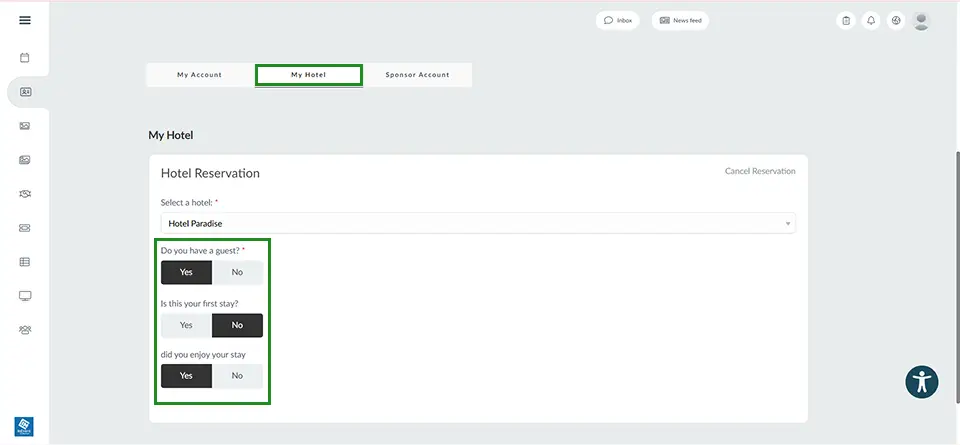
Viewing your hotel details
If hotel bookings are available for the event, you will be able to: to view your reservations, change or make reservations from the My hotel section.
- View your hotel reservation details (if already booked)
- Make a reservation or update hotel reservation (if permitted by the event settings).
- Complete any hotel form fields configured by the event organizer when creating or editing a reservation.
- Review the hotel's information, including check-in and check-out details, address, and other reservation details, depending on the event configuration.
Making hotel reservations
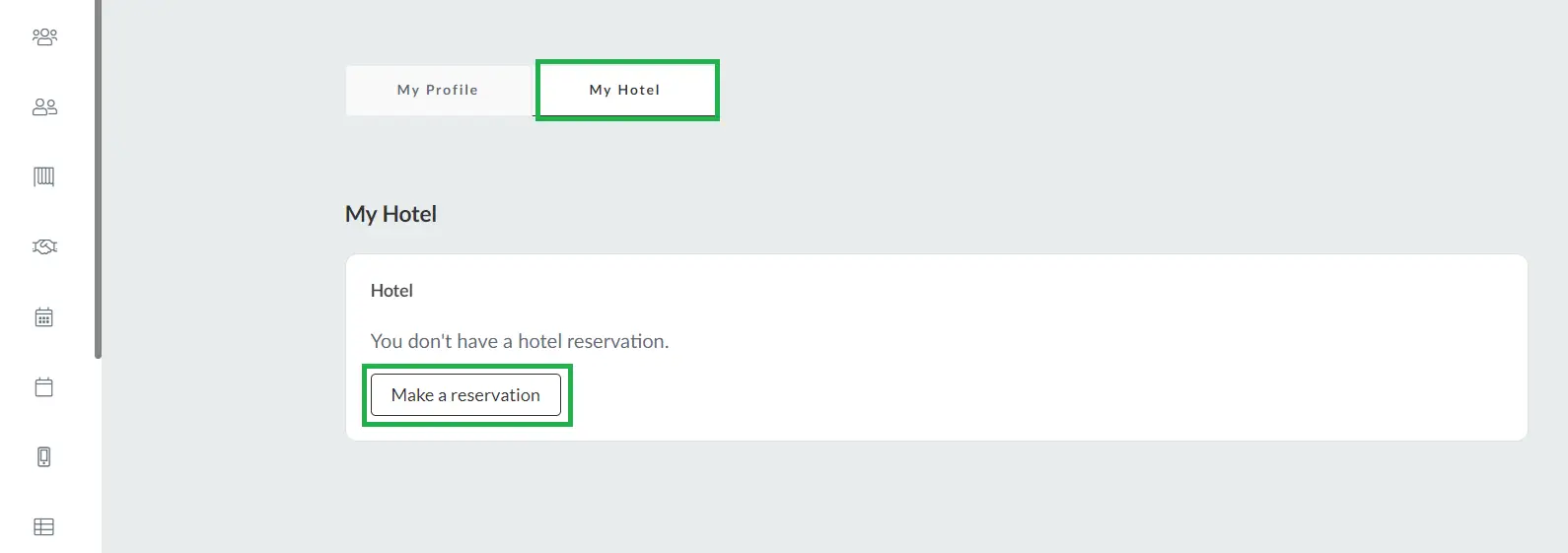
If you have not made a hotel reservation through the Registration Form and the event organizer has not made a reservation on your behalf, you can click Make a reservation to complete the hotel reservation process. Once completed, your hotel reservation details and confirmation will be displayed on the page.
Changing hotel reservations
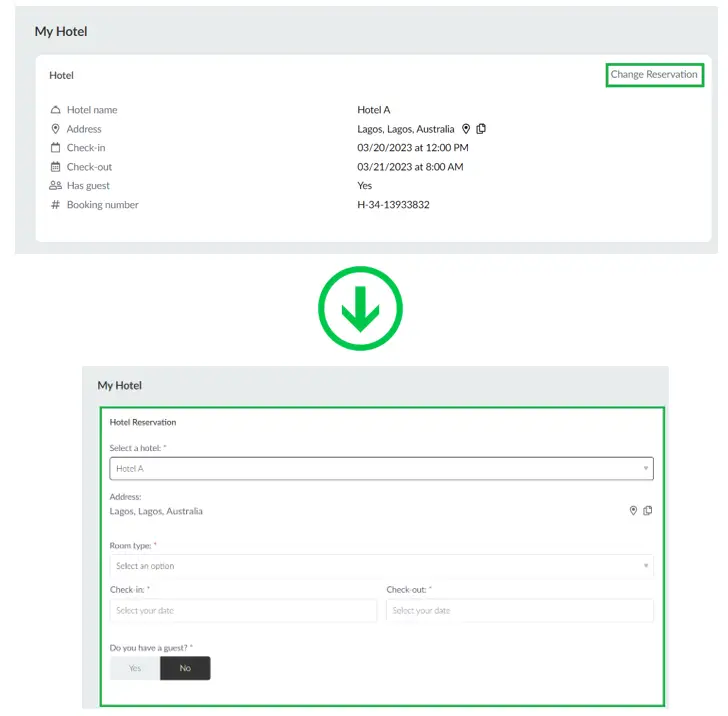
You can make changes to your reservations. To do so, click the Change Reservation button at the top left corner and make a new selection.
Adding your hotel reservation to your calendar
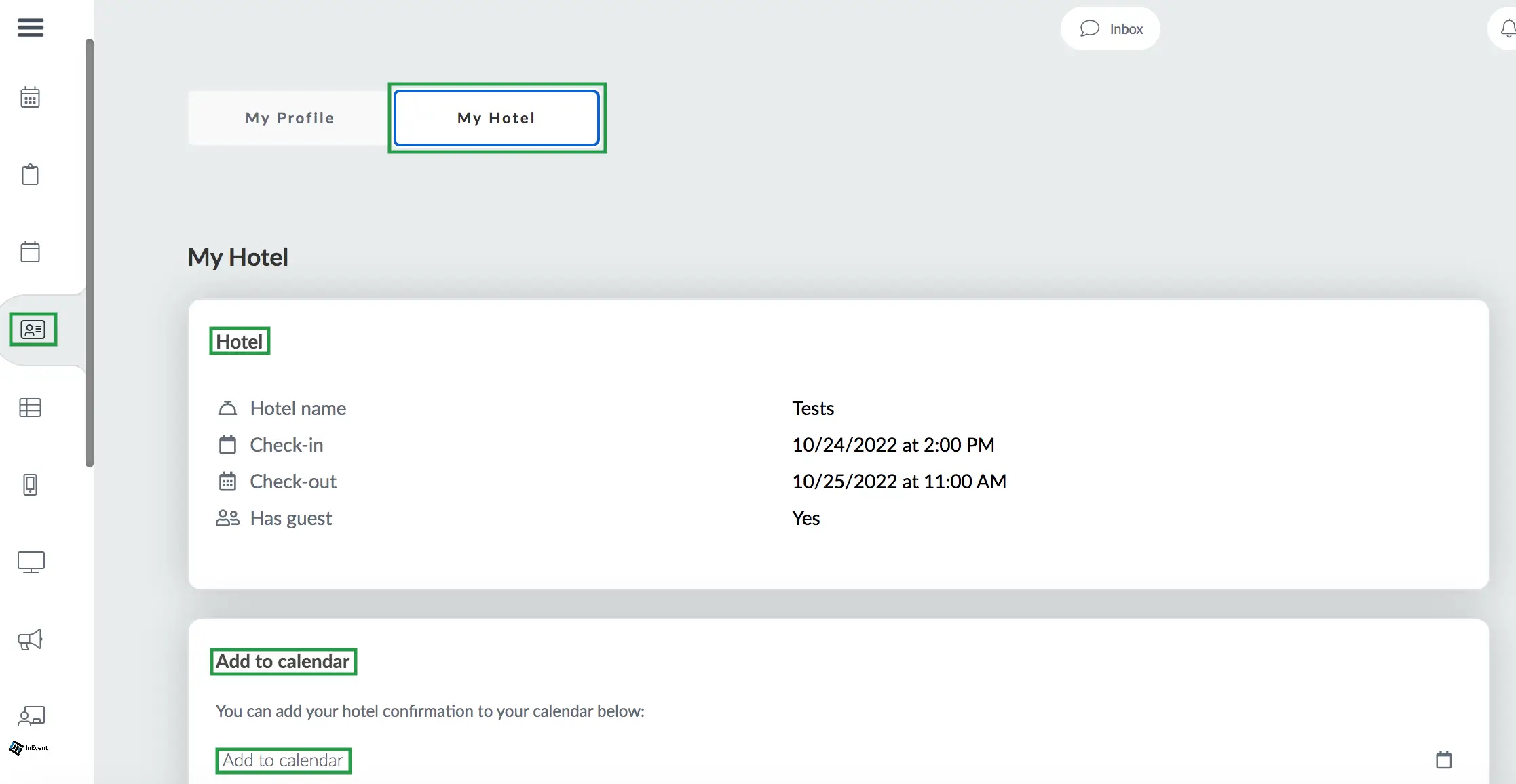
If or when attendees have made hotel reservations, they will be able to view their hotel information on the first section of the My Hotel page. They can also add the reservation to their calendar by clicking on Add to calendar in the second section below:
Downloading your hotel confirmation
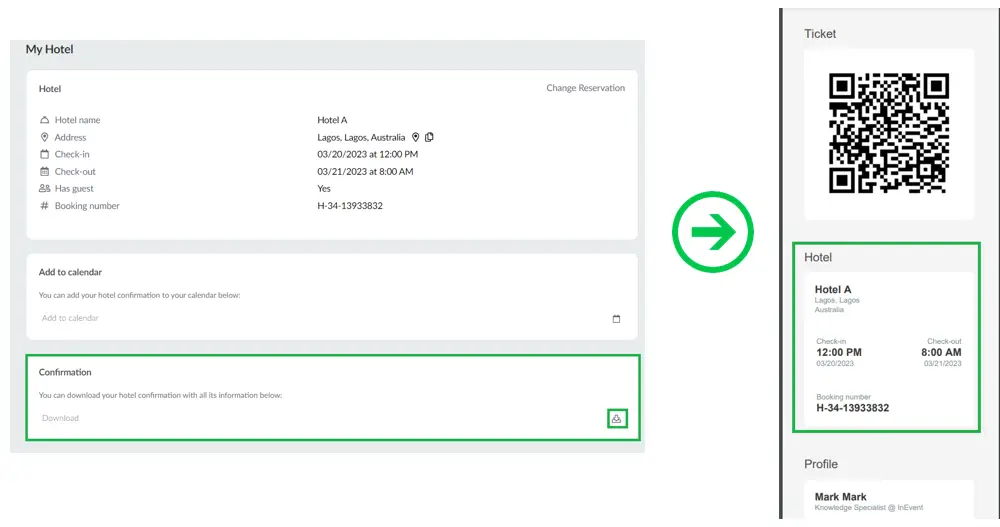
You can download your hotel confirmation by clicking on the Download button at the bottom right corner of the Confirmation section.
The hotel confirmation is your digital ticket voucher that will hold your hotel information - the name of hotel and address, the check-in and check-out date and time as well as the Booking number.
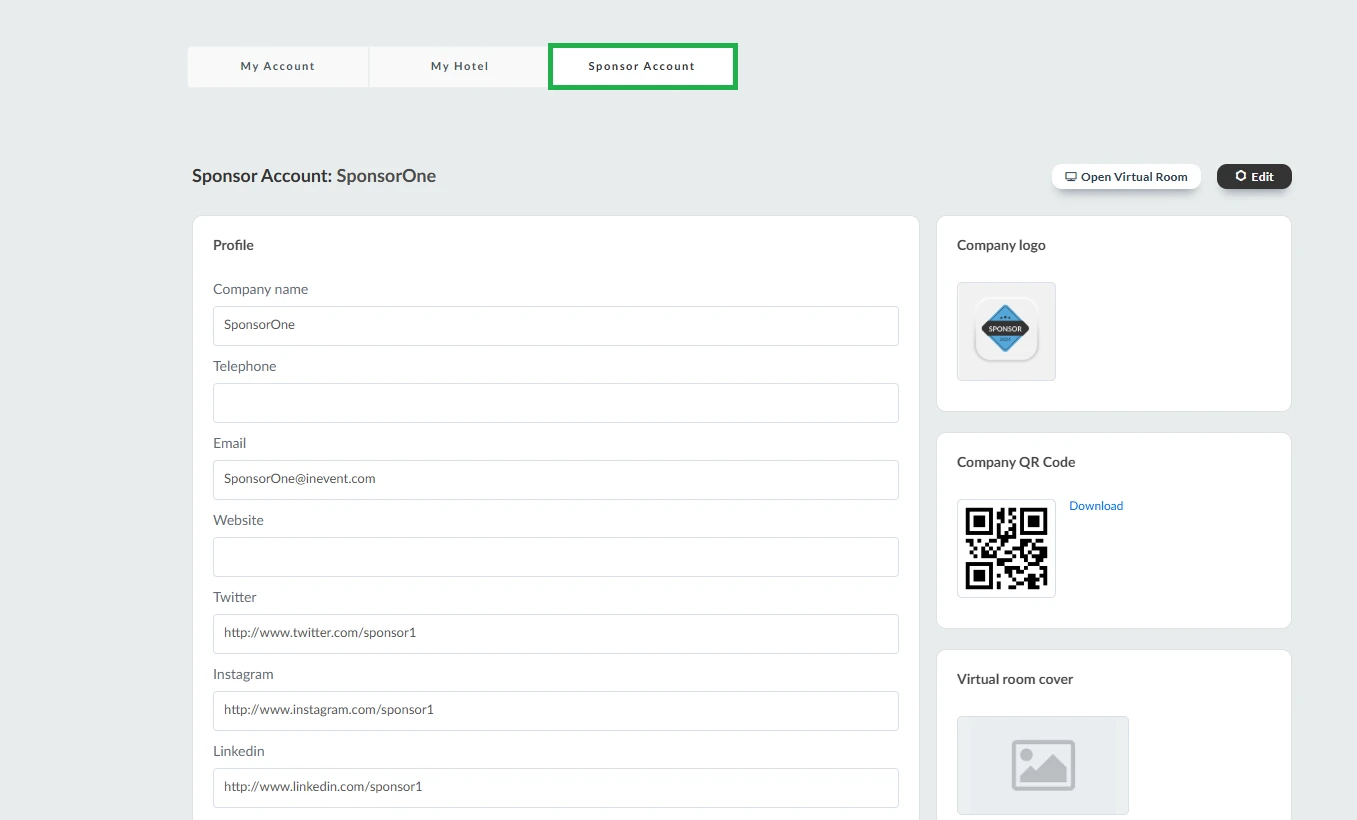
Sponsor account
If you are an attendee serving as a representative for a sponsor or exhibitor, you will see the Sponsor or Exhibitor Account section. This section gives you access to information related to the sponsor or exhibitor you represent. To learn more, refer to the Sponsor/Exhbitor accounts article.