Your Event App: white label process
 Updated 2 months ago
by
Lorenzo
Updated 2 months ago
by
Lorenzo
The visual identity of an enterprise or company is essential so it becomes a strong brand. InEvent platform allows the customization of images and colors in order for your company to have all the identity details reflected in the cloud and on the event app.
Starting the process
To begin, complete the following steps.
- Open a Google Play Developer account and an Apple Developer account.
- To learn how to open a Google play store account, refer to the Google Play Developer Account article.
- To learn how to open an Apple Business account, refer to the Apple Store - Business article.
- Fill in the App information in the Company Details page.
- Provide the required store images.
- Complete all Legal Information required.
- Choose which publishing method you wish to use as described in the App Publishing Methods article.
- The email store@inevent.com and password default should be added to both the company details page (for Google Play) and to the app account store to grant us admin access. You should follow this step-by-step: Adding users inside stores.
- For your Google Play Store details, ensure the JSON key is also entered in the Android specific field (for how to extract, see Adding users within stores ).
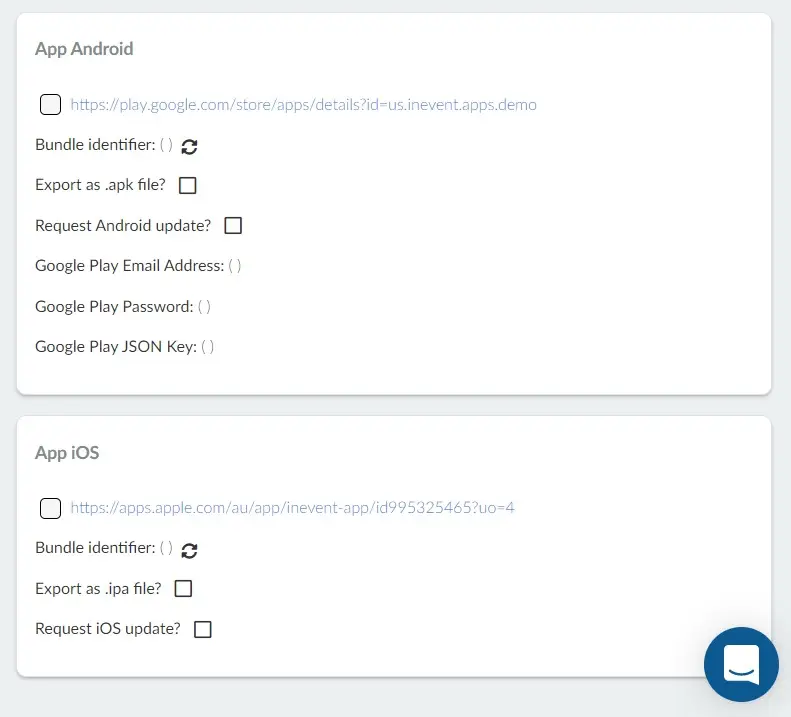
- Once this information is completed, tick the boxes for Request Android update and Request iOS update. When you are done, click End.
- Ensure you have prepared your event for approval on the Apple App Store.
- Two-factor authentication is a store security rule that customers are required to use depending on their store configuration.
Refer to the Apple Store - Business article for further information on two-factor authentication for the Apple Store.
Refer to the Google Play Developer Account article for further information on two-factor authentication for the Google Play Store.
App publishing time
Publishing an app via InEvent includes internal configuration, submission, and store review. The end-to-end process differs for initial submission and subsequent updates.
Initial app submission
The initial submission of an app takes up to:
- 25 business days on the Apple App Store
- 10 business days on the Google Play Store
This timeline includes all internal preparation, configuration, submission, and review until the app is approved and published.
Subsequent updates
Updates to an already published app (such as name changes, splash images, or color updates) take up to 5 business days, including internal processing, submission, and store review by Apple App Store and Google Play Store.
Tips for speeding up your app approval
- If you are an agency: Get your clients' signatures
Often the visual identity of the event is directly related to that of the contracting company. Both Apple and Google stores have strict rules regarding image use. You should get your client's image usage permissions.
- Create an event exclusive for this process
Your app will be submitted for the first time for publication, and may then undergo several updates over time. Therefore an event, for this approval purpose only, is required to be created. Setting up an event exclusively for this means you won't have to worry about updating content or access every time.
Refer to the In-store app approval on the Apple Store article for further information on in-store app approval.
App location
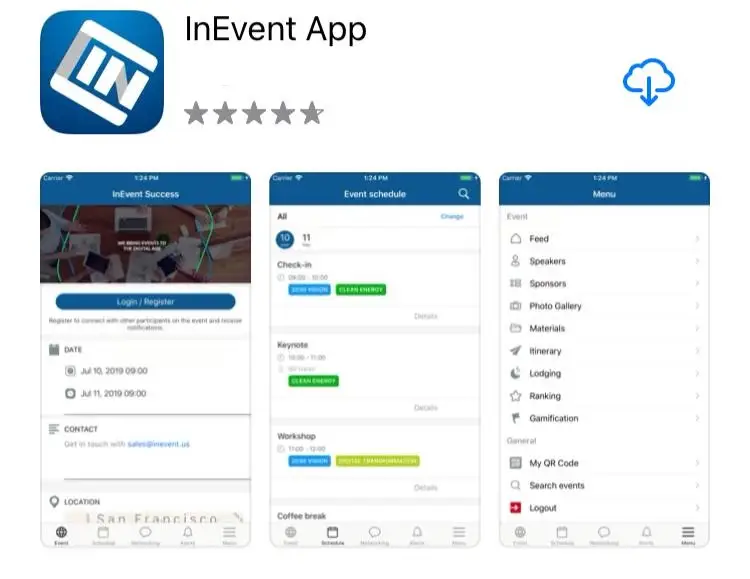
Your event app will be available from both Android and iOS platforms and can be accessed and downloaded for free from the app stores.
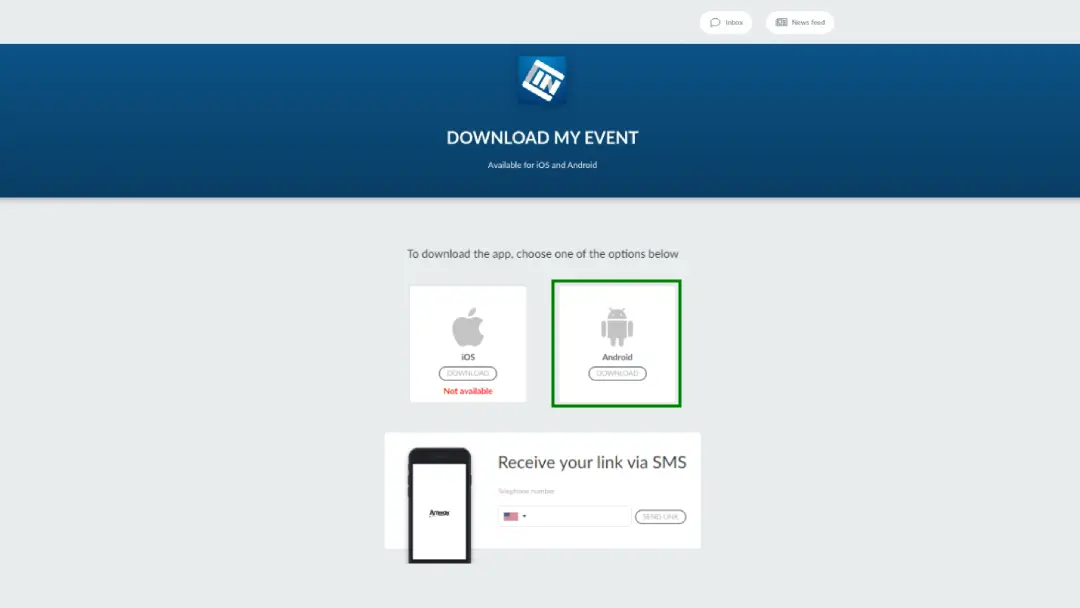
In addition, you may also need to update or refresh the app's bundle identifier in order for the app's download links to be correctly displayed on your website. You can do so by navigating to the App information section of the Company details page and clicking on the refresh button next to the Bundle information item under App Android and/or App iOS. Once you have done so, the app's download links will be visible and accessible on the app landing page. Below is an example of how the page will look like, with the Android app being available to download.
Removing the application's welcome message
The app's default welcome message is Discover an even more inspiring experience during the event!
If you'd like to remove it, access the company details and disable Initial flow should be available, as shown below:

Skipping the login page on the app
The InEvent application requires the attendee to be authenticated to have access to the event. Therefore, we suggest that a simplified form of login, such as single sign-up, is used.
Refer to the Login through the app article to learn more about the login options that we offer.
Does the app have a cost?
No, there is no charge for the app, nor does it have any in-app purchases.
Recovering participants passwords
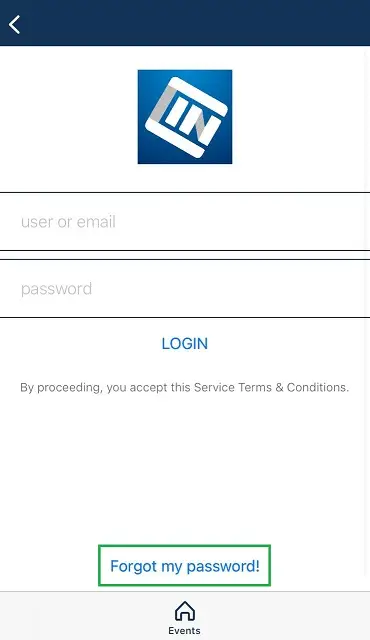
At the login screen of the app, you will find a Forgot my password! link. Click on it to reset the password.
Access the How do I recover my password? article to find out other ways for attendees to recover their passwords.
