Exporting attendee reports
 Updated 4 hours ago
by
Chioma Okenwa
InEvent allows you to generate attendee reports which provide an overview of your event participants and their registration information, activities, and interactions. You can review the available report fields and export attendee data for analysis or record-keeping.
Exporting attendee reports
You can generate standard, custom, and automated attendee reports. You can choose the information to include, organize report columns, and schedule reports you want generated regularly.
Generating automated attendee reports
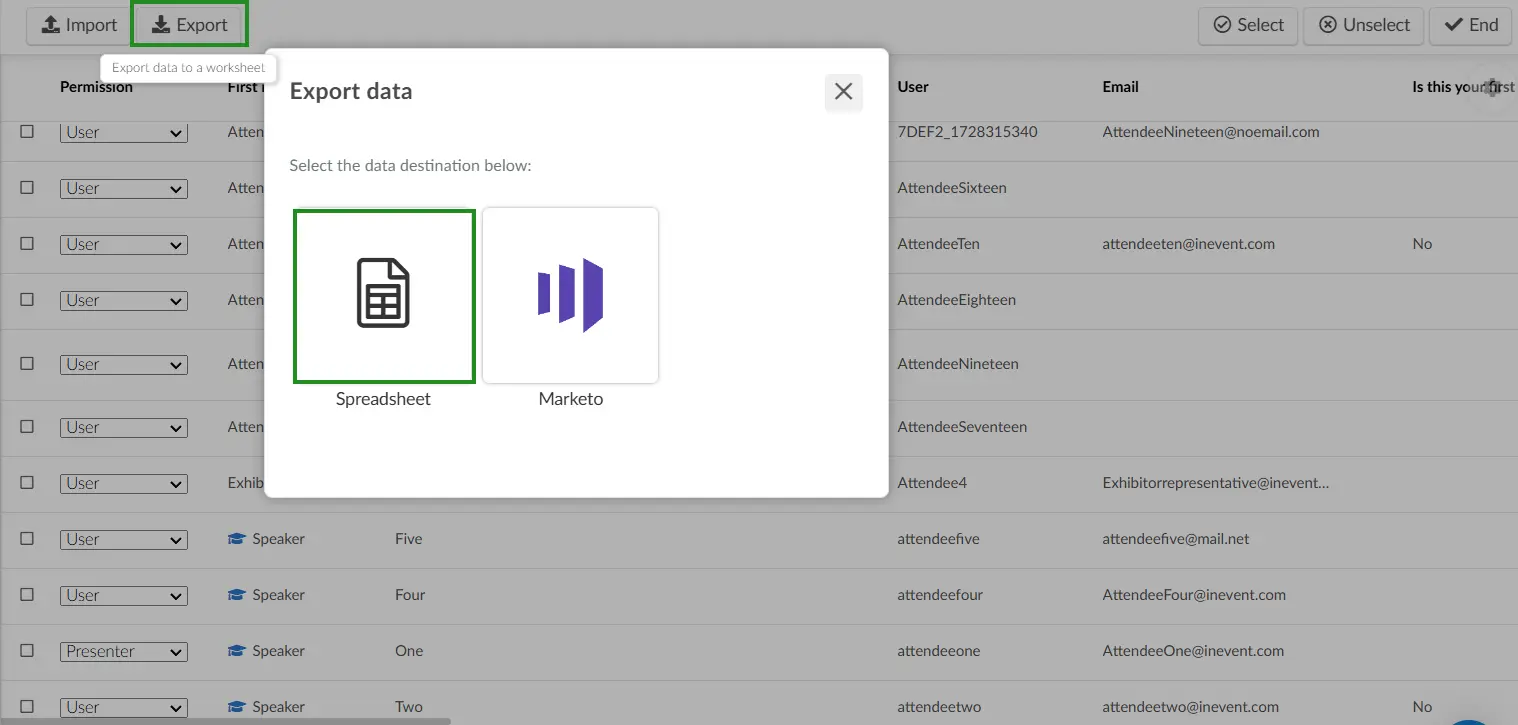
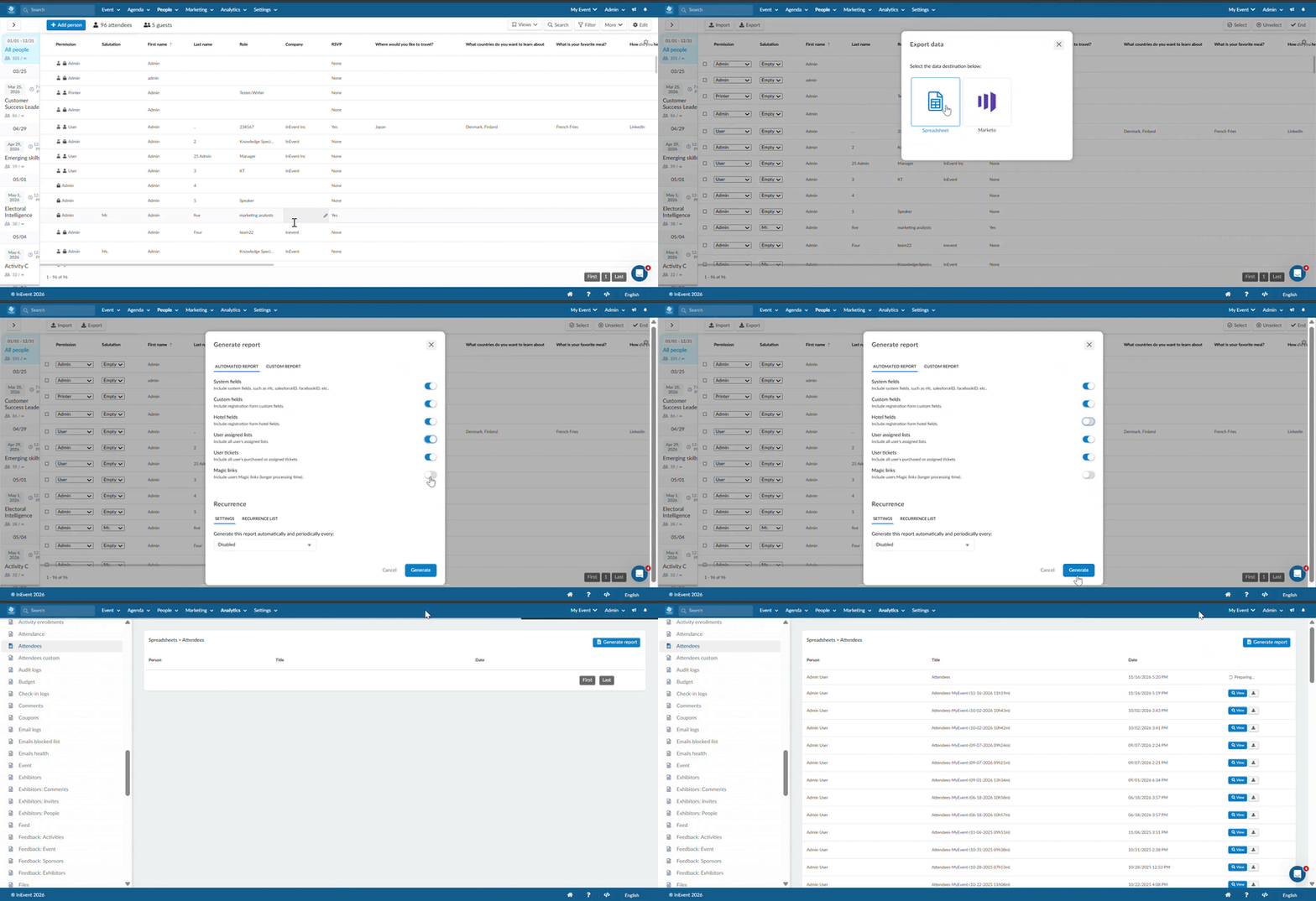
To generate an automated attendee report:
- Go to People > Attendees.
- Click Edit.
- Select Report.
- Choose Spreadsheet.
- Select the report types you want to generate.
- Click Generate.
Available report types include:
- System fields: Contains predefined fields such as NFC, SalesforceID, and FacebookID, profile picture (image) URLs associated with each attendee.
- Custom fields: This field is usually selected by default. It contains attendees' answers to custom questions on the Registration form.
- Hotel fields: Include your attendees' answers to custom questions on the Registration form. These may include details such as hotel name, check-in and check-out dates, and booking number.
- User activities: Shows all the activity sessions the user has enrolled in the event.
- User assigned lists: Inchudes the lists in which your attendees belong.
- User tickets: Includes all attendees' purchased or assigned tickets. This is enabled by default.
- Magic links: Includes the attendee's magic links.
Once the report is ready, the platform sends it to your email address. Alternatively, you can click Download on the notification banner. The platform will redirect you to the Attendees section of the All reports page, from where you can preview and download the spreadsheet.
Creating custom attendee reports
Custom reports allow you to choose the specific attendee information you want to include.
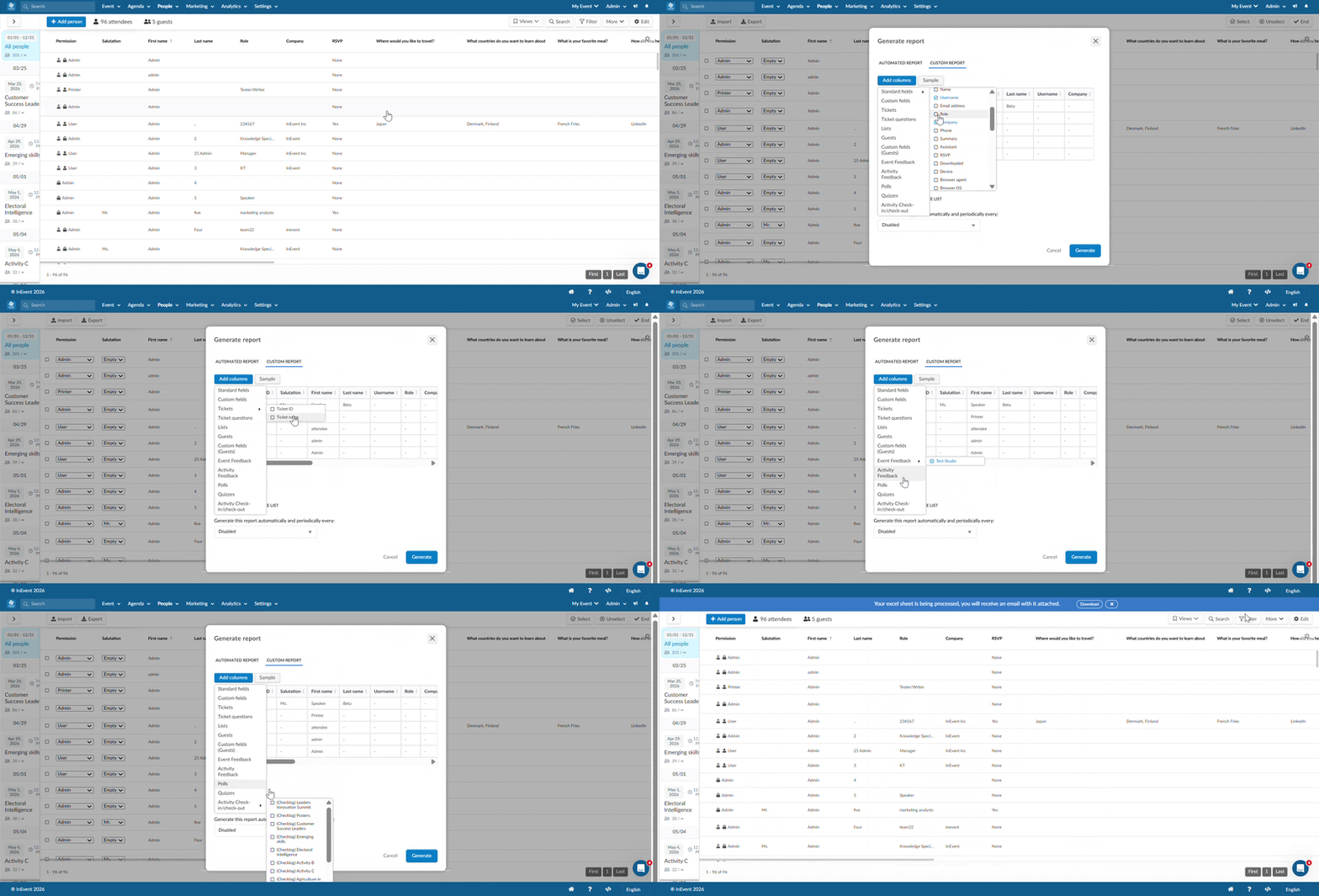
To create a custom report on the Attendees page:
- Click Edit.
- Select Export.
- Select Custom report.
- Click Add columns to select the information you want to include.
- Click Generate to generate the report.
Available report columns are:
- Standard fields: This includes attendees' standard fields, such as personal information, user picture, business information, social media information, QR code, and magic link.
- Custom fields: Includes the custom questions that you added to your registration form.
- Tickets: Includes the tickets' ID and name.
- Tickets questions: Includes ticket related questions.
- Lists: Includes static and dynamic lists.
- Guests: Includes guest information, such as name and email.
- Custom fields (Guests): includes custom fields added to the guest form.
- Event Feedback: Includes feedback associated with the Event.
- Activity Feedback: Includes feedback associated with a specific activity or if you wish to add all the activities' feedbacks, you can use the Select all button.
- Polls: Includes activities' polls which will display the attendees' answers when added.
- Quiz: Includes activities' quizzes'category which will display the attendees' answers when added.
- Activity check-in/check-out: Includes checklog status of the selected activities.
You can preview the report before generating it. To customize the layout, drag the column headers into your preferred order. You can also sort the information by selecting the relevant column.
Creating recurring attendee reports
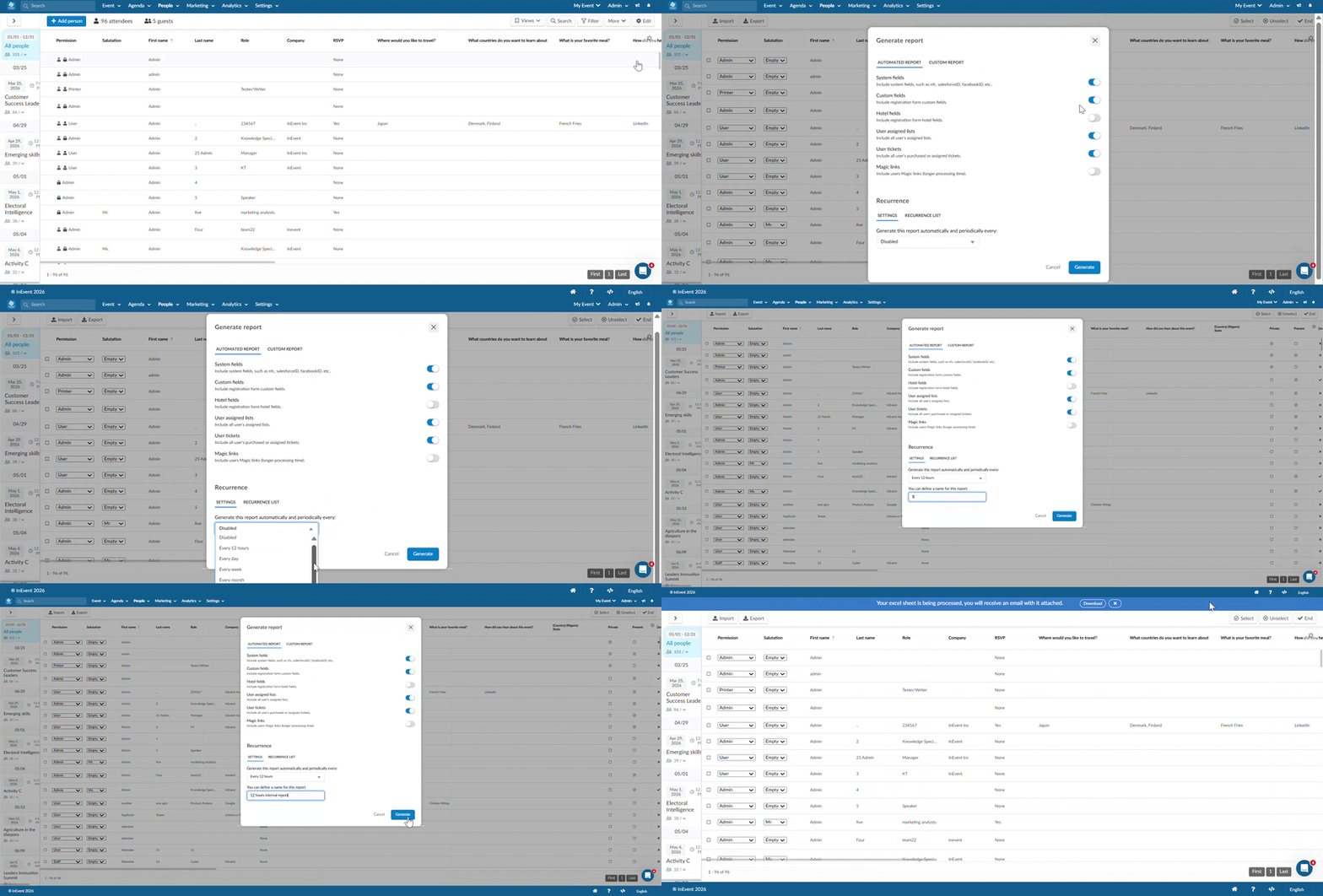
You can schedule attendee reports to be generated automatically at regular intervals.
To create a recurring report:
- On the Attendees page, click Edit.
- Select Report.
- Choose the report you want to generate.
- Select the recurrence interval.
- Enter a name for the report.
- Click Generate.
Available recurrence intervals include:
- Every 12 hours
- Daily
- Weekly
- Monthly
- Custom intervals
Managing recurring reports
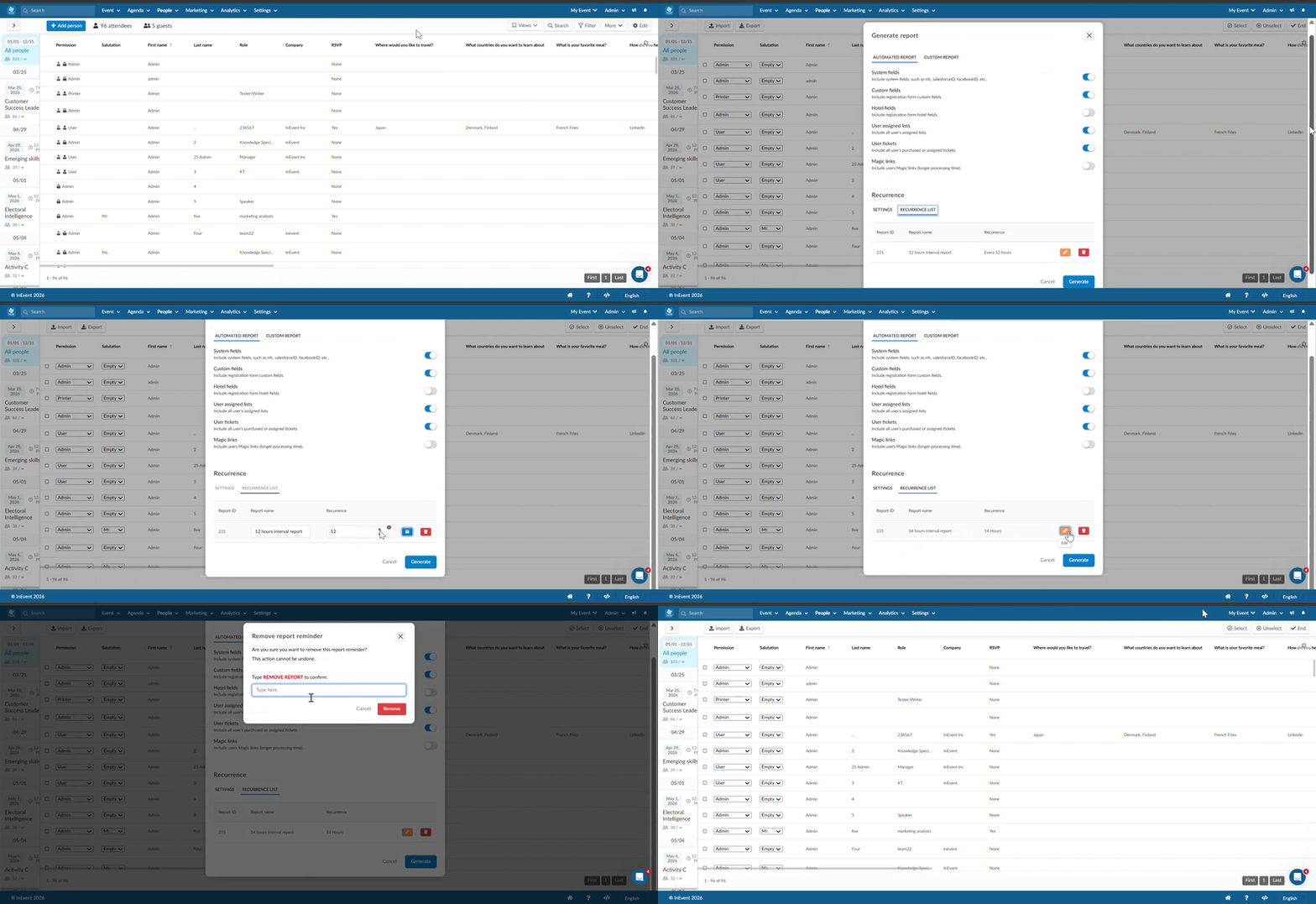
You can view and manage your scheduled reports from the Recurrence List.
- Edit a report: Click the orange edit icon, make your changes, and save using the blue button.
- Delete a report: Click the red delete icon. Enter REMOVE REPORT to confirm, then click Remove.