InEvent Neo app: Guide for event organizers
 Updated 1 hour ago
by
Amalia
Updated 1 hour ago
by
Amalia
The InEvent Neo app enhances engagement and boosts connections for event attendees. The app facilitates user agenda management, News Feed for sharing important event information, collection of feedback with surveys and live Q&A, and more.
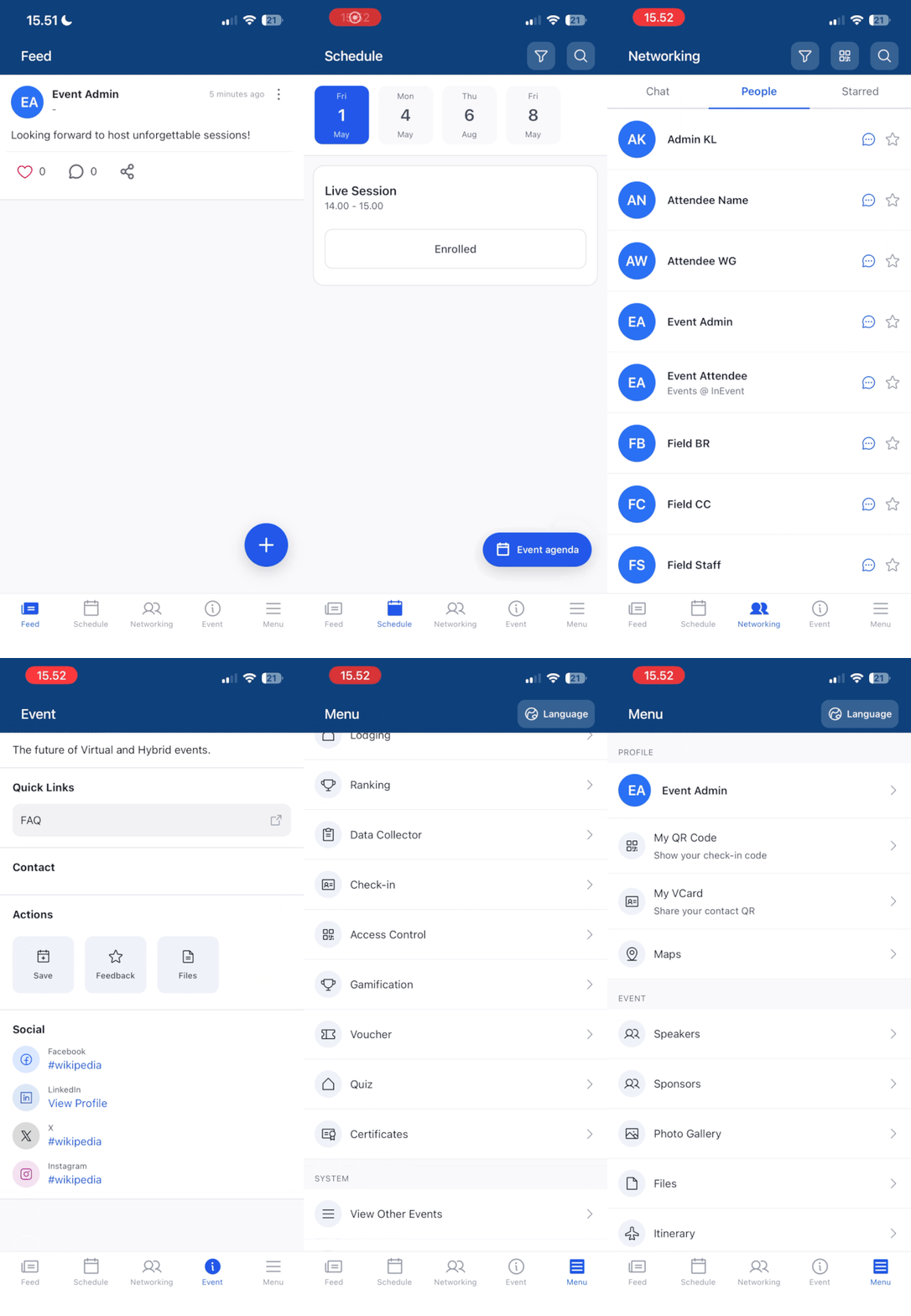
Comparing the InEvent Neo app vs White-label app
InEvent provides its own mobile app and provides a white-label app option for event organizers. There are several key differences between the two, as listed below.
InEvent App | White-label app | |
Timeline process | Ready for download and to be customized | Requires a Business Account on the related mobile app stores. The publishing process can take up to 10 business days on the Google Play Store and 25 business days on the Apple App Store. |
Cost | No extra fee will be charged | To host an app, the Apple Store charges an annual fee of $99, and the Google Play Store charges a one-time fee of $25 which you pay when you publish your first app. |
Customization | Color theme, tabs, and headings | Application name, description, color theme, store icon, splash image, tabs, and headings |
Login | Region selector, 5 digit code, username or email, and password | Username or email and password |
Download | Downloadable from app stores as InEvent App | Downloadable from app stores under event organizer-defined app name |
For further information on white-label app, refer to our Your Event App: white label process article.
Key features of the mobile app
The InEvent mobile app offers the following key features and functionalities to ensure event organizers and attendees have a smooth event experience.
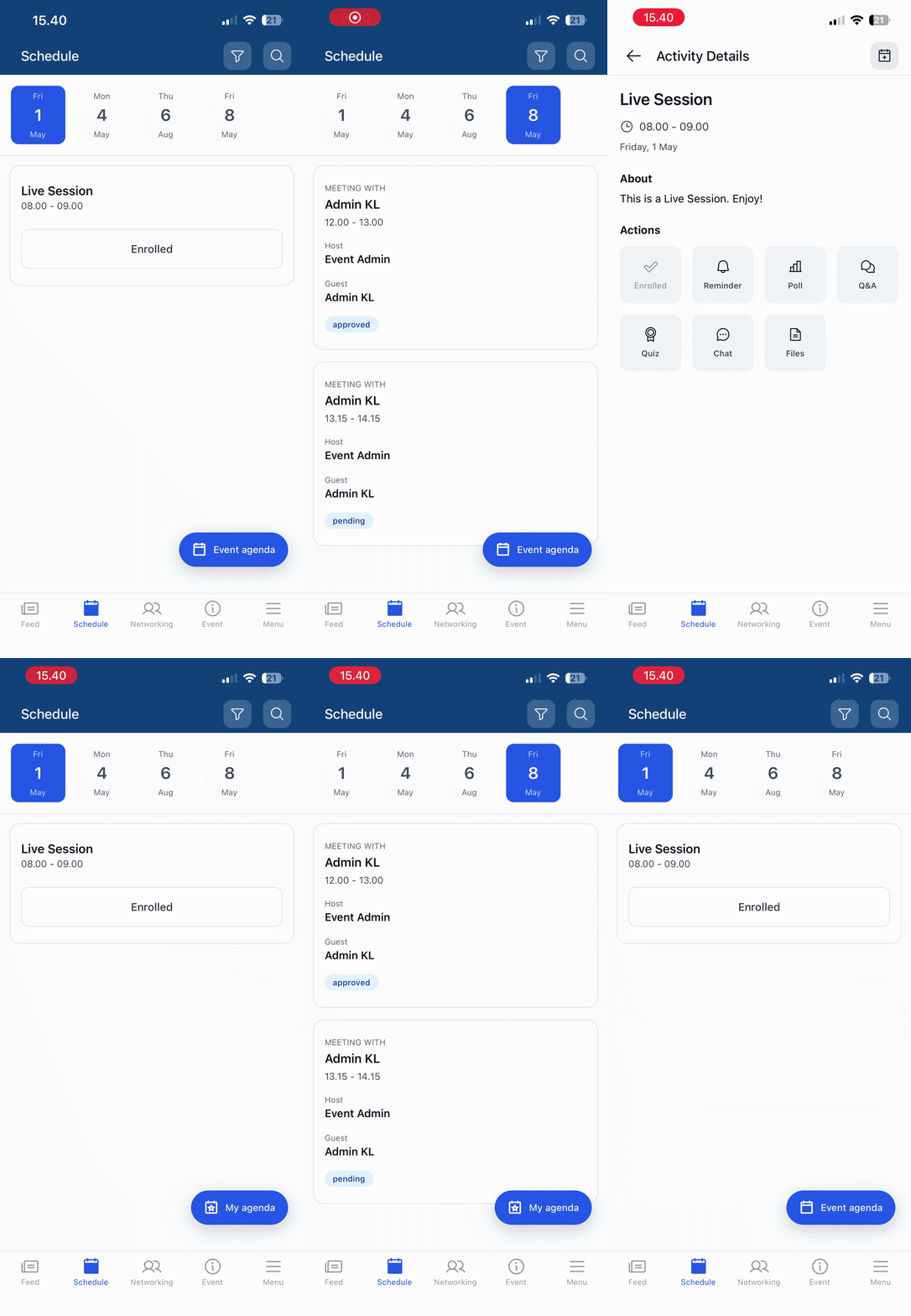
Agenda
The mobile app provides attendees with a quick, simple way to view the event's agenda. They can quickly see all activities, along with their dates and times. Tap an activity to view its details, including its description, speakers, sponsors, exhibitors, and other relevant information.
Interactions
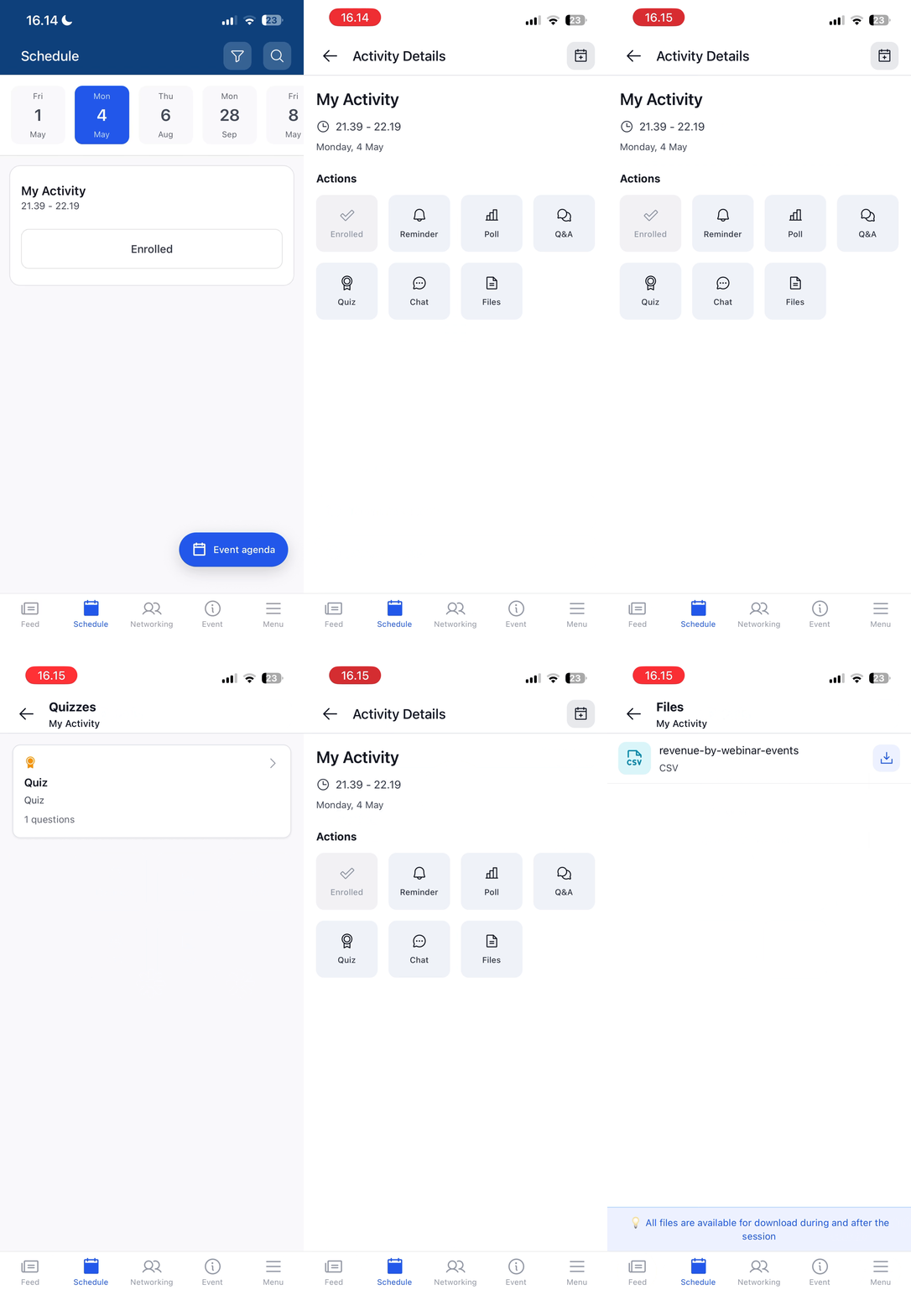
Users who are enrolled in activities can easily ask and reply Questions, answer Polls, view Files, and comment in the Chat directly from the mobile app. This allows for easy monitoring, managing, and responding to real-time interactions within sessions. In addition, users can also set reminders for activities to ensure they do not miss any sessions.
Notifications
Event organizers can share information with attendees at any time using real-time push notifications. These are unlimited and can be sent to all attendees or targeted to specific groups, which helps improve communication on-the-go.
Photo gallery & News feed
Attendees can view the event's Photo Gallery and post on the News Feed. This feature is especially useful if you integrate the event with your Social Media.
Networking
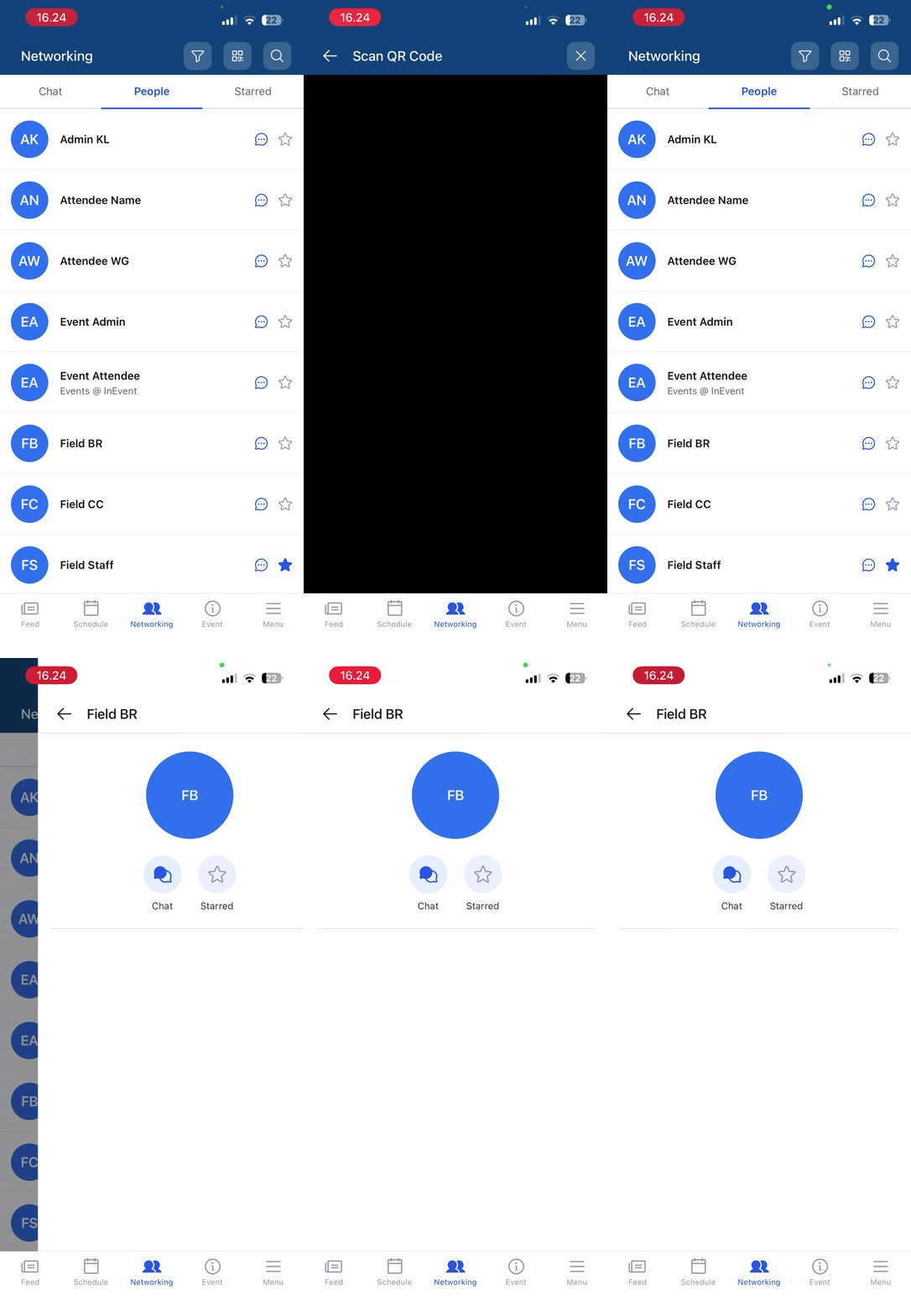
The InEvent App provides an easy and practical way to boost engagement and interaction among attendees. Users can look up public user profiles within the event and message them directly from within the InEvent Neo app.
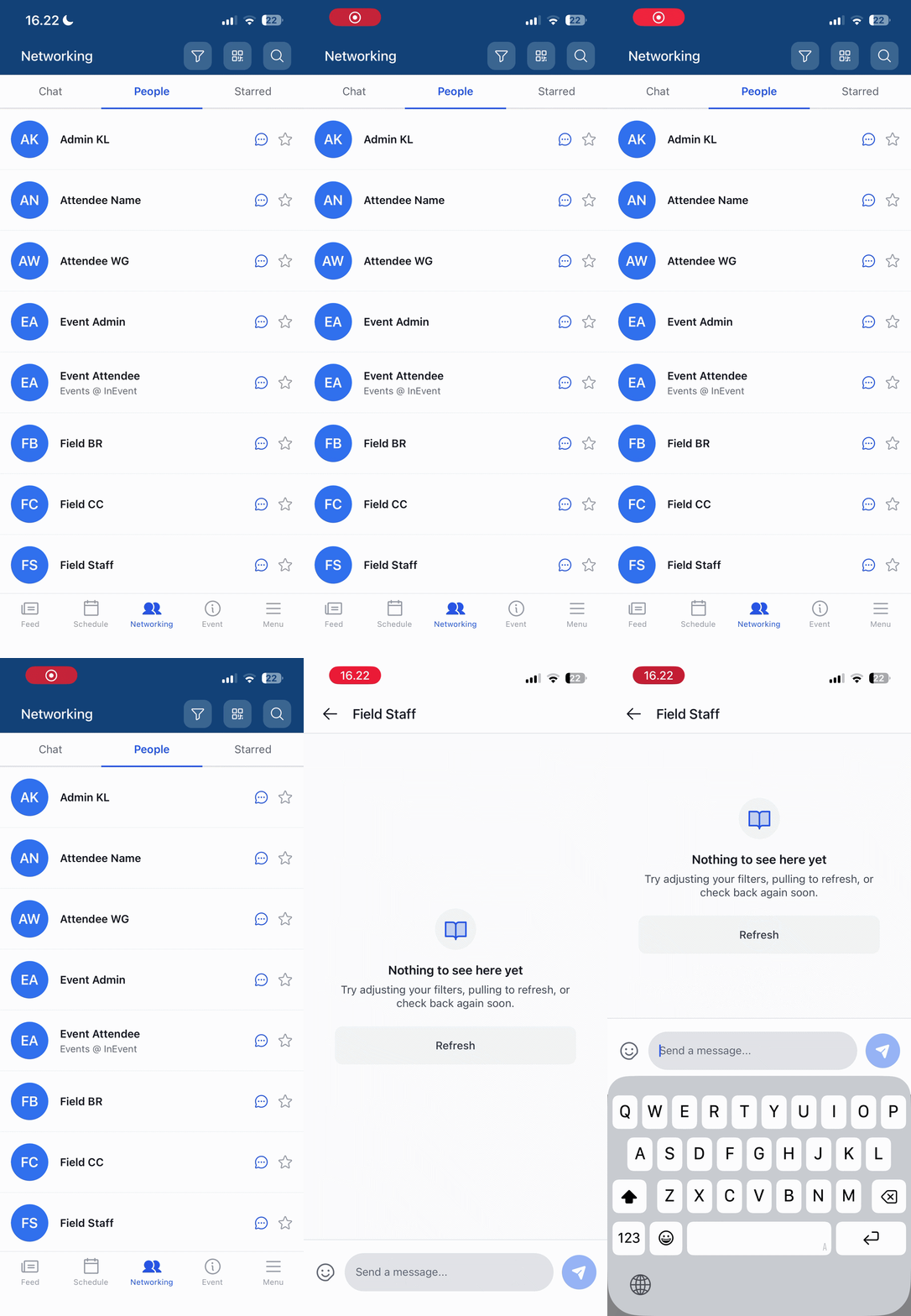
In addition, users can also scan other user's badges to quickly open their profile within the InEvent Neo app. This is especially convenient for in-person or hybrid events with a large amount of attendees, where attendees are provided with printed badges with their QR codes included.
Event Maps
Event organizers can create customized venue maps to help attendees locate session rooms, booths, and facilities smoothly. The maps will also be displayed in the mobile app.
Quiz
When holding activities in in-person events, event organizers may want to engage and interact further with attendees. Quiz is a great way to facilitate this need, and to enhance the experience for both sides, attendees can interact with any activity quizzes created through the platform directly from the mobile app.
Gamification
Event organizers can create fun, task-based activities for attendees to complete.
Sponsored ads
Highlights your sponsors' brands with full-screen ads in the event app. Ads are customizable, and you can display different sponsors a different number of times. For more information on sponsored ads, refer to our article on creating ads for the app & Virtual Lobby.
Check-ins and badge printing
In-person events benefit greatly from a quick and streamlined check-in process. Moreover, InEvent's check-in system integrates with the custom badges solution, which automatically unique badges upon attendee check-in.
Offline Sync
If the internet connection is unstable, the device and app will store the information if it was not able to sync. When the connection resumes, it will sync automatically, but you can also to force the app to update if you are connected and it has pending requests that have not synced automatically.
Downloading the app
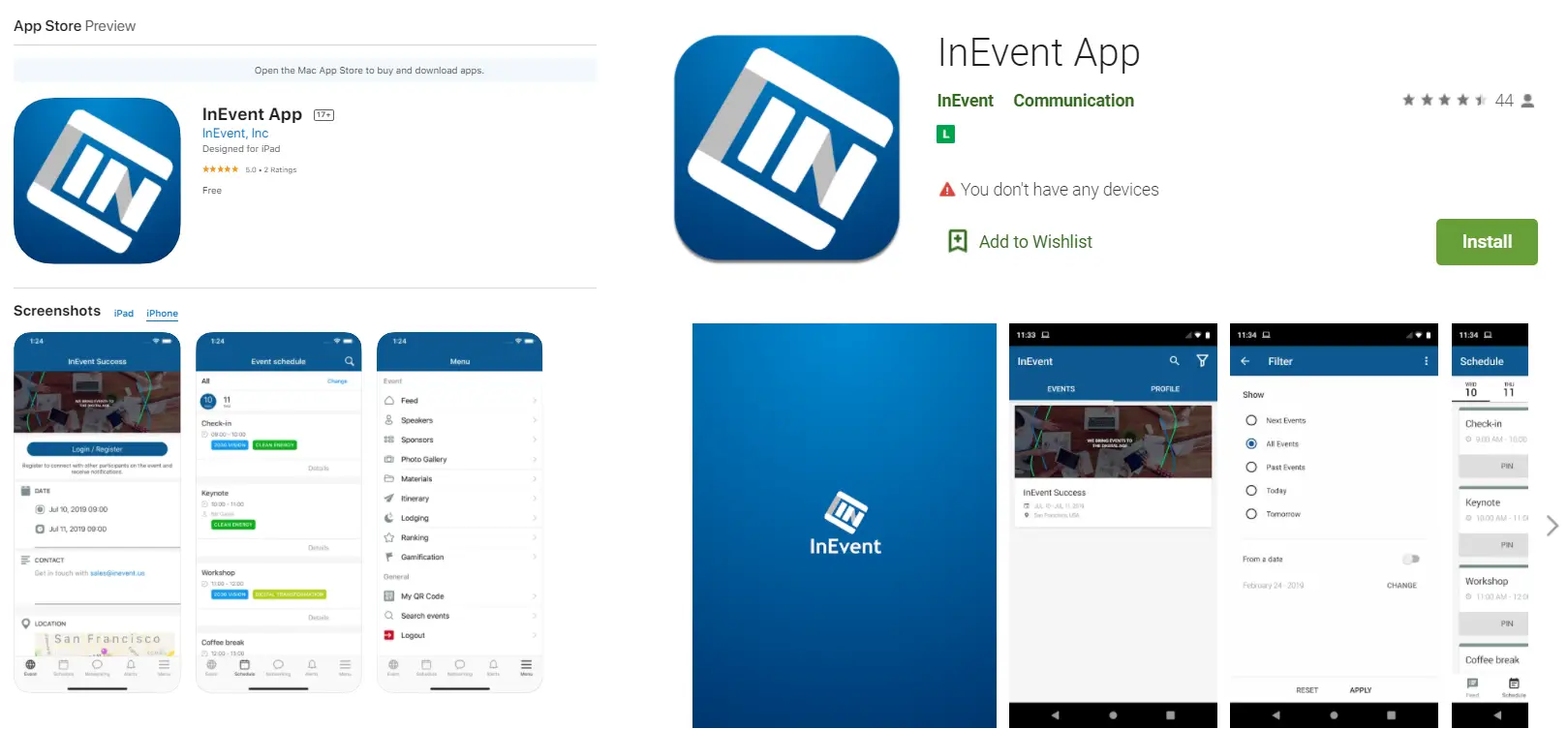
The InEvent mobile app is downloadable from the Apple App Store or Google Play Store, depending on the device model.
Login through the app
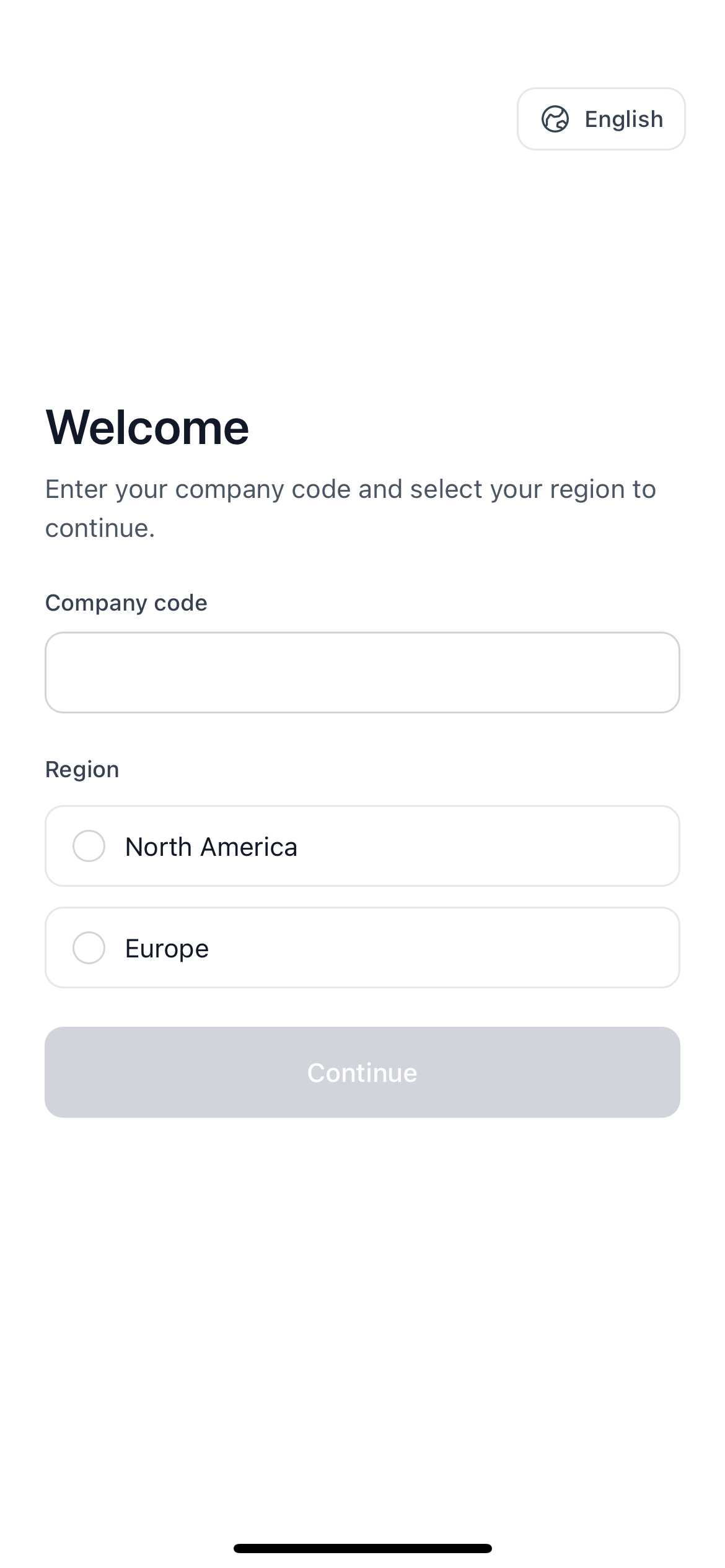
Upon launching the app, app users will be asked to Select the access region and to enter a five-digit code. Event organizers must share the region and five-digit code information to app users, as they will be unable to access the event otherwise.
After successfully selecting the region and entering the five-digit code, app users will be directed to the Events Directory. They can log in by tapping the Login button at the bottom of the page and completing their login details.
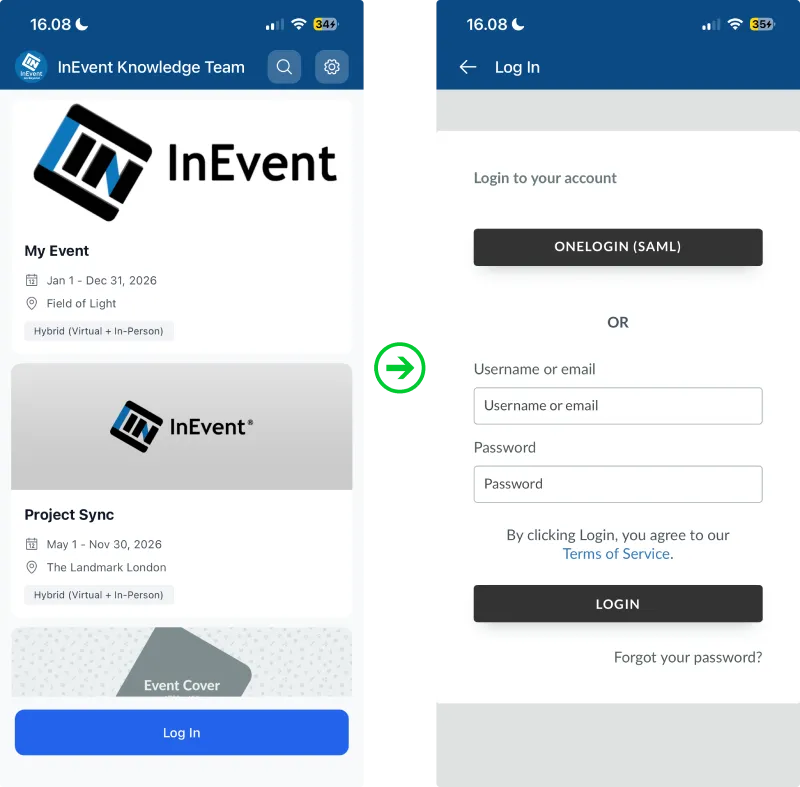
After logging in, registered app users will be able to immediately access the event from the Events Directory. If this is the first time someone has entered the app, they will be prompted with a set of basic onboarding questions (name, company, role, etc.) to speed up future registrations. However, if you do not wish for this to show up, you can go to Settings > Tools and enable Skip app profile onboarding. For more information, refer to the Set Event Tools article.
Accounts with Administrator or Staff permissions can immediately access the event, whereas attendees or other user accounts with no administrator privileges may be required to complete registration questions.
Navigating the mobile app
App users can access multiple event tabs using the navigation menu. The default tabs are as listed below.
Tab | Description |
Feed | Posts in the event's News feed |
Schedule | The user's Agenda and enrolled activities |
Networking | A set of networking features. The Chat tab houses chats between attendees, the People tab displays the public attendee list, and the user's favorite attendees are displayed under Favorite. |
Event | Details and information about the event |
Menu | More menu items, including the quick menu, user profile, session checking features, option to navigate back to the Events Directory, and logout button. |
Switching in-app language
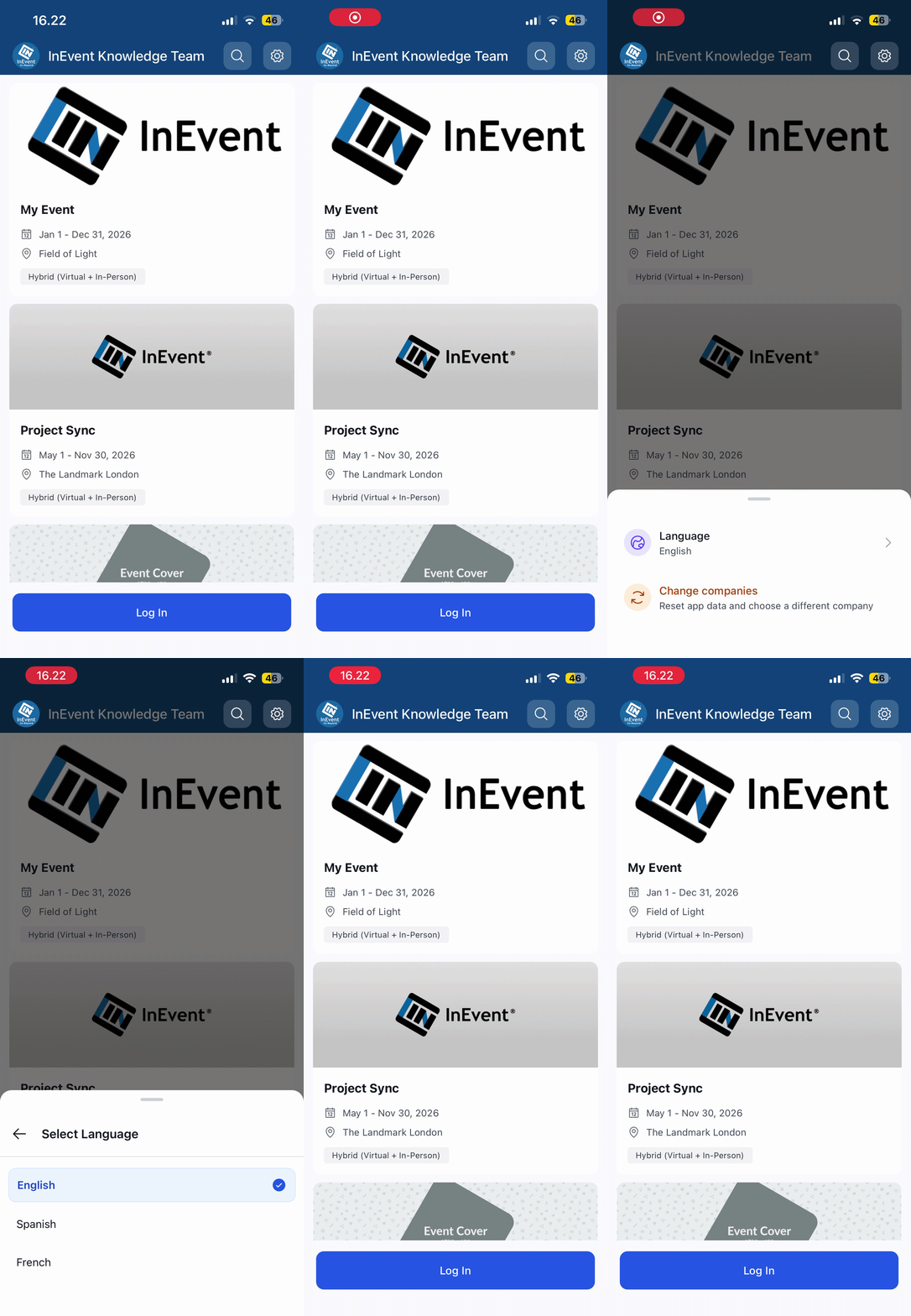
App language can be switched or changed manually by tapping the Settings icon on the top right corner of the Event Directory, or by tapping the Language button within the Menu tab, and selecting the preferred language. The app will automatically refresh and display the selected language.
Switching between companies in the mobile app
If you have access to multiple companies, you can easily switch between them using a company code.
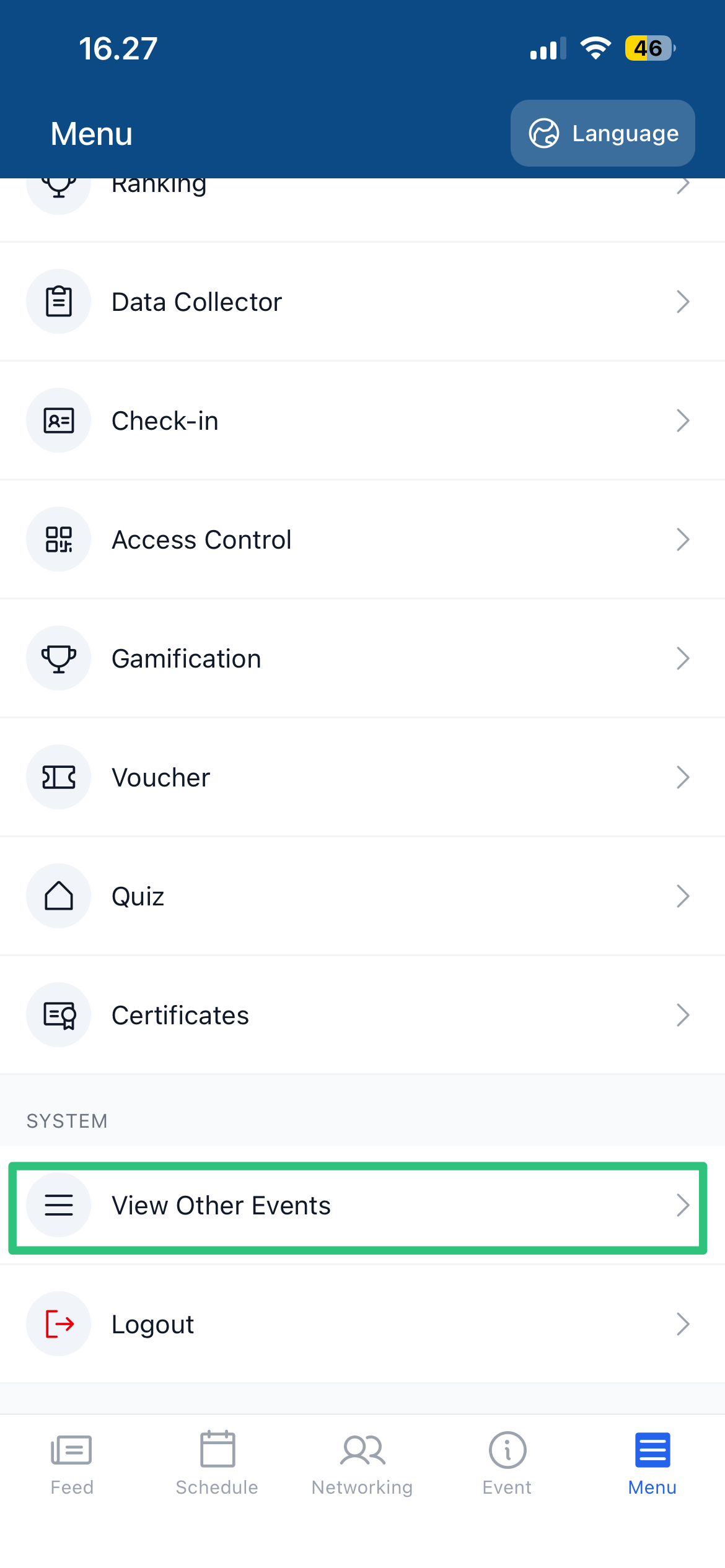
- Navigate to the Menu tab.
- Scroll down and tap View Other Events. This will direct you to the Event Directory.
- Tap Change companies. This will prompt you to enter the desired company code and region.
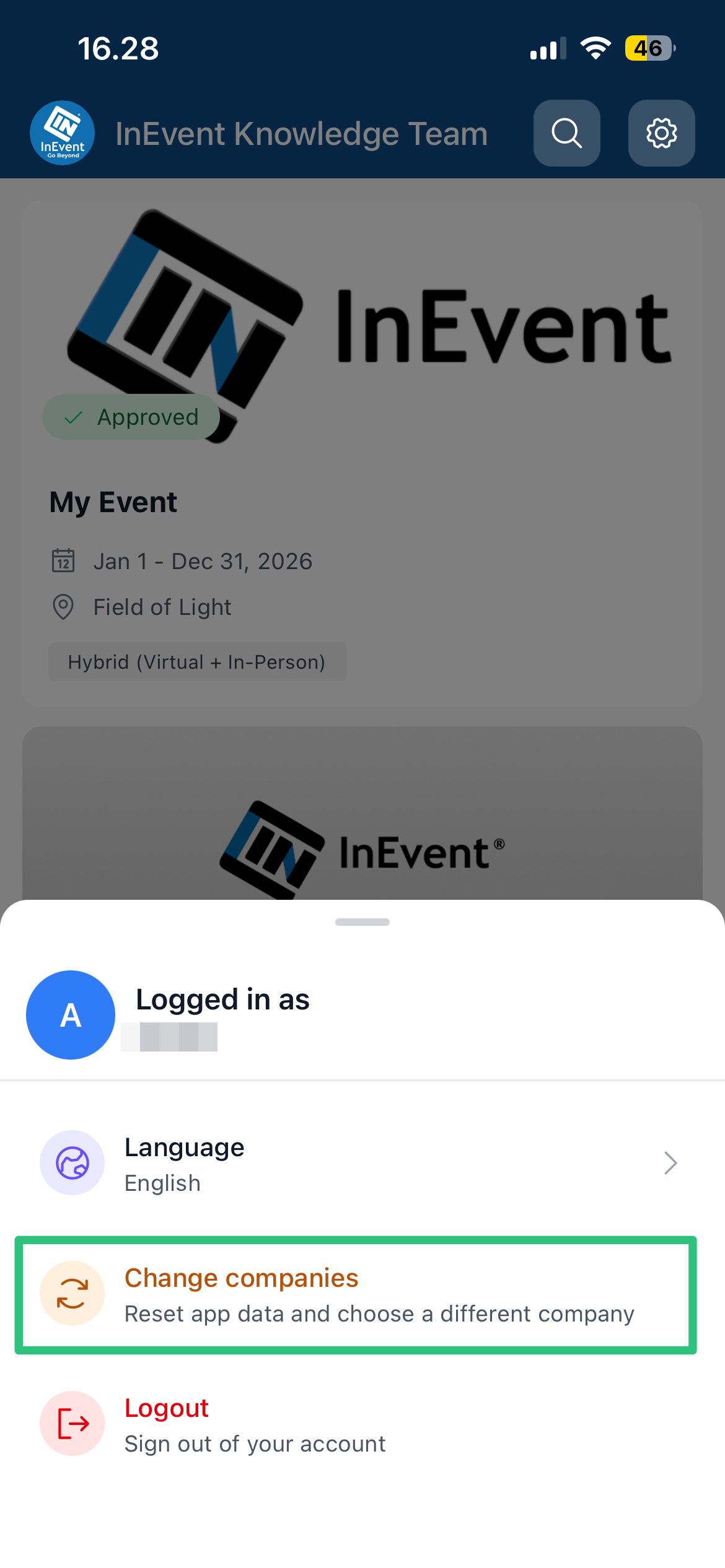
After entering the code, you will be directed to the target company's event directory.
Encouraging app downloads and engagement
Event organizers may be concerned about ensuring their attendees use and engage with their event using the mobile app. InEvent understands this concern, and provides tips to ensure download and engagement in the App.
